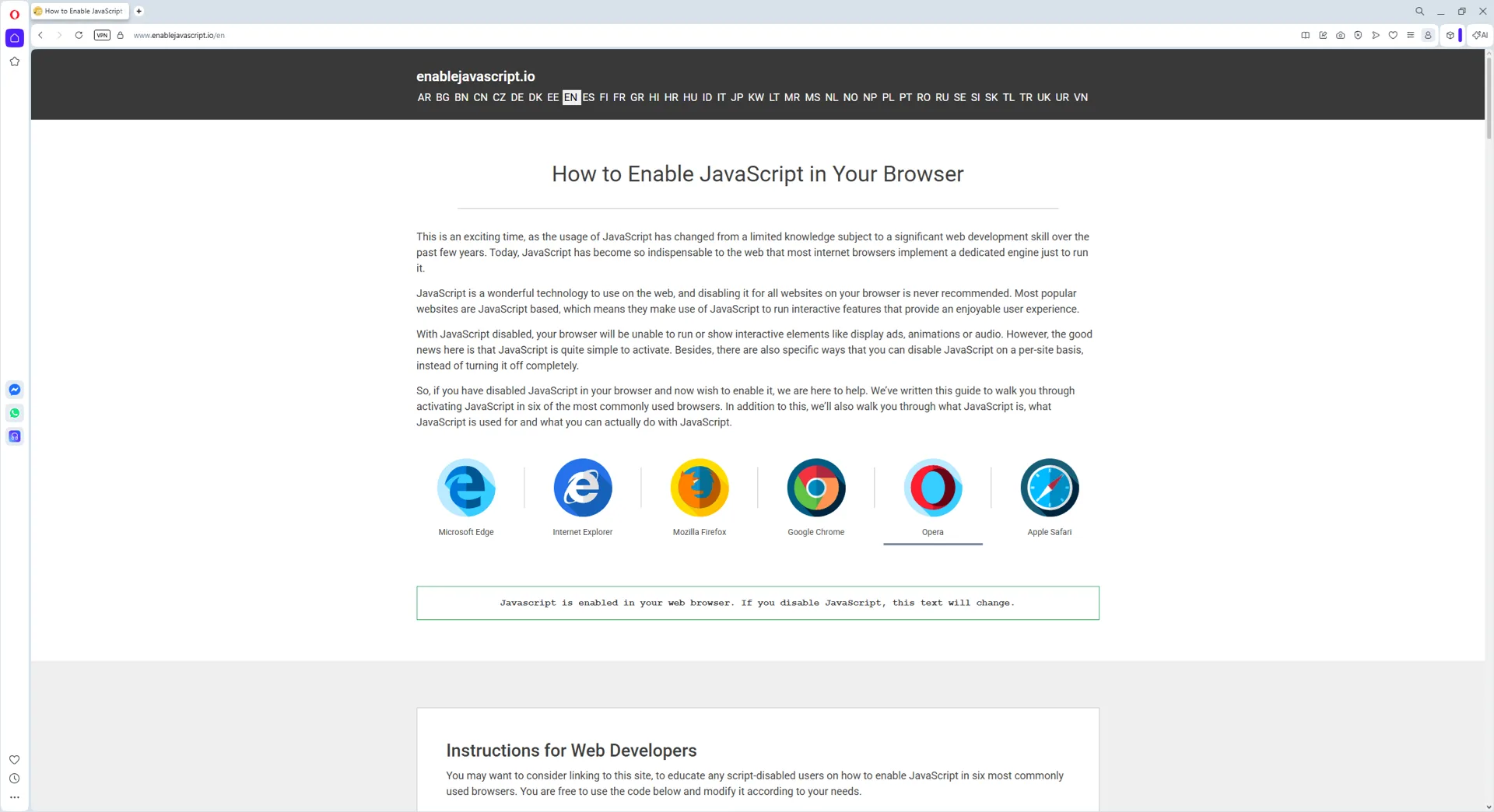
Opera는 2013년부터 Chromium 엔진 기반으로 개발되어 JavaScript 설정 위치가 Chrome 및 Edge와 거의 동일합니다. 게임 특화 분기인 Opera GX도 마찬가지입니다. Opera에서 JavaScript는 기본적으로 활성화되어 있으므로, 이 가이드는 어떤 이유로든 비활성화된 경우에만 필요합니다.
이 가이드는 Opera의 전체 JavaScript 토글, opera://settings 단축 경로, 특정 사이트만 허용 또는 차단하는 절차를 안내합니다.
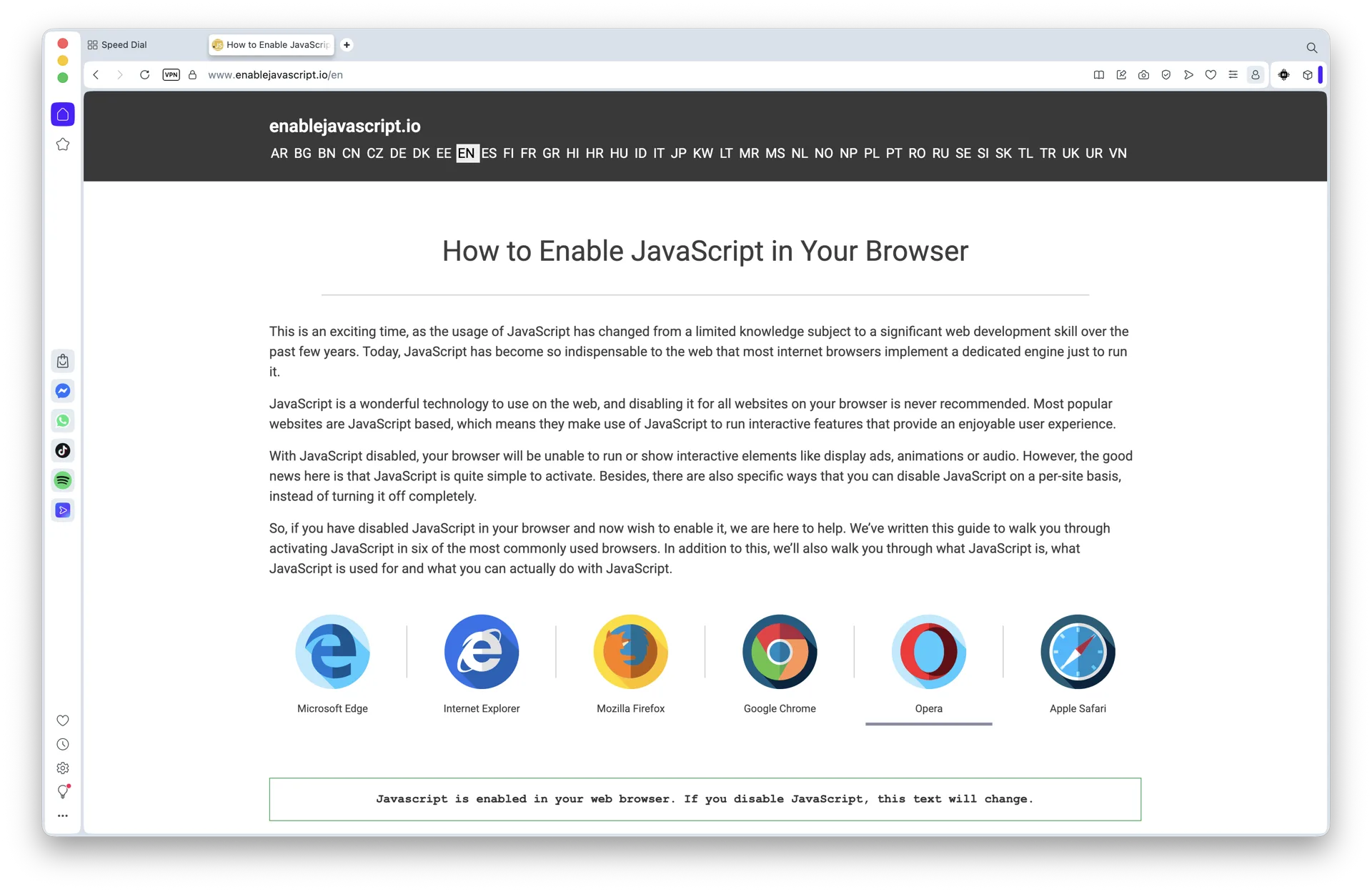
Javascript is enabled in your web browser. If you disable JavaScript, this text will change.
웹 개발자를 위한 설명
자바스크립트 사용하지 않는 사용자들이 6개의 보편적인 브라우저에서 자바스크립트를 활성화할 수 있도록 이 사이트에 연결하는 것이 좋습니다. 아래의 코드를 자유롭게 사용하고 필요에 따라 수정할 수 있습니다.
<noscript>
 이 사이트의 모든 기능을 이용하려면 자바스크립트를 활성화해야 합니다.
여기에 <a href="https://www.enablejavascript.io/">
 웹 브라우저에서 자바스크립트를 활성화하는 방법에 대한 설명이 있습니다</a>.
</noscript>
enablejavascript.io에서는 자바스크립트를 사용하지 않는 사용자들에게 다음과 같은 방법으로 편의를 제공합니다:
페이지 최상단에 브라우저에 관한 설명이 있습니다.
모든 이미지가 풀 사이즈로 정렬되어 보기 쉽습니다.
방문자가 당신처럼 자바스크립트를 활성화할 수 있기를 바랍니다!
Opera 브라우저에서 JavaScript 활성화하기
Opera는 Chromium 기반 브라우저이므로 JavaScript 설정 위치가 Chrome과 비슷합니다. 절차:
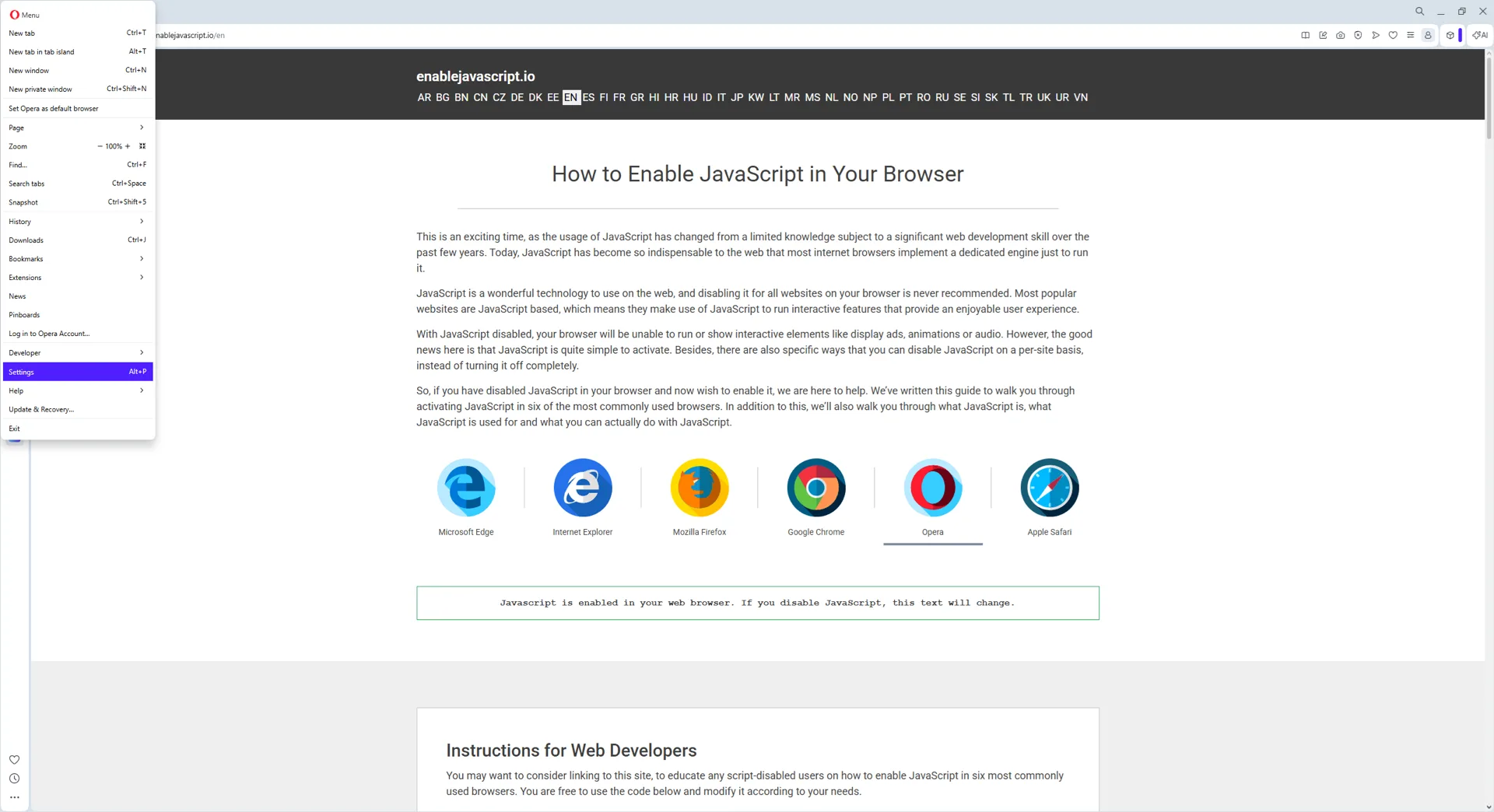
Opera를 열고 창 우측 상단의 간편 설정(또는 가로선 3개 메뉴)을 클릭합니다.
아래로 스크롤해 브라우저 설정 열기를 선택합니다(또는 opera://settings를 직접 입력).
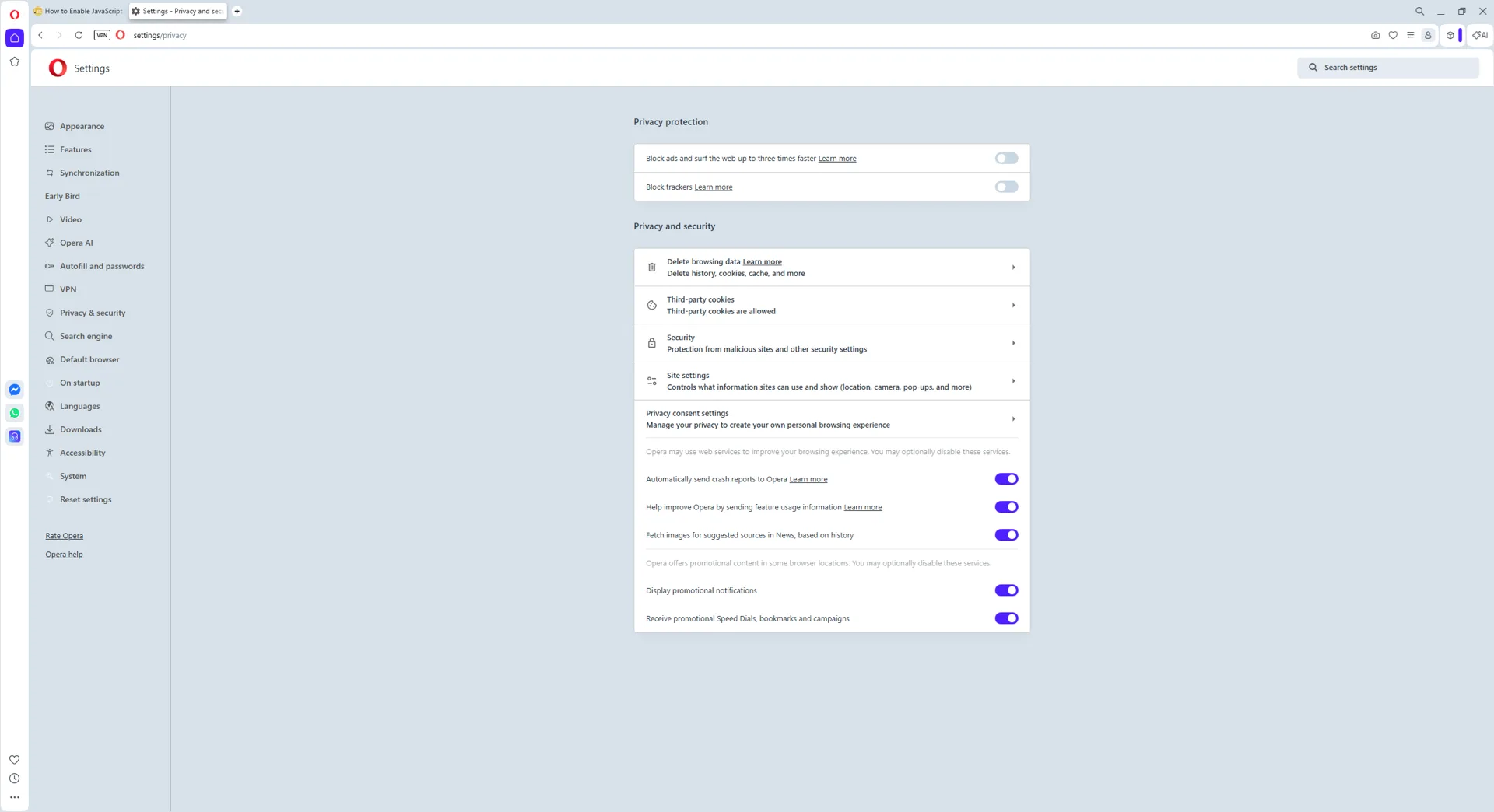
좌측 사이드바에서 개인정보 보호 및 보안을 선택합니다.
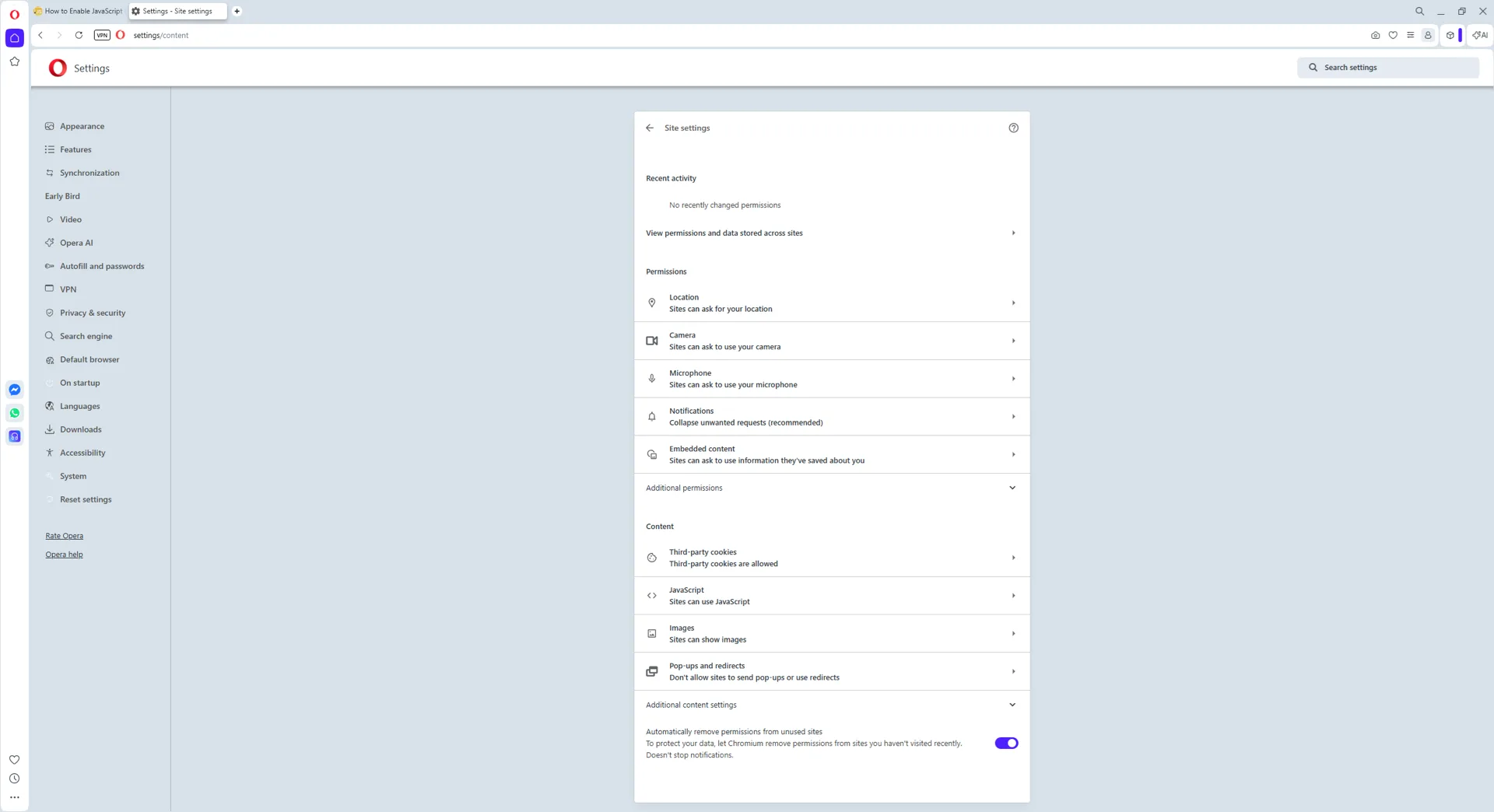
사이트 설정 → JavaScript로 이동합니다.
사이트에서 JavaScript를 사용하도록 허용을 선택합니다.
Opera 주소창에 opera://settings/content/javascript를 직접 입력하면 JavaScript 설정 페이지로 곧바로 이동합니다.
Opera는 기본적으로 JavaScript가 활성화되어 있으므로 위 절차는 비활성화된 경우에 필요합니다. Opera GX(게이머용 분기)에서도 동일한 절차입니다.
How to Enable JavaScript in Opera on Windows 10 and Windows 11
The Opera JavaScript toggle is in the same place on Windows 10 and Windows 11 - the browser ships an identical Settings UI on both. Opera 105 and later (the modern Chromium-based release) follows these six steps:
Step 1: Open Opera
Launch Opera from your Start menu or taskbar.
Opera running on Windows 11.
Step 2: Open the Easy Setup menu
Click the red Opera "O" menu in the top-left corner, or open the Easy Setup panel in the top-right. Either entry point reaches the Settings page.
Open Settings via the Opera menu or the Easy Setup panel.
Step 3: Open Site settings
Inside Settings, click Privacy & security in the left sidebar (you may need to expand Advanced first), then choose Site Settings.
Site Settings is where every per-content permission lives.
Step 4: Open the JavaScript permission
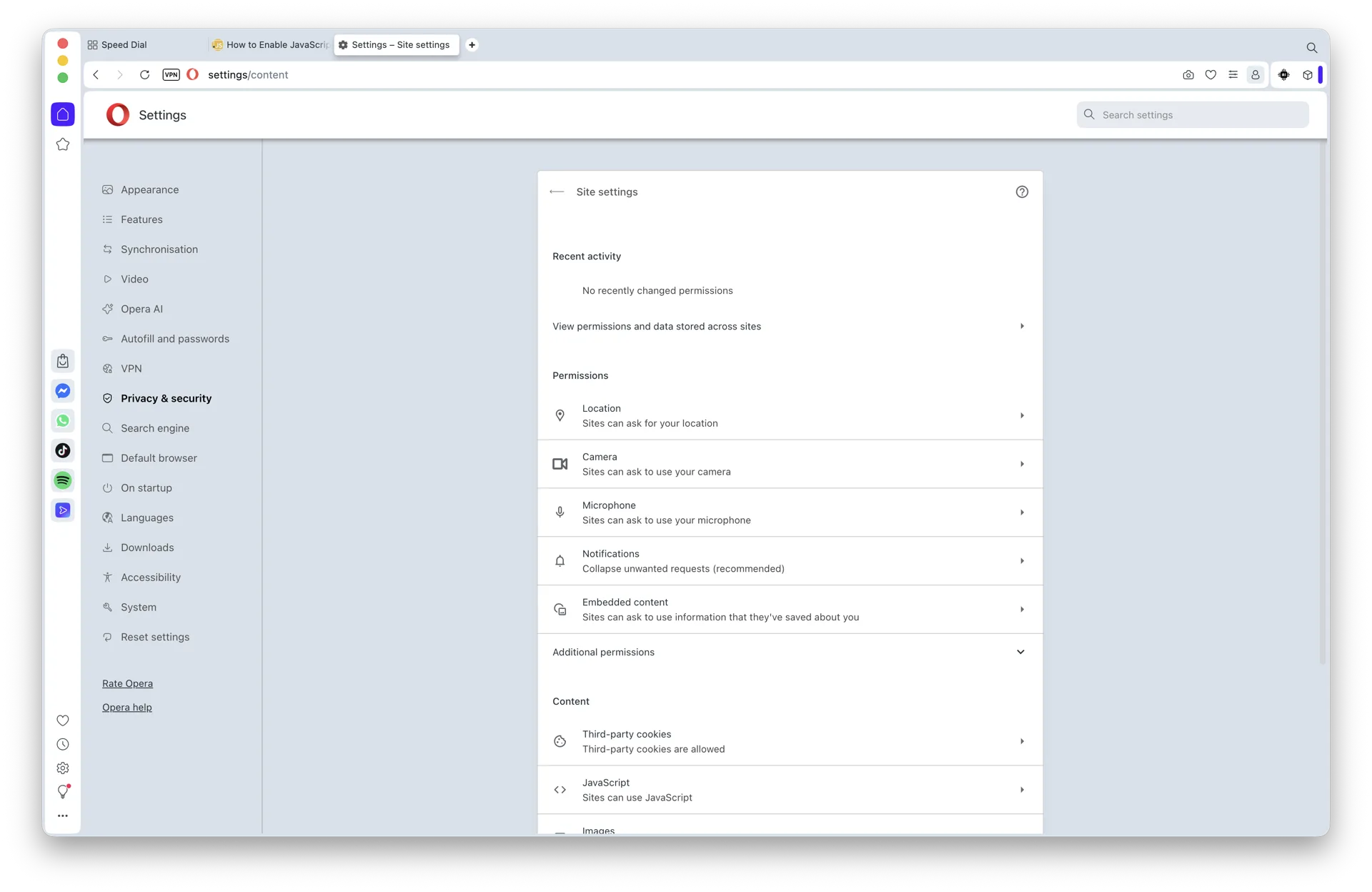
Scroll to the Content section and click JavaScript. The shortcut opera://settings/content/javascript jumps straight here.
The JavaScript permission page inside Opera Site settings.
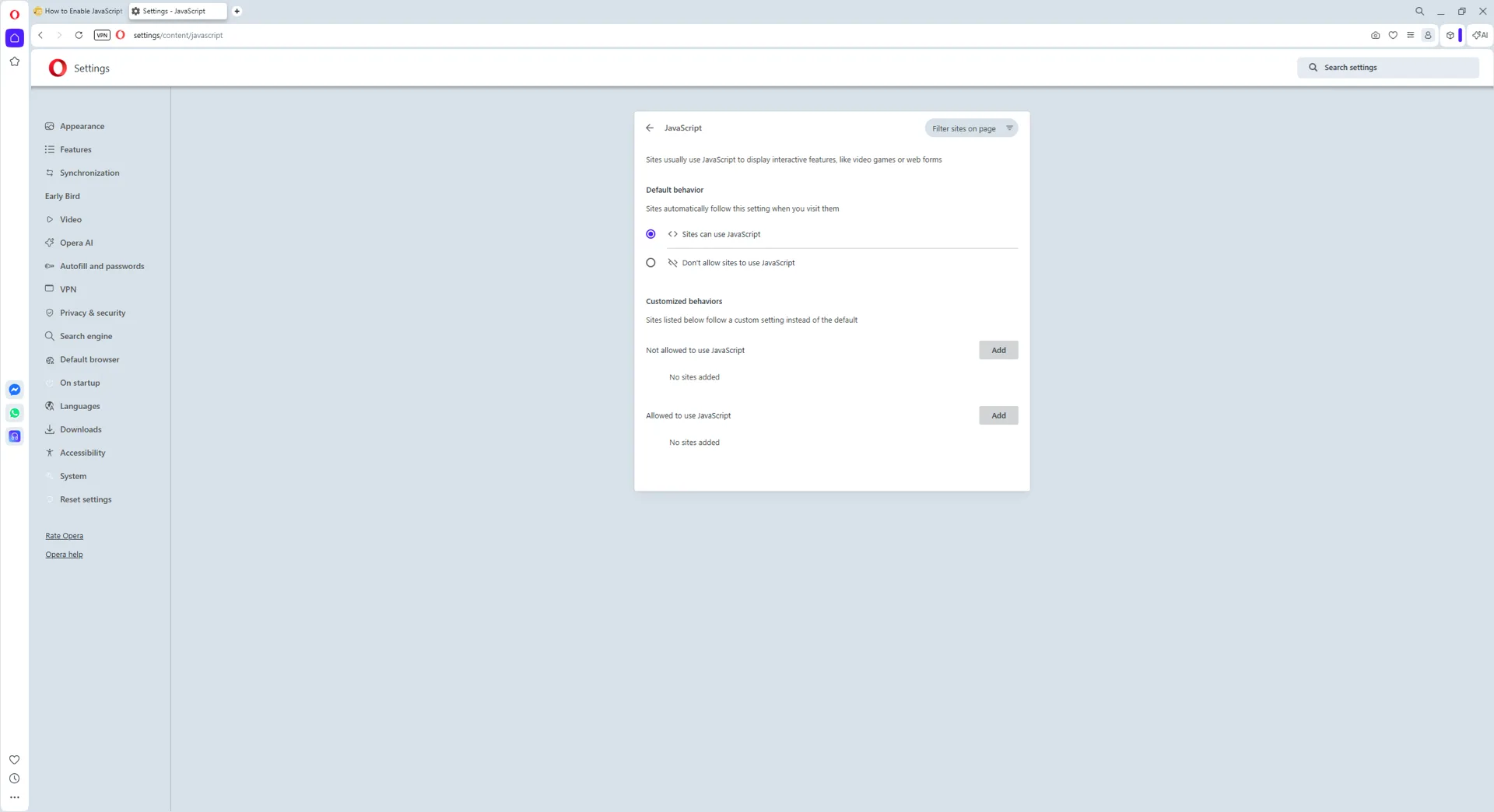
Step 5: Select Sites can use JavaScript
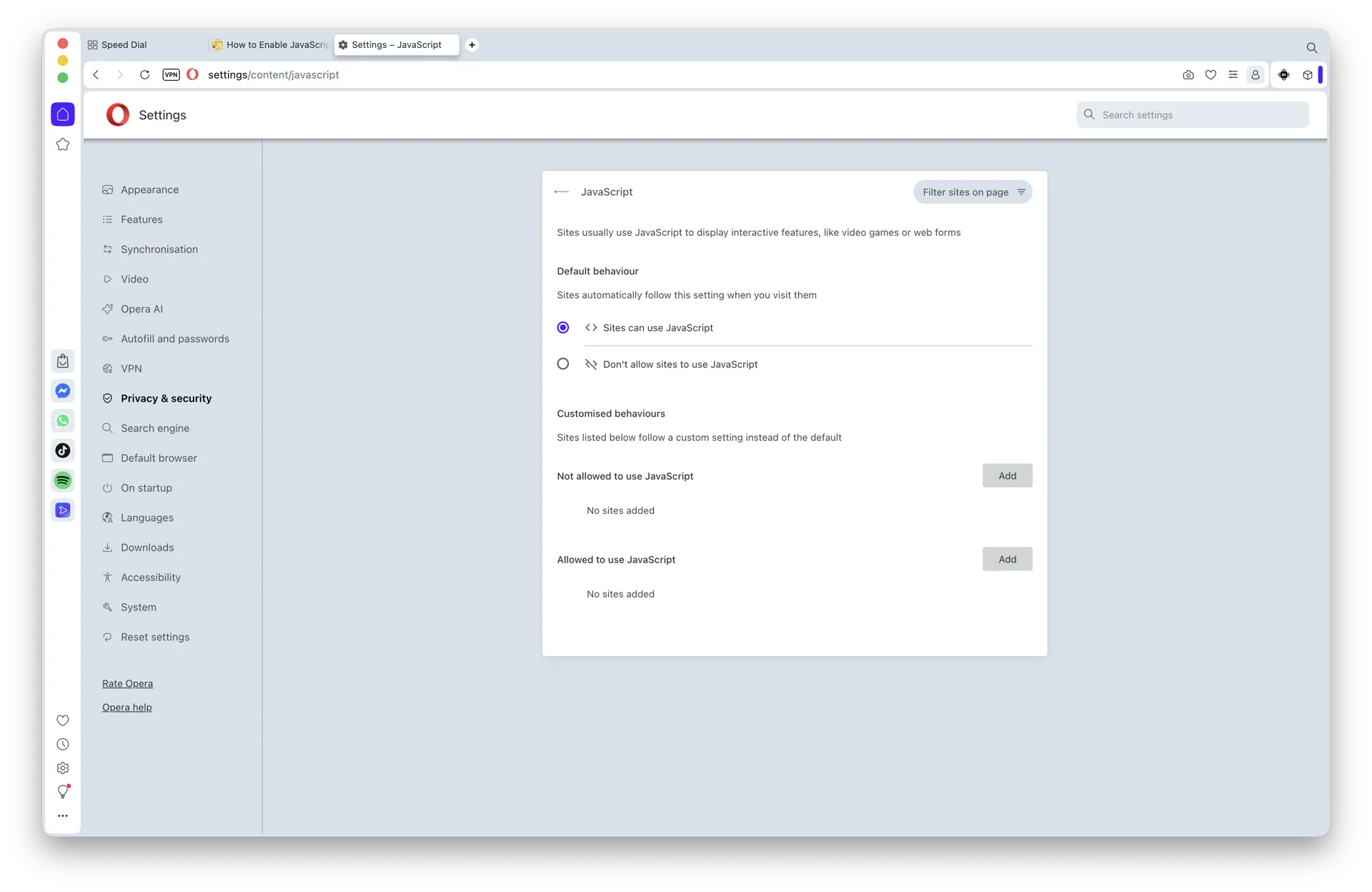
Under Default behavior, choose Sites can use JavaScript. Opera saves the change instantly.
JavaScript is now allowed on every site by default.
Step 6: Verify (optional) - and how to turn it off
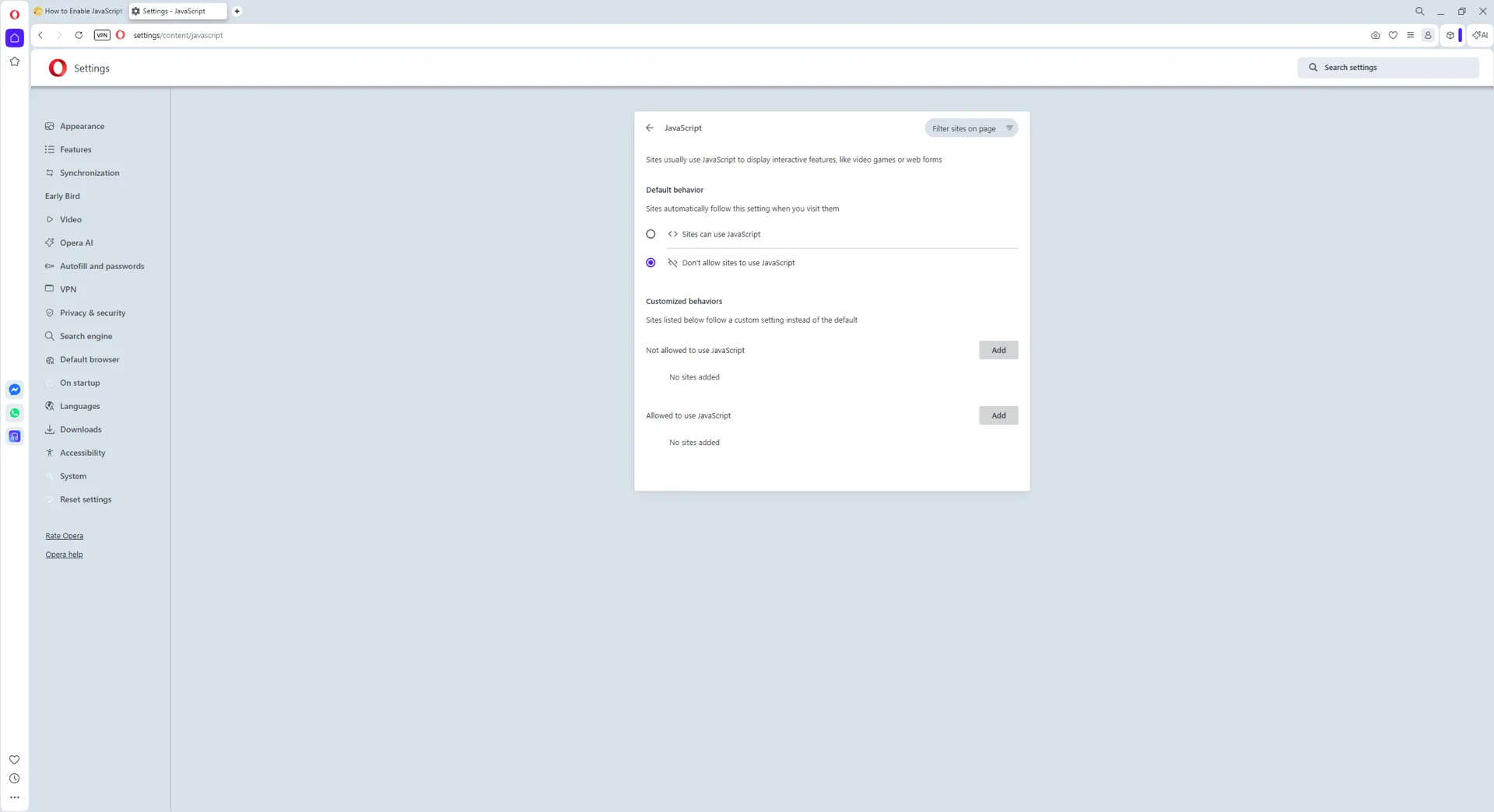
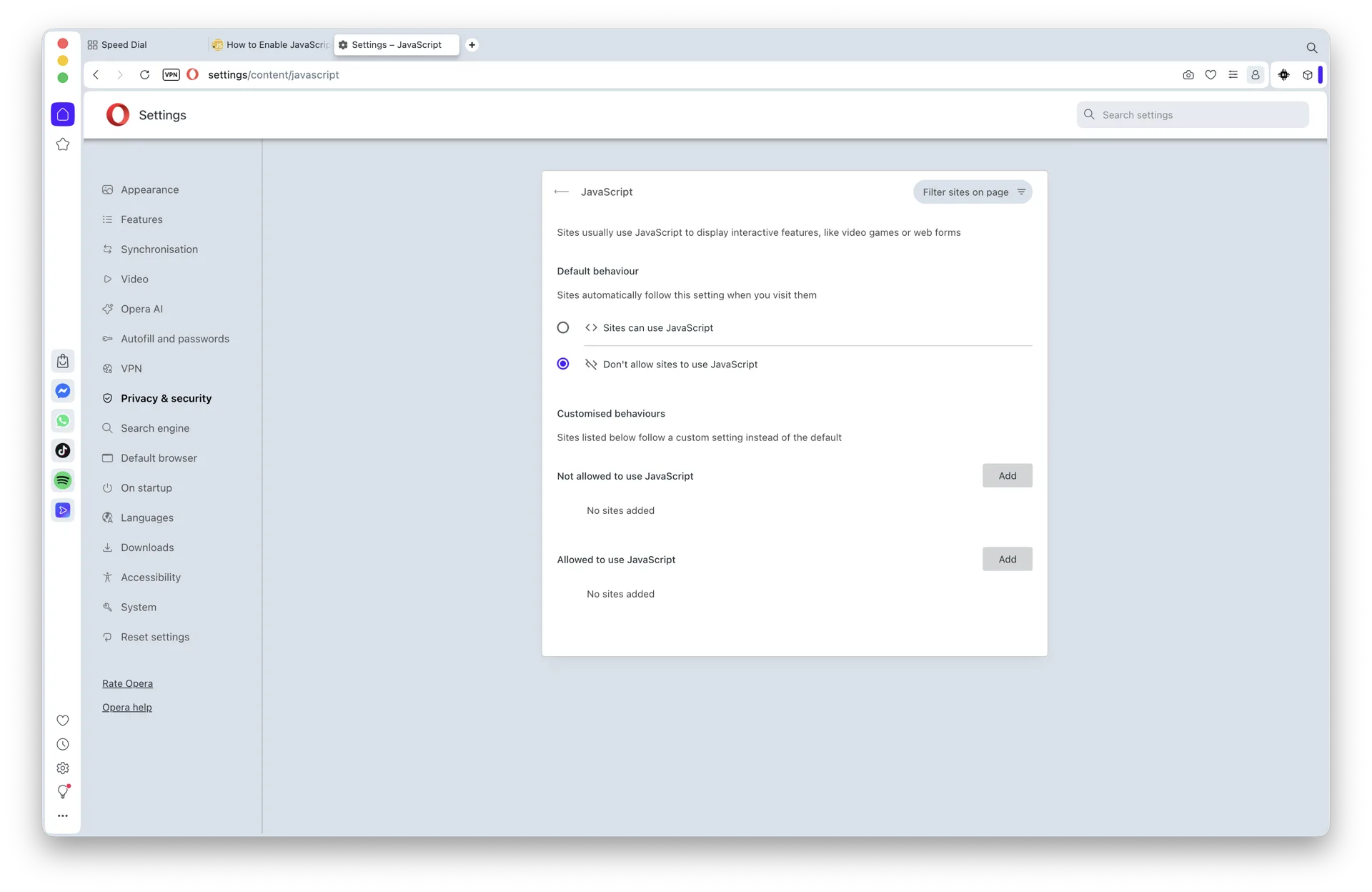
To confirm, reload any interactive site (YouTube, Gmail, Facebook). If you ever need the opposite, pick Don't allow sites to use JavaScript on the same screen:
The same toggle in the disabled state.
JavaScript is now enabled across every site you visit. The same flow works for Opera GX - the gaming-themed sibling shares the same Chromium settings UI. Add specific sites to the Not allowed list on the same page if you want to block scripts only on certain pages.
How to Enable JavaScript in Opera on Mac (macOS Sonoma, Sequoia, and macOS 26)
The macOS version of Opera - on macOS Sonoma, Sequoia, and macOS 26 - uses the same Chromium-based Settings UI as the Windows build. Follow these five steps:
Step 1: Open Opera
Launch Opera from your Dock, Launchpad, or Applications folder.
Opera running on macOS 26.
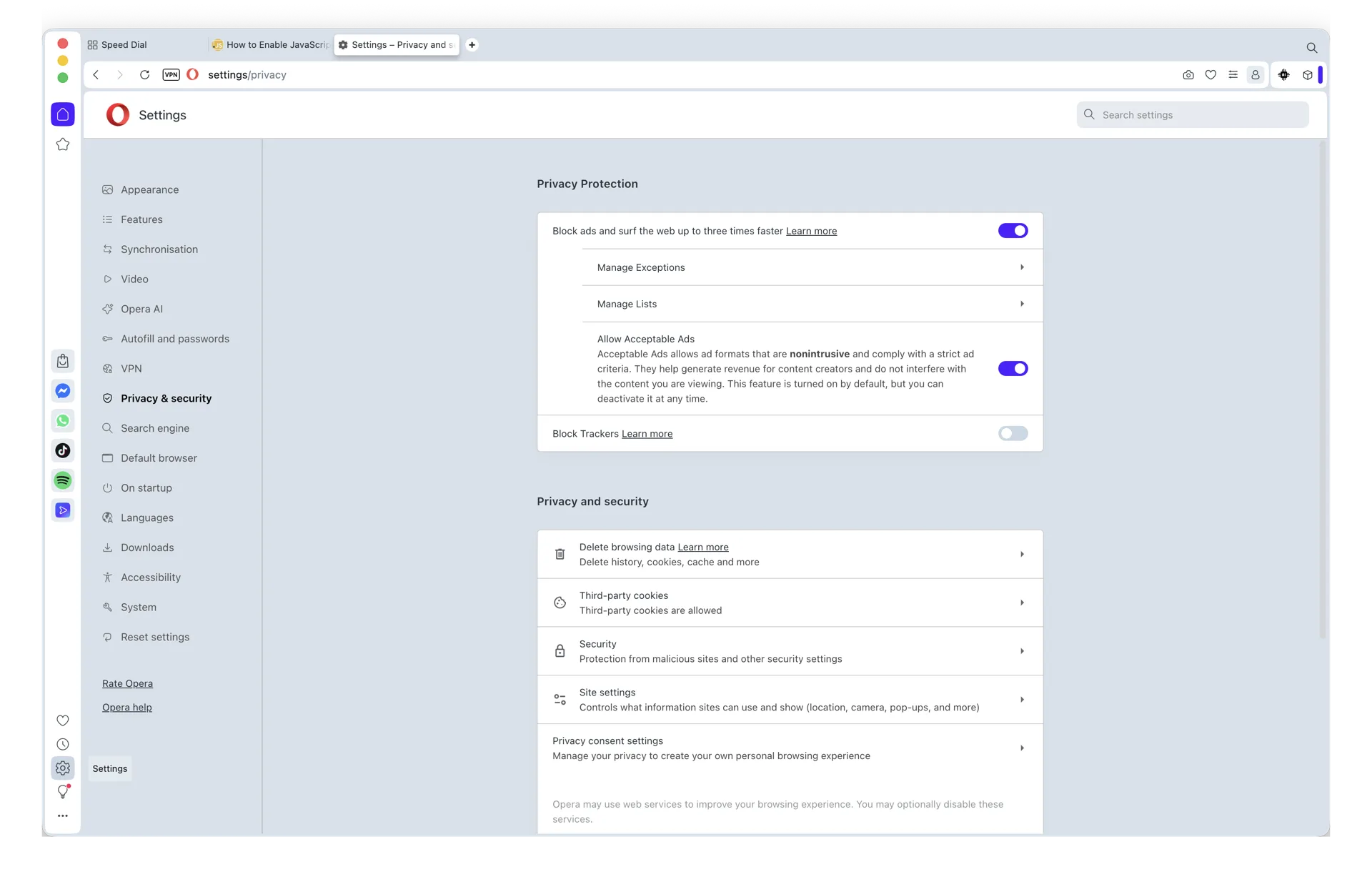
Step 2: Open Settings, then Site Settings
From the macOS menu bar choose Opera → Settings... (or press Cmd+,). In the Settings page sidebar, click Privacy & security, then choose Site Settings.
Site Settings is where every per-content permission lives in Opera for Mac.
Step 3: Open the JavaScript permission
Scroll to the Content section and click JavaScript. The shortcut opera://settings/content/javascript jumps straight here.
The JavaScript permission page inside Opera Site settings on macOS.
Step 4: Select Sites can use JavaScript
Under Default behavior, choose Sites can use JavaScript. The change saves immediately.
JavaScript is now enabled by default for every site.
Step 5: How to turn it back off
To disable JavaScript later, return to the same screen and pick Don't allow sites to use JavaScript:
The same toggle in the disabled state.
That's it. Reload any interactive site (YouTube, Gmail, Google Docs) to confirm scripts now run as expected. The same flow works for Opera GX on macOS - the gaming-themed sibling shares the same Chromium settings UI.
How to Enable JavaScript in Opera on iPhone, iPad, and iOS
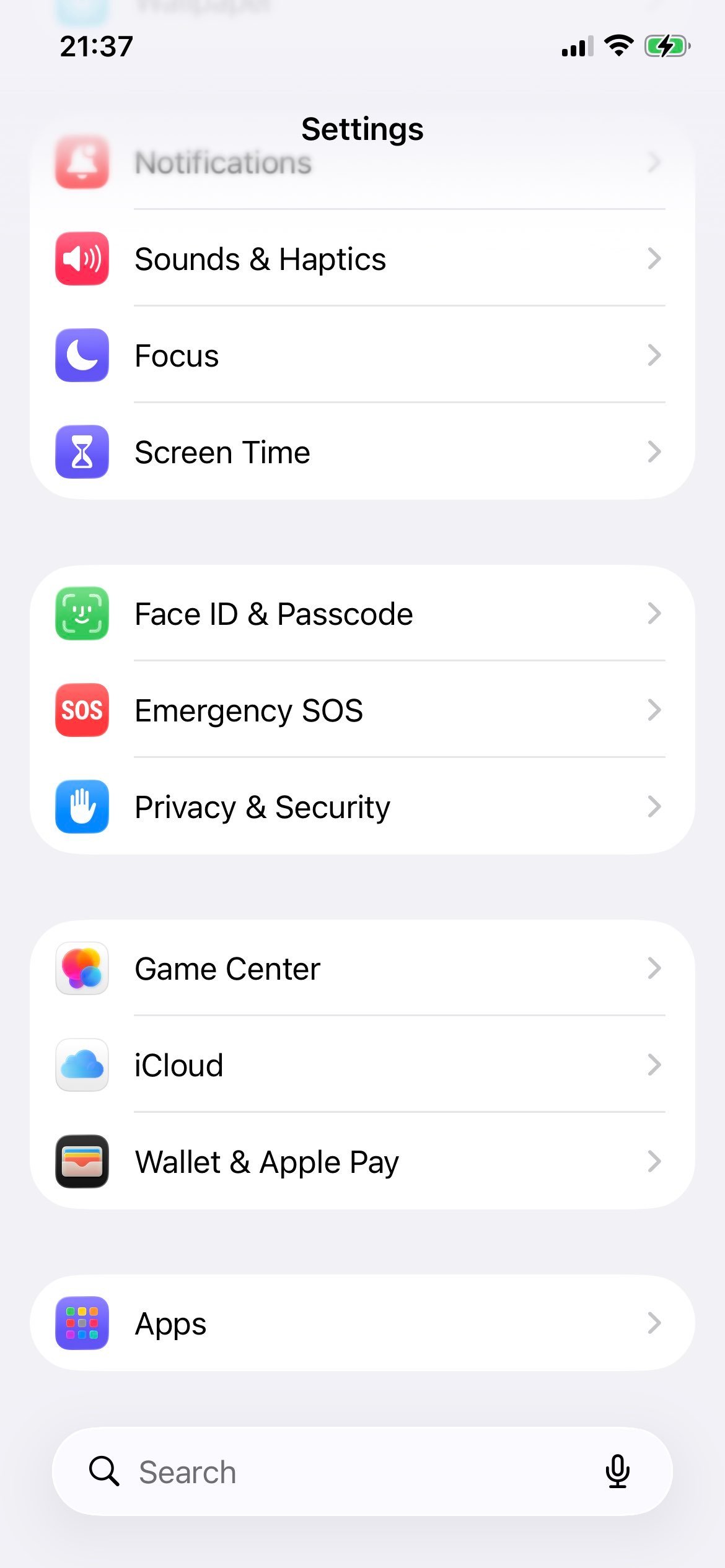
On iPhone and iPad, every browser - including Opera, Opera GX, Chrome, Edge, Firefox, Brave, and DuckDuckGo - is required by Apple to use the system WebKit engine. That means there is no JavaScript toggle inside the Opera iOS app itself. The setting that controls JavaScript for Opera on iOS lives in the system Settings → Apps → Safari → Advanced screen, and it applies to every browser at once.
Step 1: Open the Settings app
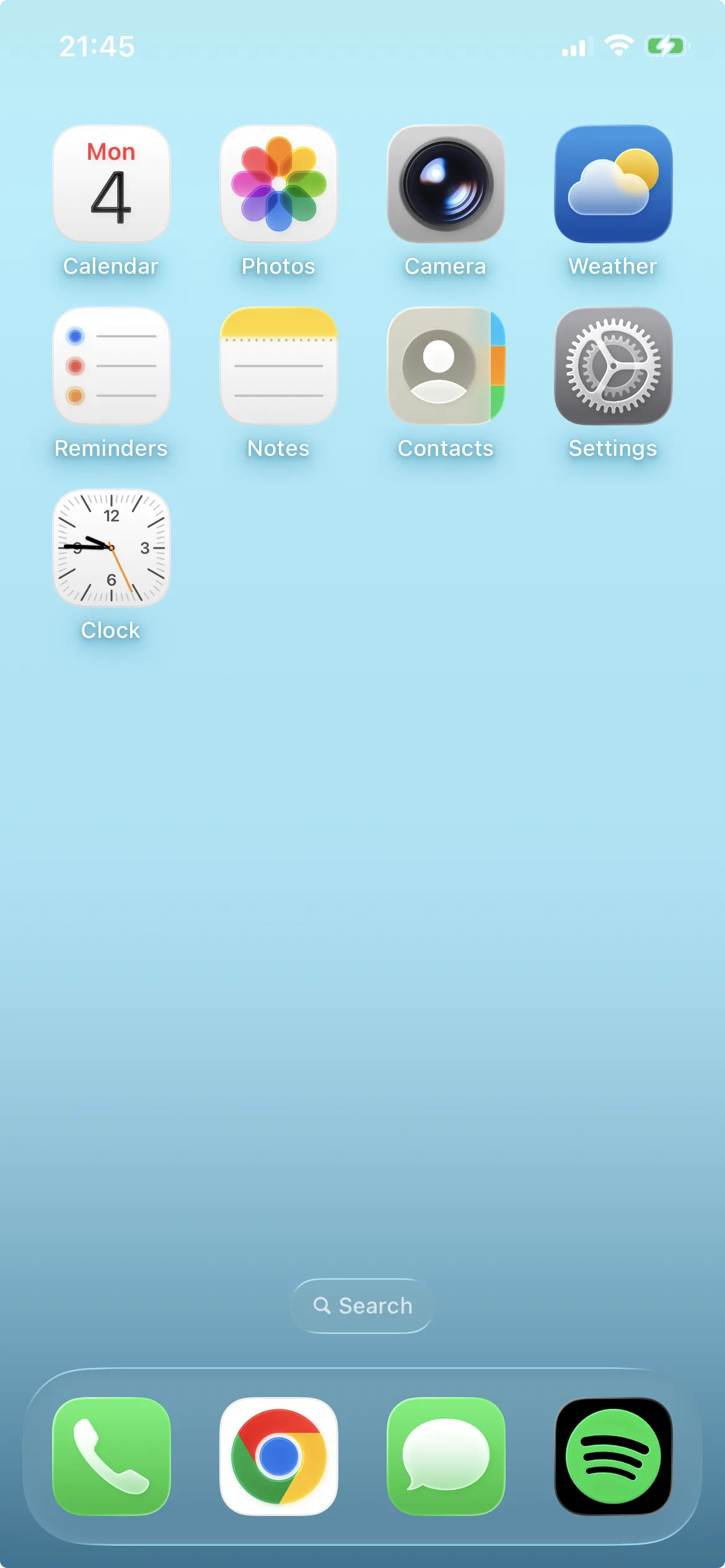
Tap the gray gear icon on your home screen or App Library to launch iOS Settings.
Open the Settings app on your iPhone or iPad.
Step 2: Open Apps
Scroll down and tap Apps. (On iOS 17 and earlier, Safari appears directly in the main Settings list - tap it instead.)
The Apps section consolidates per-app system settings.
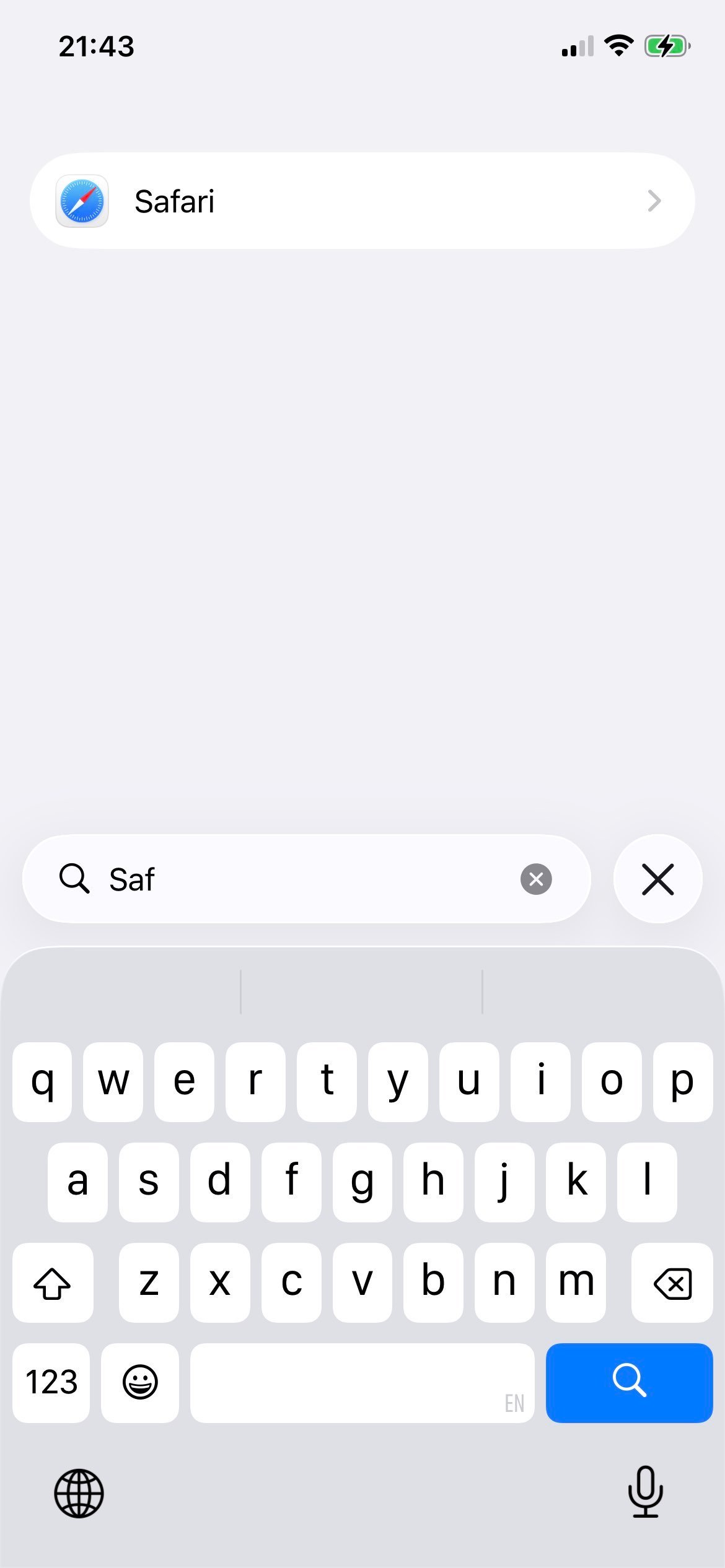
Step 3: Select Safari
Inside Apps, scroll to and tap Safari. This is where iOS controls the WebKit engine that Opera iOS uses behind the scenes.
Safari is the gateway to JavaScript settings for every iOS browser.
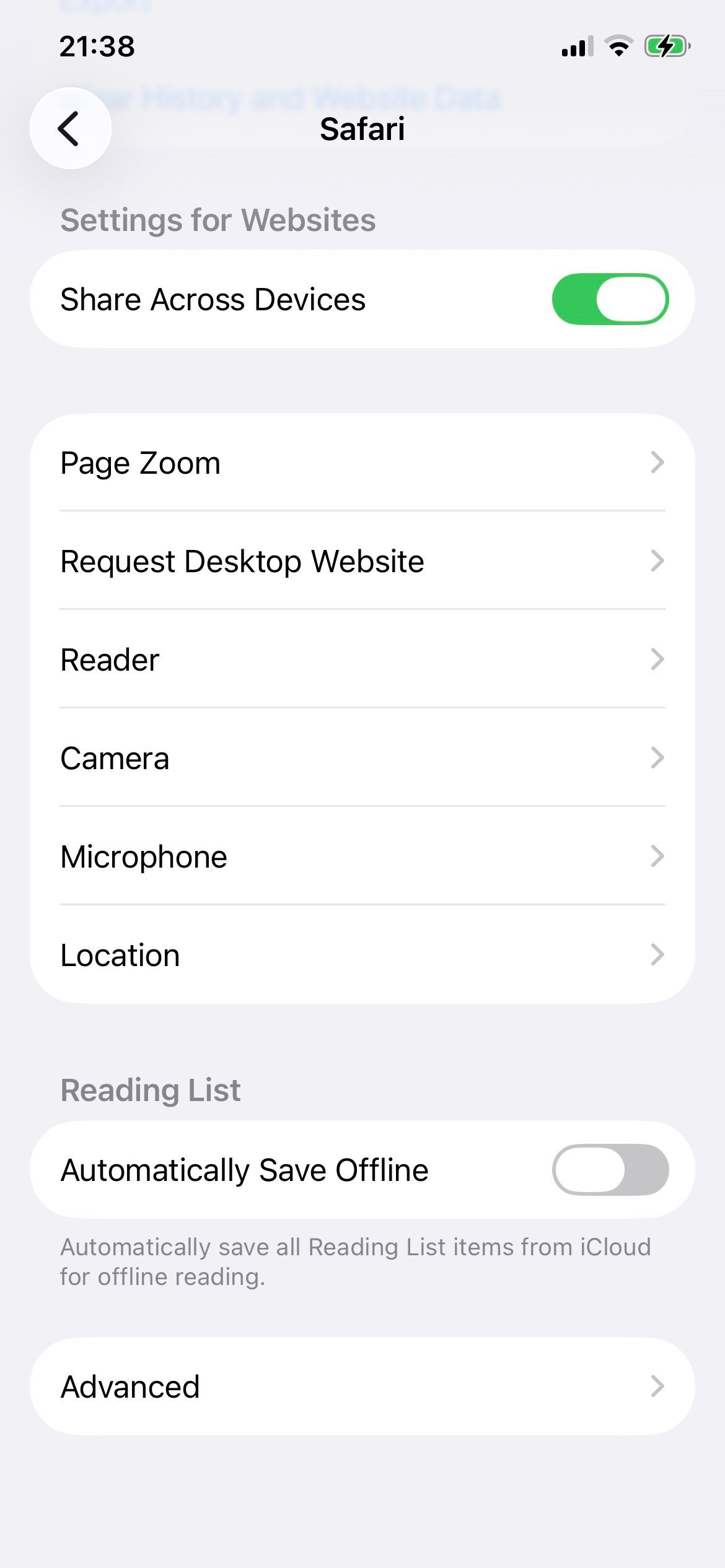
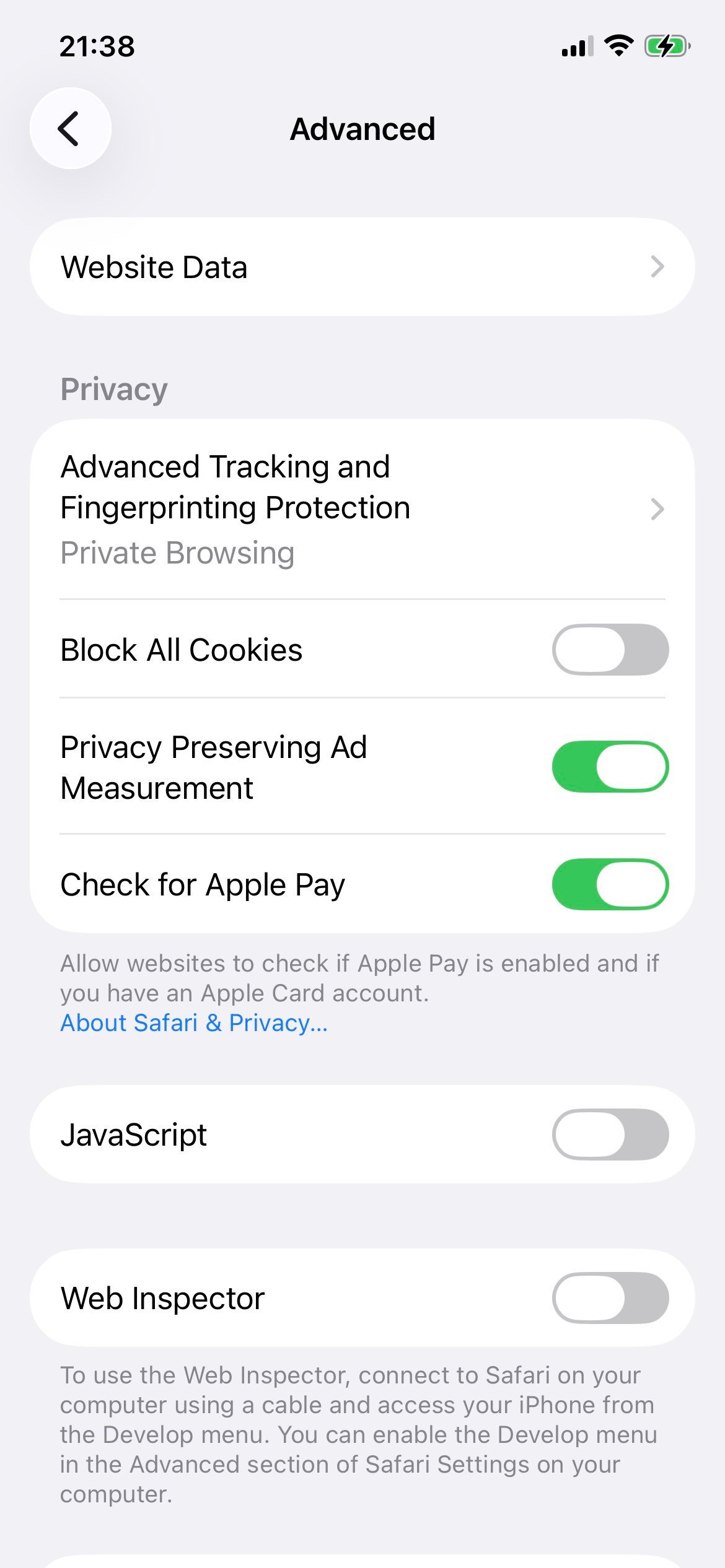
Step 4: Tap Advanced
Scroll to the bottom of the Safari settings page and tap Advanced.
The Advanced page contains the JavaScript switch.
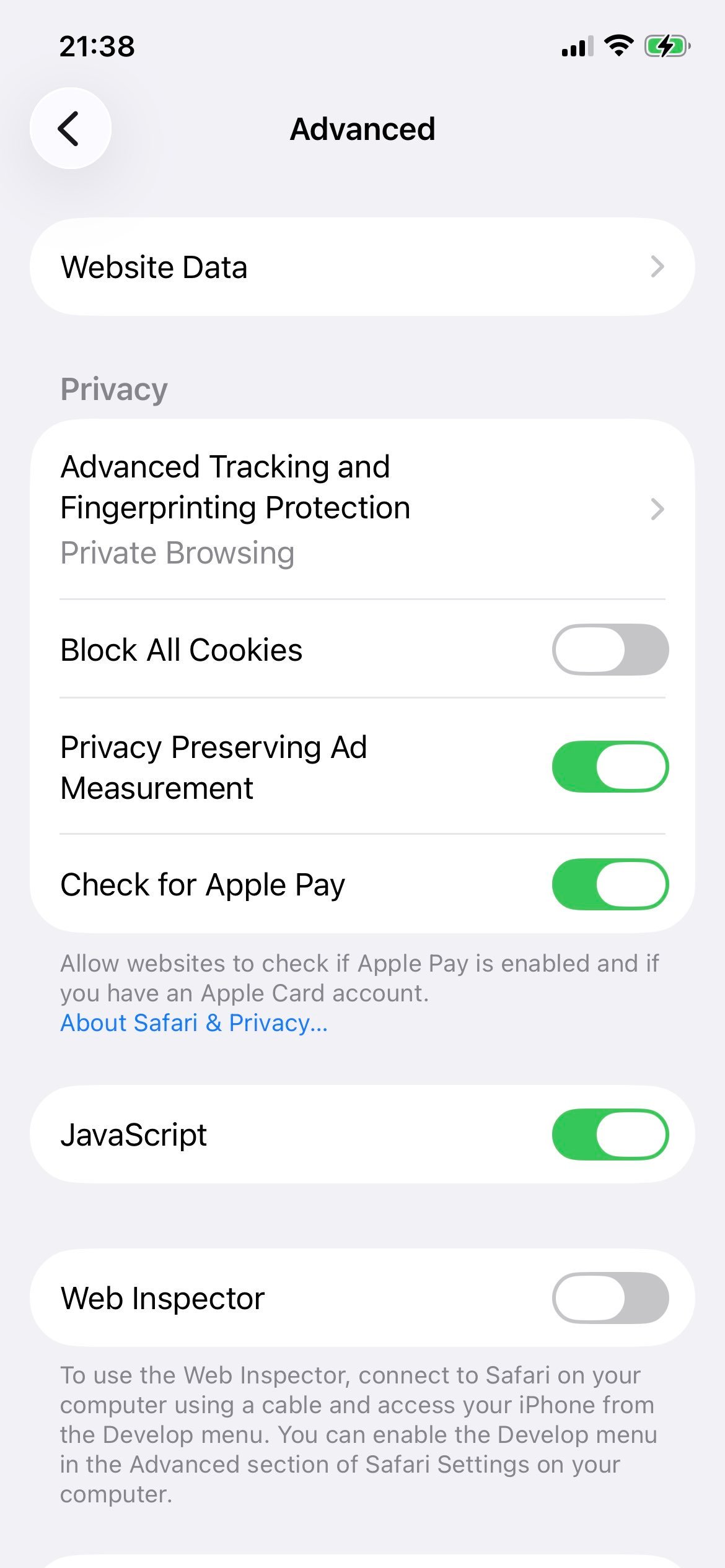
Step 5: Enable JavaScript
Toggle the JavaScript switch on (green). The change applies immediately to Opera, Safari, and every other iOS browser.
JavaScript enabled for every browser on iOS.
Step 6: How to turn it off again
To disable JavaScript later, flip the same switch off (gray). Note that almost every modern site will break without it.
The same toggle in the disabled state.
Now switch back to Opera iOS and reload your tab - JavaScript is on (or off) for every browser on the device.
Opera에서 특정 사이트의 JavaScript 허용 또는 차단하기
JavaScript를 전체적으로 토글하지 않고 특정 사이트의 동작을 다르게 두고 싶을 때:
해당 사이트를 엽니다.
주소창 좌측의 자물쇠 아이콘을 클릭합니다.
사이트 설정을 선택합니다.
JavaScript를 찾아 허용 또는 차단을 선택합니다.
페이지를 새로 고쳐 변경 사항을 적용합니다.
또는 opera://settings/content/javascript에서 사이트별 "허용"과 "차단" 목록을 직접 관리할 수 있습니다.
자주 묻는 질문
Opera에서 JavaScript가 동작하는지 어떻게 확인하나요?
Opera에서는 JavaScript가 기본 활성화 상태이지만 다음 절차로 확인할 수 있습니다. Opera 창 우측 상단의 "간편 설정"을 클릭해 설정 패널을 엽니다. 아래로 스크롤해 "브라우저 설정 열기"를 선택합니다. 검색창에 "JavaScript"를 입력하면 해당 항목이 표시되며, "사이트에서 JavaScript를 사용하도록 허용"으로 설정되어 있으면 정상입니다.
Opera에서 JavaScript를 끄면 어떻게 되나요?
오늘날 많은 사이트가 애니메이션, 특수 효과, 동적 콘텐츠 표시에 JavaScript를 사용합니다. Opera에서 비활성화하면 본래 경험을 받을 수 없으며 JavaScript에 의존하는 페이지의 디자인이 깨지거나 일부 기능을 사용할 수 없게 됩니다.
김영하 김Updated: 2026-05-03
번역가 김영하는 경희대학교 국제학과를 졸업했으며, 현재 국제 컨설팅 및 번역 업무를 맡고 있다.