How to Disable JavaScript on Apple Safari (iPad, iPhone, iOS, macOS)

Safari's JavaScript controls live in two different places. On Mac, the toggle is inside Safari's own Settings (the Security tab on macOS Sonoma 14 and Sequoia 15+). On iPhone and iPad, Safari's JavaScript control is in the Settings app under Apps → Safari → Advanced. Apple documents it as a Safari setting, not as an iOS-wide control for every browser app.
This guide covers every common reason someone turns JavaScript off in Safari today: privacy and anti-fingerprinting, battery and mobile data savings, web development testing, accessibility (VoiceOver often handles static HTML more cleanly), and reducing exposure to malicious scripts. All instructions reflect Apple's current interface on macOS Sequoia (15+), macOS Sonoma (14), and iOS/iPadOS 18+.
Disable JavaScript on iPhone and iPad (iOS/iPadOS 18+)
This is the most-used Safari path because the iPhone and iPad together drive the majority of Safari traffic. The toggle applies across Safari tabs and sites on the device. This guide does not claim it controls other browser apps. Follow the six steps below.
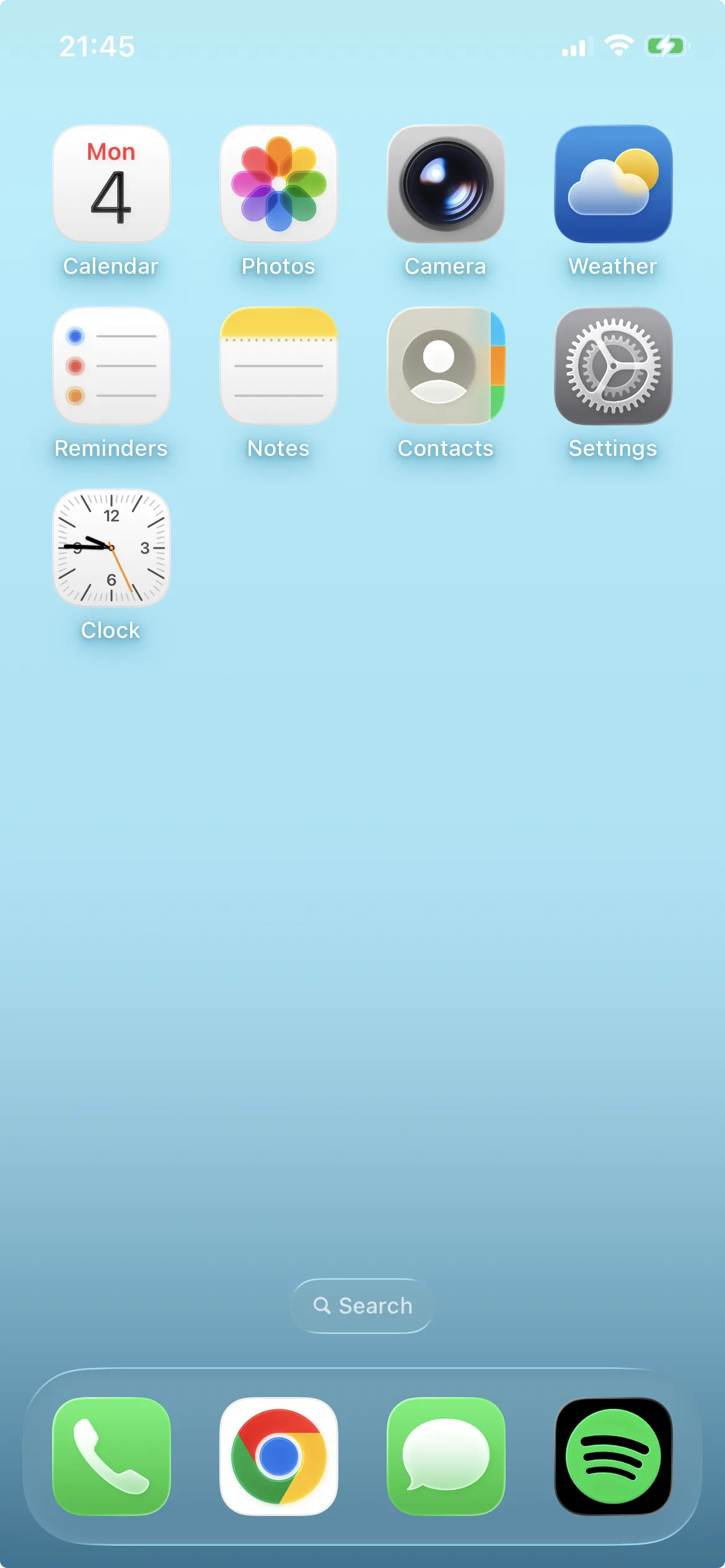
Step 1: Open the Settings app
Tap the gray gear icon labeled Settings on your Home Screen or in the App Library.
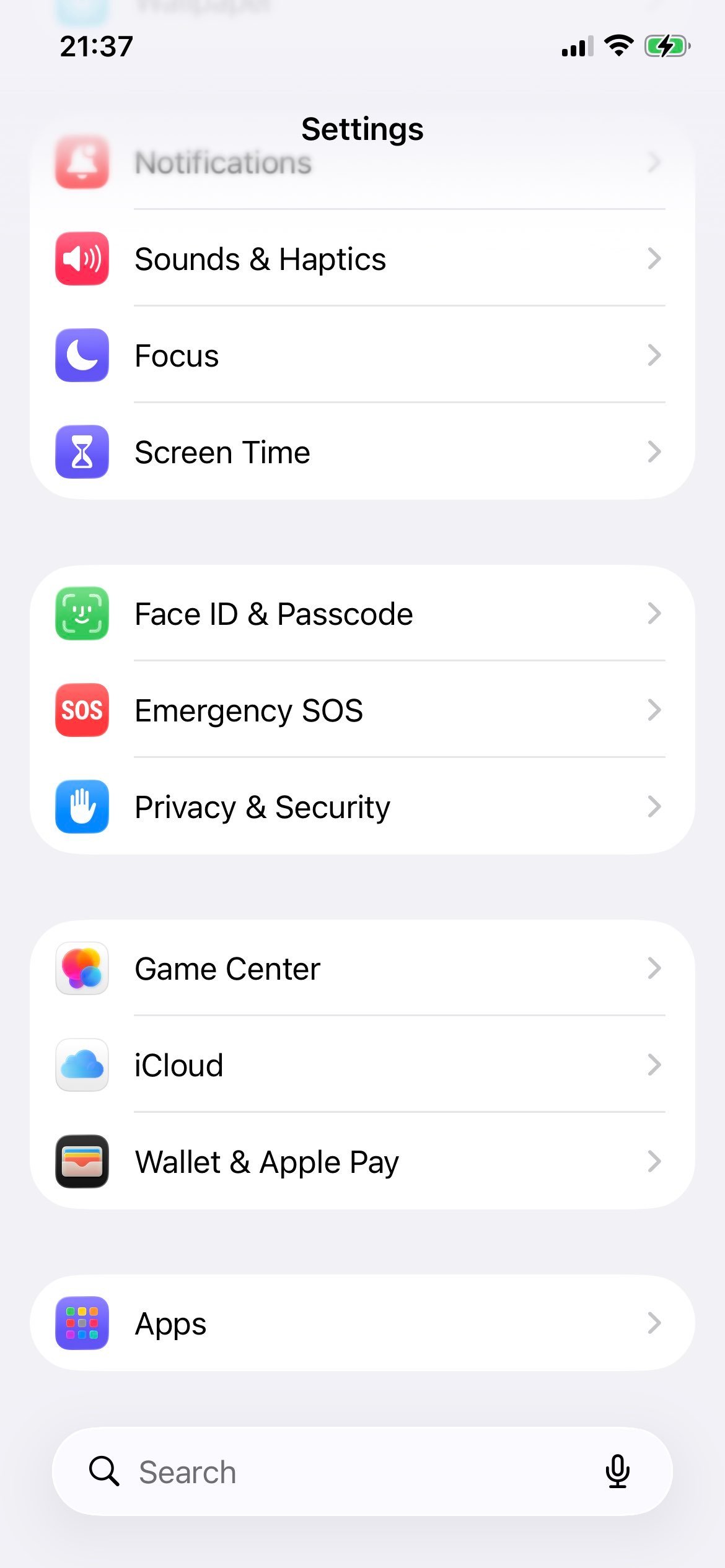
Step 2: Scroll down and tap Apps
iOS 17 introduced a dedicated Apps section that consolidates per-app settings. iOS/iPadOS 18+ keeps it; Safari now lives inside it instead of at the top level.
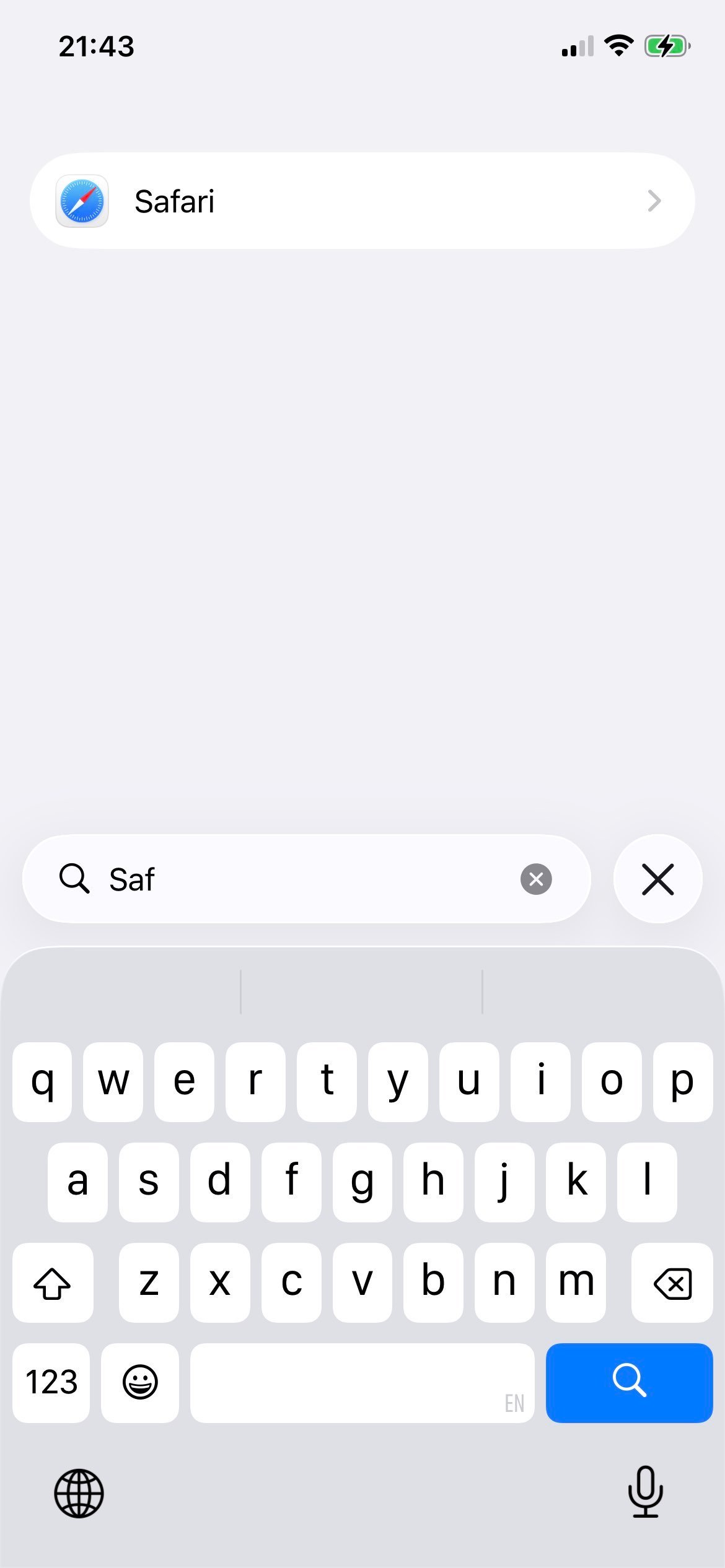
Step 3: Tap Safari
The Apps screen lists every installed app with per-app preferences. Scroll until you find Safari and tap its row.
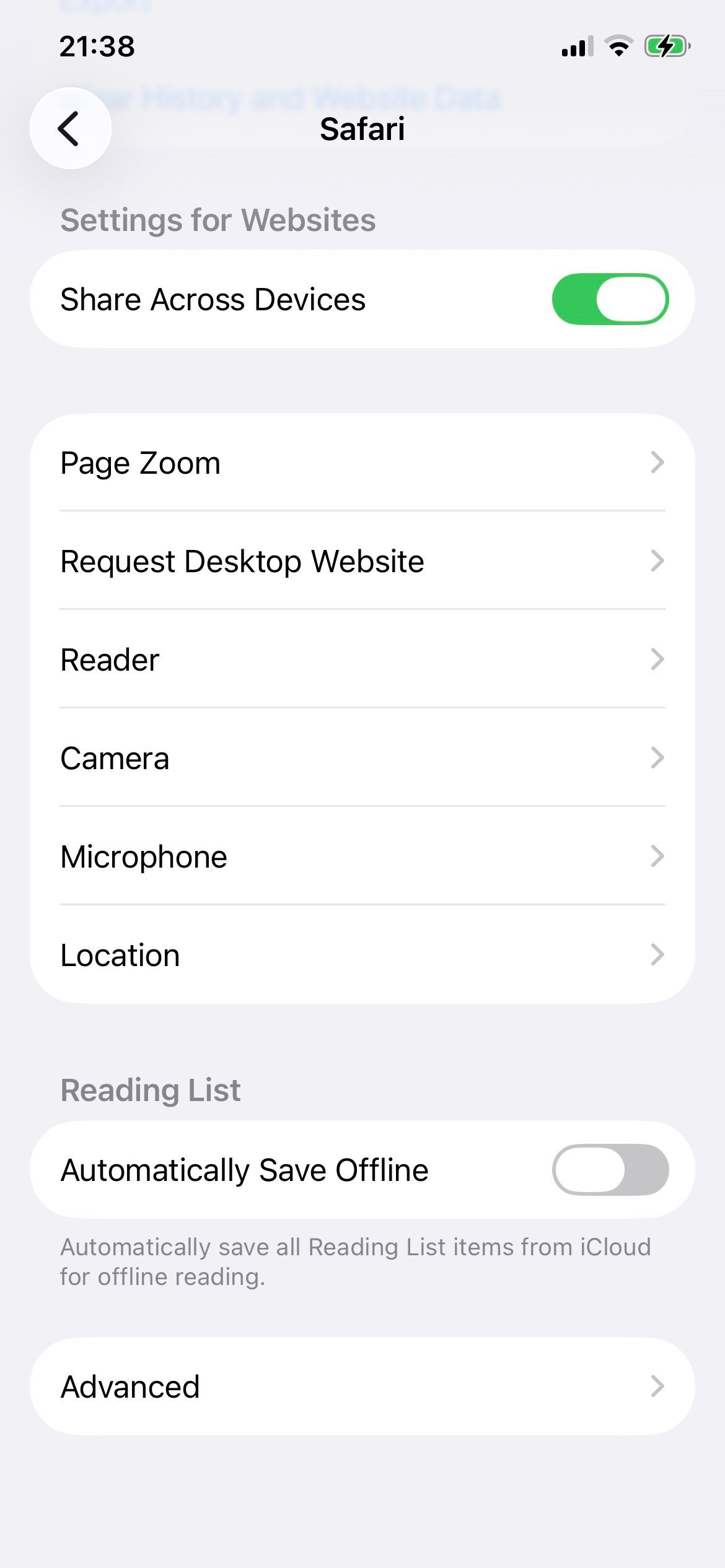
Step 4: Open Advanced
Scroll all the way to the bottom of Safari's settings. The very last row is Advanced. Tap it.
Step 5: Locate the JavaScript toggle
The Advanced screen shows a single JavaScript switch. When the switch is green, JavaScript is enabled in Safari tabs.
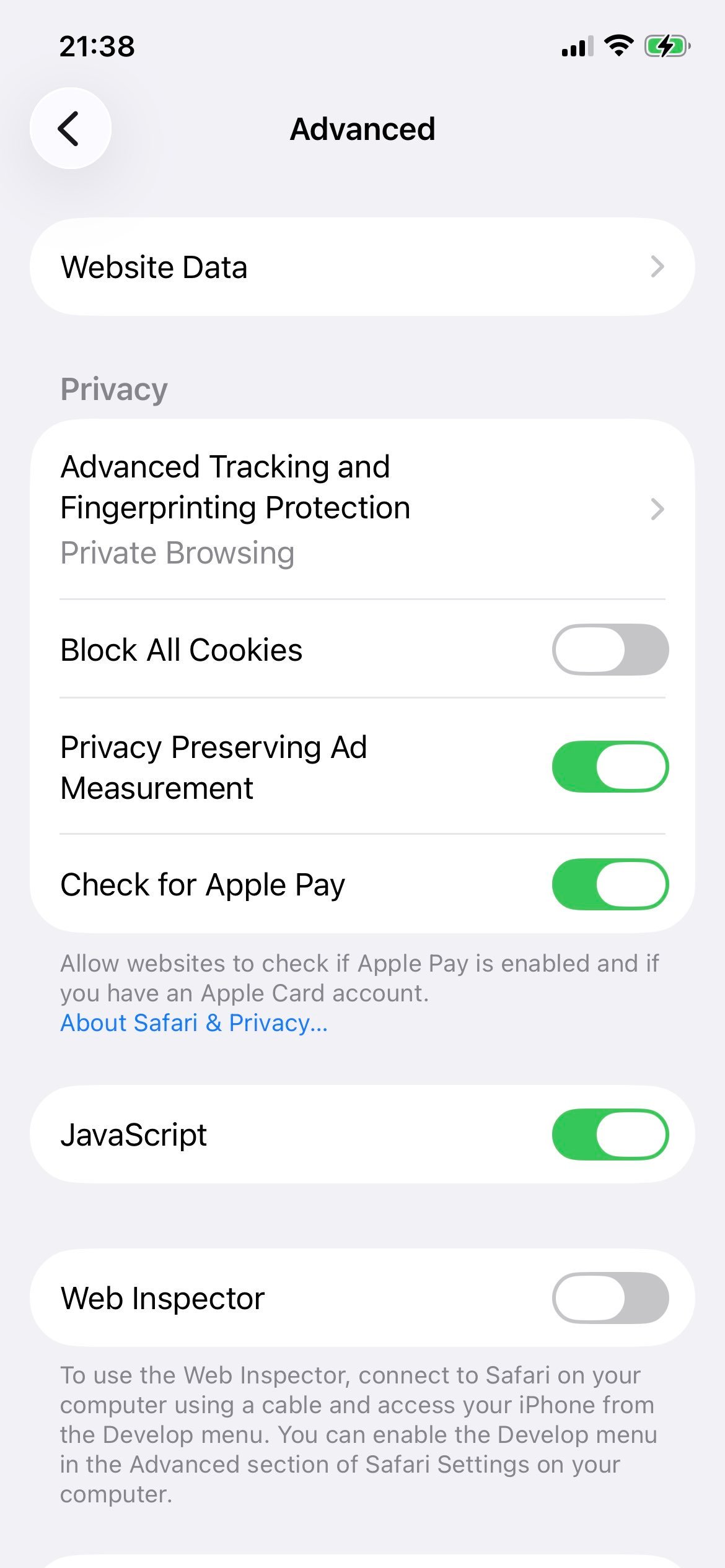
Step 6: Toggle JavaScript off
Tap the switch once. It turns from green to gray, confirming JavaScript is now disabled across Safari.
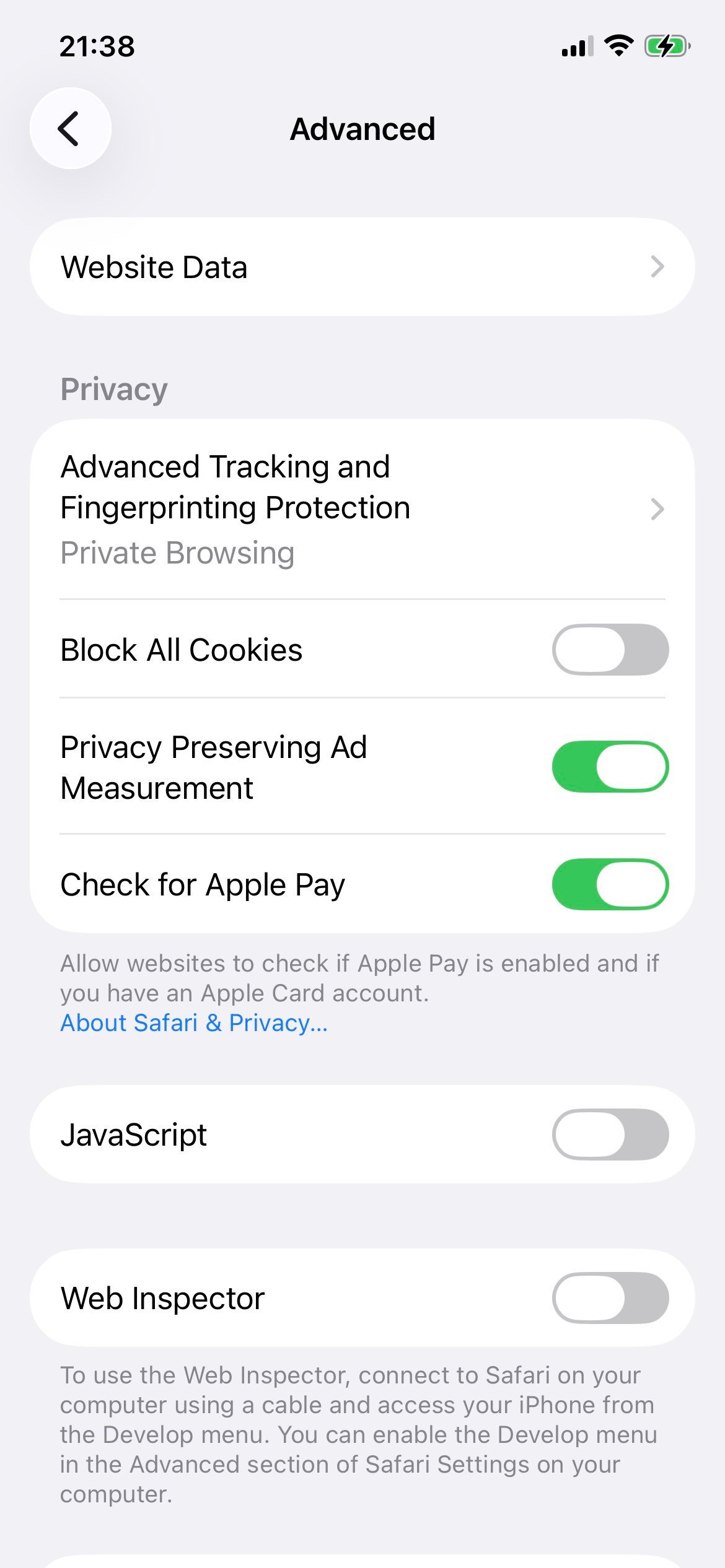
That single toggle disables JavaScript across every site you visit in Safari. It also affects in-app Safari views, the browser surface that opens when you tap a link inside Mail, Messages, Slack, X, Reddit, and most other apps - iOS routes those through the same WebKit engine and respects the system JavaScript setting. There is no separate toggle for in-app browsing.
Disable JavaScript on macOS (Sonoma 14 and Sequoia 15+)
On the Mac, JavaScript is a Safari-only setting (not a system setting), so the toggle lives inside Safari's own Settings window. Four steps total.
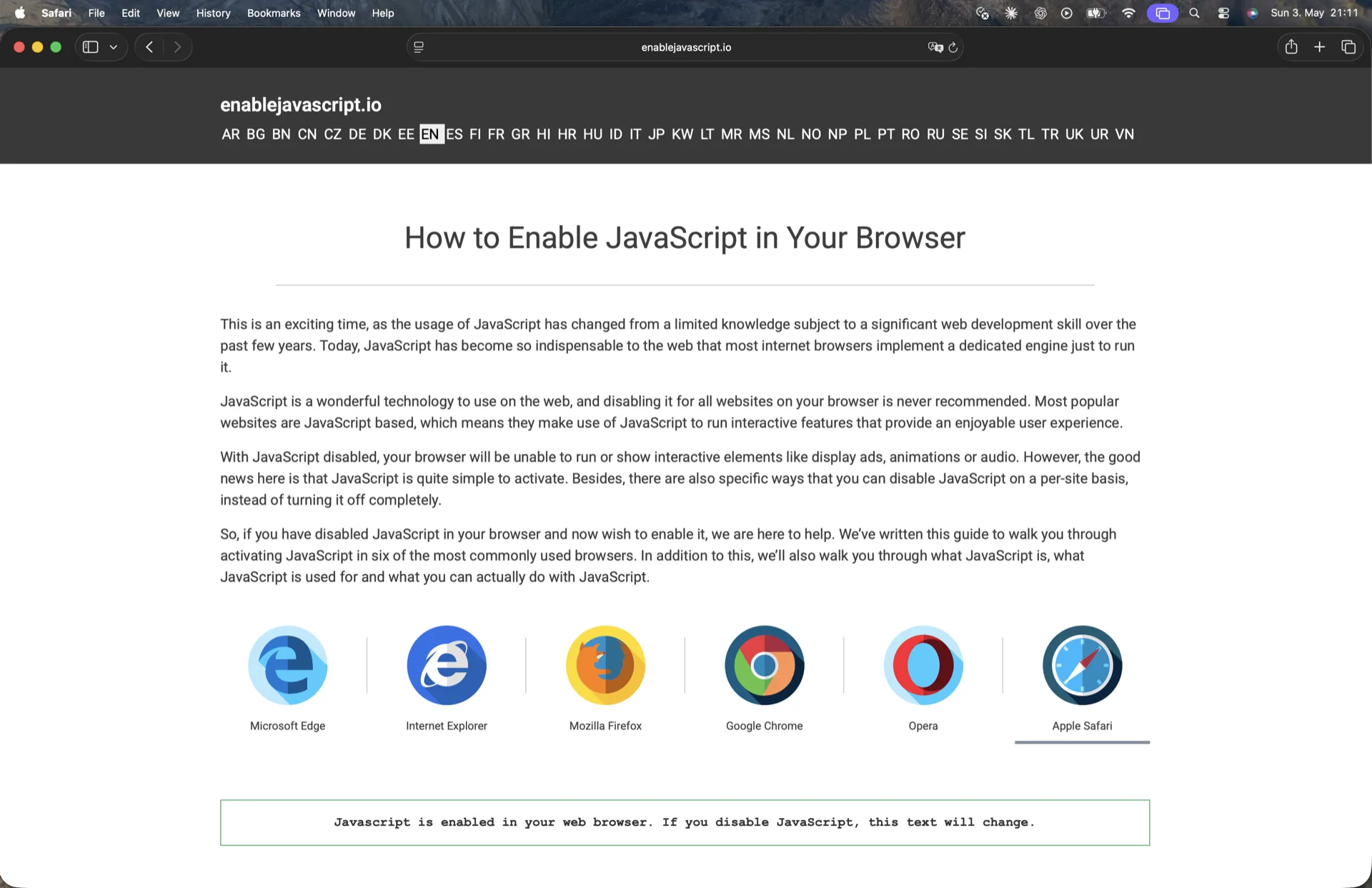
Step 1: Open Safari
Launch Safari from the Dock, Launchpad, or Applications folder. Make sure Safari is the foreground app - the menu bar at the very top of the screen should read Safari next to the Apple logo.
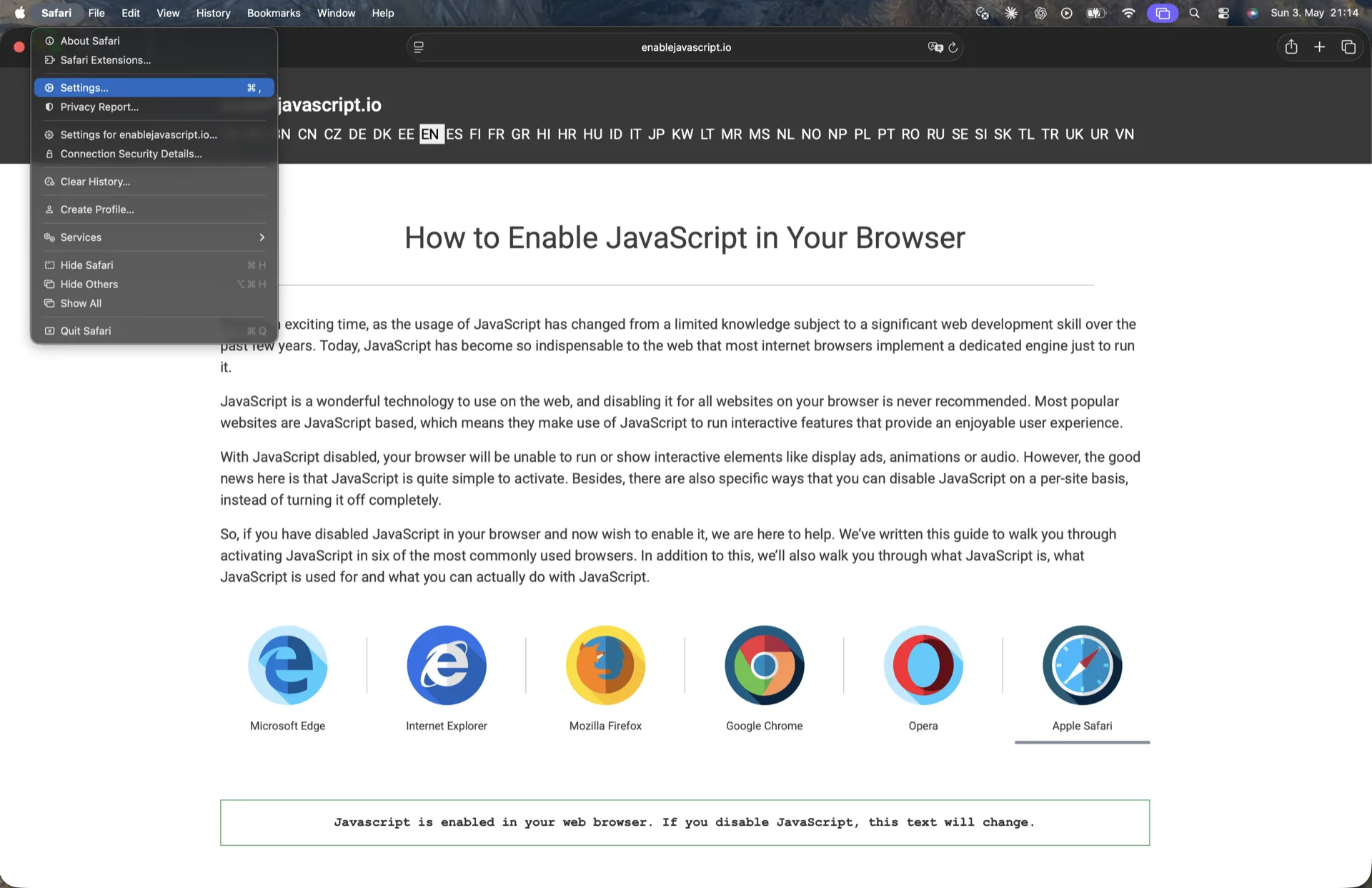
Step 2: Open the Safari menu and click Settings
From the macOS menu bar, click Safari and choose Settings... (or press Cmd+,). On macOS Ventura 13 and later Apple renamed this menu item from Preferences to Settings, so older guides referring to "Safari Preferences" still describe the same window.
Step 3: Click the Security tab and find Enable JavaScript
The Settings window opens with a row of tabs across the top. Click Security. The tab contains a small group of checkboxes - Enable JavaScript is one of them, normally checked.
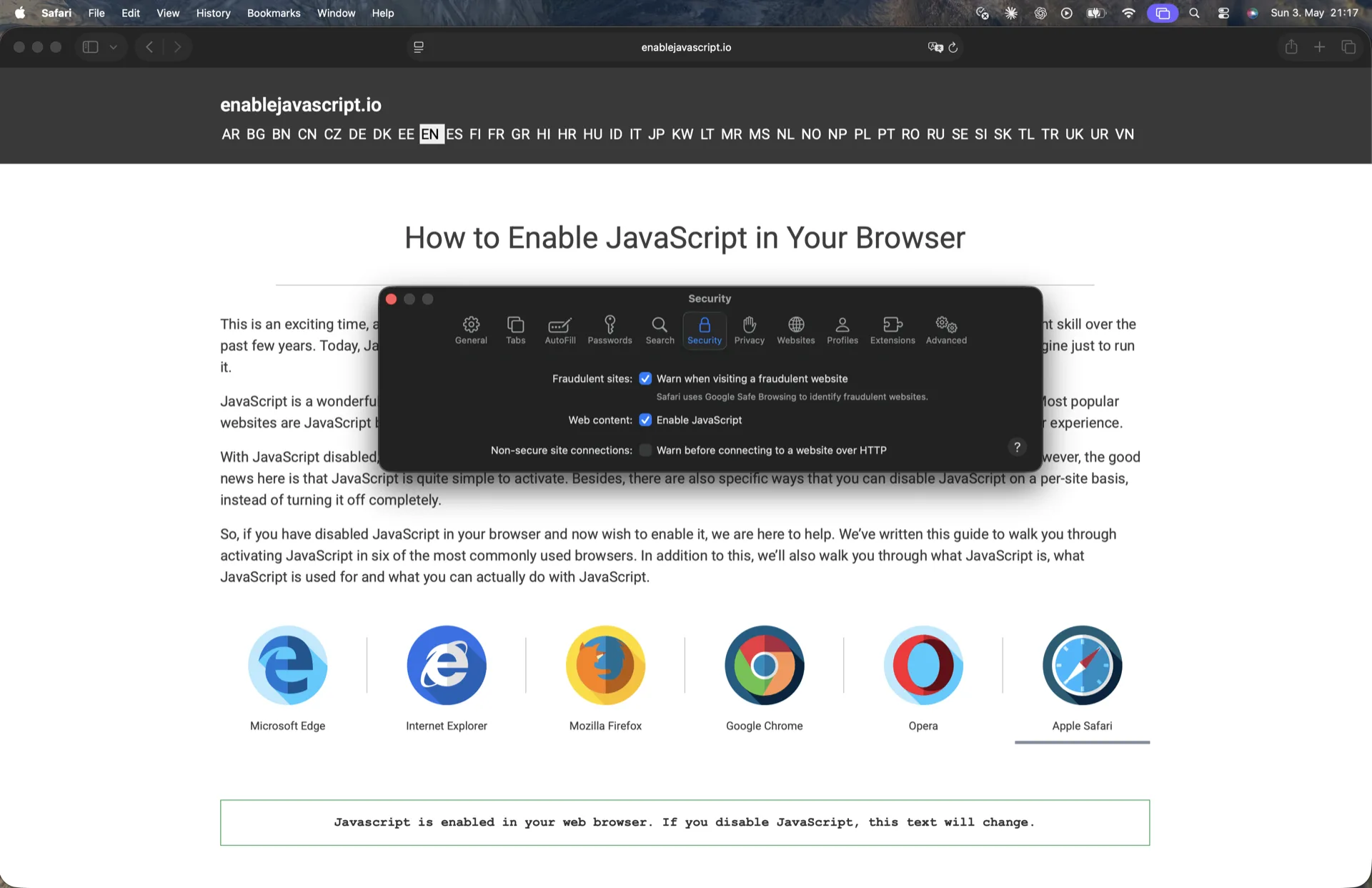
Step 4: Uncheck Enable JavaScript
Click the checkbox once to clear it. Safari applies the change instantly - there is no confirmation dialog and no "save" button. Close the Settings window and reload any open tabs.
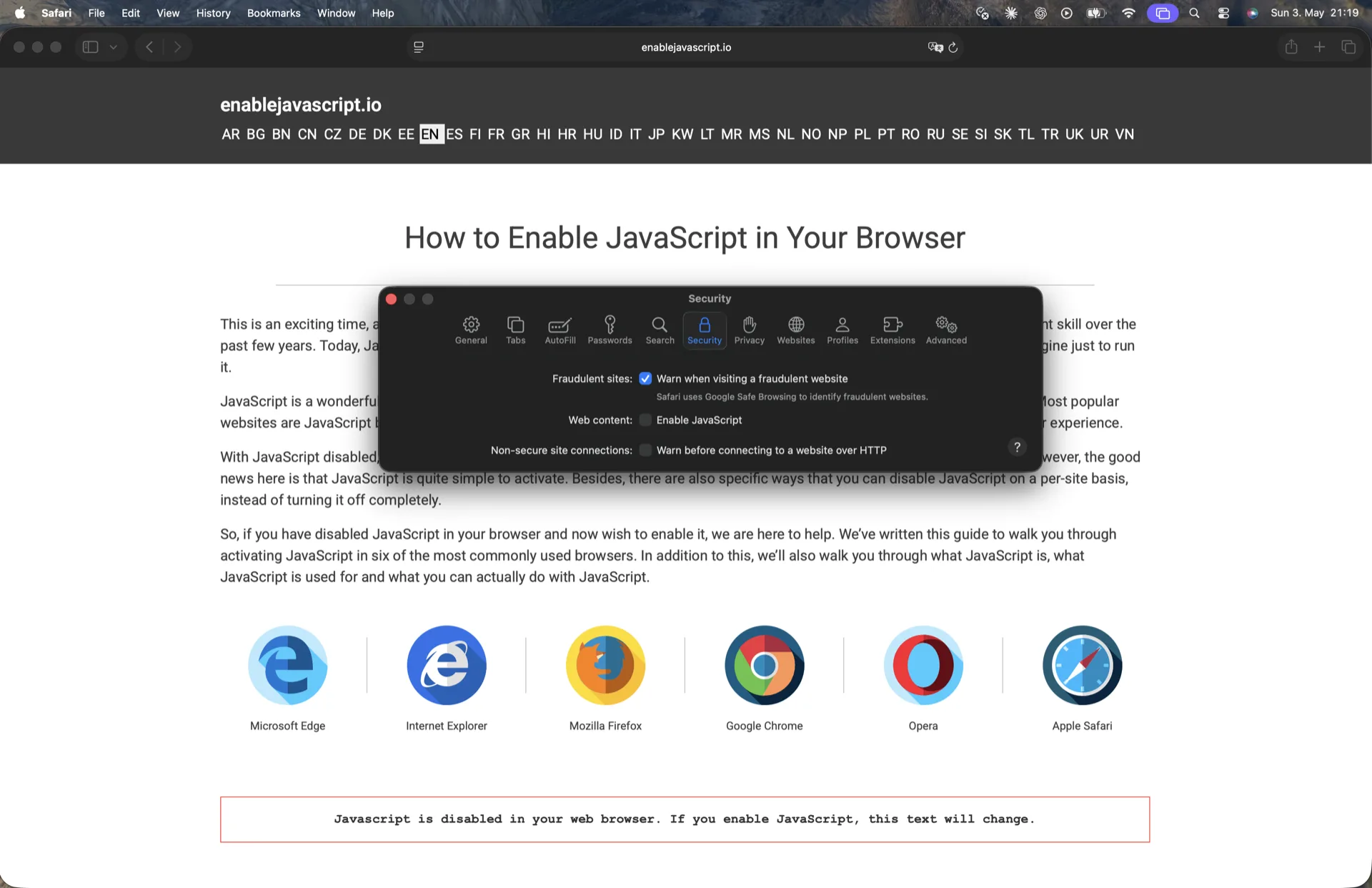
Safari on macOS does not show a confirmation dialog - the change applies immediately the next time a page loads. If a site that was working a moment ago suddenly looks broken, empty, or stuck on a loading spinner, JavaScript is now off and the site requires it. Some macOS versions older than Big Sur 11 placed JavaScript under a separate Advanced tab; on Sonoma and Sequoia in 2026, only the Security tab is correct.
Verify JavaScript is actually disabled
The fastest check is to visit a site you know depends heavily on JavaScript - a webmail inbox, a banking dashboard, a maps site, a video player. If the page shows a static fallback, a "please enable JavaScript" notice, or simply fails to render anything past the header, you have confirmed the toggle is off. You can also visit our home page at enablejavascript.io, which explicitly tells you whether JavaScript is currently running on the device you are using right now. Another option: open the URL bar and type javascript:document.title - on a JS-enabled browser this would show the page title, on a JS-disabled one nothing happens.
If you are on iPhone or iPad and want to double-check that the switch is in the off position, the verified state looks like this:
And on macOS Sequoia, the verified state inside Safari's Security settings looks like this:
Why people disable JavaScript in Safari
Disabling JavaScript is not just for paranoid power users. Five legitimate audiences regularly turn it off:
- Privacy and anti-fingerprinting. Most tracking and fingerprinting techniques rely on JavaScript reading screen size, installed fonts, canvas rendering, WebGL device details, audio context behavior, and dozens of other passive signals. Disabling JavaScript prevents nearly all of those identifiers from being collected. Safari's built-in Intelligent Tracking Prevention and Private Relay help against cross-site cookies and IP-based tracking, but turning JavaScript off is the single strongest privacy setting Safari exposes.
- Battery and mobile data savings. Heavy ad scripts, autoplay video players, social embeds, and analytics beacons run constantly on JavaScript-enabled sites. On an iPhone or iPad on a metered cellular plan or international roaming, disabling JavaScript can noticeably extend battery life across a long browsing session and cut data consumption per page from megabytes to kilobytes.
- Web development and QA testing. Front-end developers regularly turn JavaScript off to verify that a site degrades gracefully: that critical content is server-rendered, that primary navigation works, that forms still submit, and that the experience holds up for users on flaky cellular connections, locked-down corporate networks, or strict privacy extensions that block scripts by default.
- Reducing malware exposure. The vast majority of browser-delivered malware, drive-by cryptominers, credential phishers, and exploit kits rely on JavaScript to execute. Disabling JavaScript shrinks the attack surface significantly. It is not a complete defense, but it eliminates an entire class of common attacks.
- Accessibility. VoiceOver, Switch Control, and other assistive technologies sometimes work more predictably on static HTML than on heavily scripted single-page applications, where focus management is uneven and screen-reader updates can be missed when content swaps in dynamically.
Per-site disabling: use Content Blockers
Safari does not include a built-in per-site JavaScript permission list, unlike Chrome or Firefox. The toggle described above is global: either every site can run JavaScript or none can. If you only want to disable JavaScript on specific sites - say, news sites known for heavy ad scripts - install a Content Blocker extension from the App Store. Content Blockers are sandboxed Safari extensions that can block scripts, trackers, and ads using declarative rule lists. Popular options in 2026 include Wipr, AdGuard for Safari, 1Blocker, Hush, and StopTheMadness. Once installed, enable the extension under Settings - Apps - Safari - Extensions on iOS or Safari - Settings - Extensions on macOS, then configure its filter lists.
For developers who need finer control, consider switching to a different browser on the desktop. Firefox requires an extension such as NoScript for per-site JavaScript control, while Chrome provides a per-domain allow-list under chrome://settings/content/javascript. Safari does not provide an equivalent built-in per-site JavaScript permission list.
Heads-up: many sites will not work without JavaScript
Webmail, online banking, video streaming, social networks, online shopping checkouts, document editors, ride-share booking flows, and most modern dashboards require JavaScript to function. With JavaScript disabled in Safari, expect a much narrower web. Readable articles, static documentation, well-built news sites, government pages, and reference material like Wikipedia still work fine. Anything interactive will typically refuse to load past a notice or render empty containers where dynamic content should appear. If a site you genuinely need stops working, re-enable JavaScript using the same path in reverse, finish your task, and disable it again afterward.
Troubleshooting
- The toggle won't move. On a managed device (a corporate or school iPhone, or a Mac under MDM), an administrator may have locked the setting. Check Settings - General - VPN & Device Management on iOS, or System Settings - Privacy & Security - Profiles on macOS. If a configuration profile is enforcing JavaScript, you cannot override it as a user.
- The change doesn't take effect. Safari caches pages aggressively. Quit Safari fully (App Switcher on iOS,
Cmd+Qon Mac) and reopen, or open a new private tab to test. - I disabled JavaScript but tracking still seems active. Some tracking happens on the server side from your IP address and request headers - JavaScript is not the only vector. Combine the toggle with iCloud Private Relay or a trusted VPN for stronger network-level privacy.
Re-enable JavaScript later
To turn JavaScript back on, follow the same path and flip the switch the other way. On iPhone or iPad: Settings - Apps - Safari - Advanced - JavaScript on (green). On Mac: Safari - Settings - Security, then re-check the Enable JavaScript box. The toggle takes effect on the next page load, so reload any open tabs. There is no built-in keyboard shortcut to flip JavaScript on or off in Safari, so users who switch frequently for testing or privacy often keep a Content Blocker installed for selective blocking, or use a separate browser like Firefox where the JavaScript flag lives in about:config and can even be toggled per-profile.