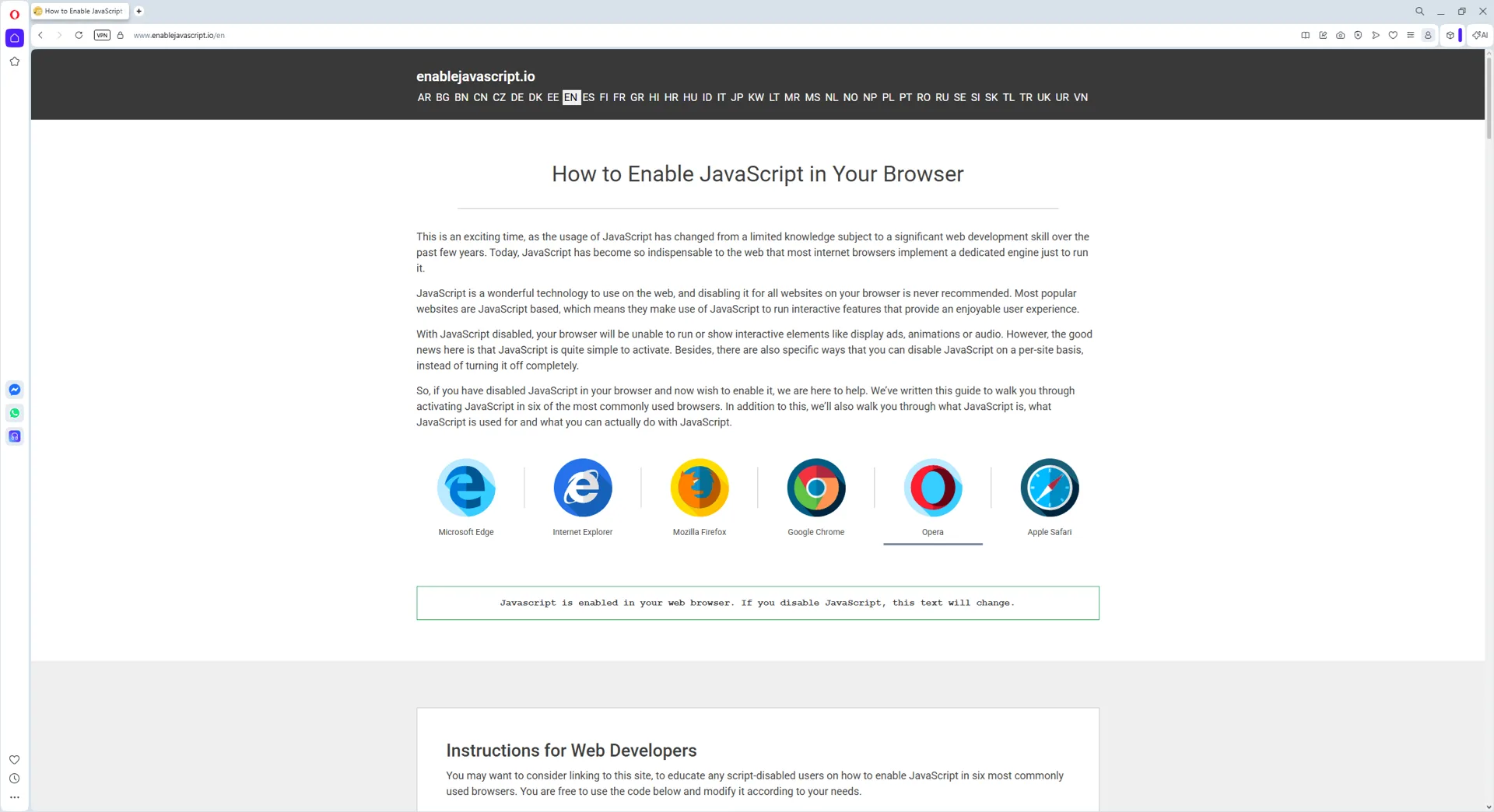
How to Enable JavaScript on Opera

Opera is built on Chromium, so its JavaScript settings are nearly identical to Chrome and Edge. The same setting controls Opera GX, the gaming-focused browser. JavaScript is enabled by default; use this guide if a site reports that it is disabled.

How to enable JavaScript in Opera GX

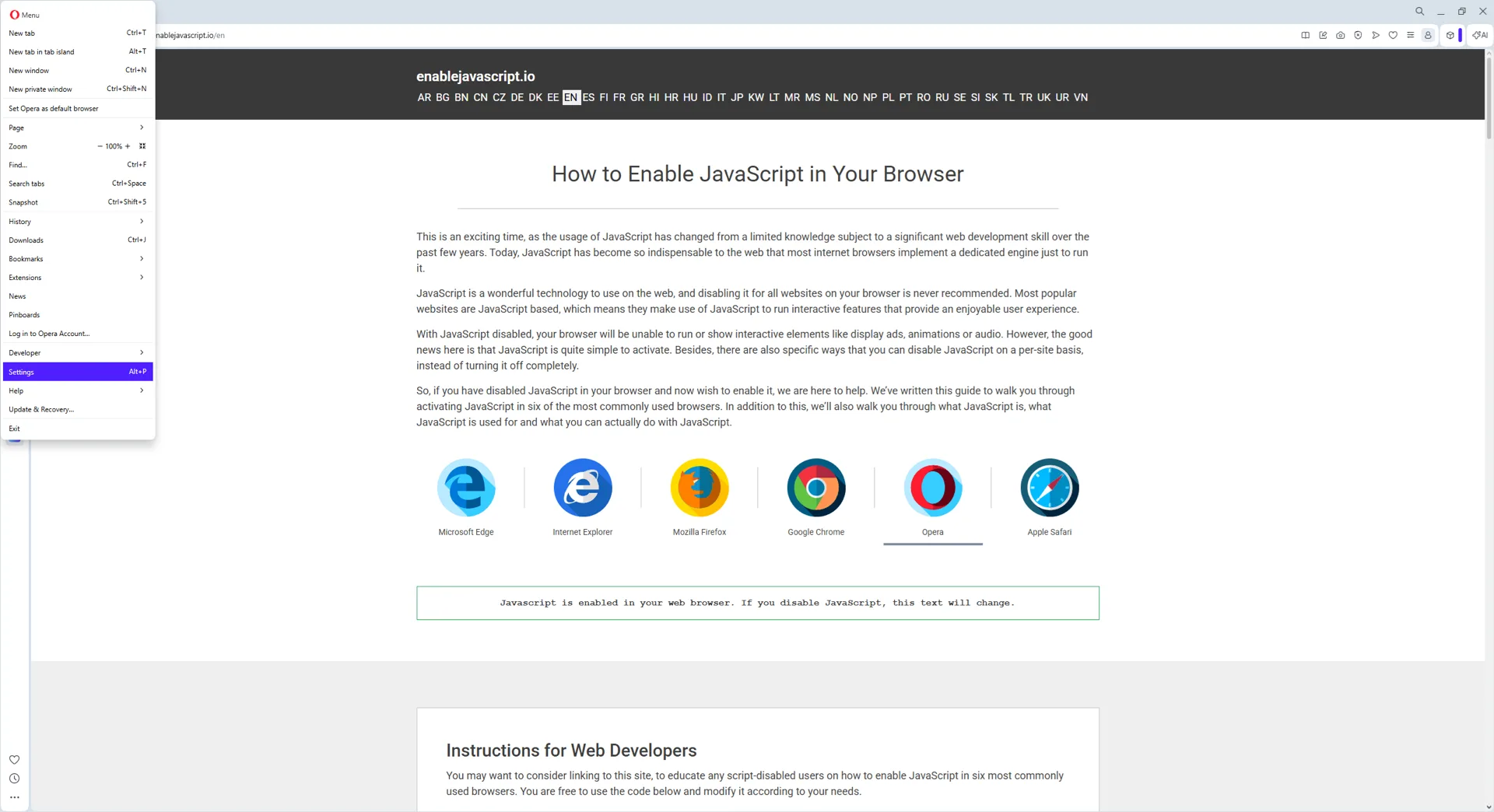
  1. Open Opera GX settings with Alt+P on Windows or Linux, or Cmd+, on Mac.
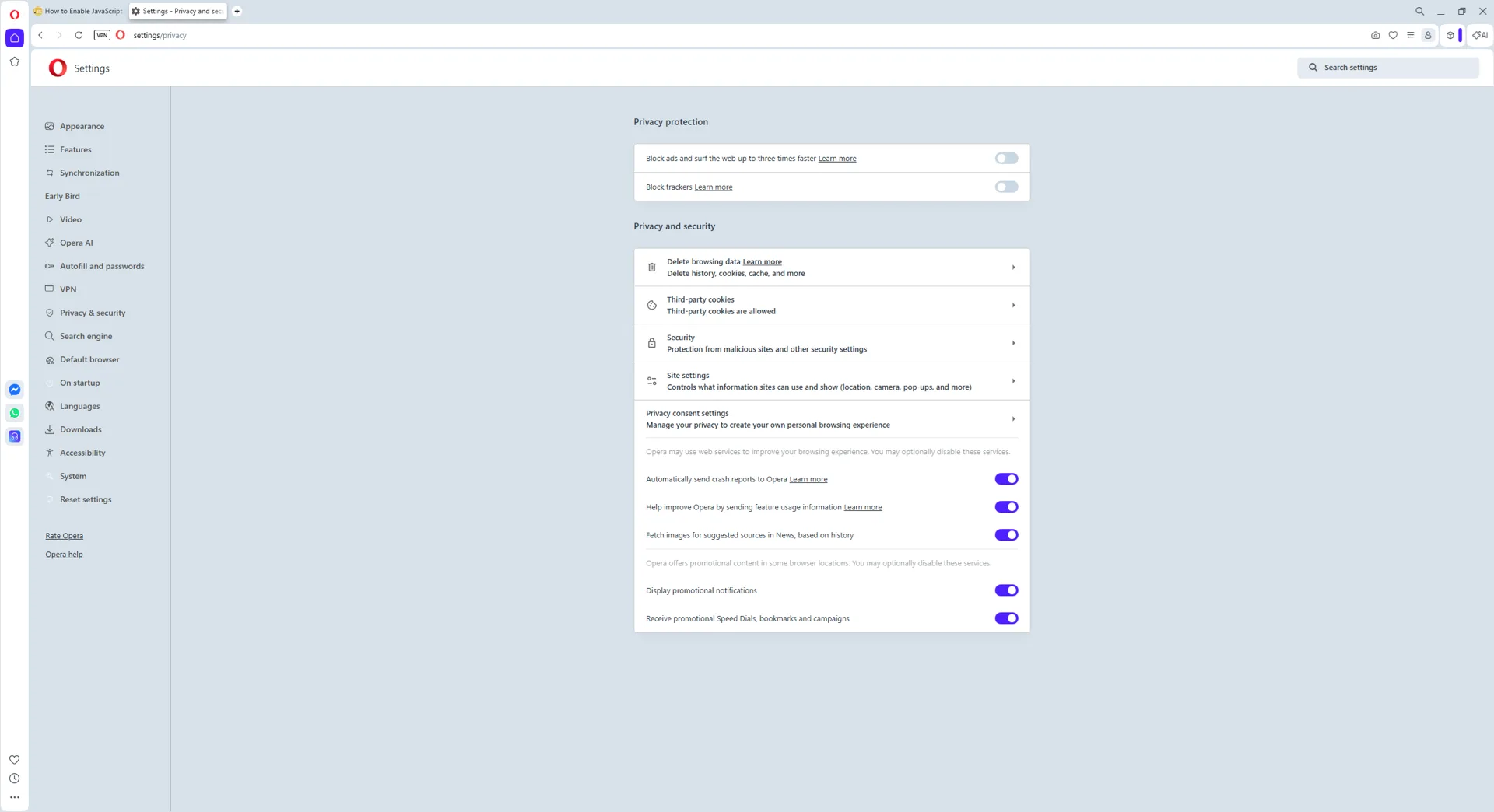
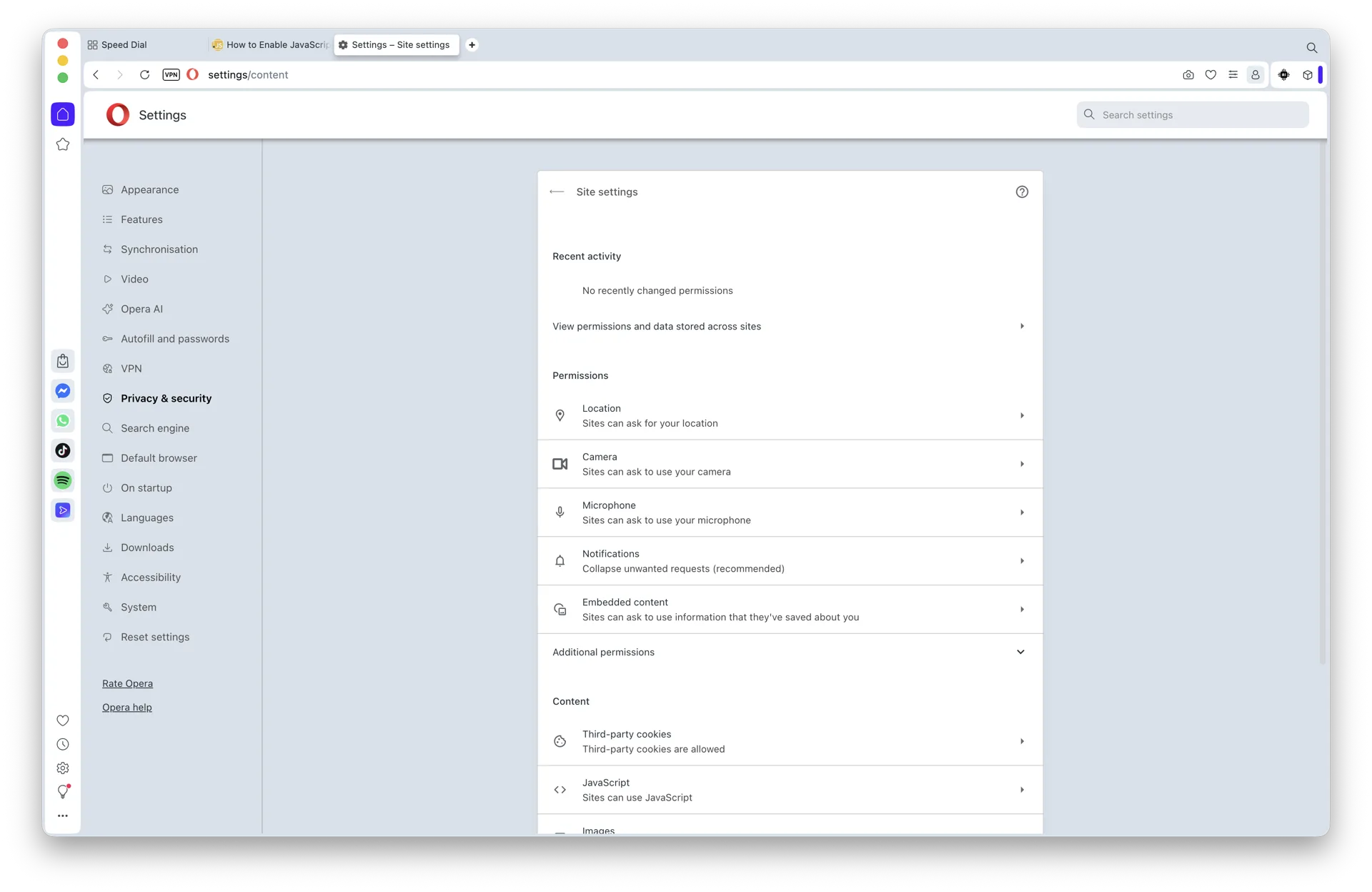
  2. Go to Privacy & Security, then Site settings.
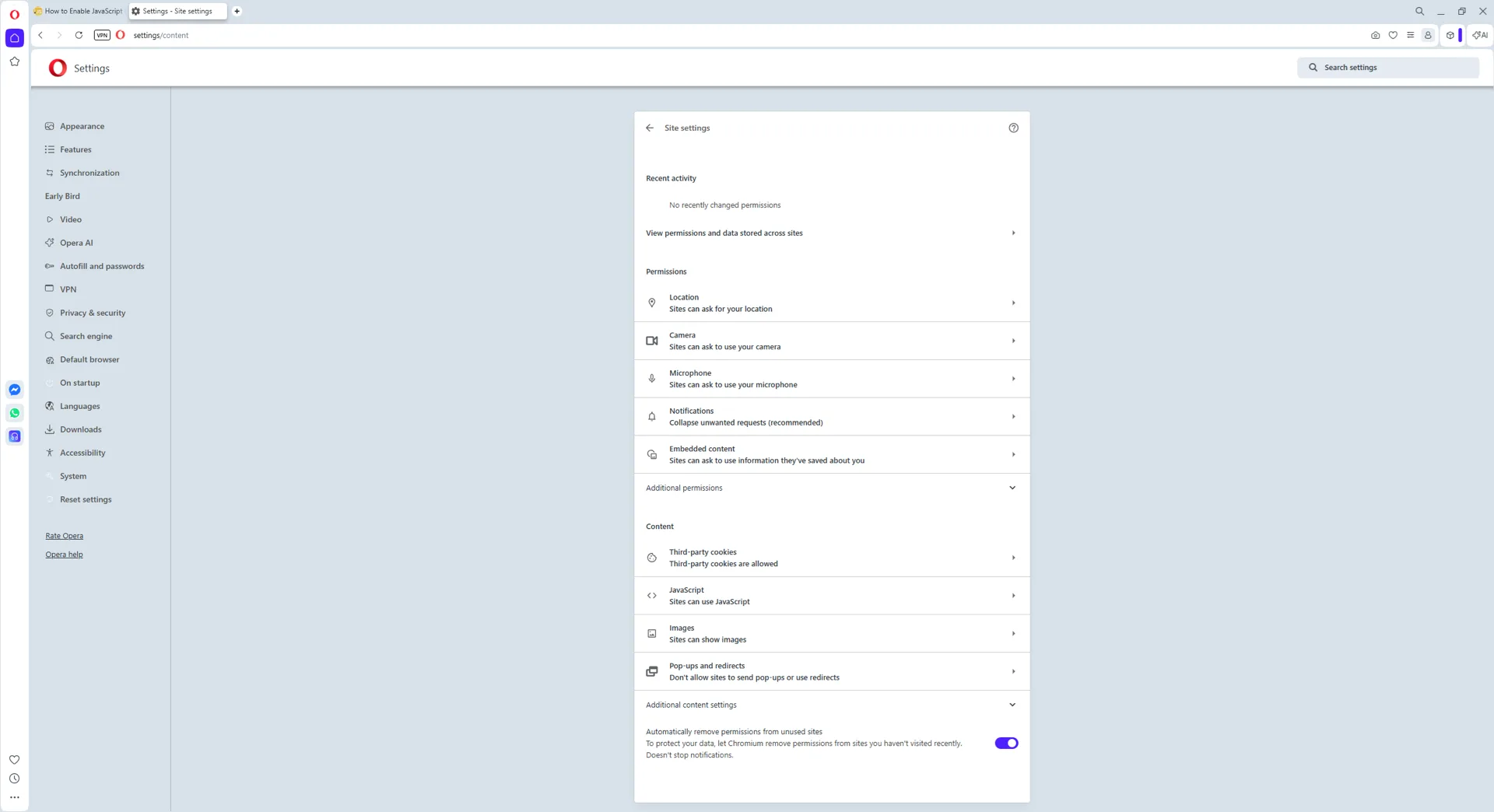
  3. Under Content, open JavaScript.
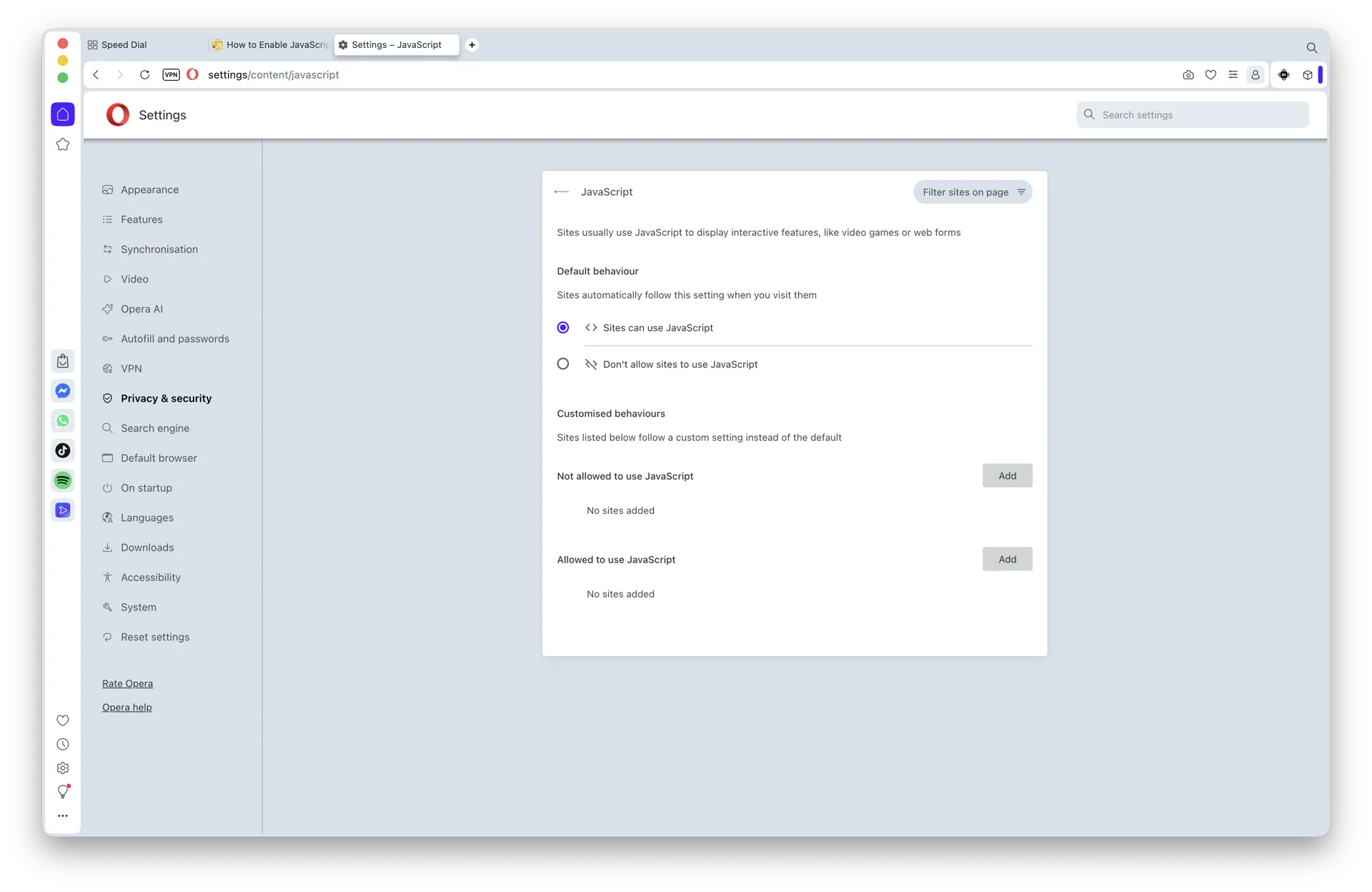
  4. Select Sites can use JavaScript, then reload the affected tab.

For the fastest route, paste opera://settings/content/javascript into the address bar. Opera and Opera GX use the same page. You can also add a site-specific exception there without changing the default for every website.

The Windows, macOS, per-site, and iPhone/iPad instructions below explain each route in more detail.

Instructions for Web Developers

You may want to consider linking to this site, to educate any script-disabled users on how to enable JavaScript in six most commonly used browsers. You are free to use the code below and modify it according to your needs.

<noscript>
For full functionality of this site it is necessary to enable JavaScript.
Here are the <a href="https://www.enablejavascript.io/">
instructions how to enable JavaScript in your web browser</a>.
</noscript>

On enablejavascript.io we optimize the script-disabled user experience as much as we can:

  • The instructions for your browser are put at the top of the page
  • All the images are inlined, full-size, for easy perusing

We want your visitors to have JavaScript enabled just as much as you do!

What Is JavaScript and Why Do I Need It?

JavaScript is a client-side scripting language that web developers use to add dynamic interactions and functionality to websites. Modern web browsers - including Opera and Opera GX - ship with JavaScript enabled by default, so the rich, interactive web you experience every day works out of the box.

With JavaScript disabled, those interactions break. Sites like YouTube, Facebook, X (formerly Twitter), Gmail, online banking dashboards, and most modern web apps rely on JavaScript to load content, validate forms, and update in real time. Turn the toggle off and you'll see plain text, missing buttons, blank panels, or error messages instead of the experience you expect.

This guide covers every modern path to enable or disable JavaScript in Opera - on Windows 10 and 11, on macOS Sonoma, Sequoia and macOS 26, and on iPhone and iPad. All you need is a recent copy of Opera (Opera 105 or later, built on Chromium) and a couple of minutes.

Below you'll find platform-specific walkthroughs with current 2026 screenshots, plus the legacy Opera path preserved for users on older builds.

1. Start your Opera browser

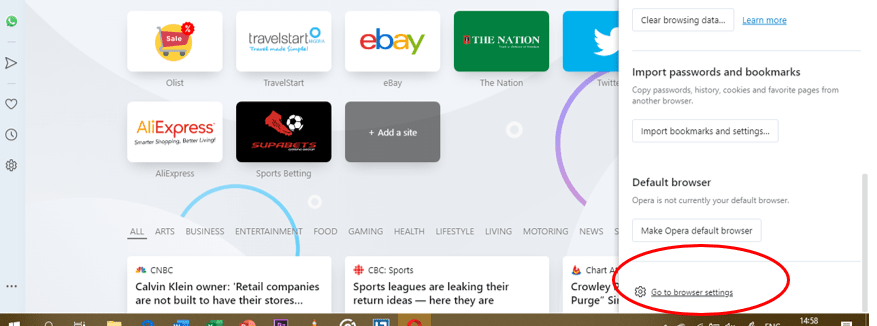
Open the “Easy Setup” menu. It’s usually located in the top-right corner of your Opera browser.
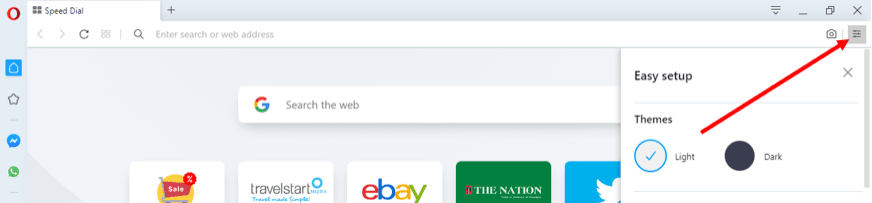
JavaScript on Opera1

2. The “Easy Setup” menu

Under the Easy Setup menu, scroll down to the very bottom to locate the “Go to browser settings” link, and then click on it.
JavaScript on Opera2

3. Search for “javascript”

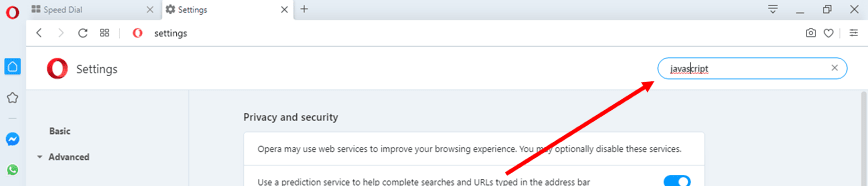
You will be directed to the Settings menu where you should see a search box. Input the name “javascript” into the Search Settings box.
JavaScript on Opera3

4. Select “Site Settings”

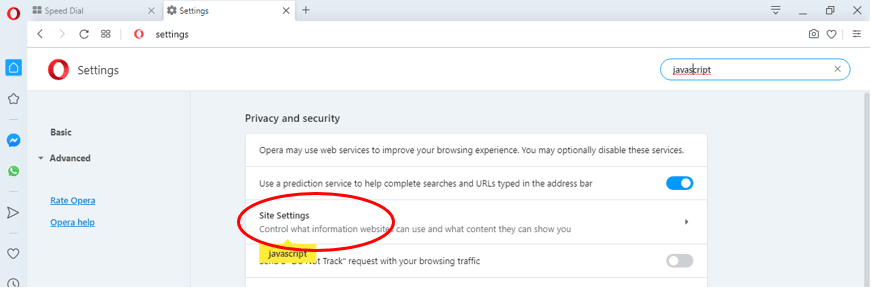
Having searched for “javascript”, your screen will display highlighted sections. These sections are relevant to JavaScript. Scroll down the search results to locate the “Site Settings” tab, and then click it.
JavaScript on Opera4

5. Select “JavaScript”

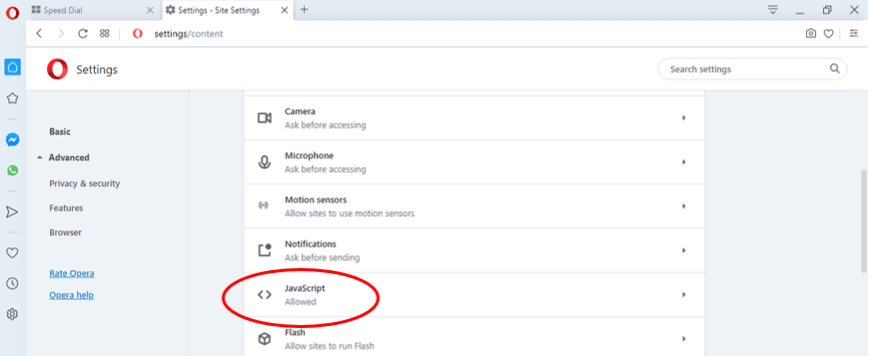
Under the Site Settings tab, find the section labeled “JavaScript” and select it. 
JavaScript on Opera5

6. Activate JavaScript

Under the JavaScript section, toggle the “Allowed (recommended)” switch so that it turns blue.
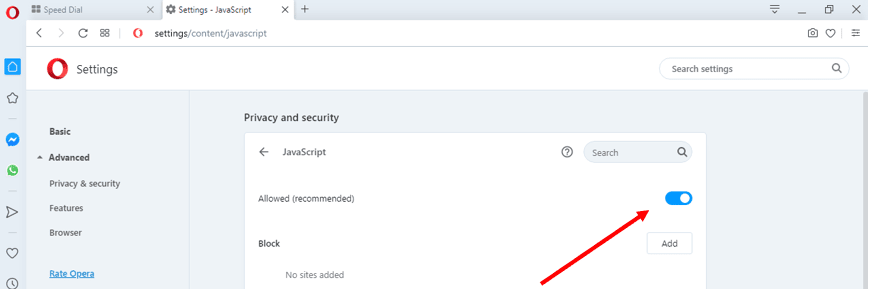
 JavaScript on Opera6


How to Enable JavaScript in Opera on Windows 10 and Windows 11

The Opera JavaScript toggle is in the same place on Windows 10 and Windows 11 - the browser ships an identical Settings UI on both. Opera 105 and later (the modern Chromium-based release) follows these six steps:

Step 1: Open Opera

Launch Opera from your Start menu or taskbar.

Opera browser open on a Windows 11 desktop
Opera running on Windows 11.

Step 2: Open the Easy Setup menu

Click the red Opera "O" menu in the top-left corner, or open the Easy Setup panel in the top-right. Either entry point reaches the Settings page.

Opera menu open on Windows 11 showing the Settings entry point
Open Settings via the Opera menu or the Easy Setup panel.

Step 3: Open Site settings

Inside Settings, click Privacy & security in the left sidebar (you may need to expand Advanced first), then choose Site Settings.

Opera Site Settings panel open on Windows 11
Site Settings is where every per-content permission lives.

Step 4: Open the JavaScript permission

Scroll to the Content section and click JavaScript. The shortcut opera://settings/content/javascript jumps straight here.

Opera JavaScript permission page open in Site settings on Windows 11
The JavaScript permission page inside Opera Site settings.

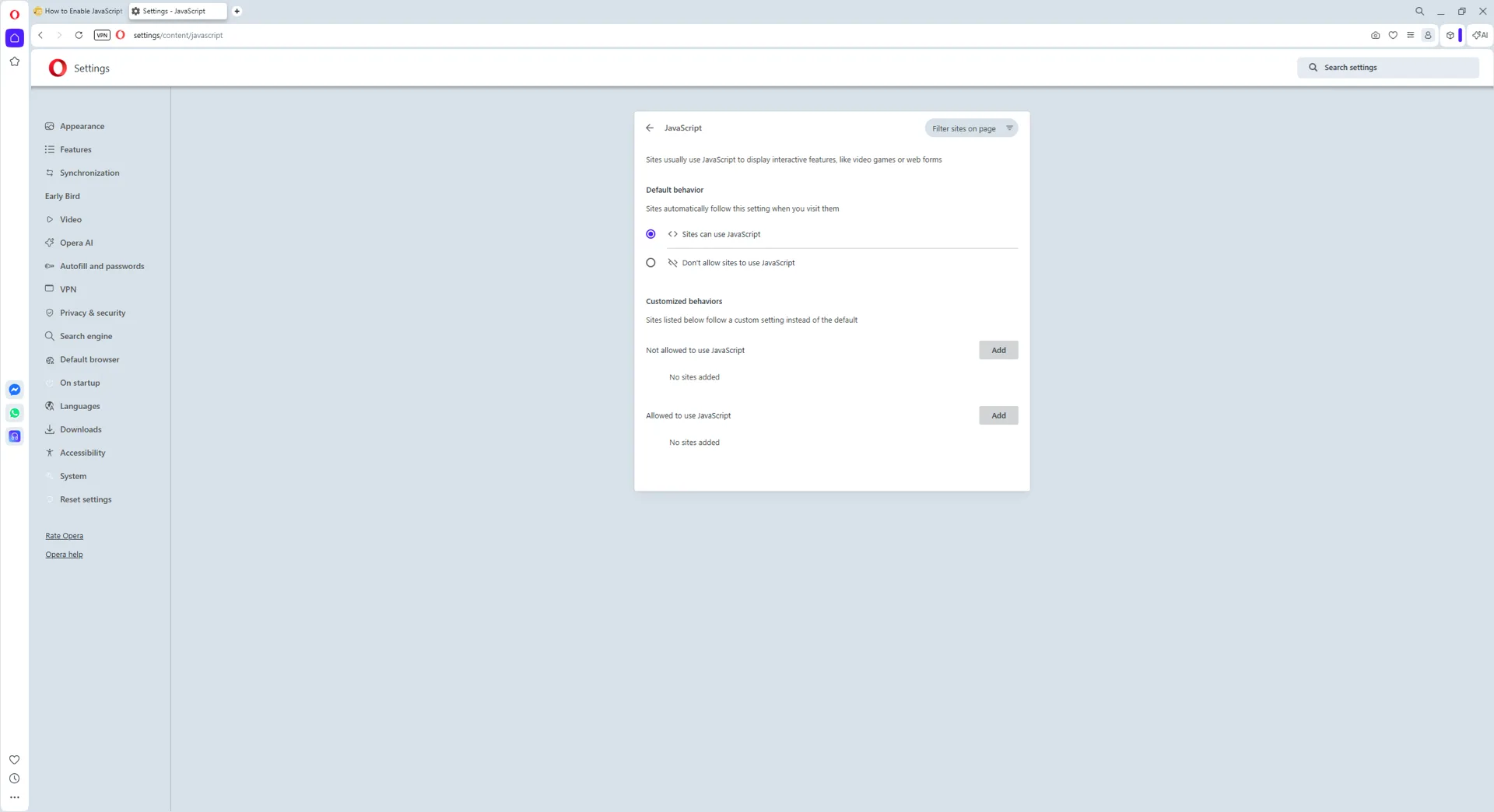
Step 5: Select Sites can use JavaScript

Under Default behavior, choose Sites can use JavaScript. Opera saves the change instantly.

JavaScript default behavior set to Sites can use JavaScript on Windows 11 Opera
JavaScript is now allowed on every site by default.

Step 6: Verify (optional) - and how to turn it off

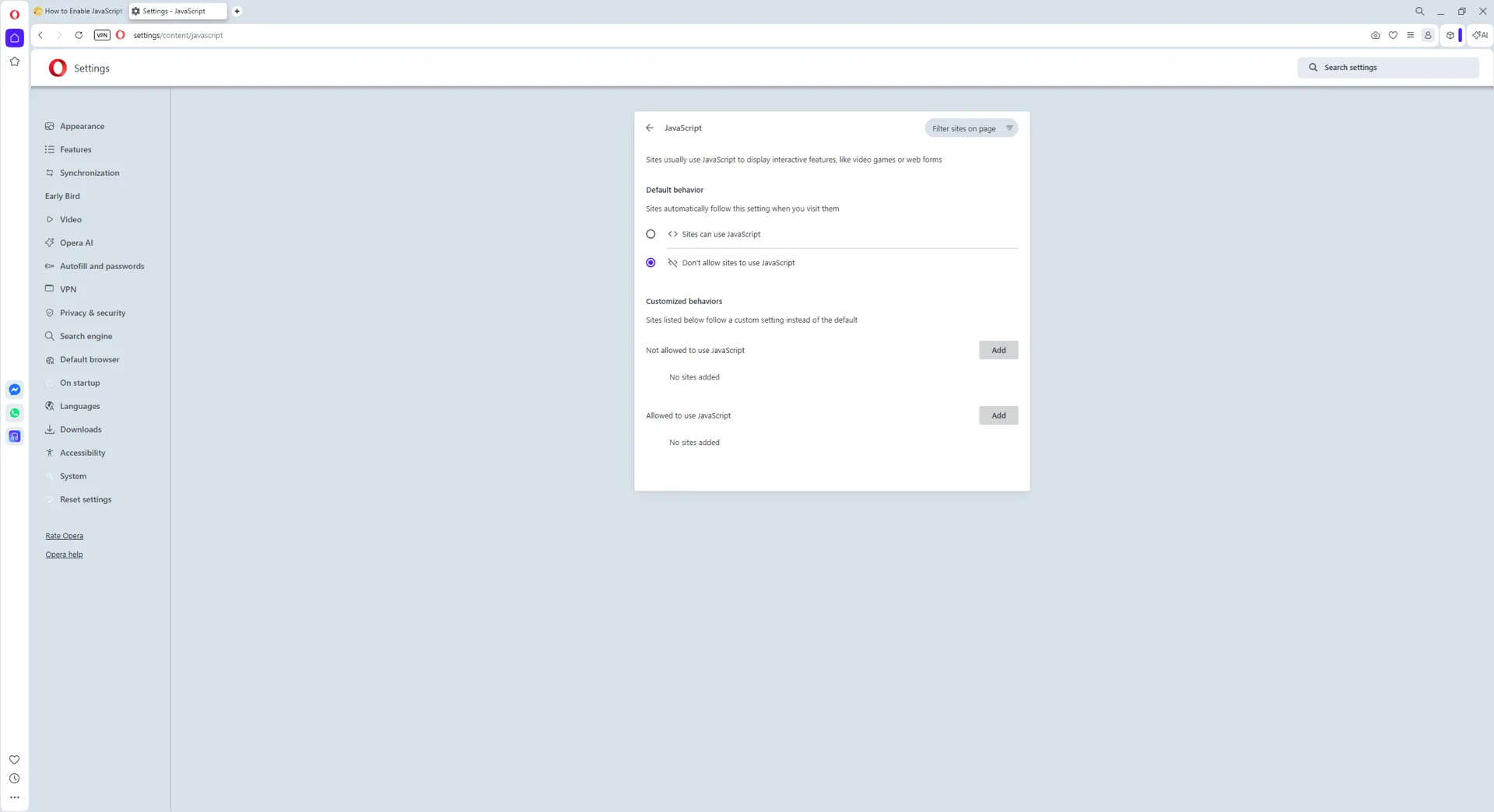
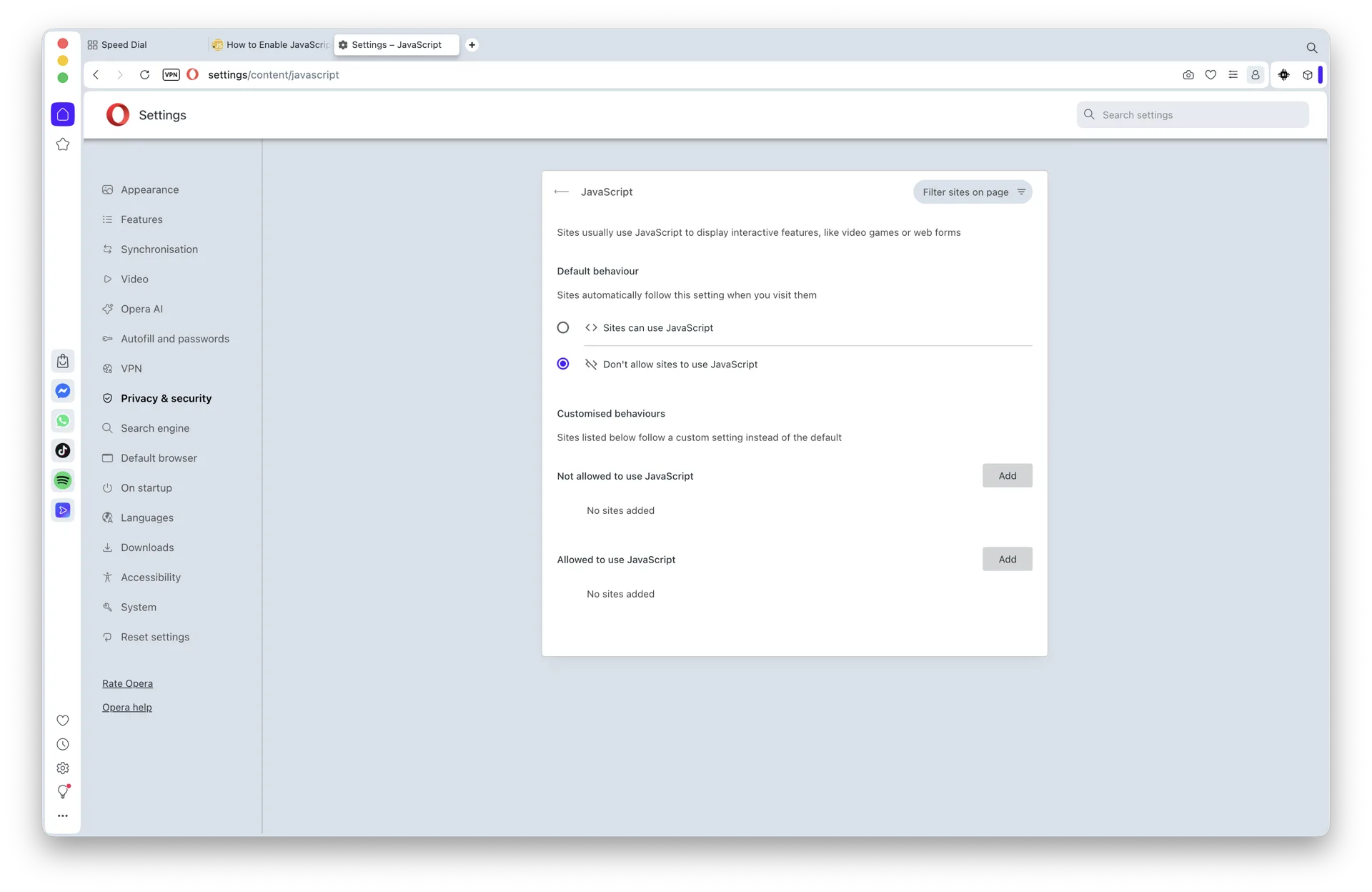
To confirm, reload any interactive site (YouTube, Gmail, Facebook). If you ever need the opposite, pick Don't allow sites to use JavaScript on the same screen:

JavaScript default behavior set to Don't allow sites to use JavaScript on Windows 11 Opera
The same toggle in the disabled state.

JavaScript is now enabled across every site you visit. The same flow works for Opera GX - the gaming-themed sibling shares the same Chromium settings UI. Add specific sites to the Not allowed list on the same page if you want to block scripts only on certain pages.

How to Enable JavaScript in Opera on Mac (macOS Sonoma, Sequoia, and macOS 26)

The macOS version of Opera - on macOS Sonoma, Sequoia, and macOS 26 - uses the same Chromium-based Settings UI as the Windows build. Follow these five steps:

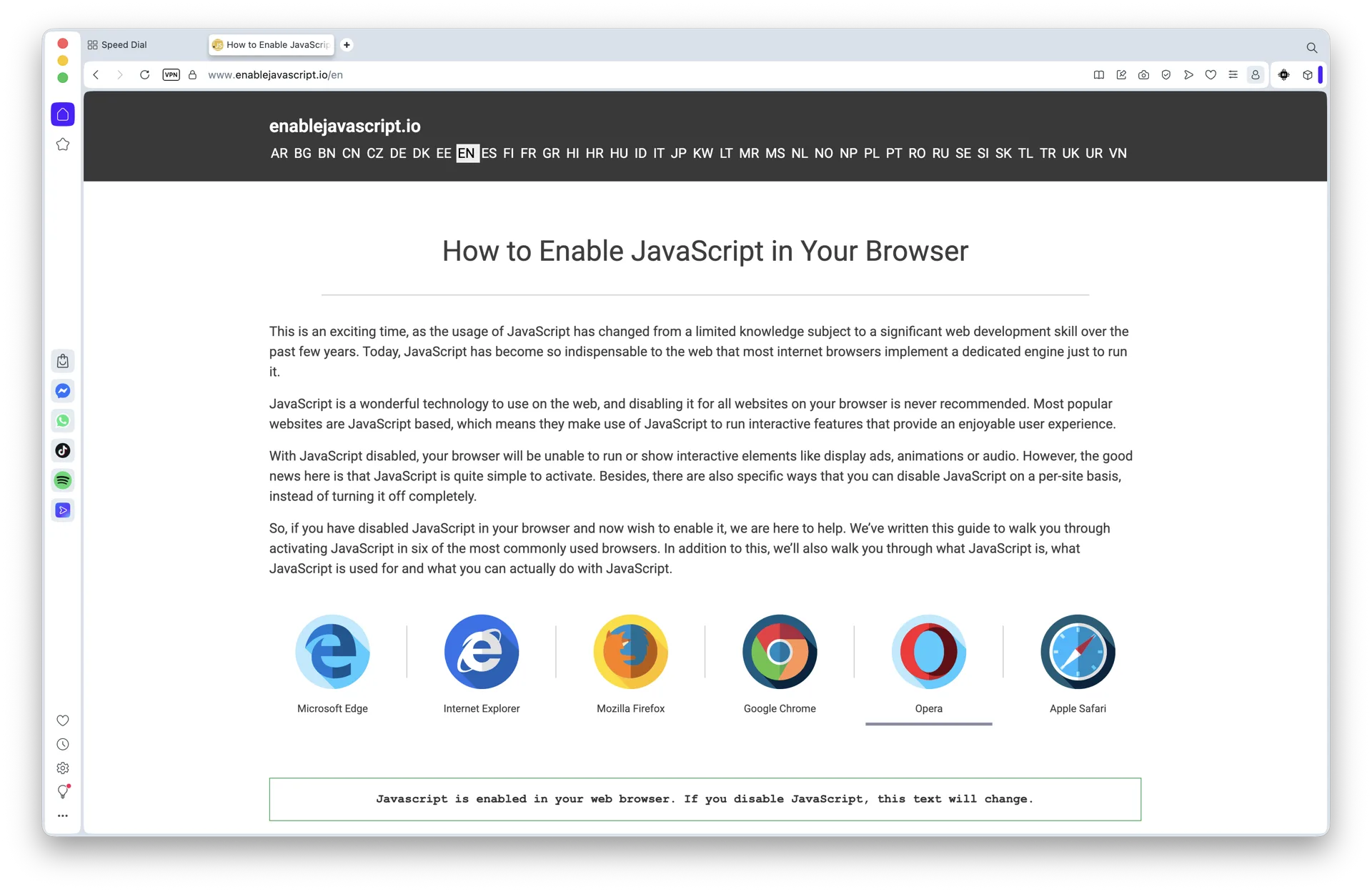
Step 1: Open Opera

Launch Opera from your Dock, Launchpad, or Applications folder.

Opera browser open on macOS 26
Opera running on macOS 26.

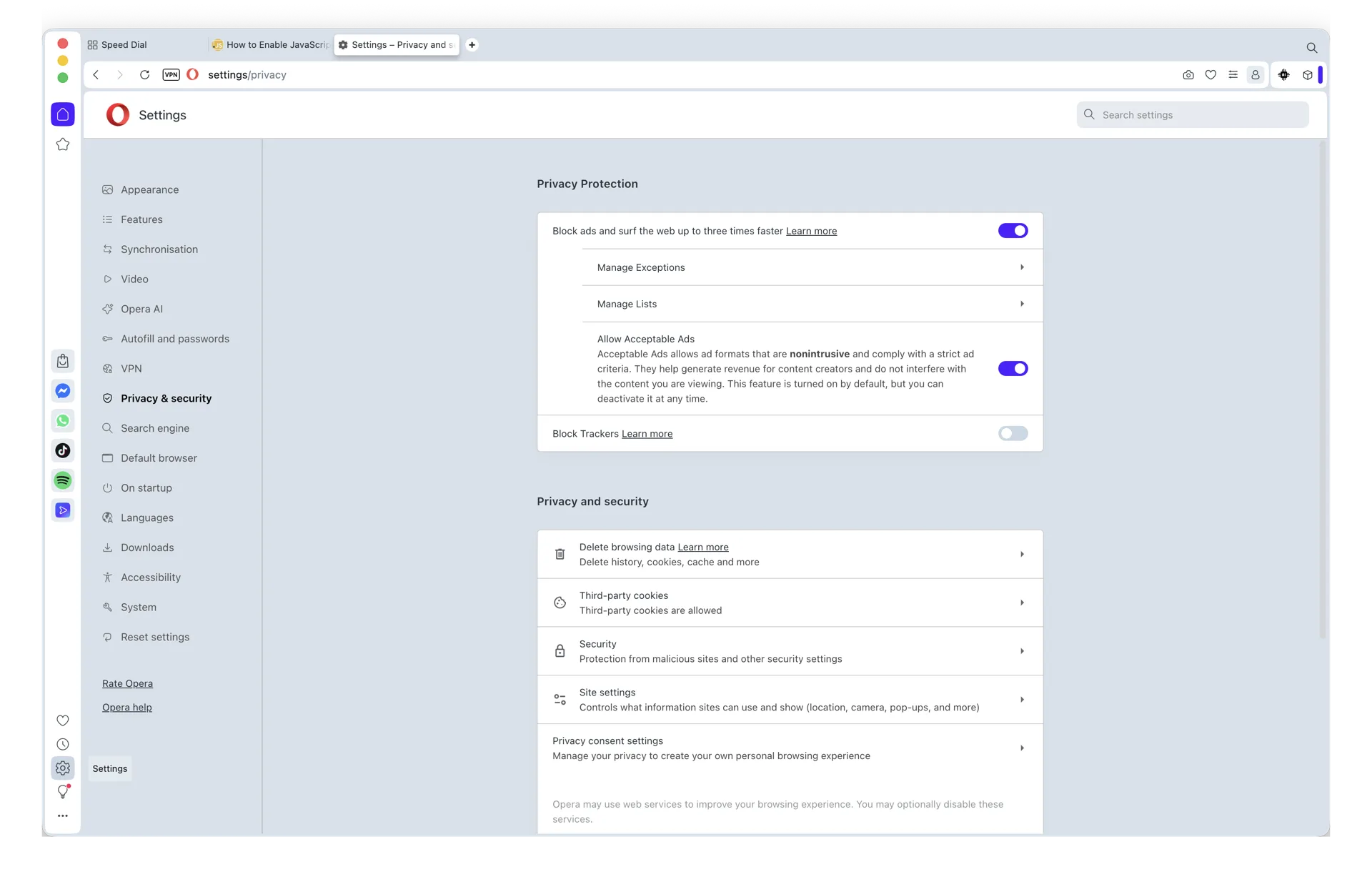
Step 2: Open Settings, then Site Settings

From the macOS menu bar choose Opera → Settings... (or press Cmd+,). In the Settings page sidebar, click Privacy & security, then choose Site Settings.

Opera Settings page open on macOS 26 with Site Settings highlighted
Site Settings is where every per-content permission lives in Opera for Mac.

Step 3: Open the JavaScript permission

Scroll to the Content section and click JavaScript. The shortcut opera://settings/content/javascript jumps straight here.

Opera JavaScript permission page open in Site settings on macOS 26
The JavaScript permission page inside Opera Site settings on macOS.

Step 4: Select Sites can use JavaScript

Under Default behavior, choose Sites can use JavaScript. The change saves immediately.

JavaScript default behavior set to Sites can use JavaScript on macOS 26 Opera
JavaScript is now enabled by default for every site.

Step 5: How to turn it back off

To disable JavaScript later, return to the same screen and pick Don't allow sites to use JavaScript:

JavaScript default behavior set to Don't allow sites to use JavaScript on macOS 26 Opera
The same toggle in the disabled state.

That's it. Reload any interactive site (YouTube, Gmail, Google Docs) to confirm scripts now run as expected. The same flow works for Opera GX on macOS - the gaming-themed sibling shares the same Chromium settings UI.

How to Enable JavaScript in Opera on iPhone, iPad, and iOS

JavaScript is enabled by default in Opera on iPhone and iPad. This guide has no verified browser-specific JavaScript switch to give you for the current Opera iOS/iPadOS app. Apple documents Settings → Apps → Safari → Advanced → JavaScript as a Safari setting, not as a control for Opera.

If a site still says JavaScript is disabled

  1. Update Opera and iOS/iPadOS to their current stable versions.
  2. Close and reopen the affected tab, then try a new private tab.
  3. Temporarily disable any content blocker, VPN, or DNS filter and reload. Those tools can block scripts without changing the browser's JavaScript engine.
  4. Reload this page and use its JavaScript status message to test actual execution.

If the problem remains, record the exact Opera and iOS/iPadOS versions before troubleshooting further. This guide intentionally does not publish an unverified toggle path.

F.A.Q

How do I enable JavaScript in Opera GX?

Open Opera GX Settings with Alt+P on Windows or Linux, or Cmd+, on Mac. Go to Privacy & Security, Site settings, and JavaScript, then select Sites can use JavaScript. You can also open opera://settings/content/javascript directly in the address bar.

Why do I need JavaScript enabled on Opera?

JavaScript is enabled by default on Opera, but you can double-check to verify if it is working. To do this, simply click on "Easy Setup" at the top right corner of your Opera window to display the settings menu. Next, scroll down to "Go to browser settings" and click it. On the next screen, type in the word "javascript" into the "Search settings" input box to reveal all JavaScript-related settings. Then, scroll down and click on "Site Settings" to find the section that says "JavaScript." Once you find it, open it to verify if your JavaScript is working. It's pretty straightforward; if the control is slid to the right with a blue background, then it's working properly.

What happens if I disable JavaScript on Opera?

Many websites today make use of JavaScript to display dynamic content, such as animations and special effects. If you browse them with JavaScript disabled in your Opera browser, then you probably won't have the full experience that you normally would. Some JavaScript-based websites may appear dull and static, while others may not work at all.