How to Disable JavaScript on Opera

Most pages teach you how to switch JavaScript on. This one does the opposite: a step-by-step for disabling JavaScript in the Opera browser, the reasons people do it, and how to verify the setting took effect. The guide applies to current Opera (One/standard) as well as Opera GX, the gaming-themed variant - the underlying Chromium engine is the same and the JavaScript controls are identical.
Unlike Firefox, Opera exposes JavaScript controls directly in its visual Settings UI and supports per-site allow and block lists out of the box. You do not need an extension to block JavaScript on a specific domain.
Why people disable JavaScript in Opera
The audience for this is real and not just curious tinkerers. The common reasons:
- Privacy and anti-fingerprinting. JavaScript exposes a wide set of browser signals - screen size, fonts, GPU, audio stack, battery, sensors - that combine into a unique fingerprint. Disabling JS shrinks that surface. Note: Opera's built-in tracker blocker handles a different layer (network requests to known trackers) and runs whether JS is on or off.
- Anti-malware. Most drive-by browser exploits, cryptojacking scripts, and malicious ad payloads execute in JavaScript. Turning JS off blocks the entire class.
- Web development testing. Front-end engineers verify that pages still render meaningfully when JavaScript is unavailable - critical for SEO, accessibility, and slow networks.
- Performance and battery. On older laptops or in Opera GX with the RAM/CPU limiter active, JS-heavy sites are the single biggest resource consumer. Static HTML loads dramatically faster and uses less battery.
- Reading without interruption. Sticky headers, autoplay video, infinite scroll, popups, and chat widgets are all JavaScript. Without it, most news sites and blogs collapse to clean readable text.
- Per-site selective blocking. Some users want JS on for trusted sites (banking, email, work apps) and off everywhere else. Opera supports this natively.
One thing worth clarifying: Opera ships with a built-in ad blocker, an optional free VPN, and a crypto wallet. None of those depend on the JavaScript toggle. The ad blocker keeps working with JavaScript disabled. The VPN routes network traffic regardless of JS state. The crypto wallet is a separate feature - if you actually use it, you will need JavaScript on for the dApp browser to work.
How to disable JavaScript globally in Opera
The fastest path uses the direct settings URL.
- Open Opera (or Opera GX - same flow).
- Click the address bar, type
opera://settings/content/javascript, and press Enter. - You are now on the JavaScript site settings panel.
- Under Default behavior, select Don't allow sites to use JavaScript.
JavaScript is now off for every new page you visit. Reload any tabs already open and they will load without JS. No browser restart needed.
Visual walkthrough: Opera on Windows 11
The full menu path on Windows 11, screen by screen.
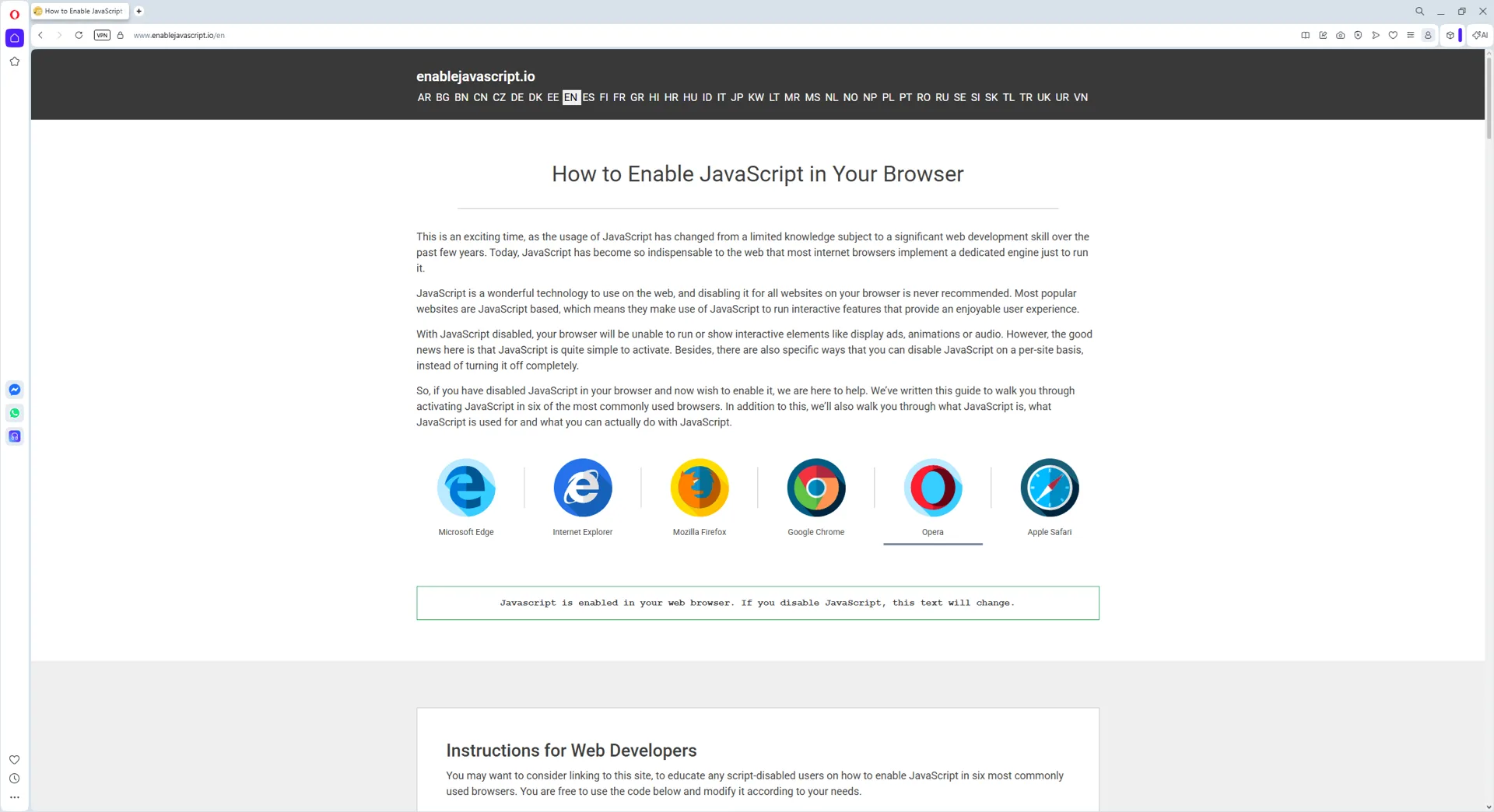
Step 1: Open Opera
Launch Opera (or Opera GX) from the Start menu or taskbar.
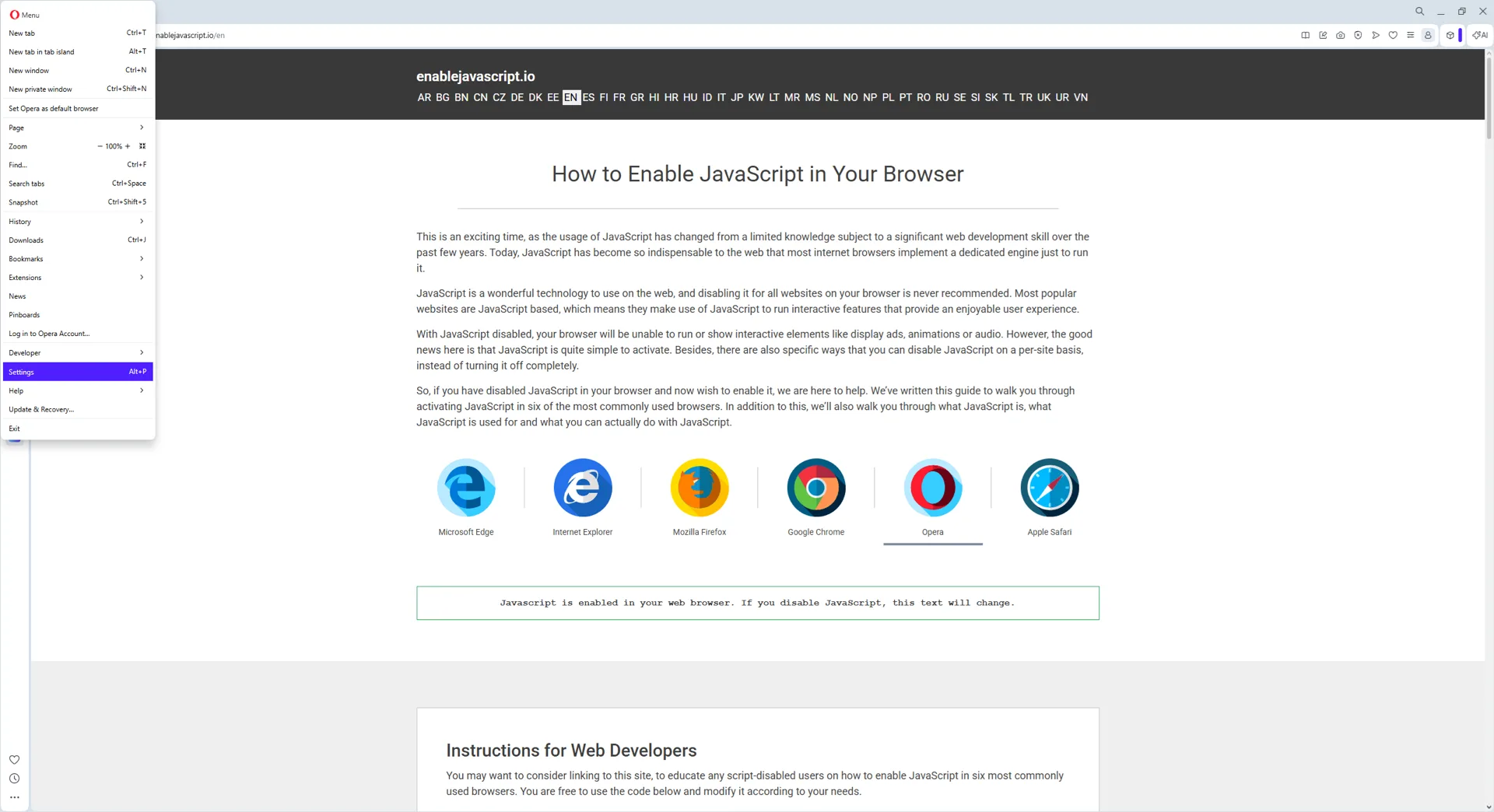
Step 2: Open the menu
Click the Easy Setup button or open the main Opera menu and choose Settings (shortcut: Alt+P).
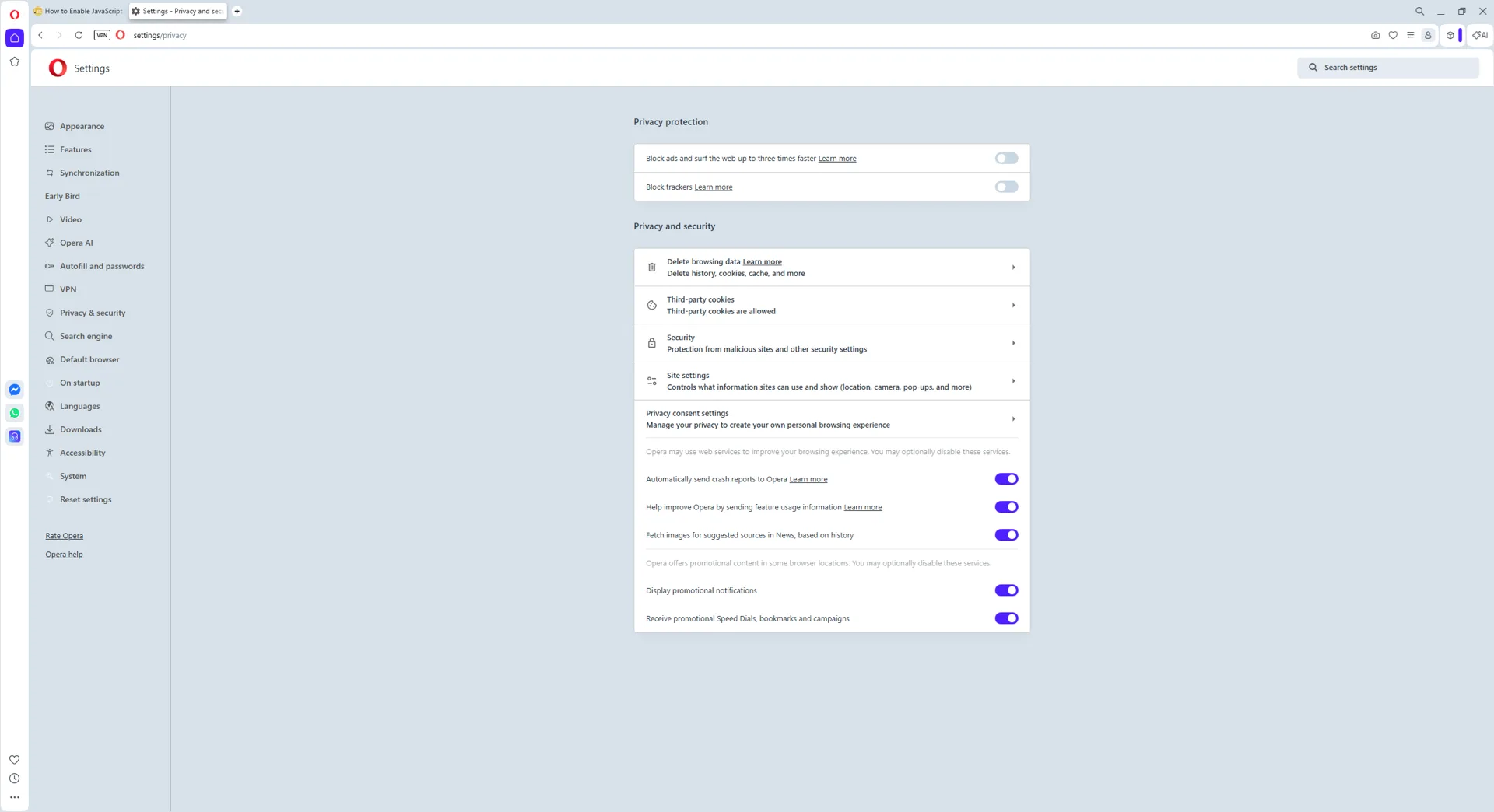
Step 3: Open Site Settings
In the left sidebar of Settings, click Privacy & security, then scroll down and click Site Settings.
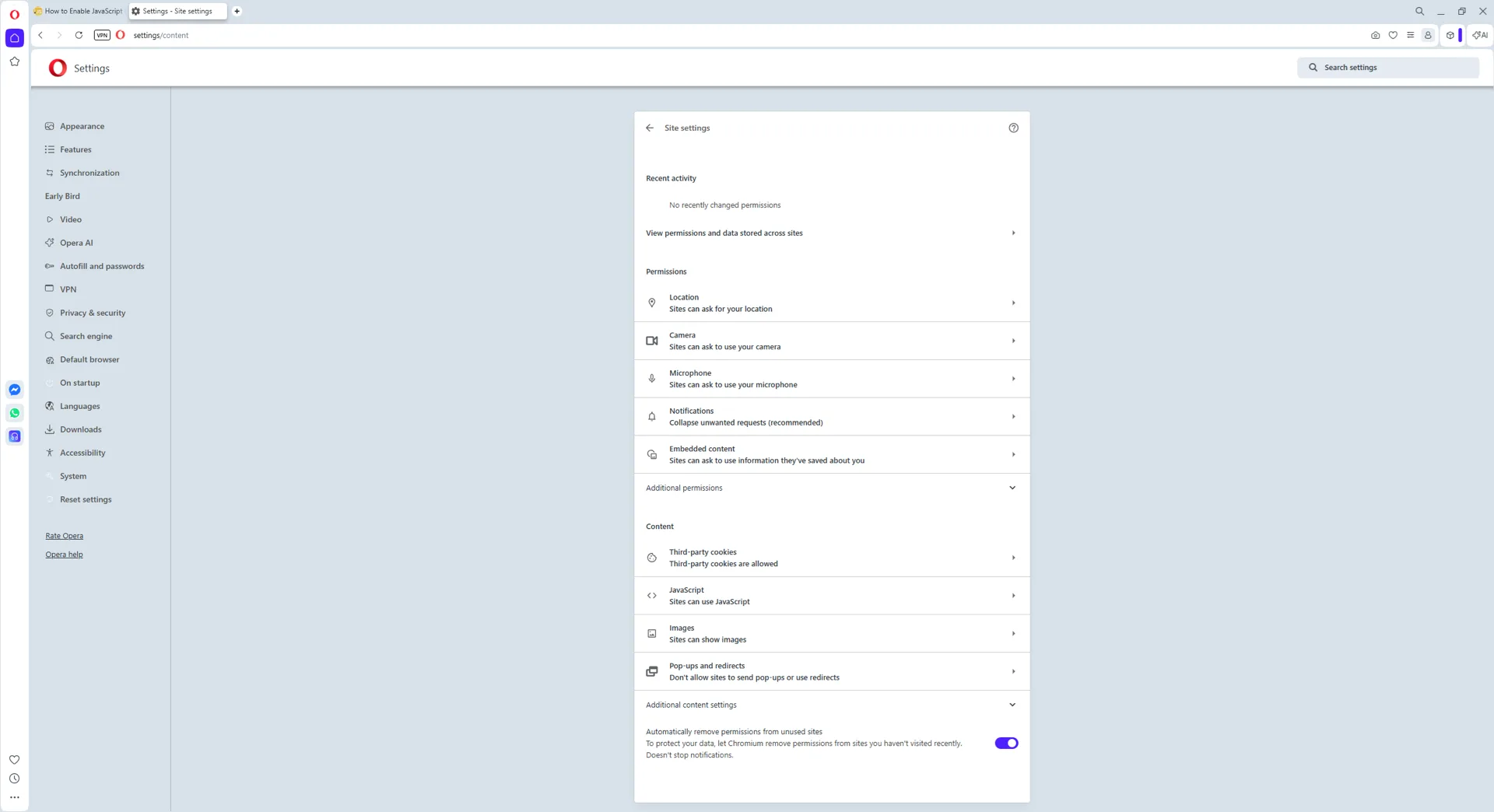
Step 4: Open JavaScript
Under the Content section of Site Settings, click JavaScript.
Step 5: JavaScript currently allowed
The default behavior is Sites can use JavaScript. This is the on state.
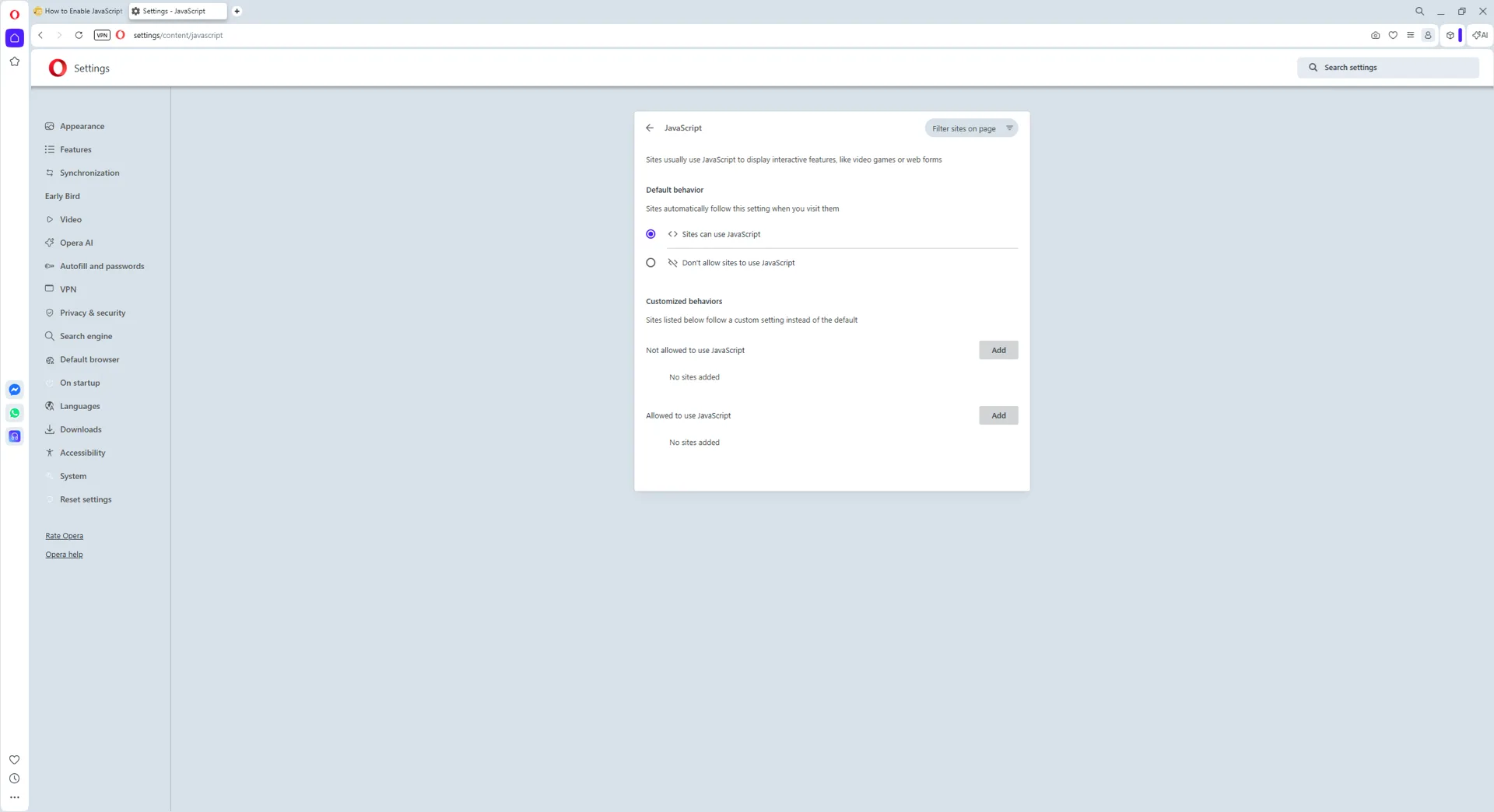
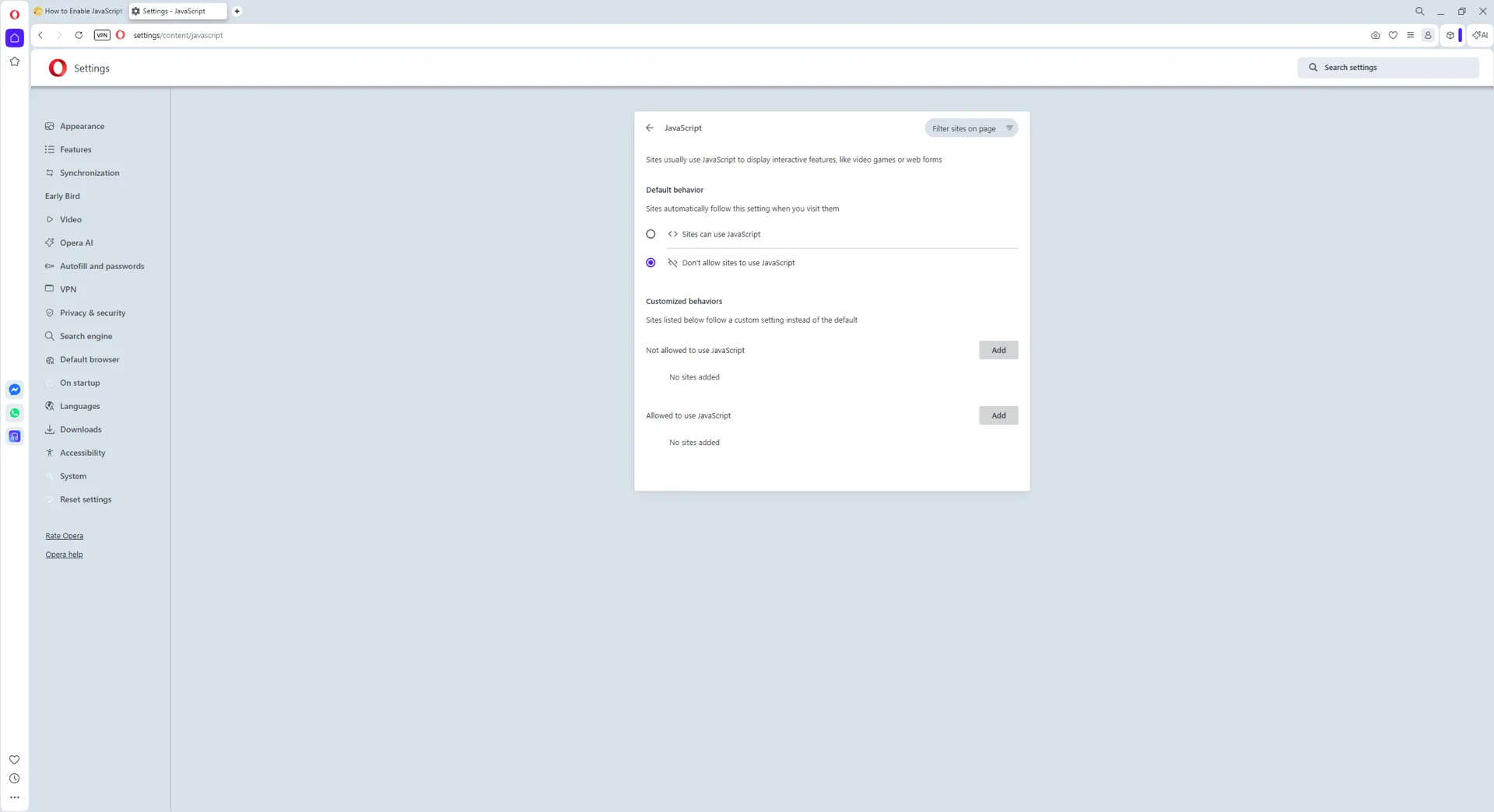
Step 6: Switch JavaScript off
Select Don't allow sites to use JavaScript. The change takes effect on the next page load - no restart required.
Visual walkthrough: Opera on macOS Sequoia
The macOS flow is one click shorter - Opera's Settings panel groups Site Settings under the same Privacy & security entry, but the macOS layout collapses two of the Windows steps.
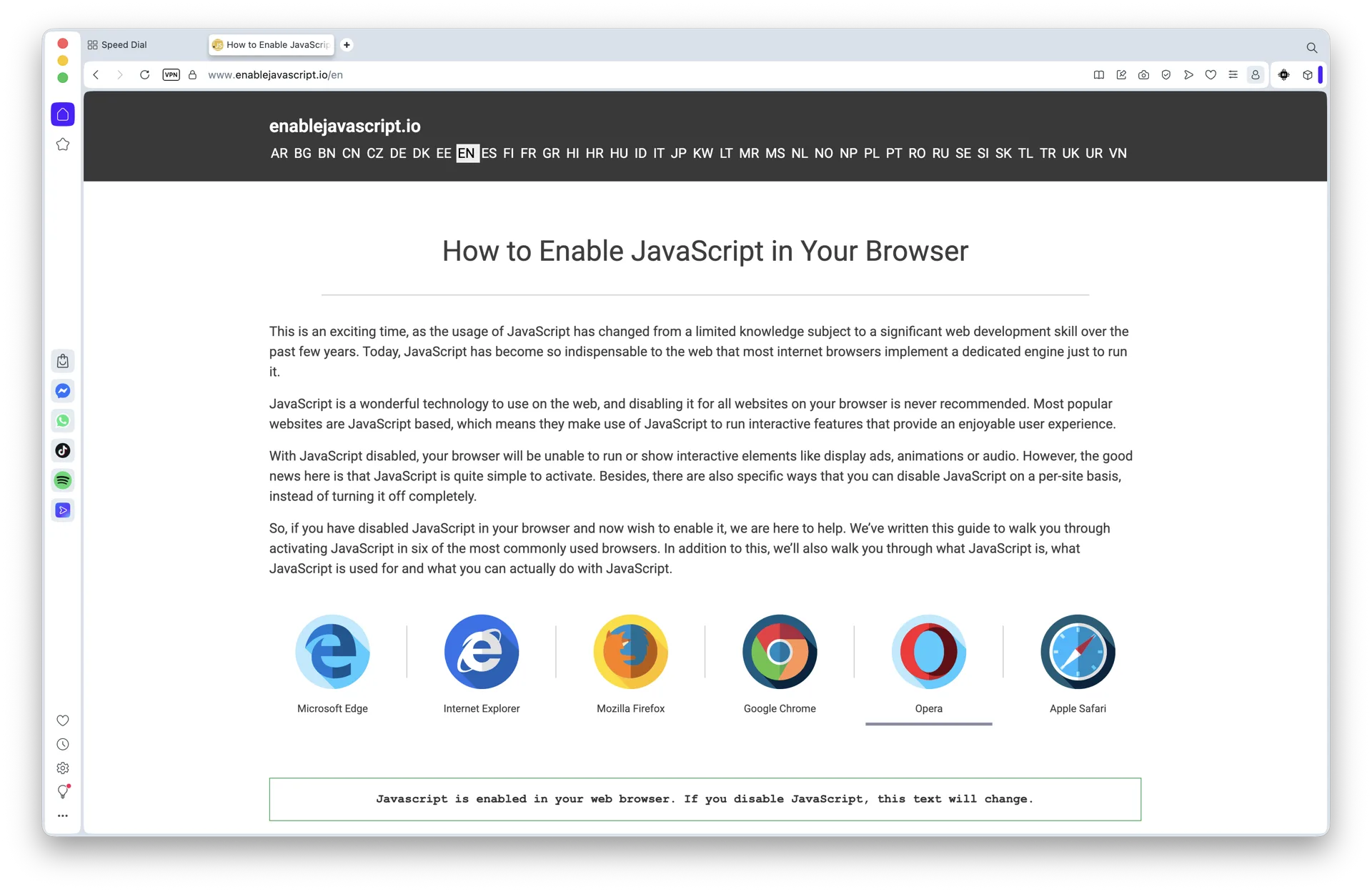
Step 1: Open Opera
Launch Opera from the Applications folder or the Dock.
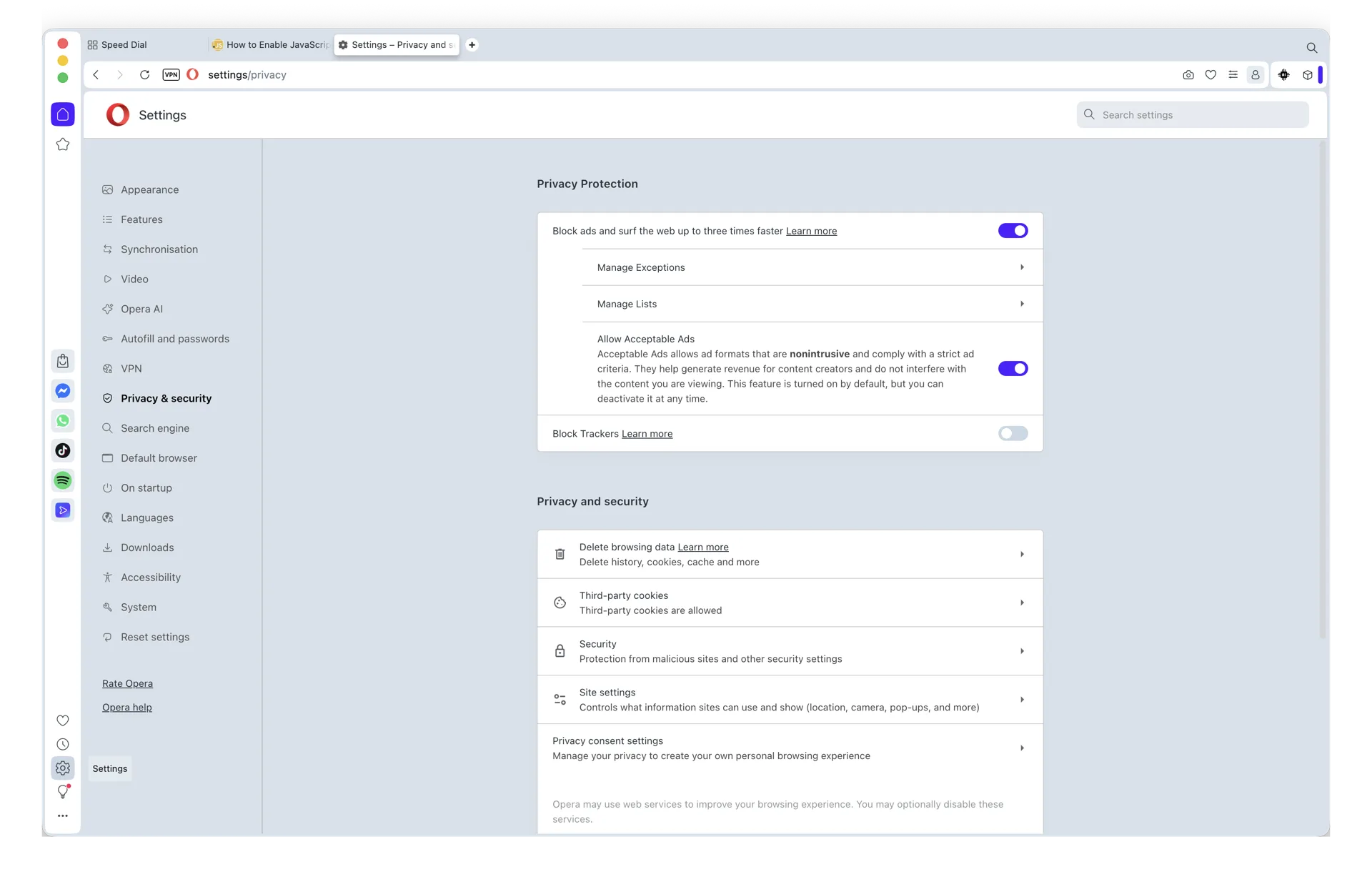
Step 2: Open Settings and reach Site Settings
Press Cmd+, to open Settings, then click Privacy & security in the left sidebar and choose Site Settings.
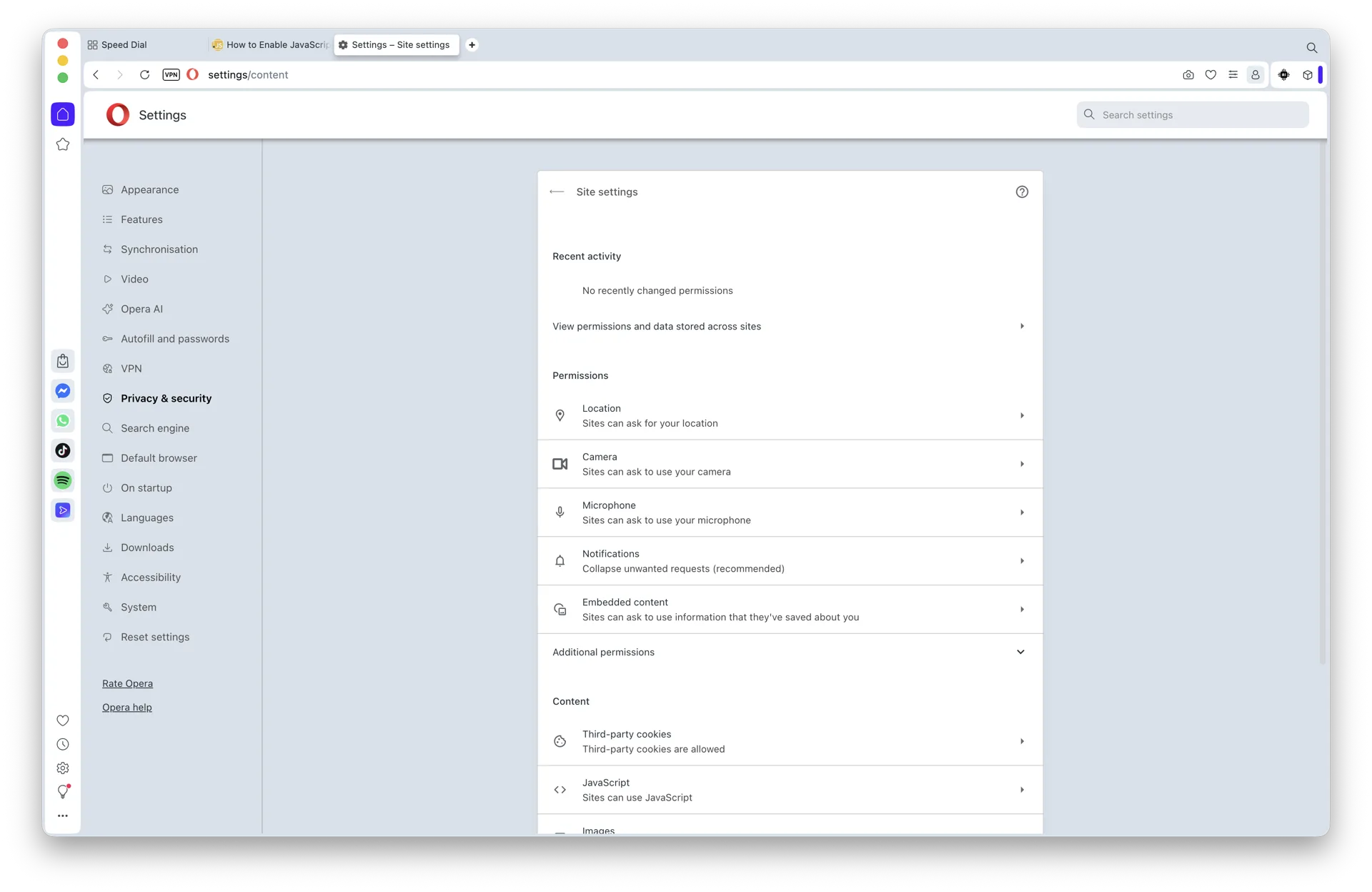
Step 3: Open JavaScript
Inside Site Settings, click the JavaScript row under Content.
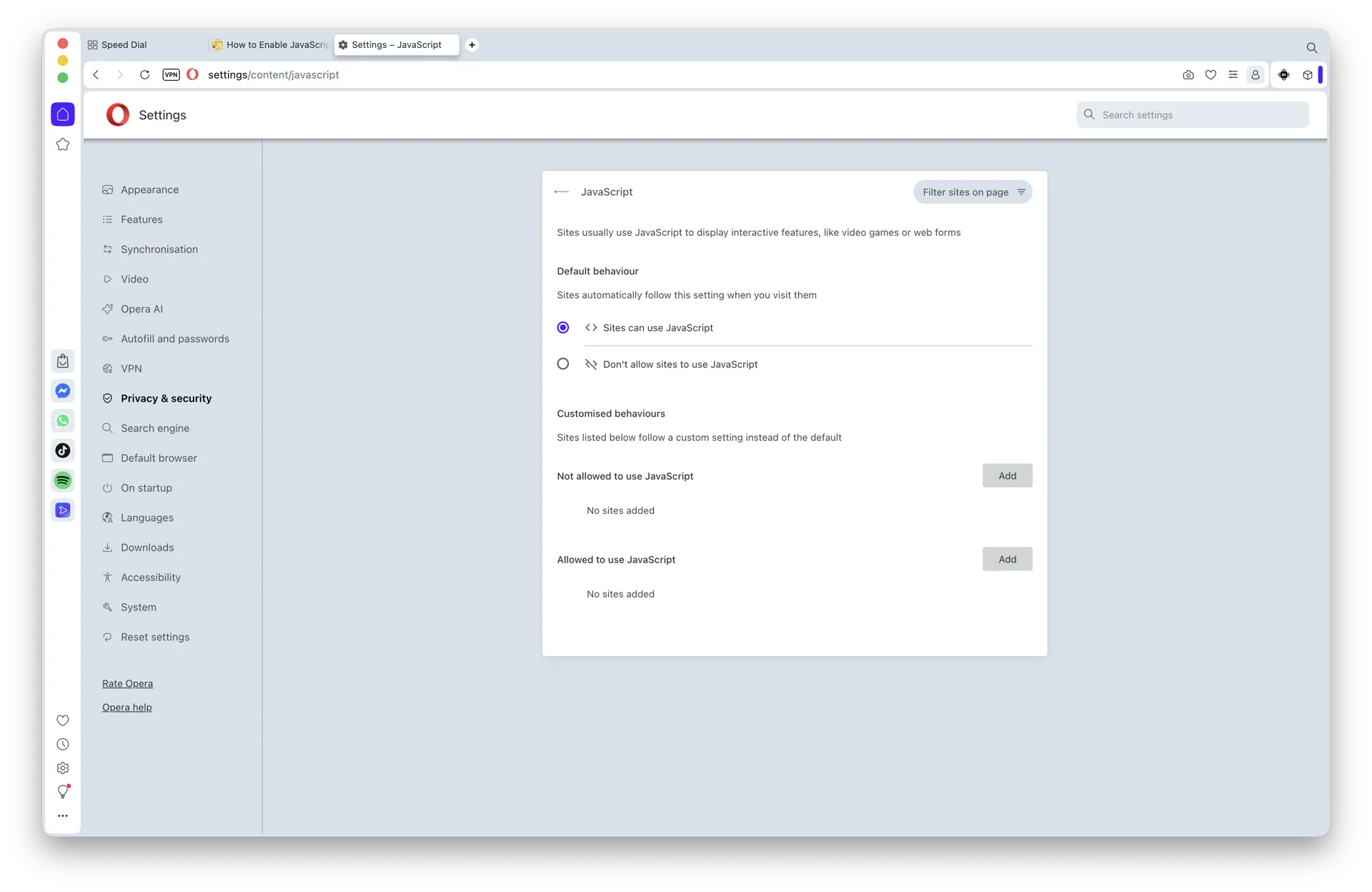
Step 4: JavaScript currently allowed
The default radio option is Sites can use JavaScript.
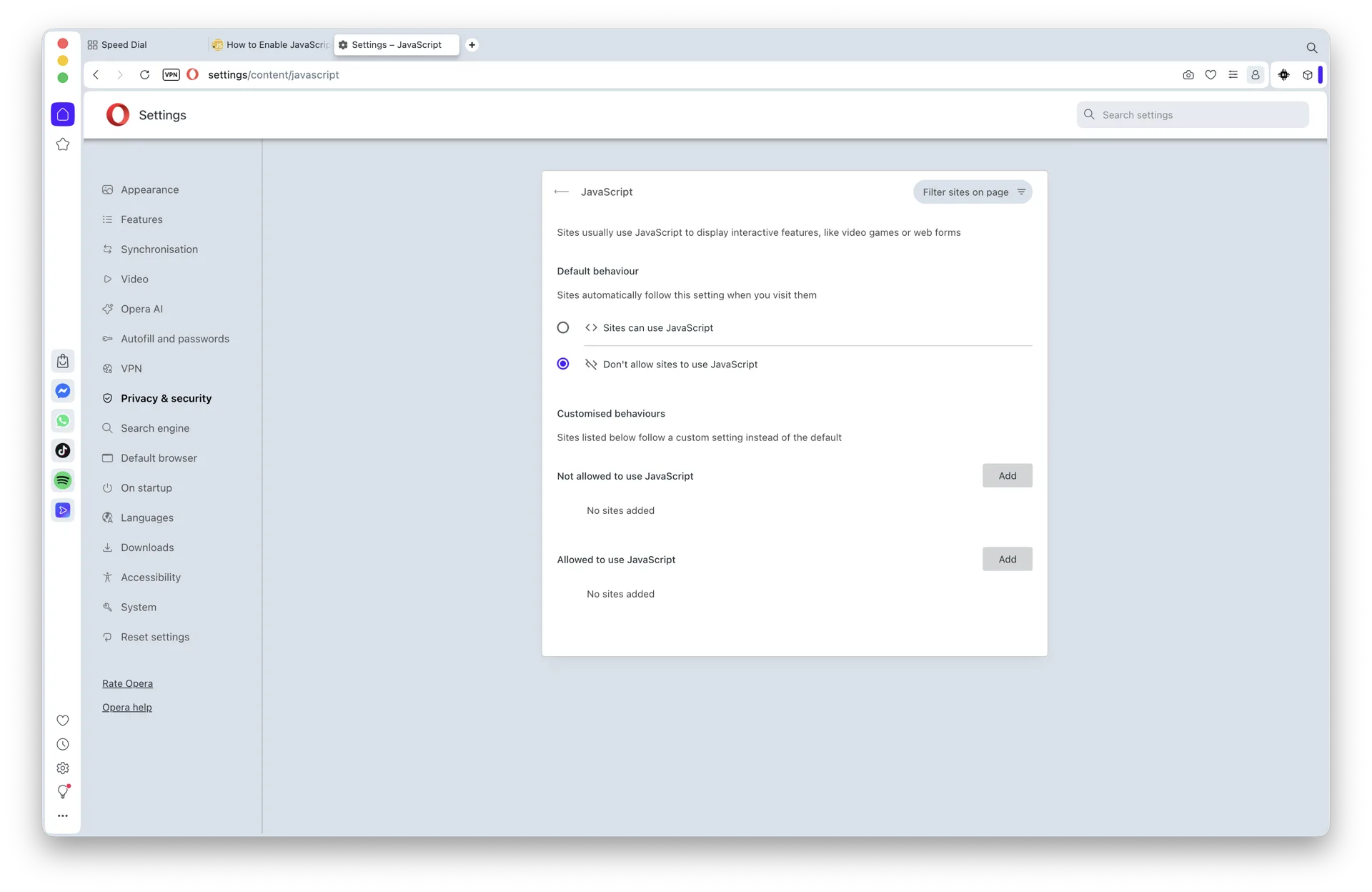
Step 5: Switch JavaScript off
Select Don't allow sites to use JavaScript. Reload any open tabs to apply.
Visual walkthrough: Opera on iOS
The current Opera iOS/iPadOS app has no global JavaScript switch that this guide can verify from vendor documentation. Apple's JavaScript setting under Safari is a Safari control; this guide does not present it as a Opera control.
For development testing, use desktop DevTools or a browser with a documented JavaScript control. For privacy, use Opera's documented tracking or content protections, but do not describe those protections as equivalent to disabling all JavaScript.
The menu path (if you prefer to navigate)
If you would rather get there through the GUI:
- Click the Easy Setup button at the top right of the Opera window (or the Opera GX icon at the top left in Opera GX, then Settings).
- Scroll down and click Go to full browser settings (or open Settings directly with Alt+P on Windows/Linux, Cmd+, on macOS).
- In the left sidebar, click Privacy & security.
- Scroll down and click Site Settings.
- Under the Content section, click JavaScript.
- Choose Don't allow sites to use JavaScript.
This is the same destination as the direct URL above - use whichever is faster for you.
How to disable JavaScript only for specific sites
Opera supports per-site allow and block lists right on the same panel. This is the workflow most users actually want: leave JavaScript on for the sites you trust and off for everything else, or vice versa.
- Open
opera://settings/content/javascript. - Decide which default you prefer: Sites can use JavaScript (block by exception) or Don't allow sites to use JavaScript (allow by exception).
- Under Customized behaviors, you will see two lists: Not allowed to use JavaScript and Allowed to use JavaScript.
- Click Add next to the relevant list and enter the site's domain (for example
https://example.com, or use[*.]example.comto cover all subdomains).
You can also block or allow JavaScript on the fly while viewing a site: click the small lock or shield icon at the left of the address bar, then choose Site settings, find the JavaScript row, and switch it to Block or Allow.
How to verify JavaScript is actually off
Two quick checks:
- Open Opera's developer tools with F12 or Ctrl+Shift+I (Cmd+Option+I on macOS), click the Console tab, type
1+1, and press Enter. With JavaScript enabled you get2; with it disabled you get an error or no response. - Reload a JavaScript-heavy site - YouTube, Gmail, Google Maps. With JS off, the player will not start, Gmail falls back to its static HTML view, and Maps shows little to nothing usable.
The settings panel itself is the most direct confirmation - the radio button should now sit on Don't allow sites to use JavaScript:
How to re-enable JavaScript in Opera
Reverse the steps:
- Address bar,
opera://settings/content/javascript, Enter. - Under Default behavior, select Sites can use JavaScript.
- Reload the affected tabs.
If you used per-site exceptions, leave the default as allow and remove individual entries from the Not allowed list.
Opera GX specifics
Opera GX is built on the same Chromium core, so every step in this guide works identically. The only differences worth noting: Opera GX's main settings entry point is the GX shield icon in the top-left rather than "Easy Setup" on the right, and Opera GX has its own RAM, CPU, and network limiters in addition to standard Chrome features. Disabling JavaScript on top of the GX limiters compounds the resource savings - useful while gaming.
What stops working when JavaScript is off
The same things that break in any browser when JS is off:
- Single-page apps - Gmail (full mode), Google Docs, Slack, Notion, Figma, Trello, Discord web.
- Video players on YouTube, Netflix, Twitch, and other streaming sites.
- Most modern checkout flows.
- Online banking dashboards.
- Live chat, comment sections, social feeds.
- Map and route services.
- Opera's own dApp/crypto wallet browser flows.
What works fine: most news articles, Wikipedia, blogs, documentation, search engine results, and most static or server-rendered pages. Pages also feel faster because the browser is no longer parsing and executing megabytes of script.
Workflow tips for living with JavaScript off
If you plan to keep JavaScript disabled most of the time, a few patterns make it practical day-to-day:
- Use the per-site allow list as your default workflow. Set the global to Don't allow, then add only the handful of domains you actually need (your bank, your email provider, your work app) to the allowed list. Most browsing happens with JS off; the sites that matter still work.
- Pin
opera://settings/content/javascriptas a bookmark. One click, no menu hunting. Particularly useful when you encounter a site that needs a quick exception. - Use the address bar lock icon for ad-hoc decisions. No need to even open Settings - the lock icon next to any URL opens a per-site panel where you can flip JavaScript on or off and reload.
- Pair with Opera's tracker blocker and ad blocker. Both are independent of the JavaScript toggle. With JS off plus tracker blocking on, the surface area for in-page surveillance is minimal.
Common issues and troubleshooting
If the toggle does not seem to take effect:
- The setting changed but the site still runs scripts. Reload the tab (Ctrl+R or Cmd+R). The new policy applies on the next page load, not to scripts already executing.
- Animations still play. CSS animations and transitions are not JavaScript - they continue regardless. Same with HTML
autoplayvideo. - An extension is overriding your choice. Browser extensions with the "Read and change all your data on websites you visit" permission can re-enable JavaScript per request. Check
opera://extensionsand disable suspect ones. - Per-site exception not working. Make sure you used the right URL format -
https://example.commatches only that exact origin; use[*.]example.comto cover all subdomains. - Settings managed by your organization. If Opera is managed by a workplace or school policy, the JavaScript setting may be locked - the option will appear greyed out.
Summary
To disable JavaScript in Opera (or Opera GX): visit opera://settings/content/javascript and pick Don't allow sites to use JavaScript. To re-enable, switch back to Sites can use JavaScript. For per-site control, use the same panel's allow and block lists - no extension required. Verify with the developer console (F12) or by reloading a JavaScript-heavy site.