Microsoft Edge is built on Chromium since January 2020 - the same engine as Google Chrome - so its JavaScript settings live in a near-identical place. JavaScript is on by default; you only need this guide if it was turned off (often by an extension, a managed profile, or a privacy preset).
This guide covers every modern Edge scenario: enabling JavaScript globally on Windows 10/11 and Mac, allowing it for a single site, the edge://settings shortcut, and how to verify it's running. All instructions reflect Edge's current UI as of 2026.
Javascript is disabled in your web browser. If you enable JavaScript, this text will change.
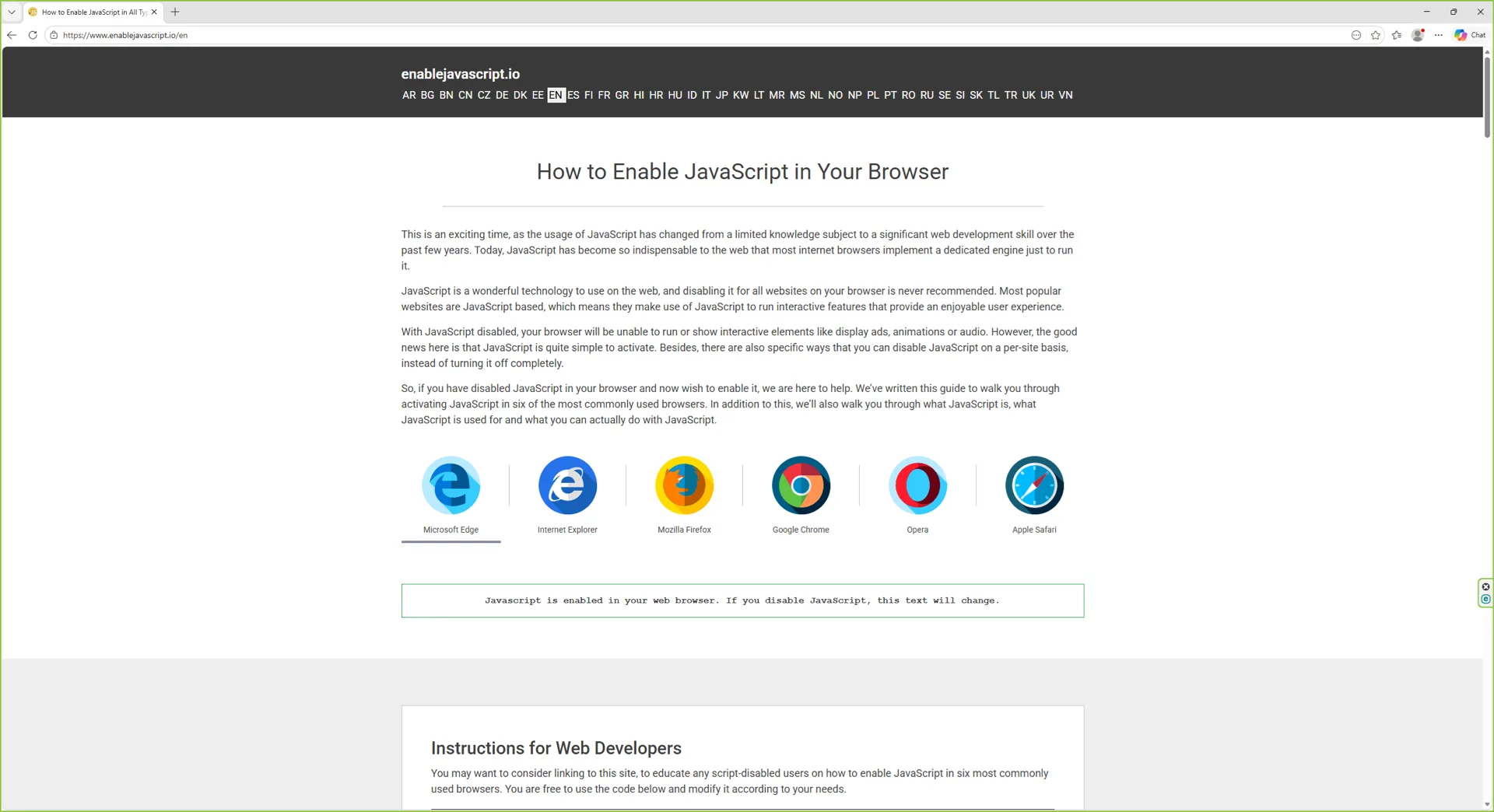
Javascript is enabled in your web browser. If you disable JavaScript, this text will change.
Instructions for Web Developers
You may want to consider linking to this site, to educate any script-disabled users on how to enable JavaScript in six most commonly used browsers. You are free to use the code below and modify it according to your needs.
<noscript>
For full functionality of this site it is necessary to enable JavaScript.
Here are the <a href="https://www.enablejavascript.io/">
instructions how to enable JavaScript in your web browser</a>.
</noscript>
On enablejavascript.io we optimize the script-disabled user experience as much as we can:
The instructions for your browser are put at the top of the page
All the images are inlined, full-size, for easy perusing
We want your visitors to have JavaScript enabled just as much as you do!
What is JavaScript and Why Do I Need It?
JavaScript is a browser-based scripting language that powers nearly every interactive feature on the modern web - dropdown menus, infinite scroll, video players, chat widgets, single-page apps, and dynamic dashboards. Microsoft Edge (built on the Chromium engine since 2020) has JavaScript switched on by default, and most sites assume that is still the case in 2026.
If you turn JavaScript off in Edge, large parts of the web stop working. Outlook on the web, Microsoft 365 apps, YouTube, Amazon, X (Twitter), Facebook, Google Maps, and most online banking sites either render as plain skeletons or refuse to load. Even Microsoft's own Copilot integrations inside Edge depend on JavaScript to fetch and stream answers in the sidebar.
The guides below show you exactly where the JavaScript switch is on Windows 10 and 11, macOS 26 (Sequoia), and Edge for iPhone or iPad - plus how to verify, allow on a single site, or disable scripts when you need to.
How to Check if JavaScript is Enabled in Microsoft Edge
Three quick ways to confirm JavaScript is on in Edge:
Method 1 - Visit a JavaScript-heavy site
If sites like Outlook, YouTube, or Bing Maps load and respond normally, JavaScript is enabled. If you see only plain text and broken layouts, it's off.
Method 2 - Use Edge DevTools
Press F12 (Windows) or Cmd+Option+I (Mac) to open DevTools.
Click the Console tab.
Type 1+1 and press Enter. If 2 is returned, JavaScript is running.
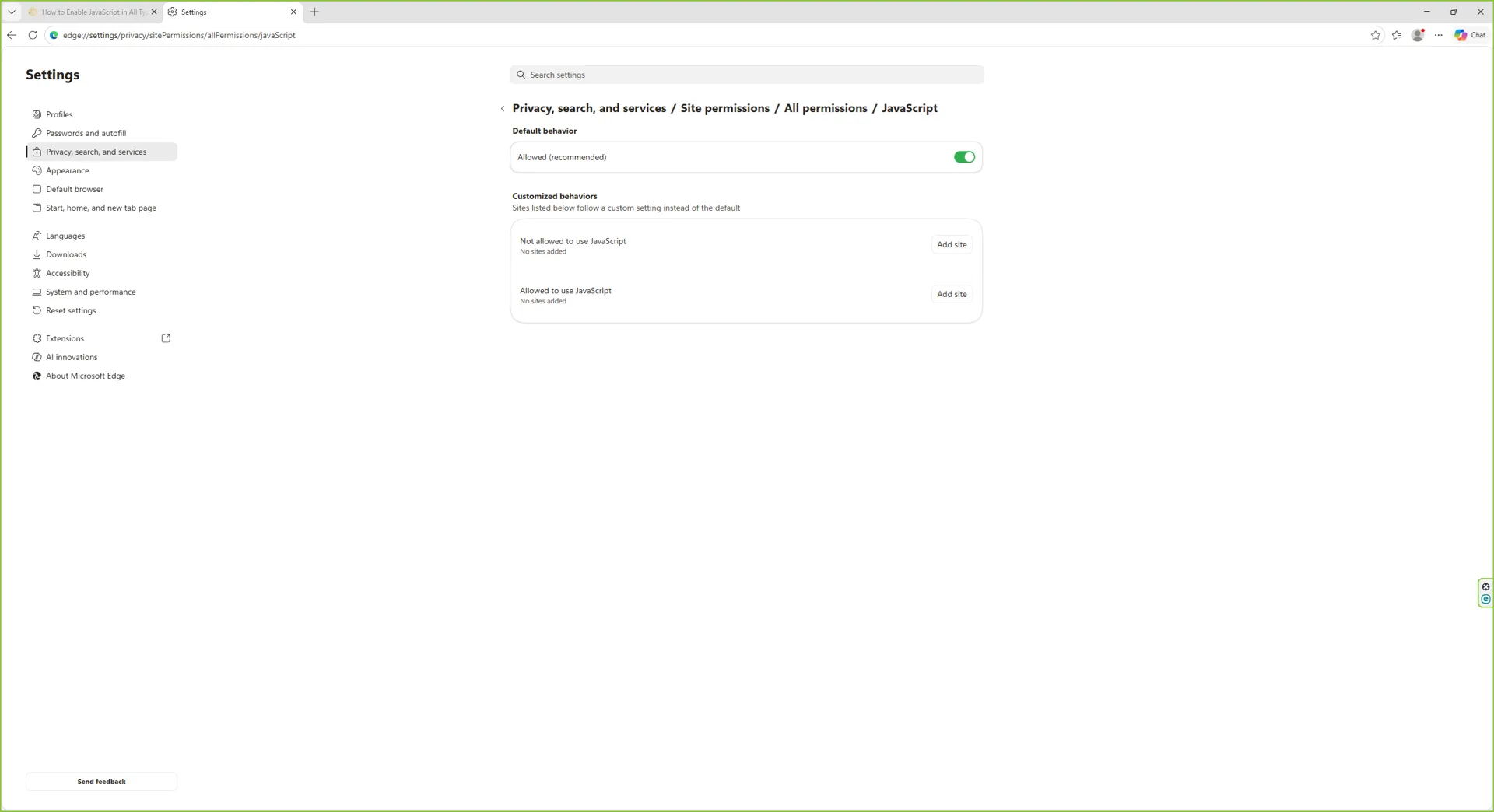
Paste that URL into the address bar. Edge jumps straight to the JavaScript permission page - the toggle state confirms whether scripts are allowed across all sites.
When the top toggle reads Allowed (recommended), JavaScript is enabled for every site that does not have a per-site override.
How to Enable JavaScript in Microsoft Edge on Windows 10 and 11
The Edge JavaScript toggle sits in the same place on Windows 10 and Windows 11. Follow the seven steps below, or paste edge://settings/content/javascript straight into the address bar to skip the menu.
Step 1: Open Microsoft Edge
Launch Microsoft Edge from the Start menu, taskbar, or desktop shortcut.
Open Microsoft Edge on your Windows 10 or 11 PC.
Step 2: Open the three-dot menu
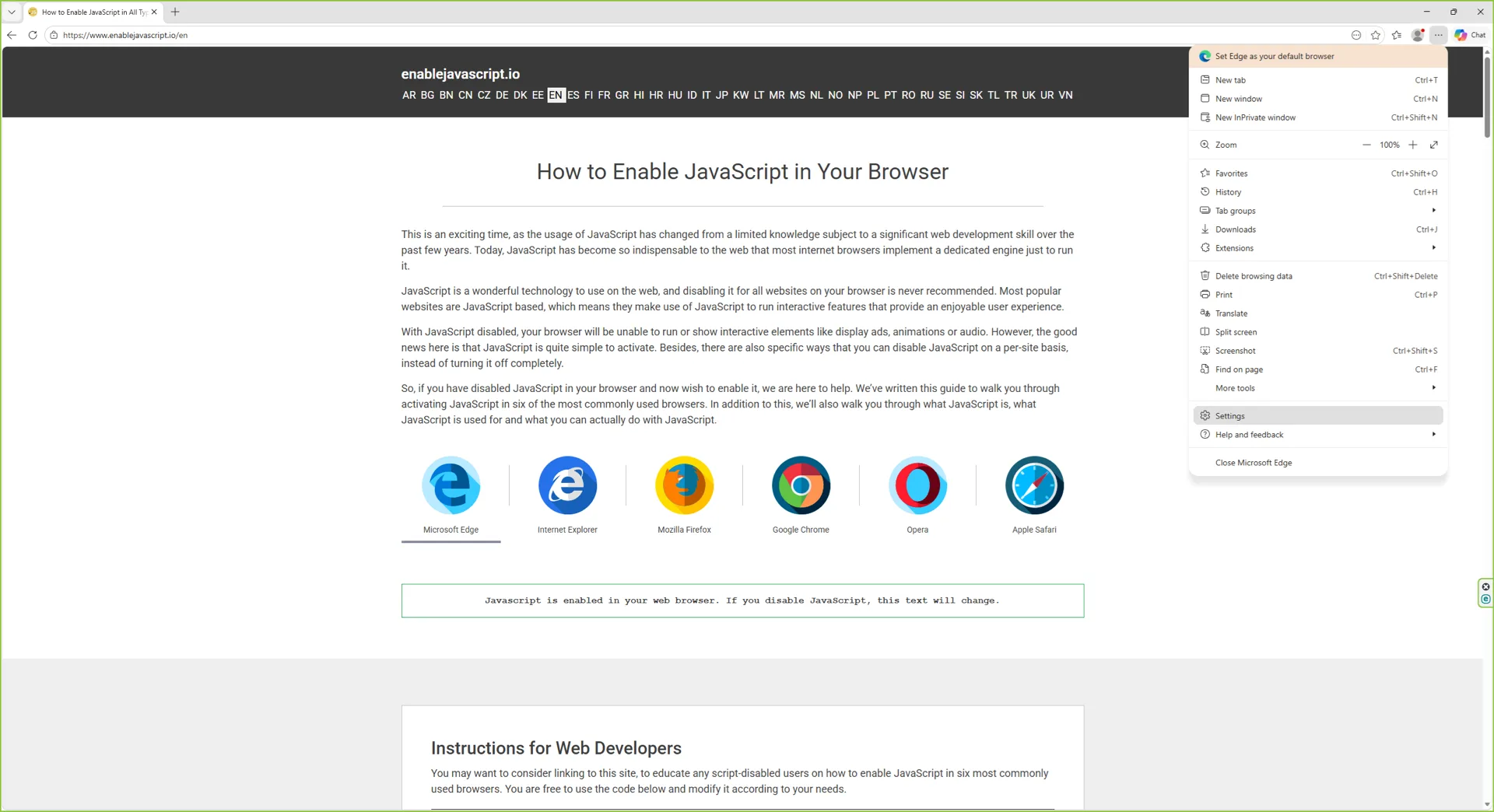
Click the three-dot menu in the top-right corner of the browser window (the Settings and more button).
The three-dot menu opens Edge's main navigation. Click Settings near the bottom of the list.
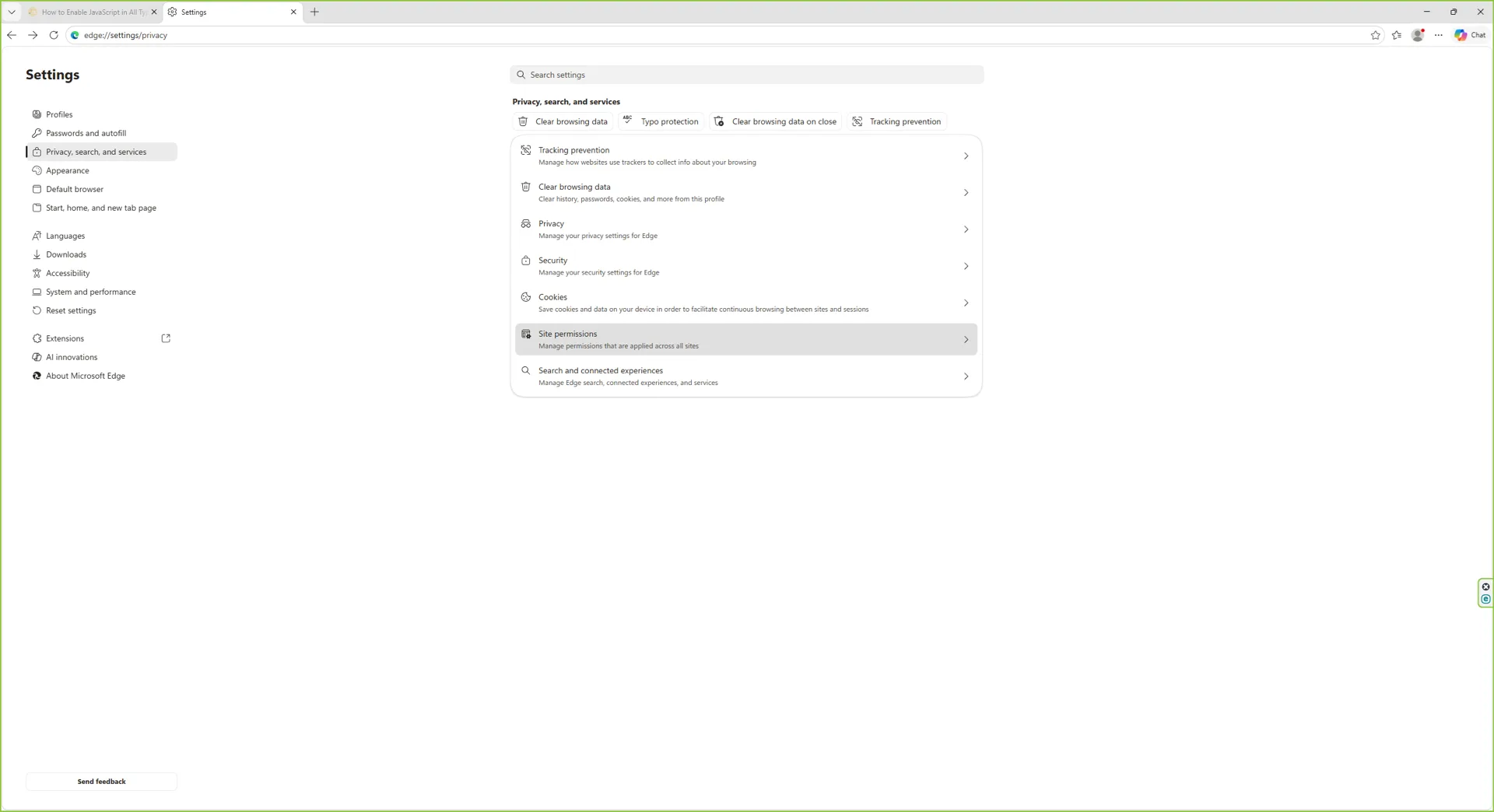
Step 3: Open Settings and pick Cookies and site permissions
In Settings, click Cookies and site permissions in the left sidebar.
The Cookies and site permissions section groups every per-site control - cookies, location, camera, JavaScript, and more.
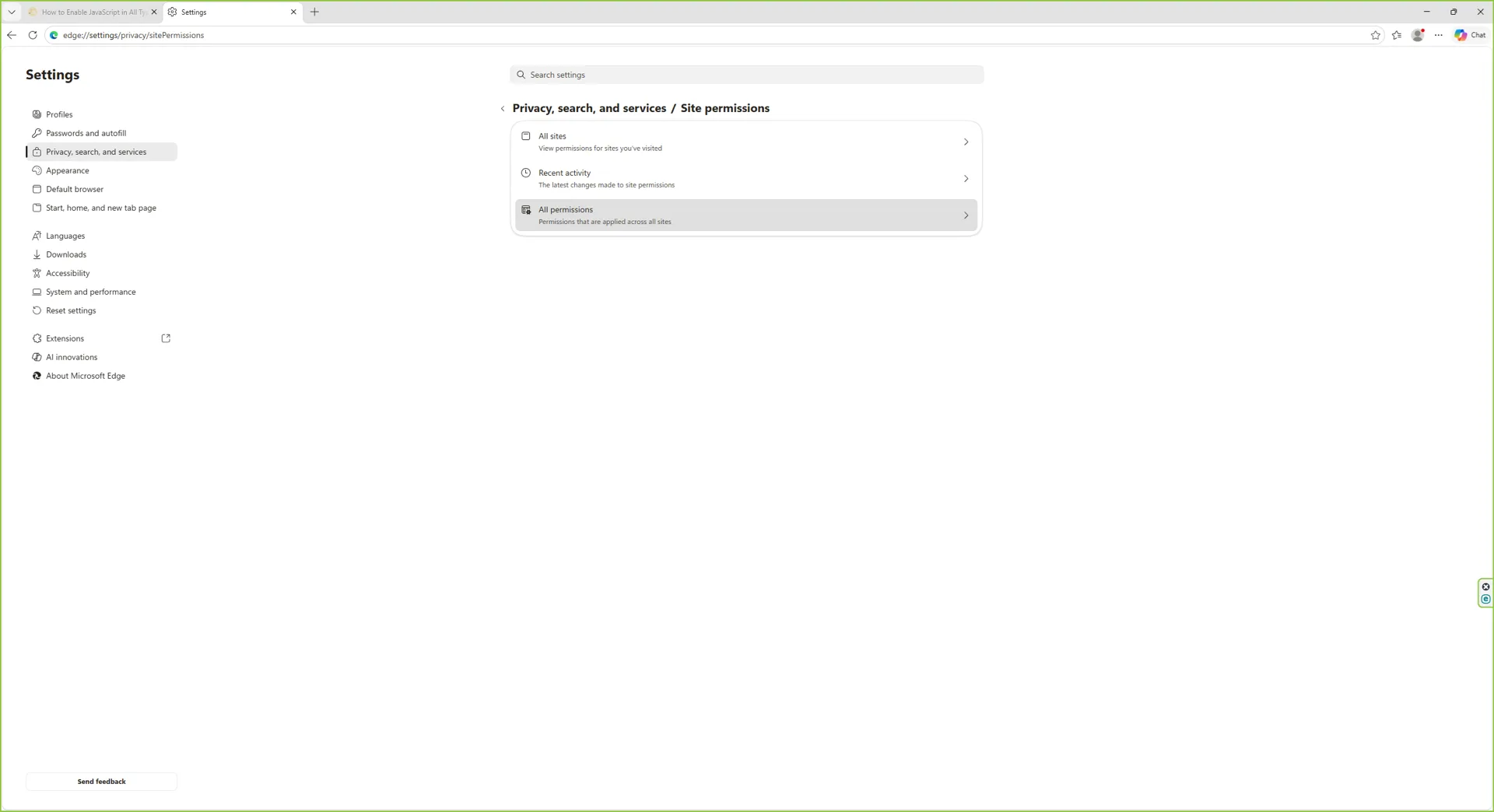
Step 4: Scroll to All permissions
Scroll past the cookie controls to the All permissions heading. This is where every individual site permission lives.
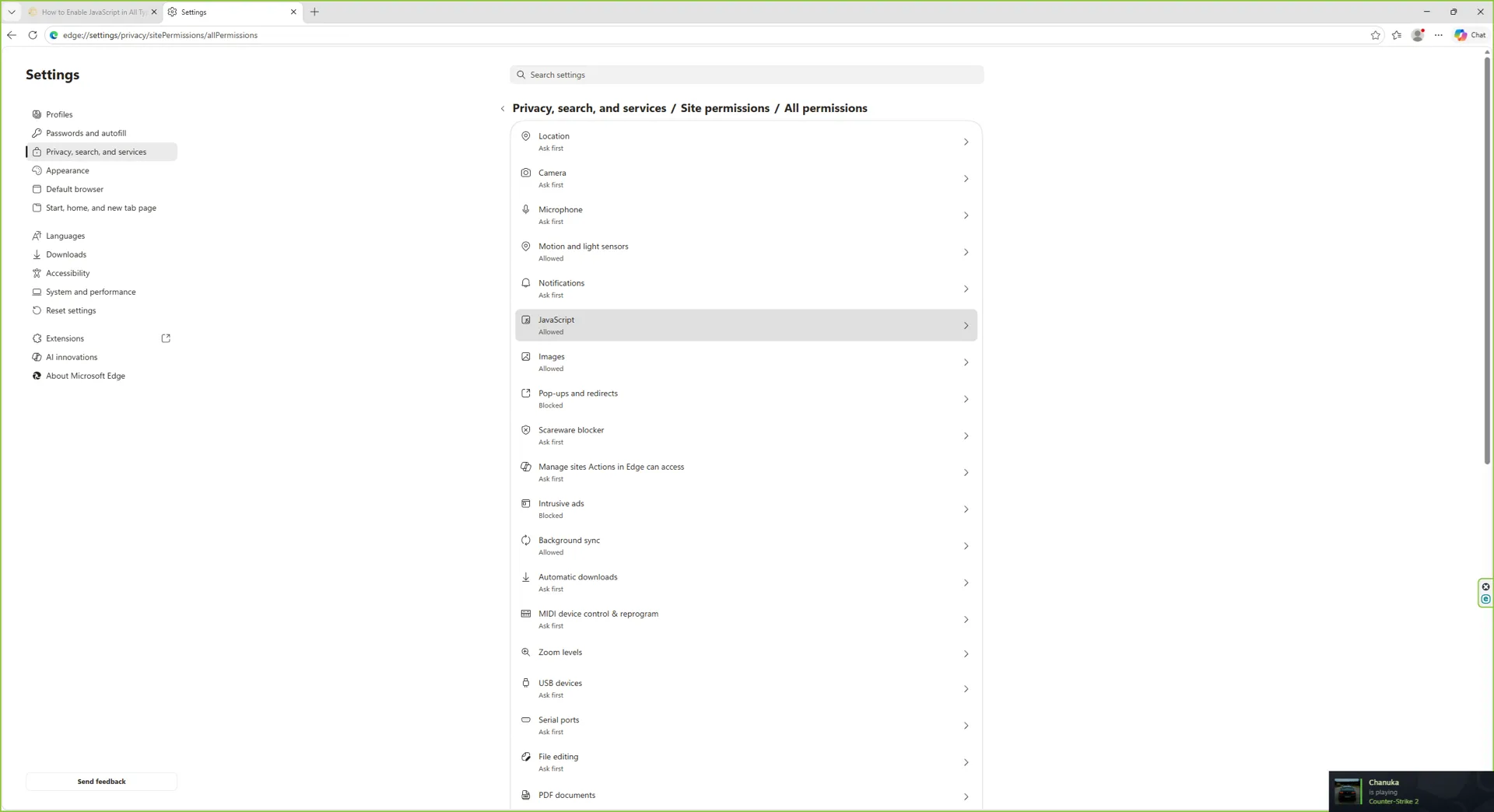
The All permissions list is alphabetised - JavaScript appears between Insecure content and Location.
Step 5: Click JavaScript
Click JavaScript to open its detail page.
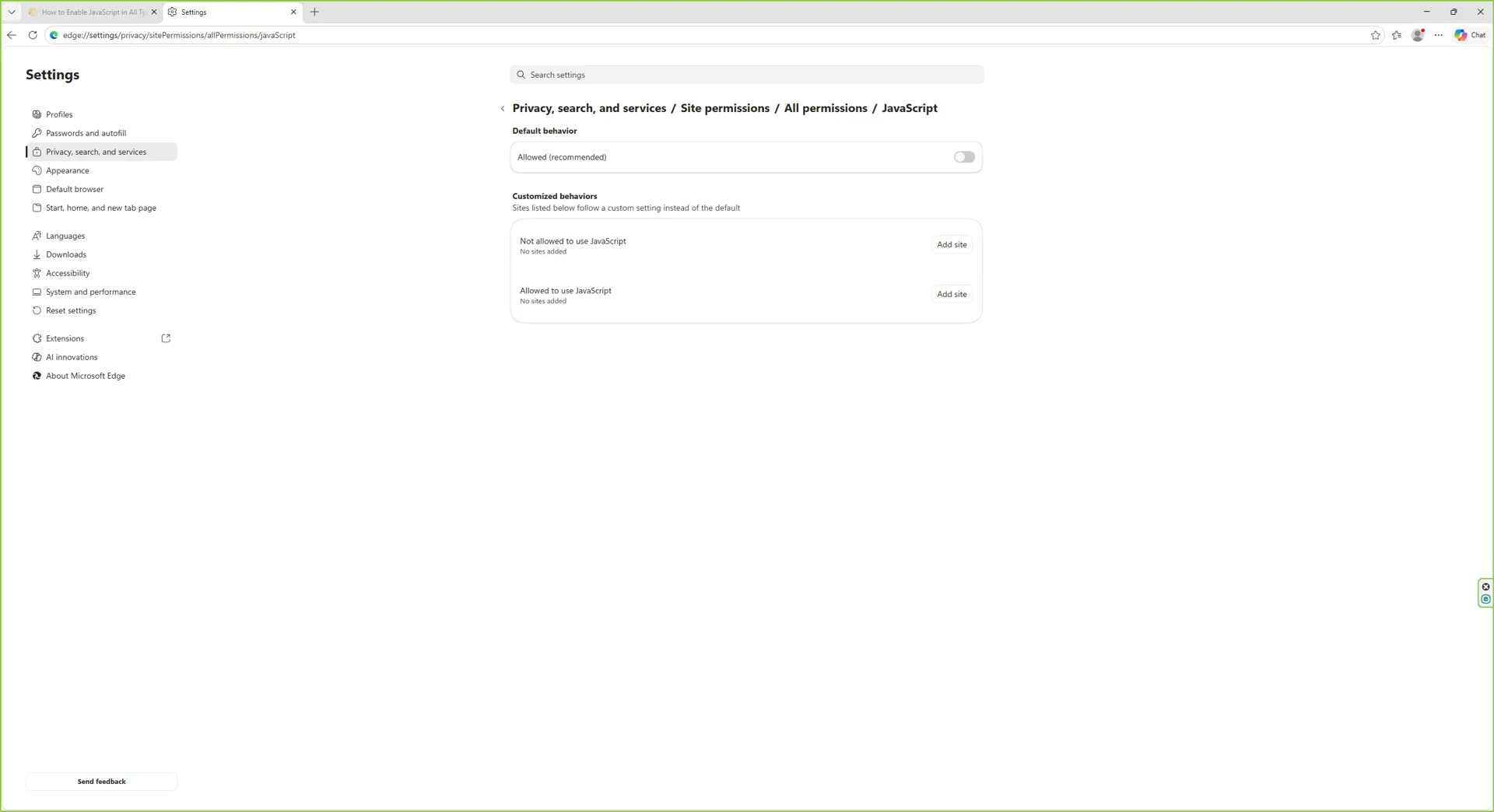
Clicking JavaScript opens the global toggle plus the per-site allow and block lists.
Step 6: Switch the toggle to Allowed (recommended)
Make sure the top toggle reads Allowed (recommended). JavaScript is now enabled across every site that does not have a per-site override.
JavaScript is on. Reload any open tabs for the change to take effect.
Step 7: How the page looks when JavaScript is blocked
For reference, this is the same page with the toggle switched off (Blocked) - this is the state you do not want for normal browsing.
The Blocked state disables scripts on every site without an explicit allow rule.
Shortcut: paste edge://settings/content/javascript into the address bar to jump straight to step 6.
How to Enable JavaScript in Microsoft Edge on macOS Sequoia (macOS 26)
Edge for Mac uses the same Chromium-based UI as the Windows builds, so the JavaScript toggle is in the identical place. The screenshots below were captured on macOS 26 (Sequoia).
Step 1: Open Microsoft Edge
Launch Microsoft Edge from Launchpad, the Applications folder, or Spotlight. The first two steps look identical to the Windows version, so they are described in prose only.
Step 2: Open the three-dot menu
Click the three-dot menu in the top-right corner of the Edge window (the Settings and more button), then choose Settings. You can also press Cmd+, from any Edge window to jump straight there.
Step 3: Open Settings
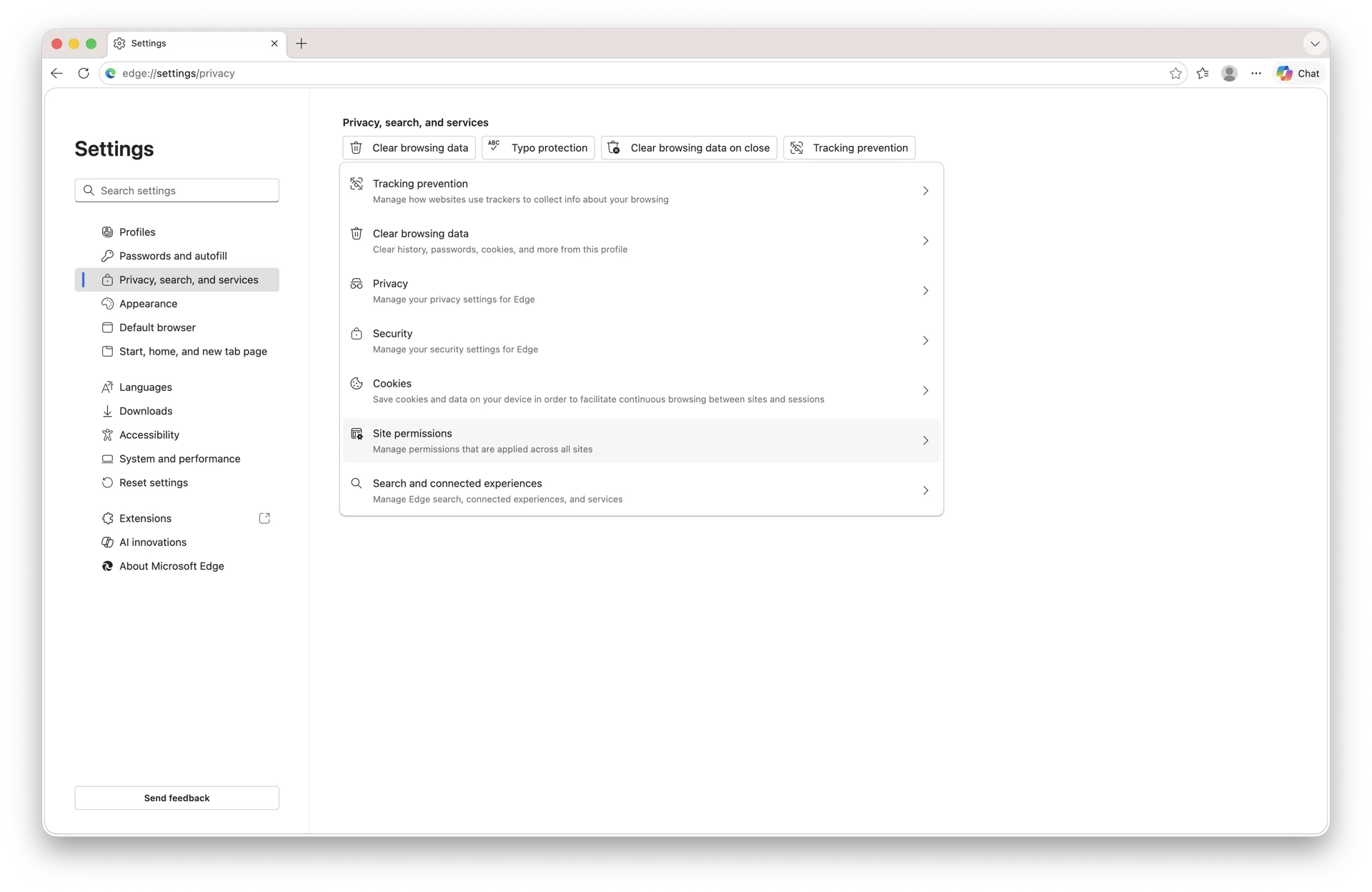
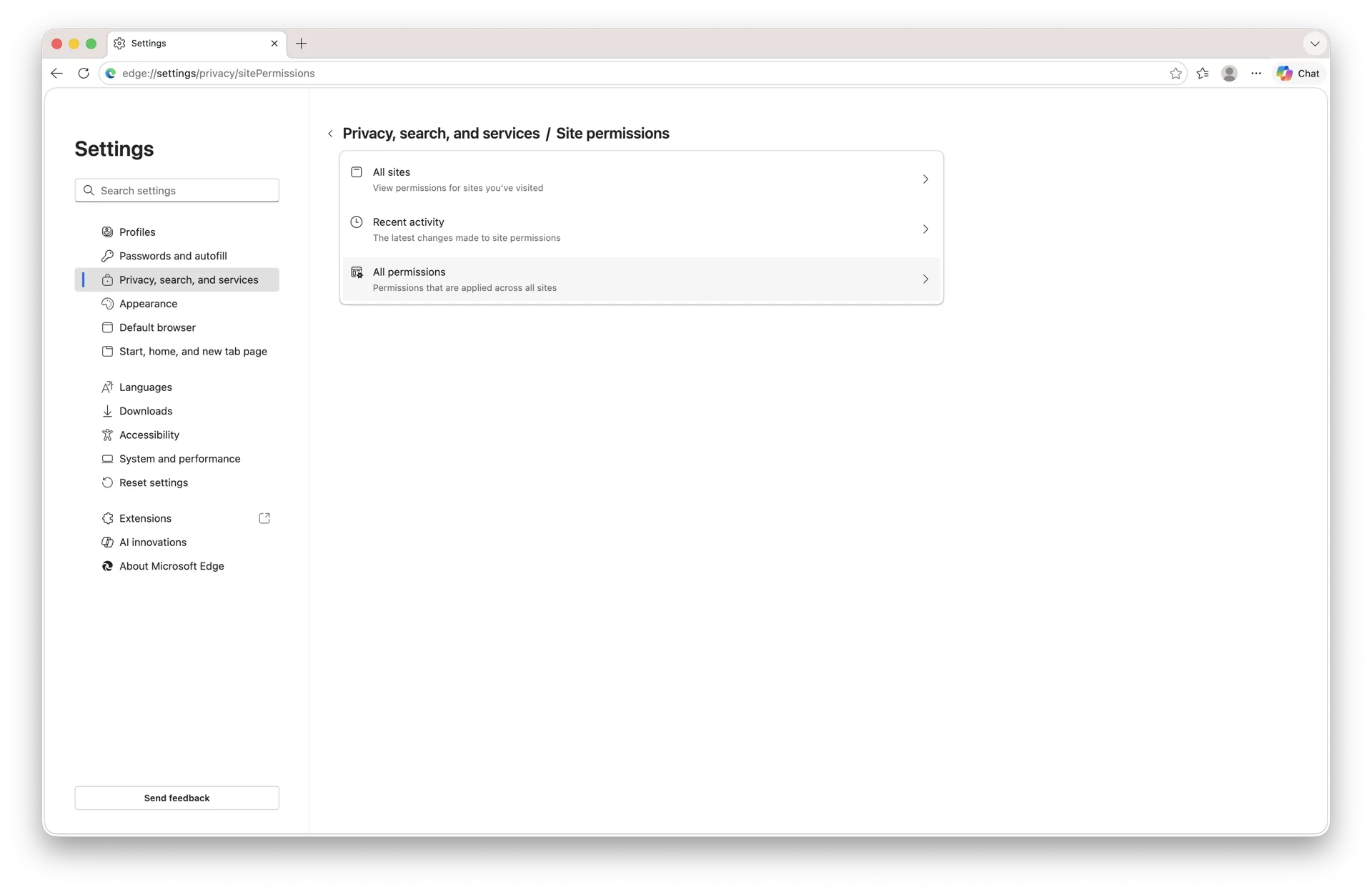
The Settings page loads in a new tab. The macOS layout matches Windows - a left sidebar plus a content pane.
Edge Settings on macOS 26. The sidebar mirrors the Windows version step-for-step.
Step 4: Click Cookies and site permissions
In the sidebar, click Cookies and site permissions.
The Cookies and site permissions page lists every site-level control Edge offers.
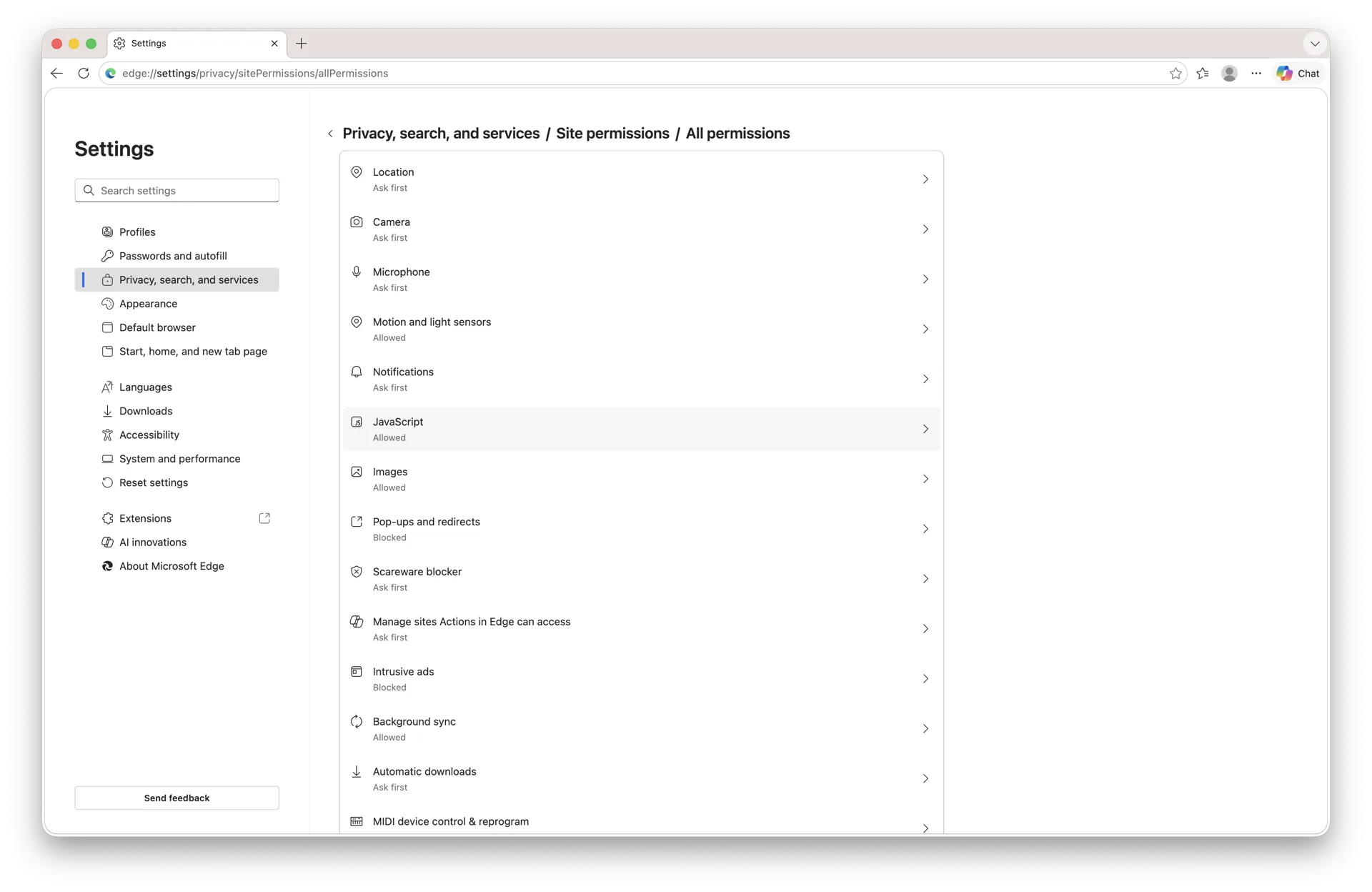
Step 5: Scroll to All permissions and click JavaScript
Scroll to the All permissions heading and click JavaScript.
JavaScript sits inside the alphabetised All permissions list.
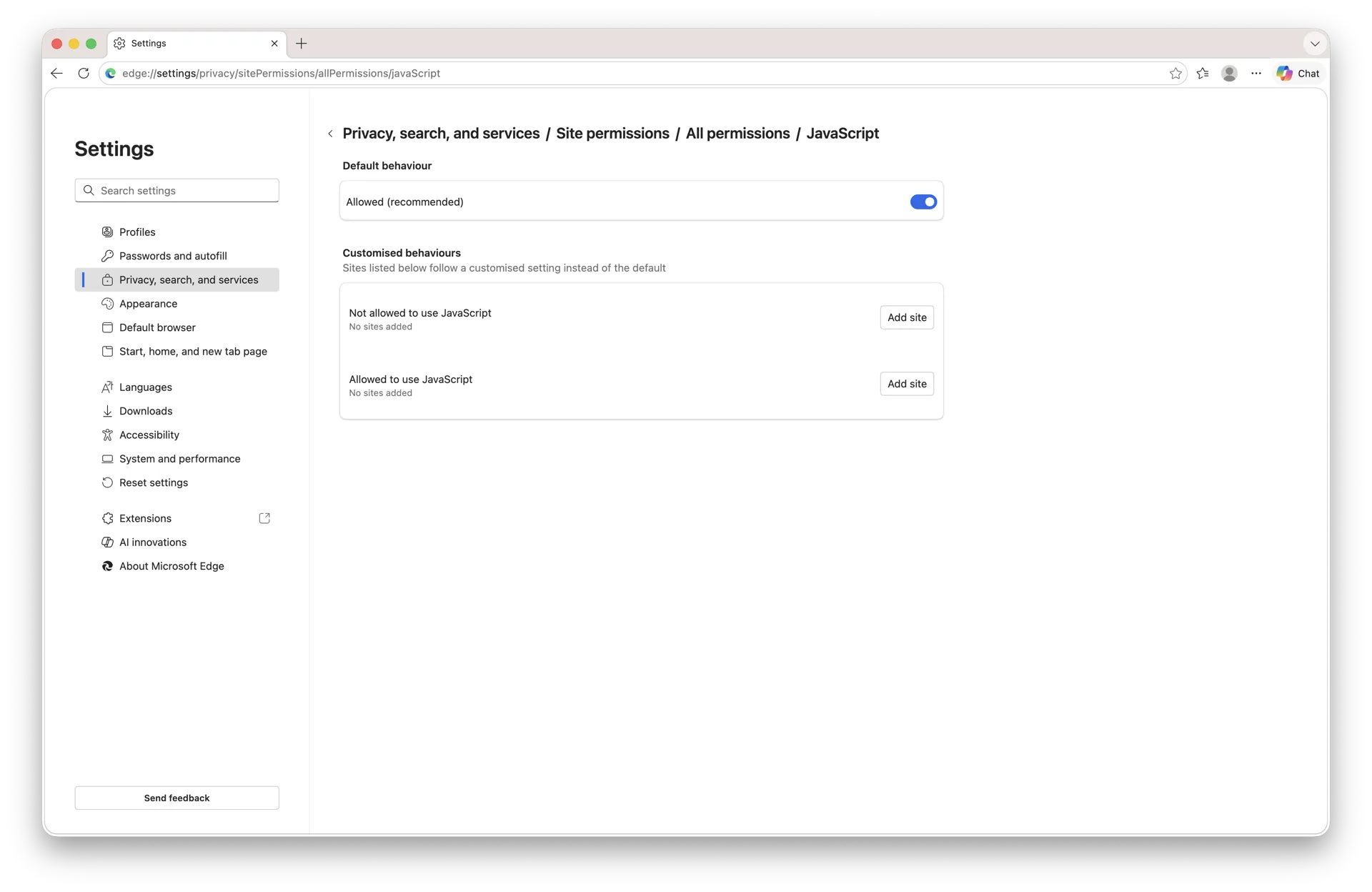
Step 6: Switch the toggle to Allowed (recommended)
Switch the top toggle to Allowed (recommended). JavaScript now runs on every site that does not have a per-site override.
JavaScript is on across all sites. Reload any open tabs.
Step 7: How the page looks when JavaScript is blocked
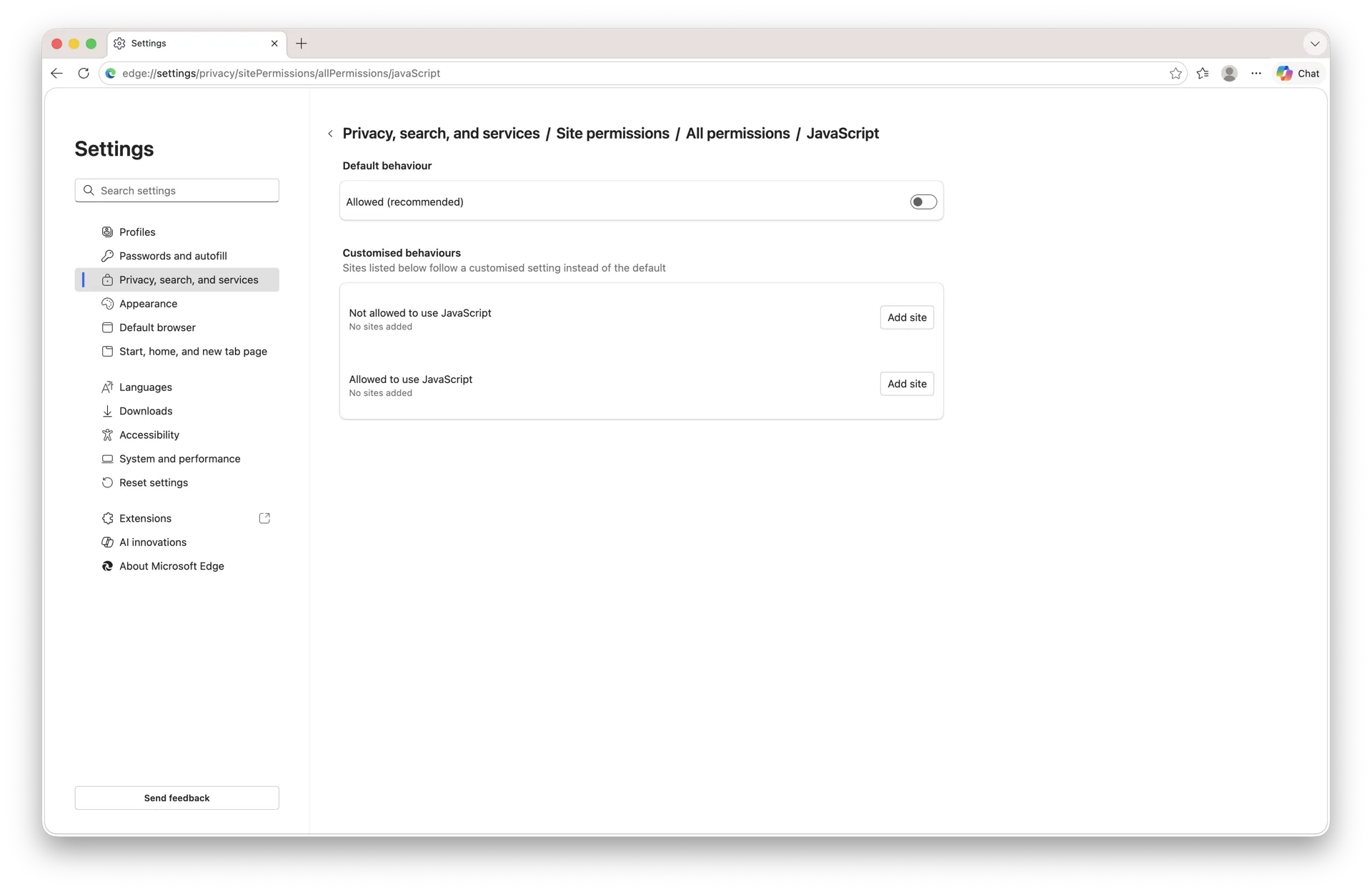
For reference, this is the same screen with JavaScript disabled - this is the state you do not want.
The Blocked state disables scripts on every site without an explicit allow rule.
Mac shortcut: paste edge://settings/content/javascript into the address bar to jump straight to step 6.
How to Enable JavaScript in Edge on iPhone, iPad, and iOS
Microsoft Edge on iPhone and iPad does not run on Edge's own engine. Apple still requires every browser on iOS and iPadOS to use the system WebKit (Safari) engine, so the JavaScript toggle for Edge on iOS lives inside Apple's Settings app under Safari - not anywhere inside the Edge app itself. Flipping that switch enables (or disables) JavaScript for Edge, Chrome, Firefox, Brave, and every other iOS browser at the same time.
Step 1: Open the Settings app
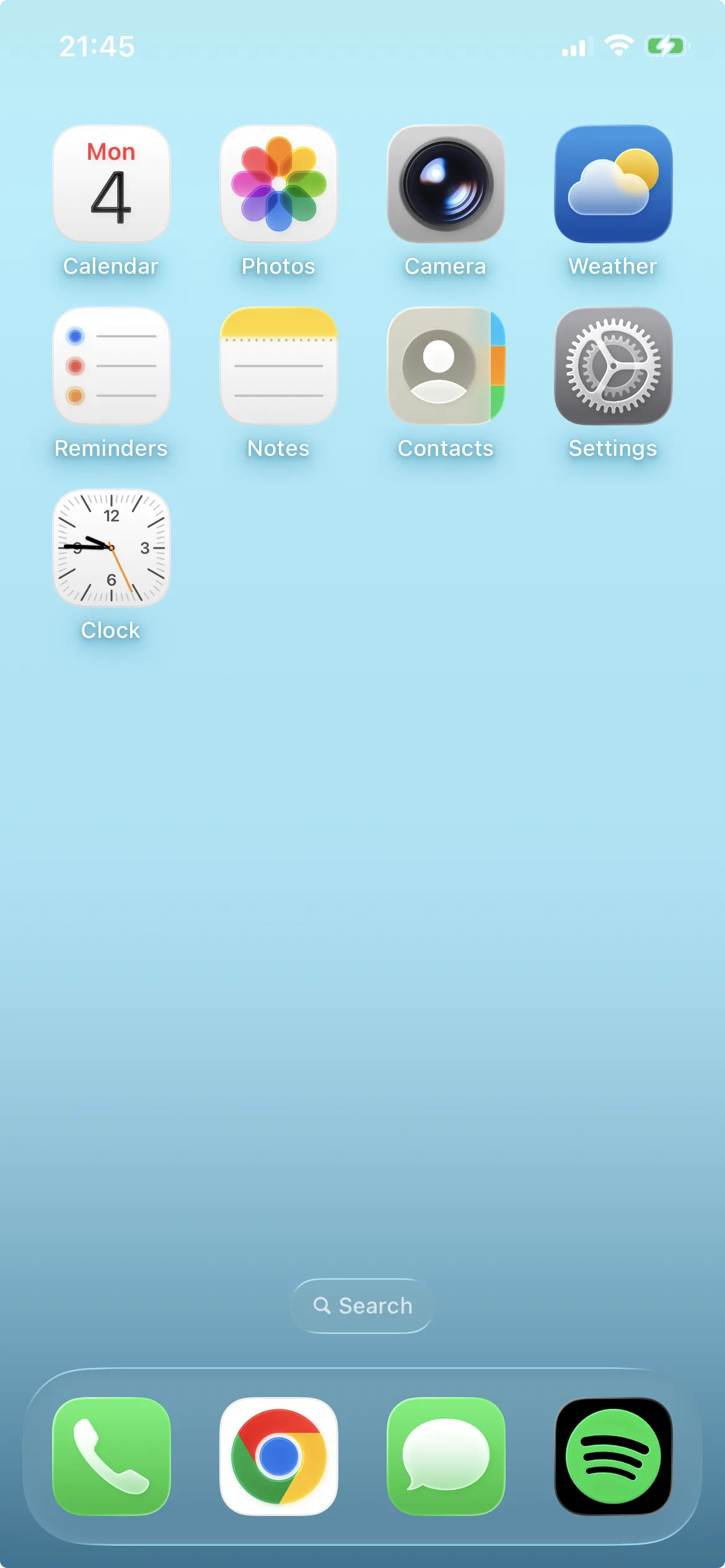
Tap the grey Settings icon on the Home Screen or in the App Library.
Open the system Settings app - not Edge's in-app settings.
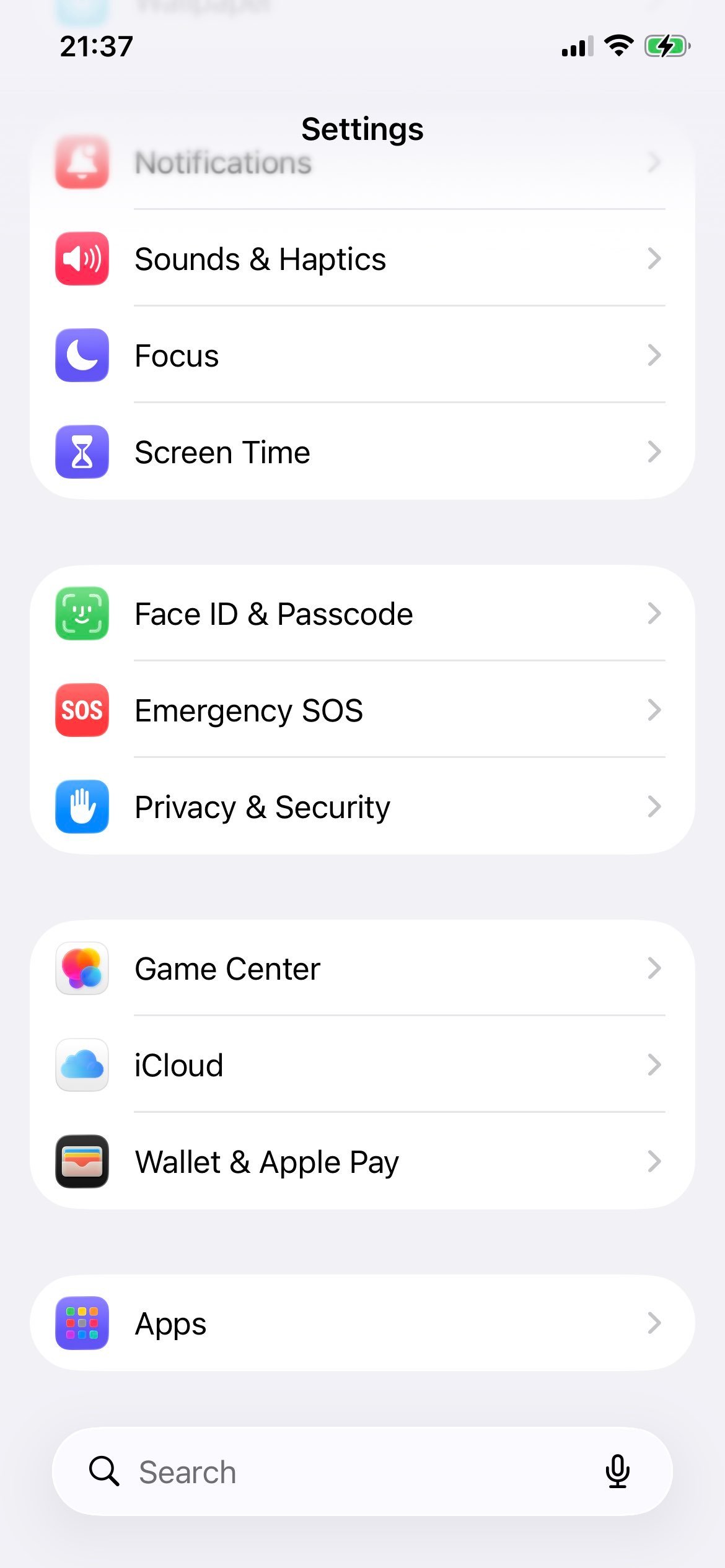
Step 2: Tap Apps
Scroll down and tap Apps. iOS 18 and later moved every per-app setting under this section.
The Apps entry replaces the older flat list of app-specific settings.
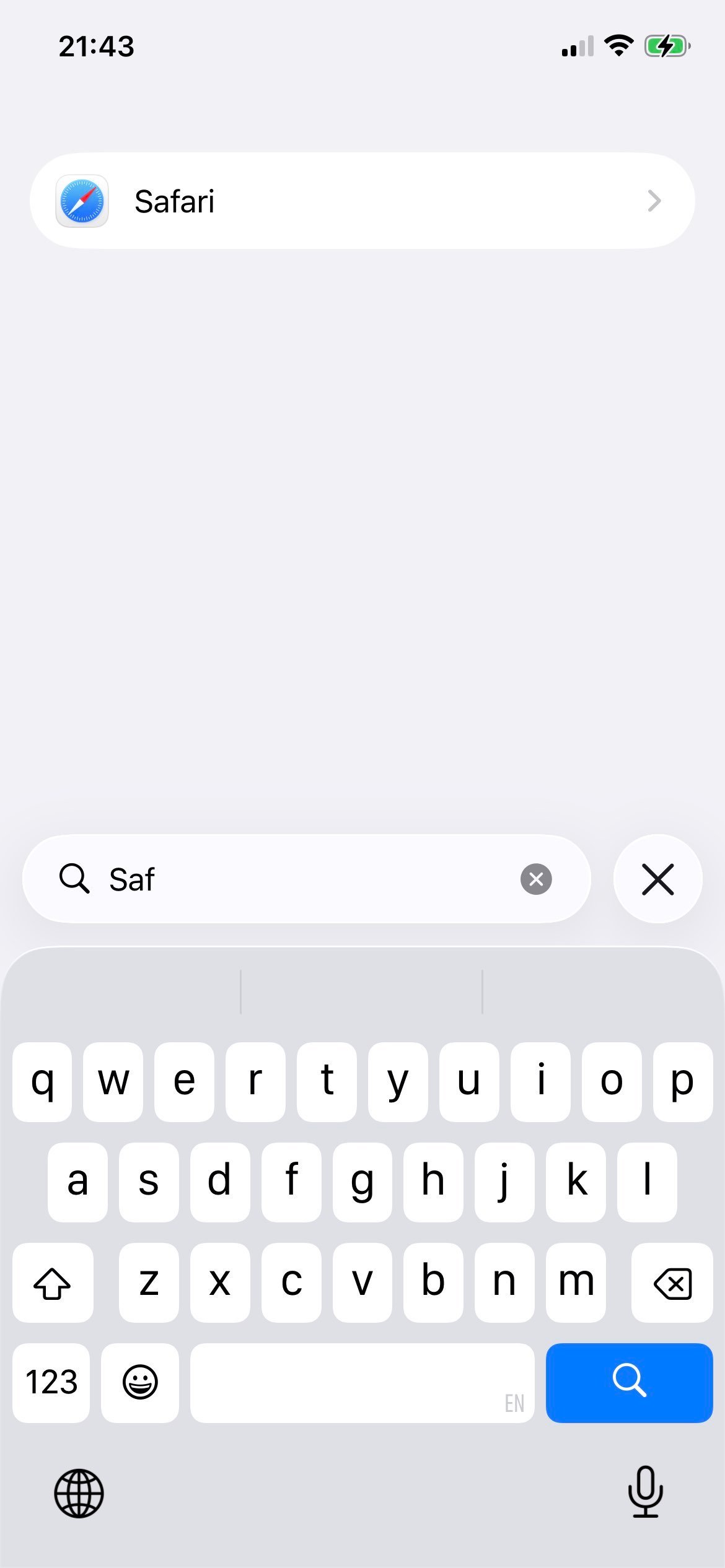
Step 3: Tap Safari
In the alphabetical Apps list, tap Safari. This is the engine that backs Edge on iOS.
Edge on iPhone and iPad shares Safari's WebKit engine, so its JavaScript switch lives here.
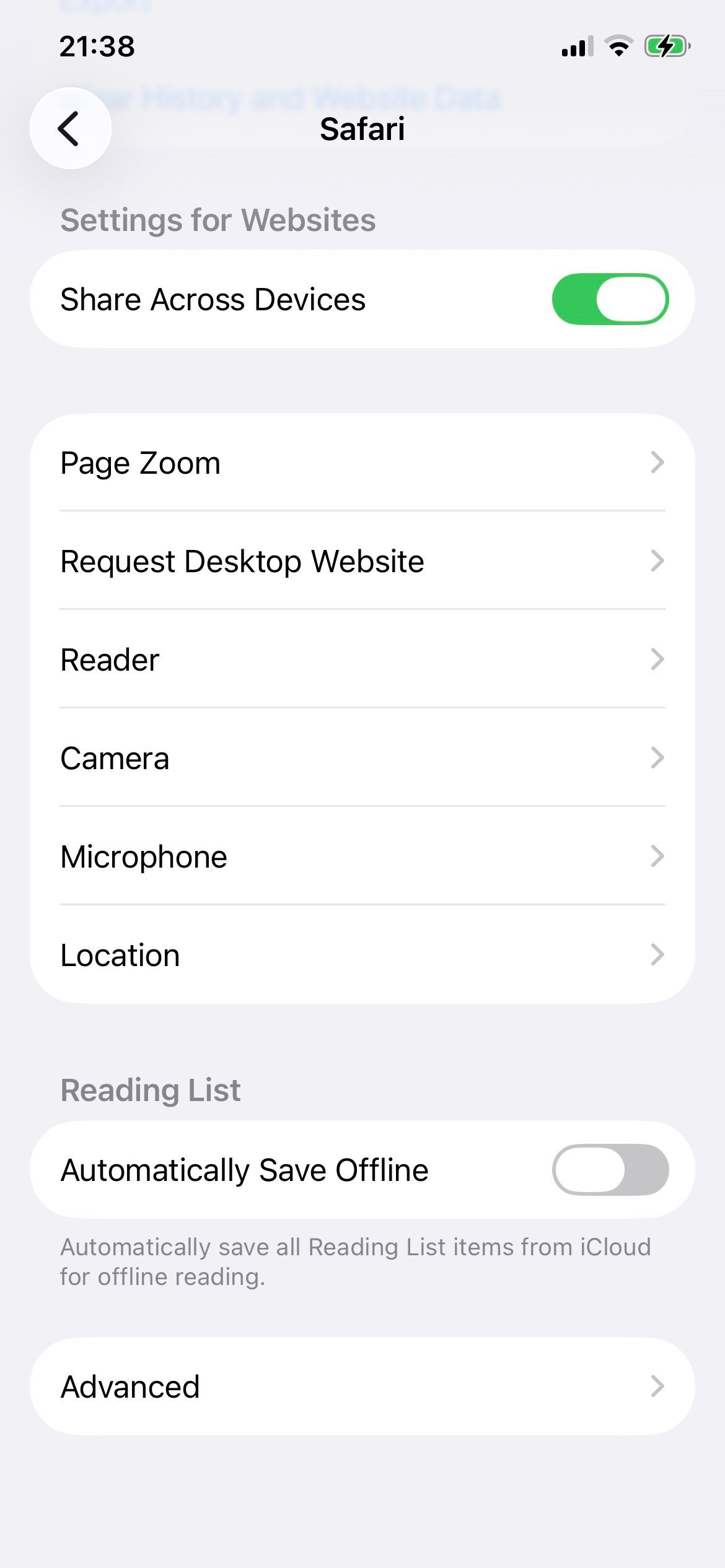
Step 4: Open Advanced
Scroll to the bottom of the Safari settings page and tap Advanced.
The JavaScript switch is buried in Advanced.
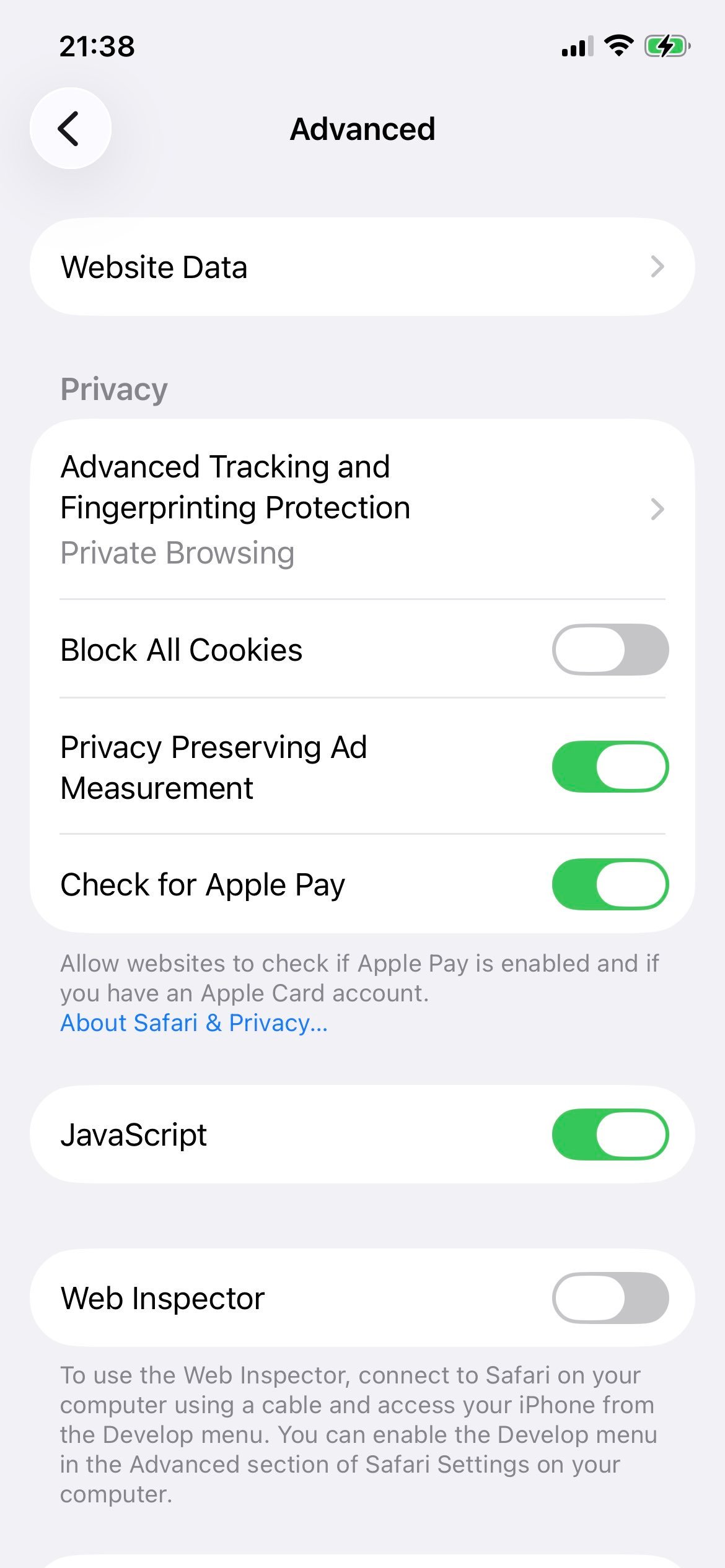
Step 5: Switch JavaScript on
Toggle JavaScript on (green). The change applies immediately - reopen Edge and reload any open tabs.
Green toggle = JavaScript is enabled for Edge, Safari, and every other iOS browser.
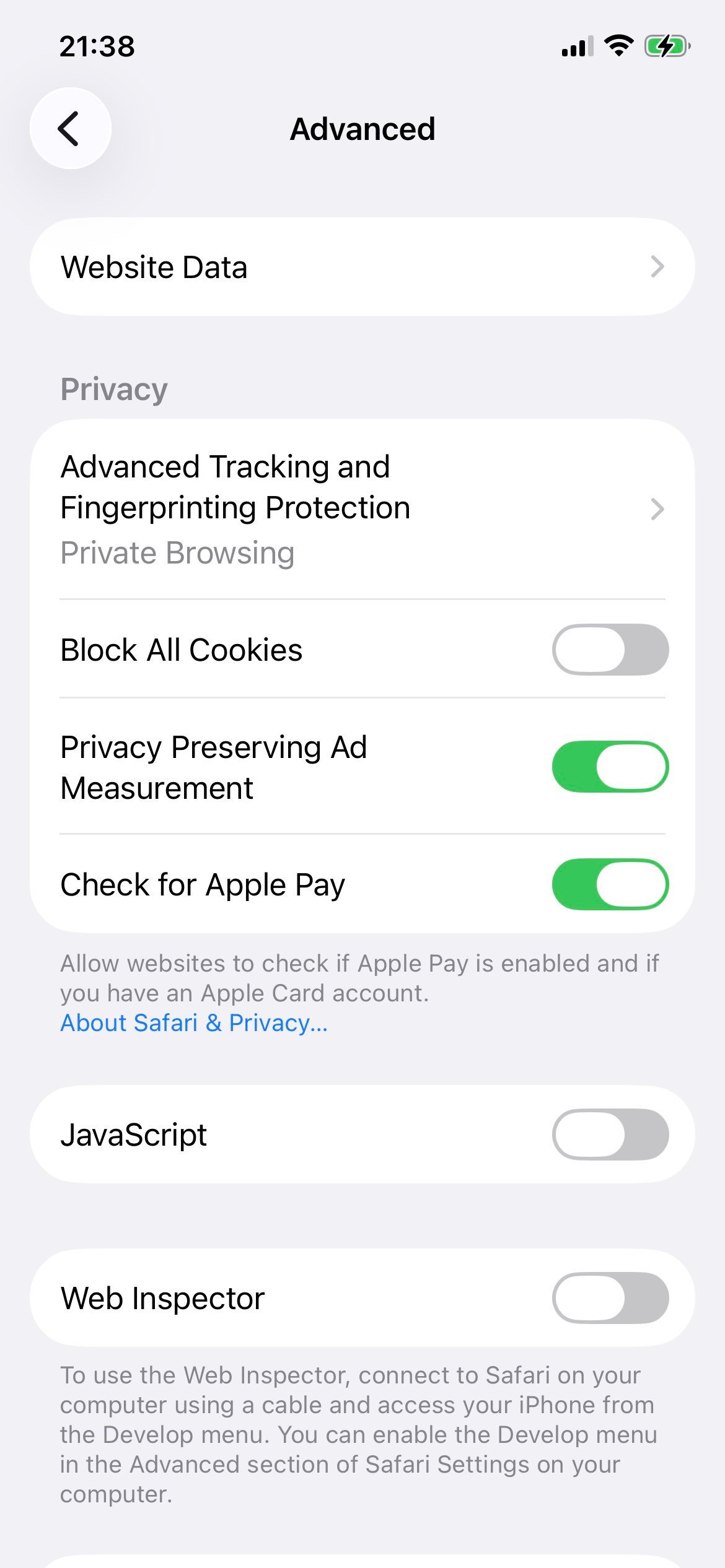
Step 6: How the screen looks with JavaScript off
For reference, this is the same screen with JavaScript disabled. Almost no modern site works in this state.
Grey toggle = JavaScript is disabled. Edge, Chrome, Firefox, and Safari all behave the same way.
Why is the setting under Safari? Apple's App Store rules require every iOS and iPadOS browser to use WebKit (the engine that ships with Safari). Edge for iPhone and iPad is essentially a Microsoft-branded shell over WebKit, so its JavaScript permission is controlled by the same system-wide switch as Safari.
How to Allow JavaScript on a Specific Site in Edge
If JavaScript is blocked on one site (or globally off, but you only want to unblock one), Edge lets you add a per-site exception without changing the global setting.
Option A - From the address bar
Open the affected site in Edge.
Click the tune icon or lock icon on the left side of the address bar.
Click Permissions for this site.
Find JavaScript and change it from Block to Allow.
Reload the page. JavaScript will now run on that site only.
Option B - From the JavaScript settings page
Paste edge://settings/content/javascript into the address bar to jump straight to the permission detail page. The Allowed to use JavaScript and Not allowed to use JavaScript lists each have an Add button - paste the site URL there.
The JavaScript row inside Cookies and site permissions → All permissions opens the per-site allow and block lists.
To allow JavaScript everywhere instead, see the Windows or Mac global guides above.
Microsoft Edge on Windows 8 and 8.1: No Longer Supported
Microsoft Edge no longer supports Windows 8 or Windows 8.1. The original (legacy) Edge that shipped with Windows 10 was never released for Windows 8, and modern Chromium-based Edge dropped Windows 8 and 8.1 alongside Google Chrome with the v109 release in January 2023.
If you are still running Windows 8.x, the browser will not auto-update past v109, and Microsoft no longer issues security patches for that build. Continuing to browse the web there is unsafe regardless of which JavaScript setting you pick.
Recommended next step: upgrade to Windows 10 or Windows 11 (both are supported by current Edge), then follow our Windows 10 and 11 guide.
Microsoft Edge on Windows 7: No Longer Supported
Microsoft Edge dropped support for Windows 7 with the v109 release in January 2023, the same release that ended Chrome's Windows 7 support. Microsoft itself ended Extended Security Updates for Windows 7 on the same date.
Edge versions older than v109 still technically install on Windows 7, but they no longer receive security or feature updates - they are open to publicly known vulnerabilities and will fail on most modern websites that rely on current TLS, HTTP/3, or web APIs.
Recommended next step: upgrade the machine to Windows 10 or Windows 11, then follow our Windows 10 and 11 guide. If you cannot upgrade the OS, switch to a different supported browser - but understand that no current browser ships security patches for Windows 7 in 2026.
F.A.Q
Why do I need JavaScript enabled on Microsoft Edge?
Microsoft Edge is a fast and secure browser that's built for great web experiences, but to get the most out of it, you'll need to enable JavaScript - a popular programming language that's essential to nearly every action you take online.
From logging in accounts to accessing window pop-ups and viewing animations, enabling JavaScript on your Microsoft Edge browser will allow you to have fun and fully featured browsing experience.
How do I know if JavaScript is working on Microsoft Edge?
As with most modern browsers, JavaScript is enabled in the Microsoft Edge browser by default. To know if yours is working, you will need to access your Settings Menu. To achieve this, simply click on three tiny black dots at the top-right corner of your Edge window.
Next, click on the Settings option to access the search field in the top right of the settings page. Type in the word "JavaScript" into the search box to reveal the JavaScript settings option. Once you find it, simply click on it to know if your JavaScript works (active). To verify this, ensure the slider control is toggled on (dark blue).
What happens if I disable JavaScript on Microsoft Edge?
Millions of websites run on JavaScript, making it necessary to browse the Internet in this day and age. By disabling it on your Microsoft Edge browser, the content or functionality of many internet websites will be limited or unavailable, thereby limiting your browsing experience.
Olumide DamilolaUpdated: 2026-05-03
Olumide is a longtime writer who started his career as a digital marketer before transitioning into a copywriter almost eight years ago.