Mozilla Firefox handles JavaScript a bit differently from Chrome and Edge. There's no toggle in the regular Settings UI - Firefox assumes everyone wants JavaScript on, since modern web apps require it. The setting is hidden in about:config, Firefox's advanced configuration page.
This guide covers the about:config JavaScript flag, per-site permission overrides, how to verify JavaScript is enabled, and how to disable it for testing - all current as of Firefox 130+ in 2026.
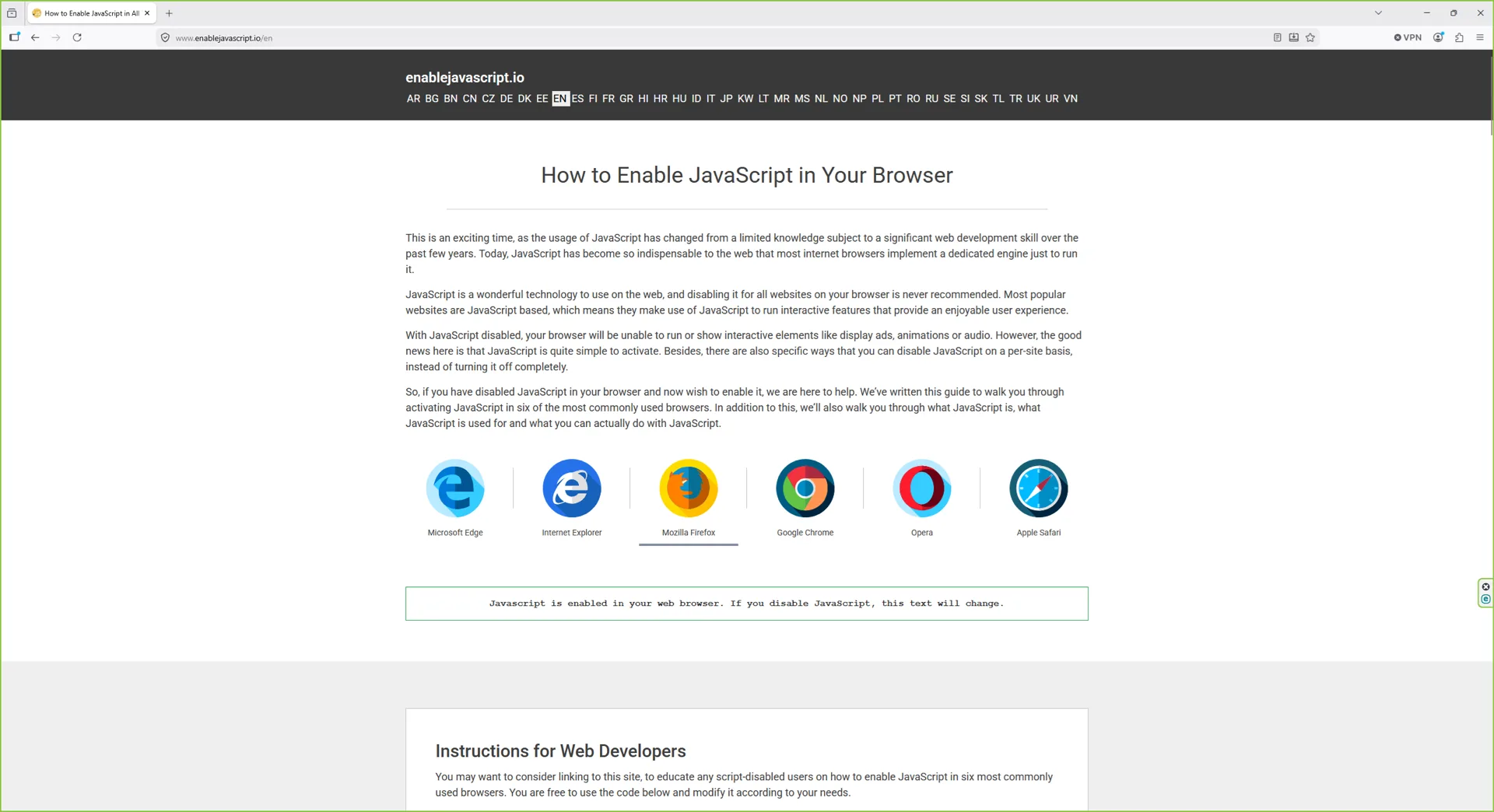
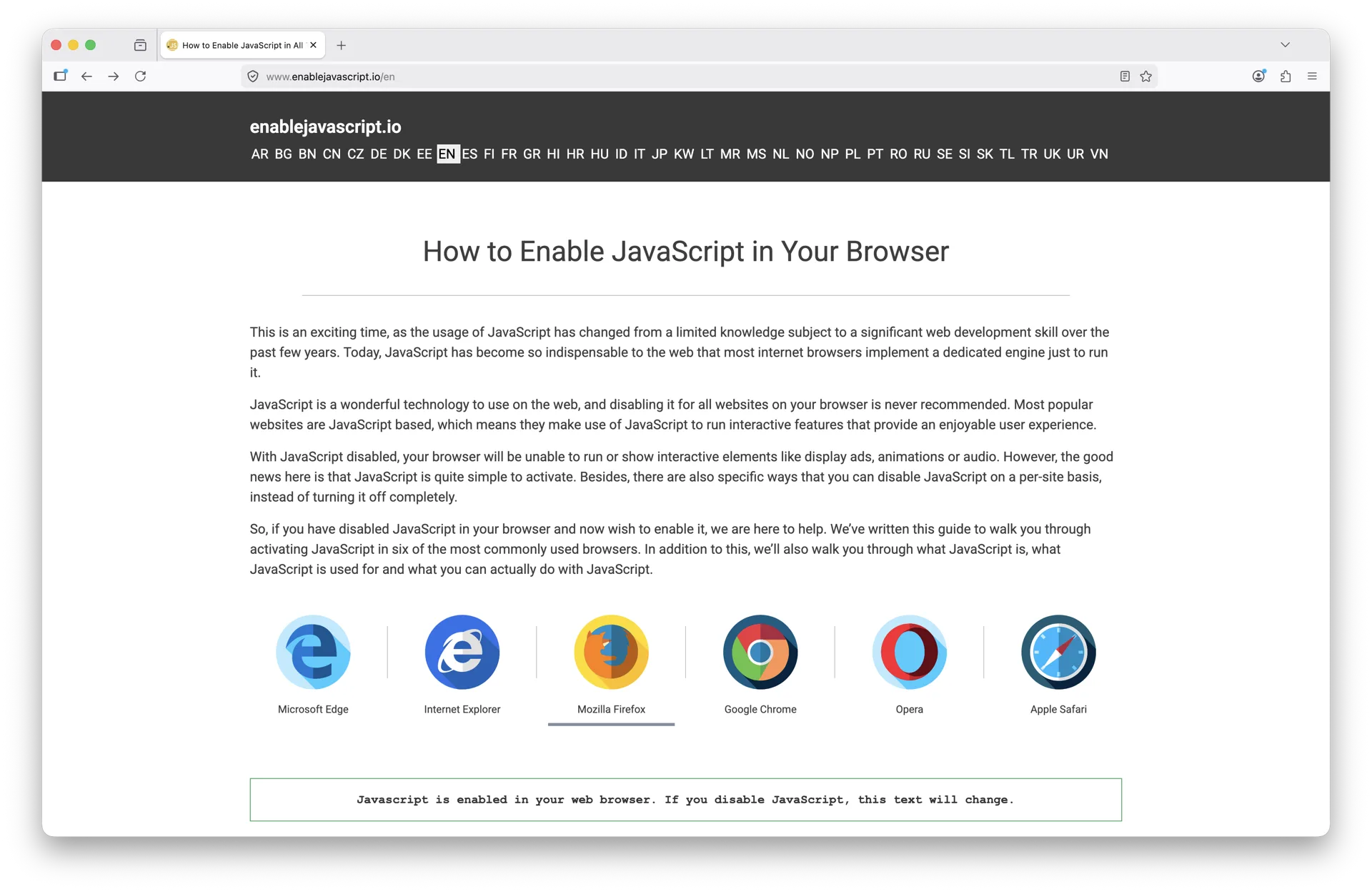
Javascript is enabled in your web browser. If you disable JavaScript, this text will change.
Instructions for Web Developers
You may want to consider linking to this site, to educate any script-disabled users on how to enable JavaScript in six most commonly used browsers. You are free to use the code below and modify it according to your needs.
<noscript>
For full functionality of this site it is necessary to enable JavaScript.
Here are the <a href="https://www.enablejavascript.io/">
instructions how to enable JavaScript in your web browser</a>.
</noscript>
On enablejavascript.io we optimize the script-disabled user experience as much as we can:
The instructions for your browser are put at the top of the page
All the images are inlined, full-size, for easy perusing
We want your visitors to have JavaScript enabled just as much as you do!
What Is JavaScript and Why Do I Need It?
JavaScript is a browser-based scripting language that powers nearly every modern site you visit in 2026. It runs the dynamic interactions, live updates, single-page navigation, and interactive widgets that web apps rely on. By default, every recent build of Mozilla Firefox (version 130 and later) ships with JavaScript enabled so users get the full web experience.
With JavaScript turned off, Firefox cannot render the dynamic parts of most sites. Social feeds on Facebook, X, and Instagram stop auto-updating; Gmail, YouTube, Google Maps, and online banking dashboards either fail to load or fall back to barebones placeholders. Roughly 99% of the top-million sites assume JavaScript is on, so leaving it disabled means accepting a much more limited browsing experience.
How to Check if JavaScript is Enabled in Firefox
Three quick ways to confirm JavaScript is on in Firefox:
Method 1 - Use Firefox DevTools
Press F12 (Windows/Linux) or Cmd+Option+K (Mac) to open DevTools.
Click the Console tab.
Type 1+1 and press Enter. If 2 is returned, JavaScript is running.
Method 2 - Check the about:config flag
Type about:config in the address bar and press Enter.
Click Accept the Risk and Continue if prompted.
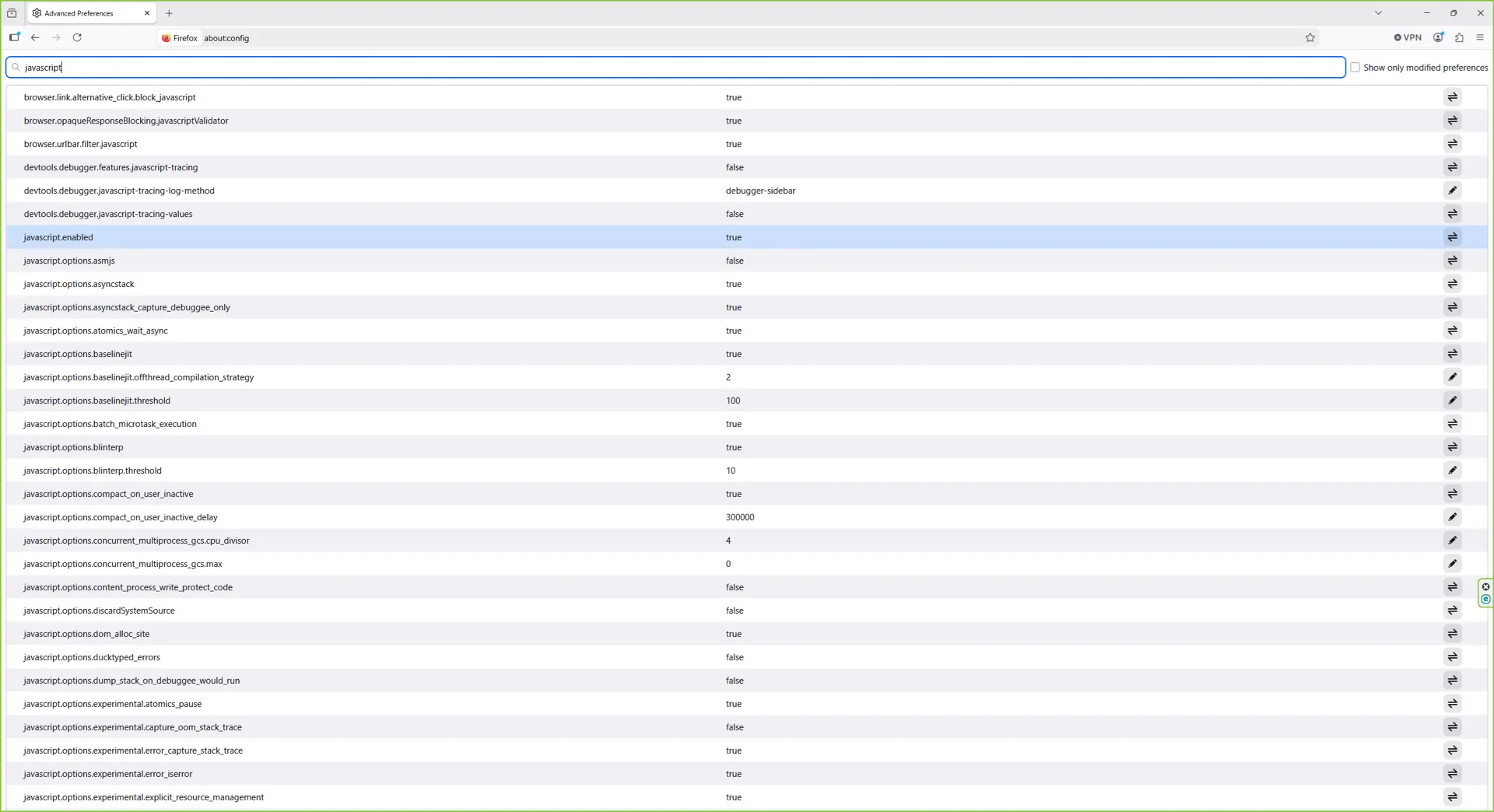
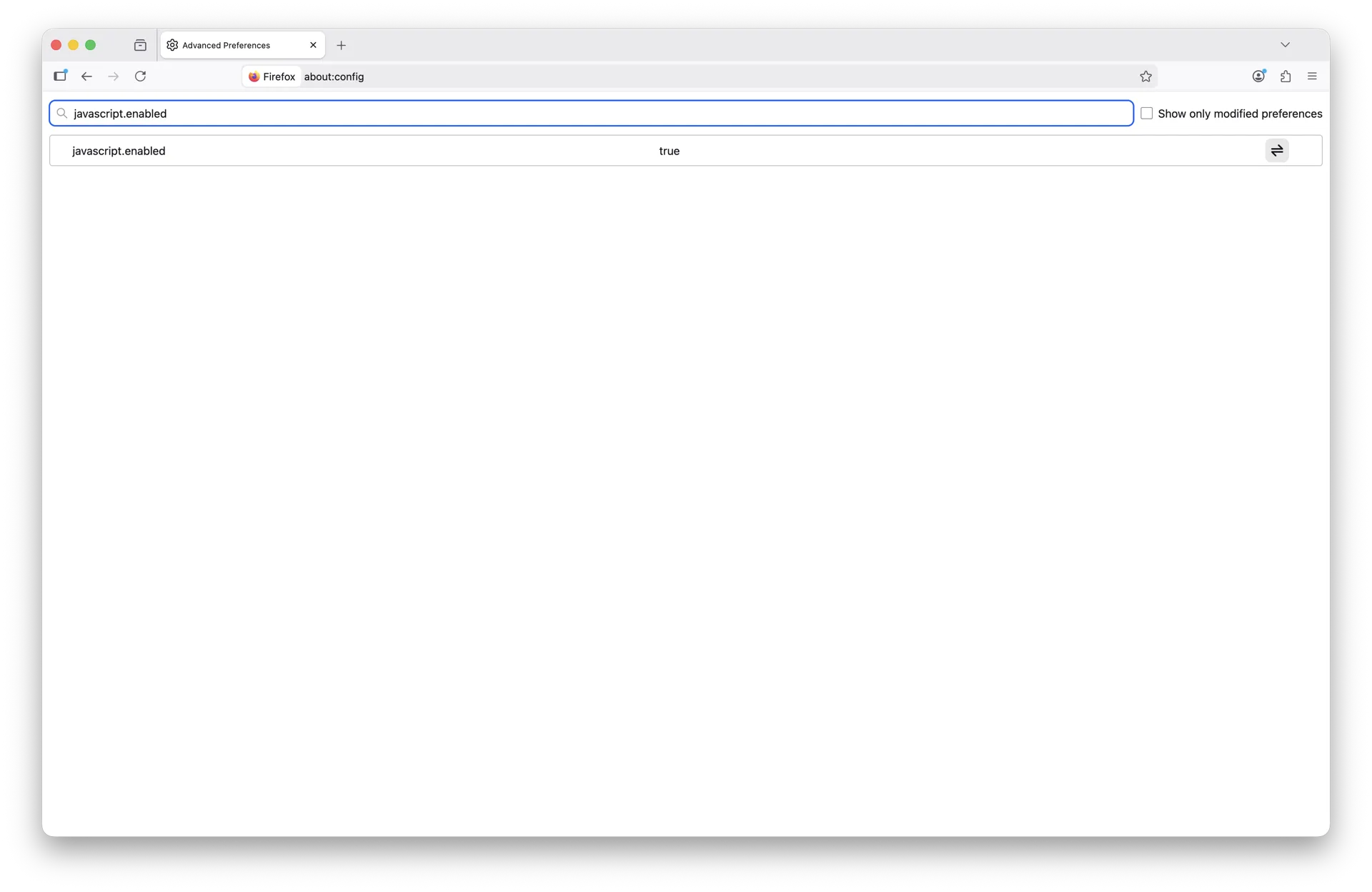
Search for javascript.enabled.
If the value is true, JavaScript is enabled. If false, it is off.
The javascript.enabled preference set to true means JavaScript is active in Firefox.
Method 3 - Visit a JavaScript-required site
Open Gmail, YouTube, or any modern web app. If it loads and works normally, JavaScript is enabled.
How to Enable JavaScript in Firefox on Windows 10 and 11
Firefox does not have a JavaScript toggle in its regular Settings page - the master flag lives in about:config. The flow is identical on Windows 10 and Windows 11, and works on every Firefox release from version 130 through the current 2026 build.
Step 1: Open Mozilla Firefox
Launch Firefox from the Start menu, taskbar, or desktop shortcut.
Open Firefox on Windows 10 or 11.
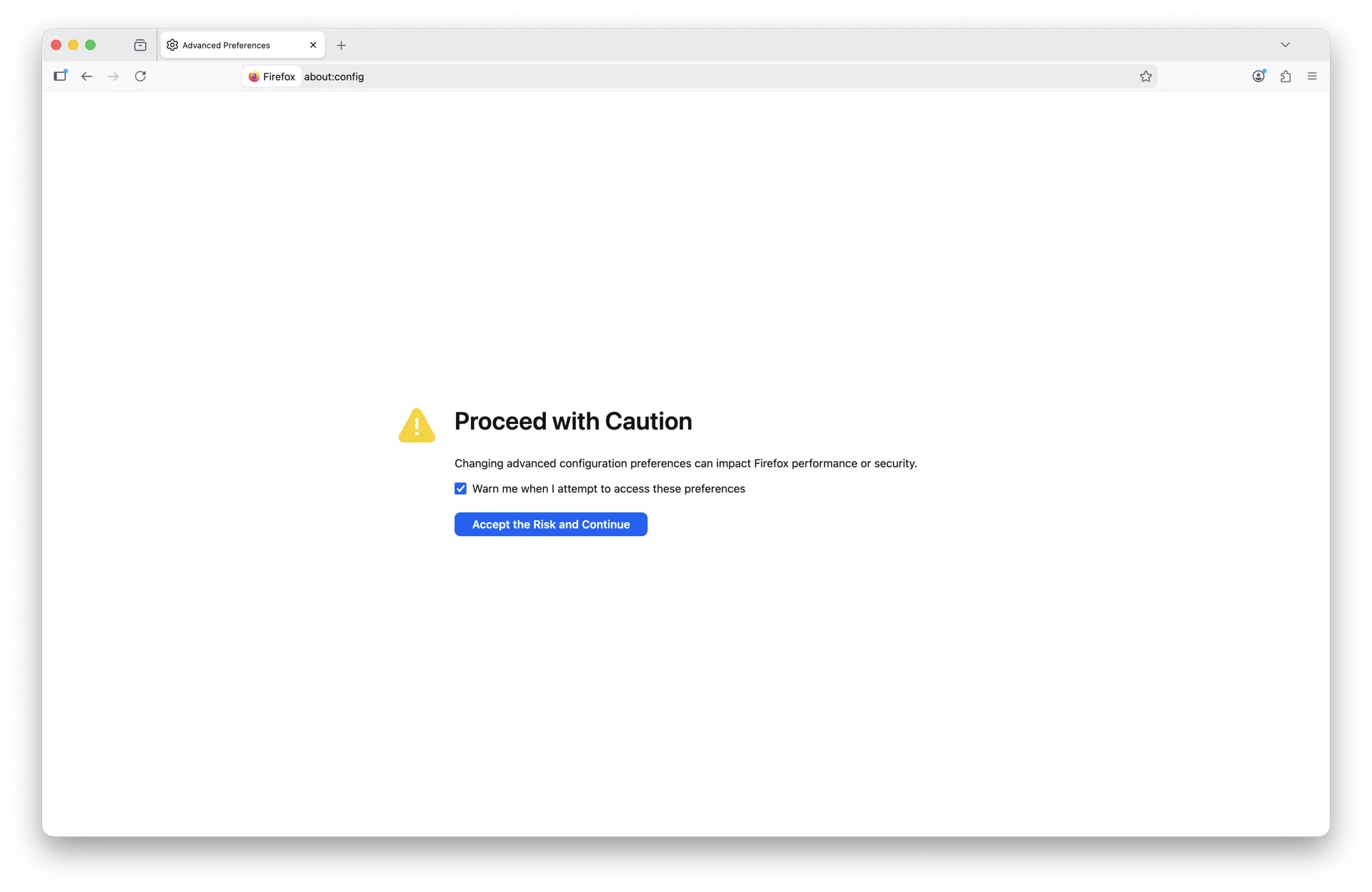
Step 2: Go to about:config
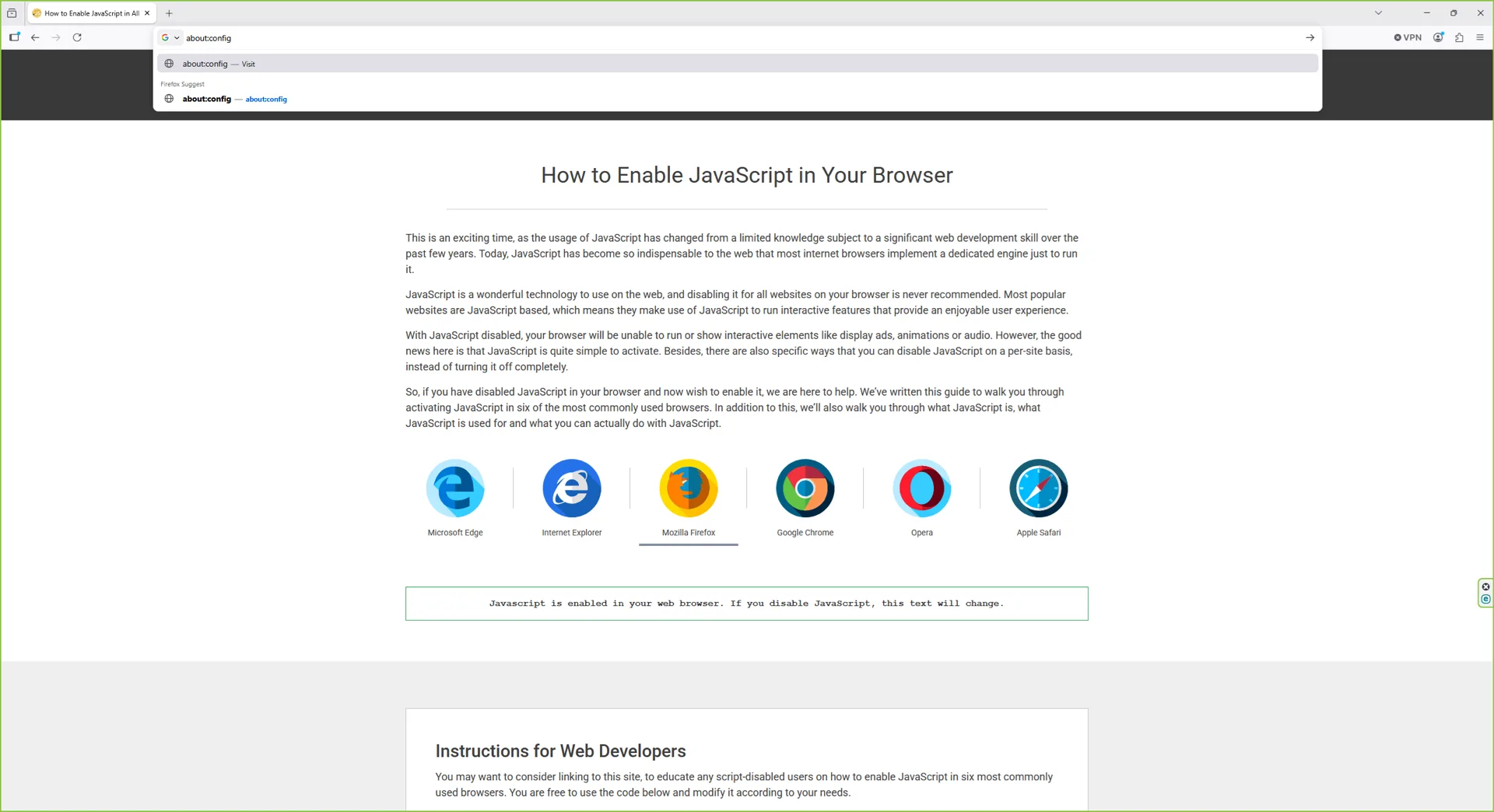
Click the address bar, type about:config, and press Enter.
Navigate to about:config in the Firefox address bar.
Step 3: Accept the risk warning
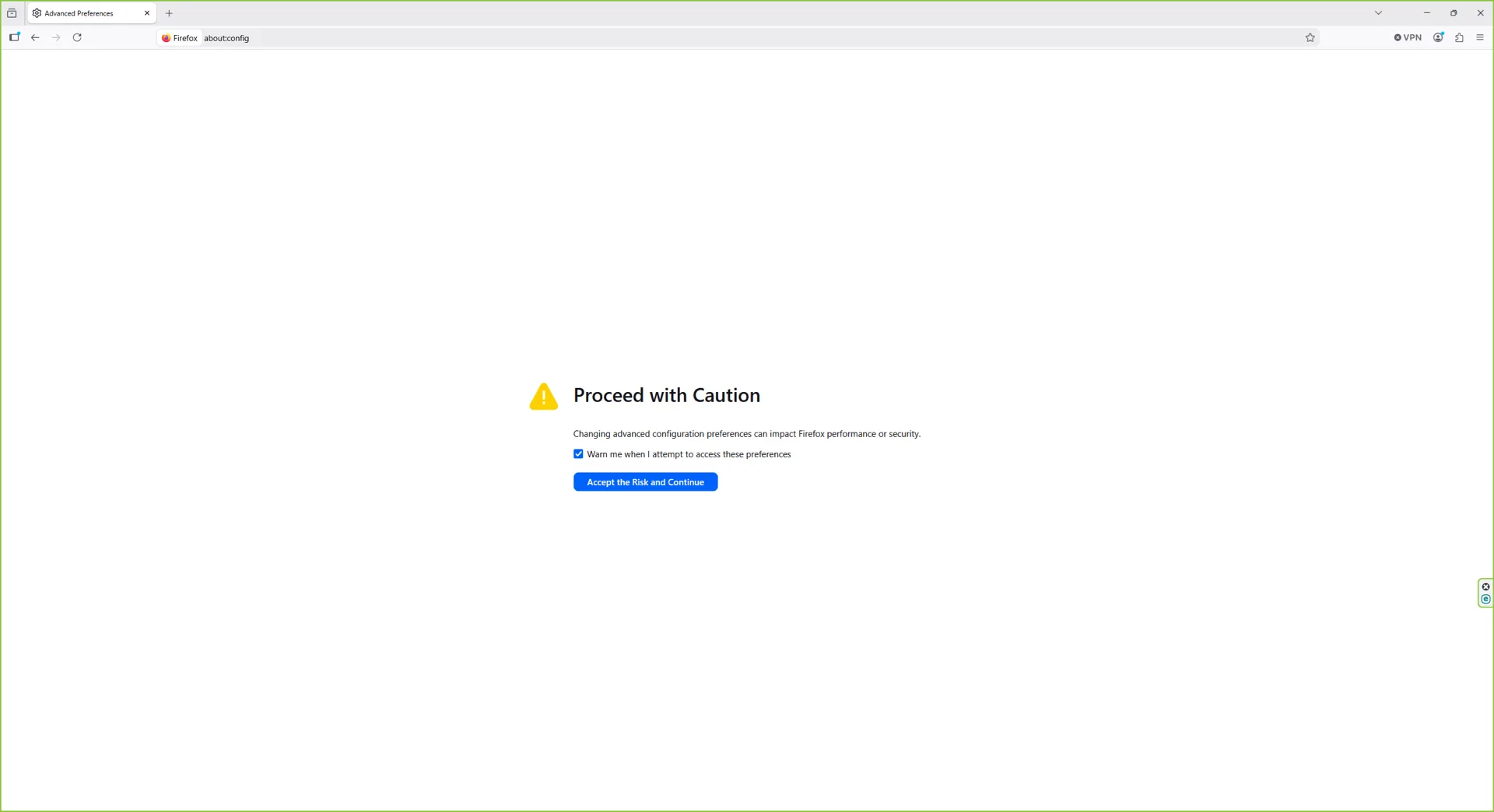
Firefox shows a warning that changing advanced preferences may affect performance or security. Click Accept the Risk and Continue.
Click Accept the Risk and Continue to reach the preferences list.
Step 4: Show all preferences
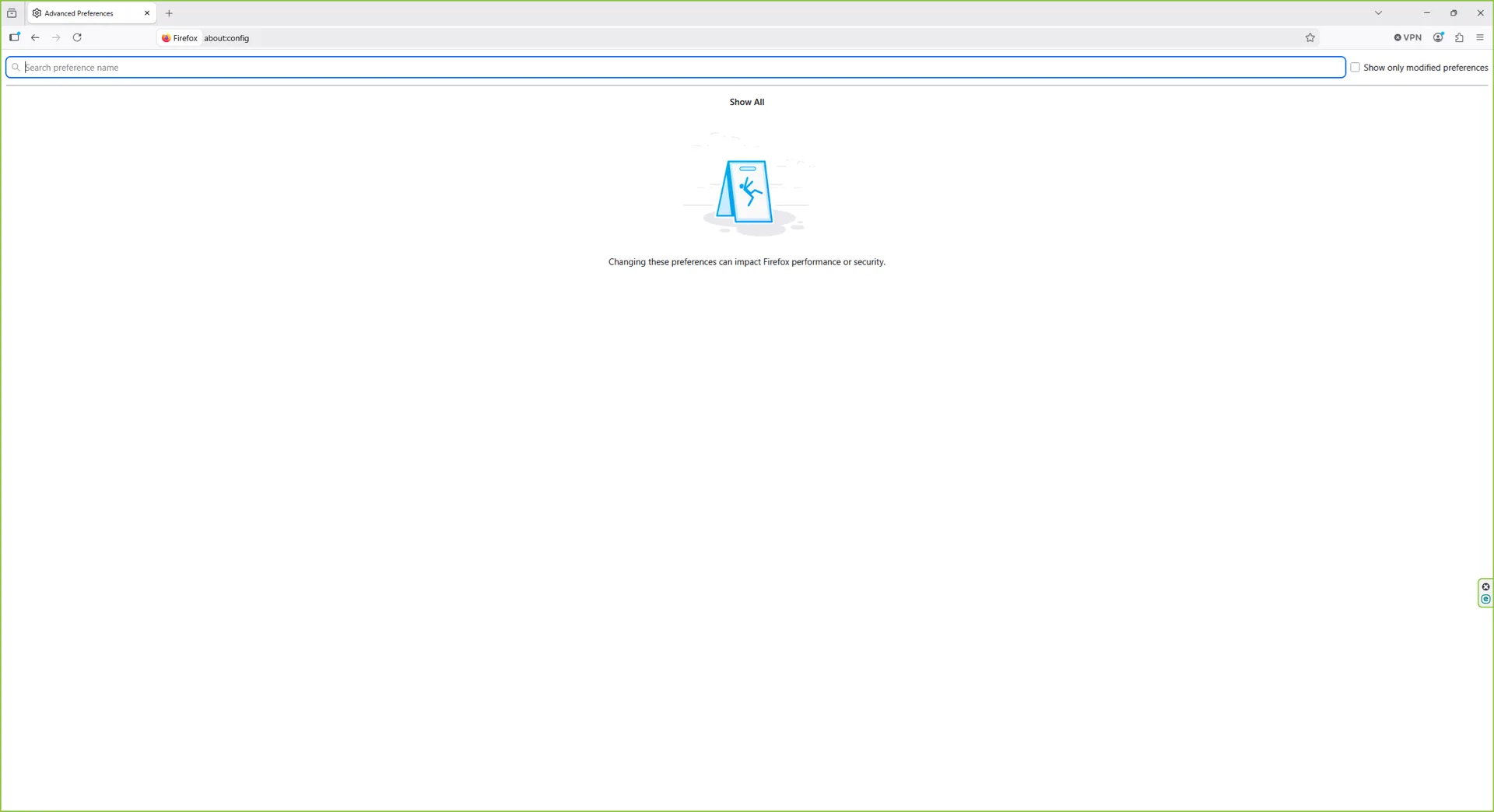
The preferences list opens. Either leave it on the default view or click the search bar to start filtering.
The full list of advanced preferences is ready to search.
Step 5: Search for javascript.enabled
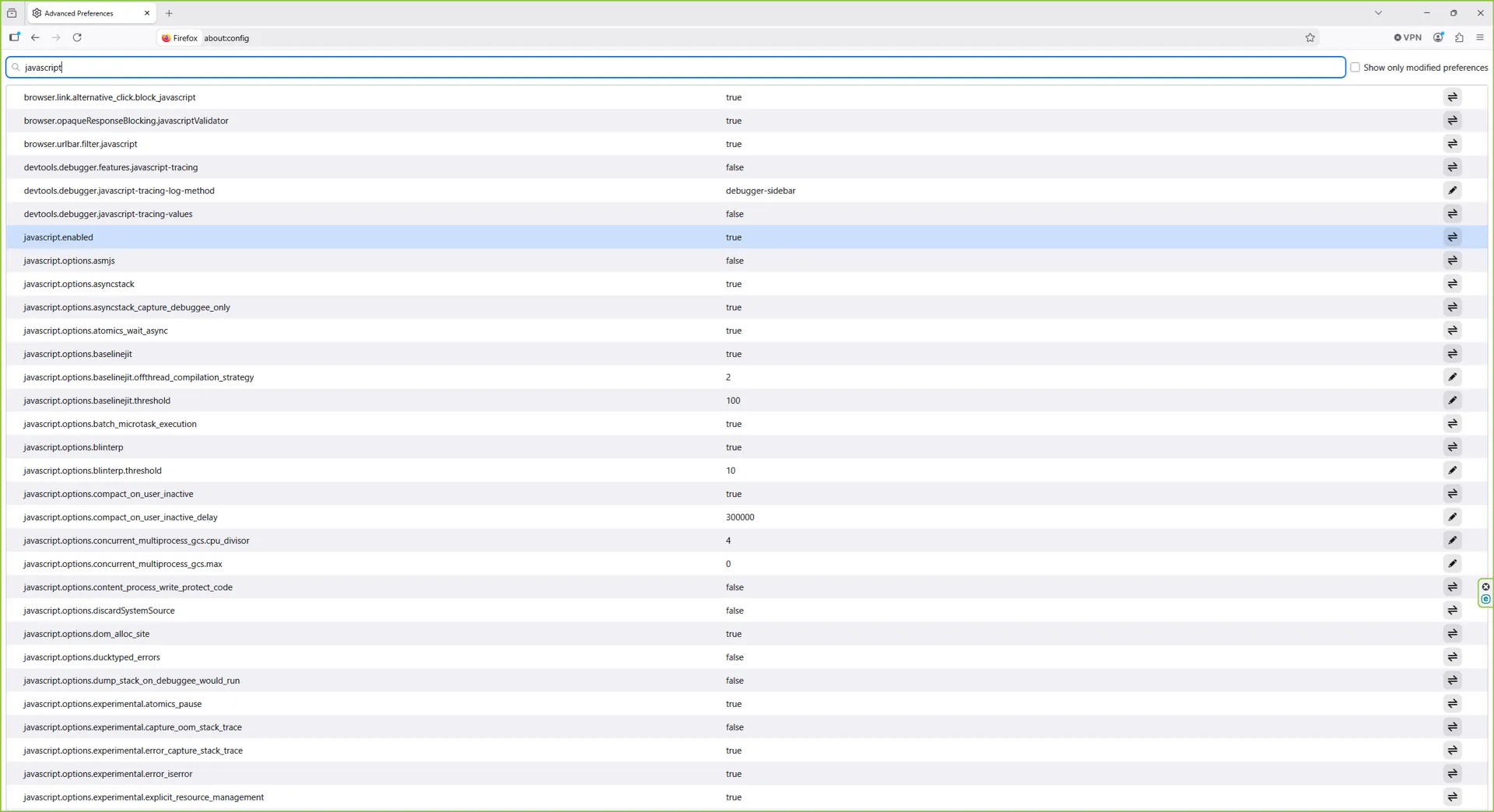
Type javascript.enabled in the search box at the top of the page.
Filter the list down to the javascript.enabled preference.
Step 6: Set the value to true
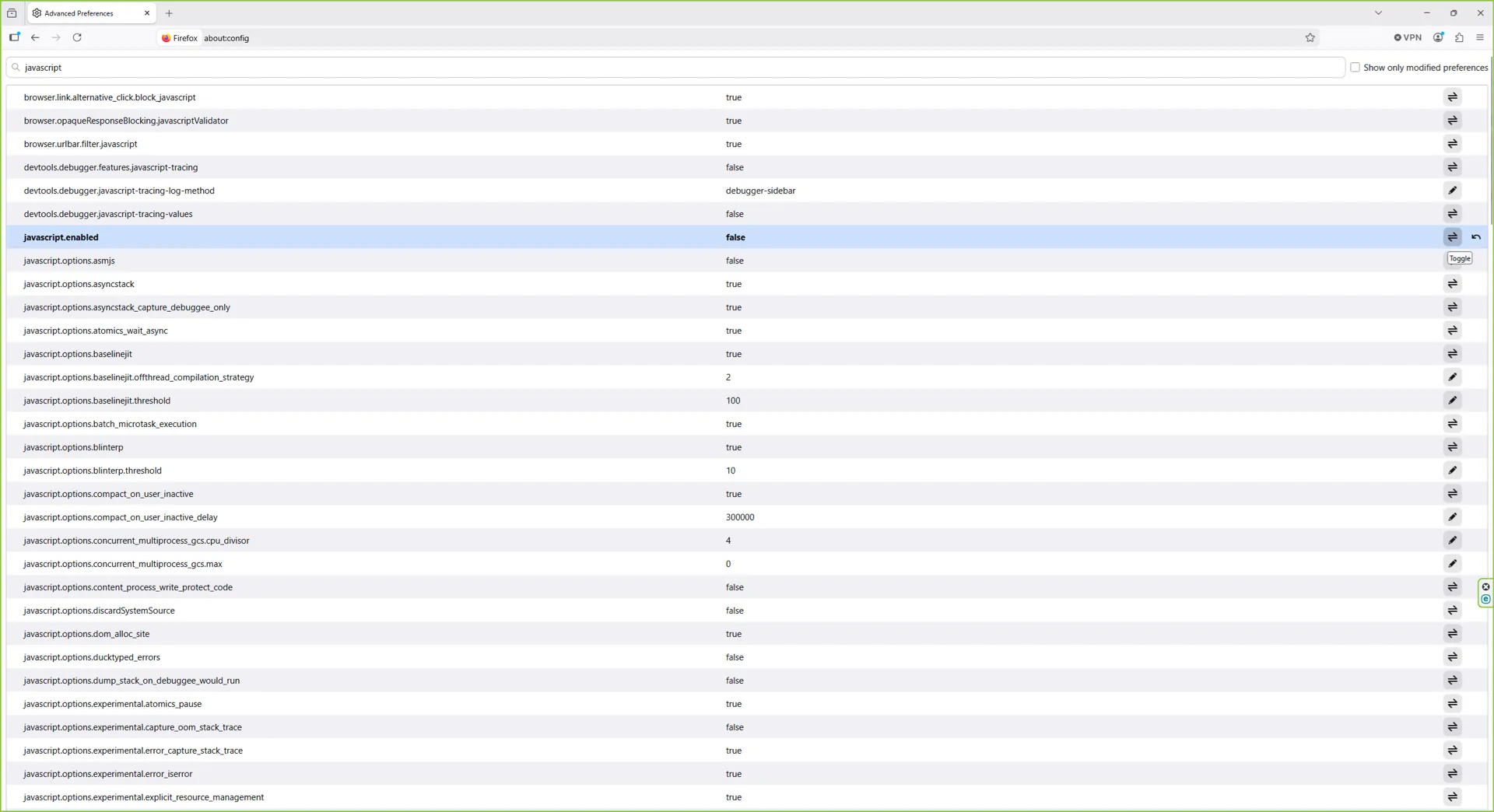
Find the javascript.enabled row. If the value reads false, click the toggle button on the right to flip it to true. Refresh any open tabs to apply the change.
JavaScript is now enabled (javascript.enabled = true).
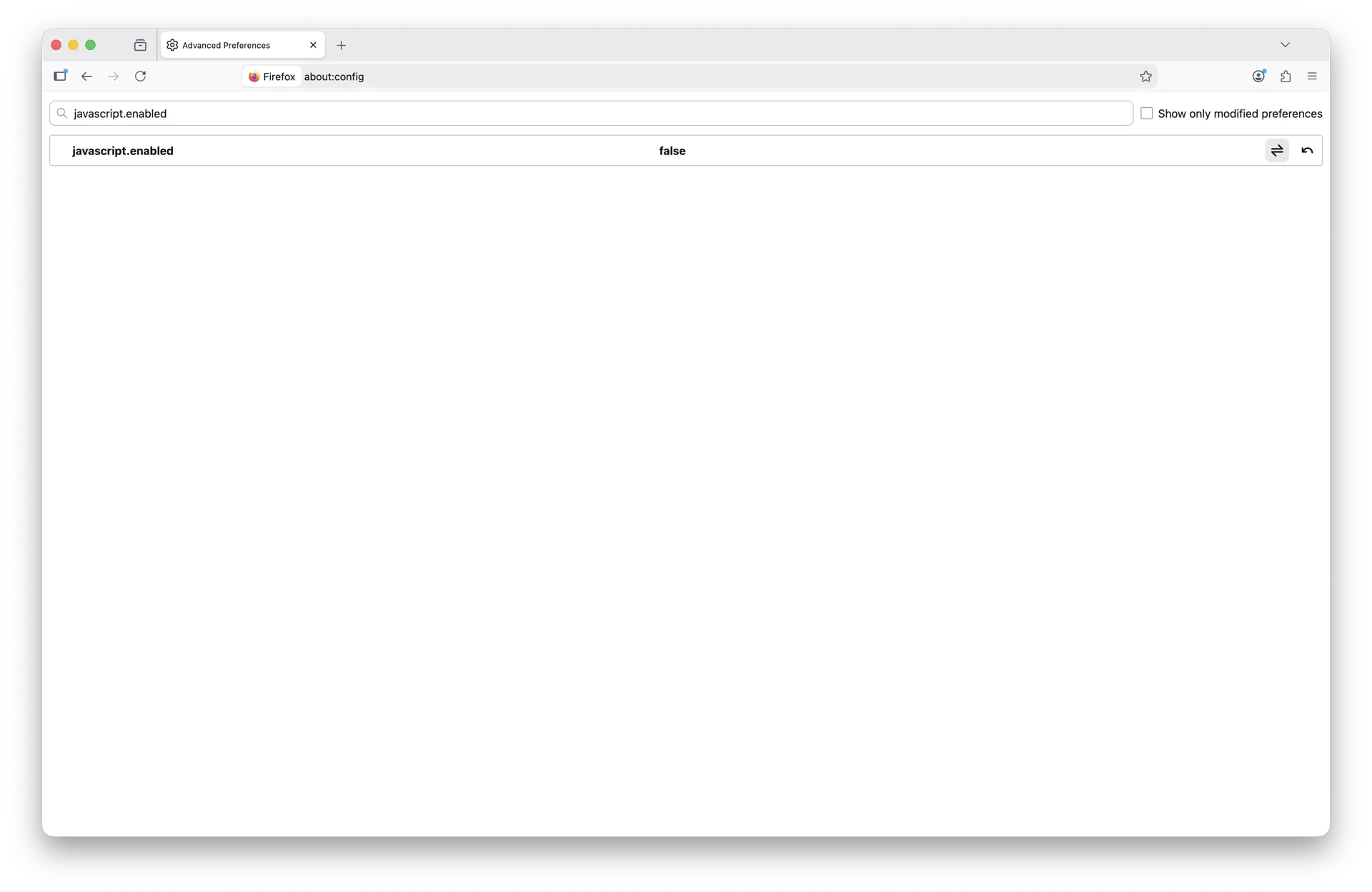
Step 7: To disable later
Use the same toggle to flip javascript.enabled back to false any time you want to turn JavaScript off.
Setting javascript.enabled to false turns JavaScript off globally.
The javascript.enabled preference is the global master switch in Firefox; there is no separate toggle in the regular Settings UI.
How to Enable JavaScript in Firefox on macOS Sequoia (macOS 26)
The Mac version of Firefox uses the same about:config flag as Windows and Linux. The flow below was captured on macOS Sequoia (macOS 26) and applies to every Firefox build from version 130 through the current 2026 release.
Step 1: Open Mozilla Firefox
Launch Firefox from the Applications folder, the Dock, or Spotlight (Cmd+Space, type "Firefox", press Return).
Open Firefox on macOS 26 (Sequoia).
Step 2: Go to about:config
Click the address bar, type about:config, and press Return. If Firefox shows a warning page, click Accept the Risk and Continue.
Navigate to about:config in the Firefox address bar.
Step 3: Search for javascript.enabled and confirm it is true
Type javascript.enabled in the search box. If the value already reads true, JavaScript is enabled. If it reads false, click the toggle button on the right to flip it.
JavaScript is enabled (javascript.enabled = true) on macOS Sequoia.
Step 4: To disable later
Use the same toggle button to flip javascript.enabled back to false when you want to turn JavaScript off.
Setting javascript.enabled to false turns JavaScript off in Firefox.
The setting takes effect immediately - refresh any open tabs to apply it.
How to Enable JavaScript in Firefox on iPhone, iPad, and iOS
JavaScript is enabled by default in Firefox on iPhone and iPad. This guide has no verified browser-specific JavaScript switch to give you for the current Firefox iOS/iPadOS app. Apple documents Settings → Apps → Safari → Advanced → JavaScript as a Safari setting, not as a control for Firefox.
If a site still says JavaScript is disabled
Update Firefox and iOS/iPadOS to their current stable versions.
Close and reopen the affected tab, then try a new private tab.
Temporarily disable any content blocker, VPN, or DNS filter and reload. Those tools can block scripts without changing the browser's JavaScript engine.
Reload this page and use its JavaScript status message to test actual execution.
If the problem remains, record the exact Firefox and iOS/iPadOS versions before troubleshooting further. This guide intentionally does not publish an unverified toggle path.
How to Allow JavaScript on a Specific Site in Firefox
Firefox does not expose a per-site JavaScript toggle in the regular UI - the global javascript.enabled flag in about:config affects all sites at once. Three options if you need site-specific control:
Option 1 - Install NoScript
The classic answer is NoScript Security Suite, available from addons.mozilla.org. It blocks JavaScript by default and lets you allow scripts for trusted domains via the toolbar button. NoScript remains the most precise per-site JavaScript controller in 2026.
Option 2 - Use uBlock Origin in advanced mode
Install uBlock Origin from addons.mozilla.org and enable advanced (medium-mode) settings. The dynamic filtering pane lets you block or allow scripts per origin, similar to NoScript but with broader content control.
Why Firefox Multi-Account Containers do not isolate JavaScript
Containers do not isolate browser preferences. The javascript.enabled value remains global across every container, so a container cannot keep JavaScript off for one site while leaving it on elsewhere.
If you need different global Firefox configurations, use separate Firefox profiles. For per-site script control inside one profile, use a maintained extension such as NoScript or uBlock Origin.
Easiest path: keep it on globally
For most users, the right answer is keeping the global javascript.enabled setting on true and trusting the modern web. See the global flag instructions above.
How to Enable JavaScript in Firefox on Windows 8 (Legacy)
Windows 8 and 8.1 reached end of support on January 10, 2023, and Mozilla ended Firefox security updates for Windows 7/8/8.1 in 2024. If you are still on Windows 8, upgrading to Windows 10 or 11 (or moving to a supported Linux distribution) is strongly recommended for security reasons. Older Firefox builds for Windows 8 used the same about:config flow as the current Windows 10/11 guide above - type about:config, accept the warning, search javascript.enabled, and toggle to true.
How to Enable JavaScript in Firefox on Windows 7 (Legacy)
Windows 7 reached end of support on January 14, 2020, and Mozilla ended Firefox security updates for Windows 7 in 2024. Continuing to browse on Windows 7 is unsafe; upgrade to Windows 10 or 11 (or switch to a supported Linux distribution) before doing anything sensitive online. The legacy Firefox ESR builds that still ran on Windows 7 used the same about:config approach - type about:config, accept the warning, search javascript.enabled, and toggle to true.
F.A.Q
Why do I need JavaScript enabled on Mozilla Firefox?
JavaScript is a popular programming language that's essential for modern websites to function correctly on Mozilla Firefox. It powers most of the dynamic features you see on web pages, including button clicks, navigations, and form submissions. Enabling JavaScript in your Firefox browser is an easy process. In fact, it should only take you only a minute or so to complete.
How do I know if JavaScript is working on Mozilla Firefox?
On Mozilla Firefox, JavaScript is enabled by default, but you can check it reasonably quickly to verify if it is working correctly. To do that, simply input "about:config" into the Address Bar of your Firefox browser and press the Enter key on your keyboard. Next, accept the warning about changing advanced settings by clicking the "Accept the Risk and Continue" button. After clicking it, a search feature will appear. Type in "javascript" into this search bar. As you type this, every JavaScript-based setting appear. If the "javascript.enabled" is set to "true," then your JavaScript is working correctly.
What happens if I disable JavaScript on Mozilla Firefox?
The use of JavaScript on your Firefox browser is virtually crucial because it enables the best use of modern websites such as Gmail, Facebook, YouTube, and more. If you have JavaScript disabled, most of what makes these websites work won't load in your Firefox browser. Some web page features such as buttons that change when they're clicked or images with zoom capabilities may not work properly while others may not work at all.
Olumide DamilolaUpdated: 2026-05-03
Olumide is a longtime writer who started his career as a digital marketer before transitioning into a copywriter almost eight years ago.