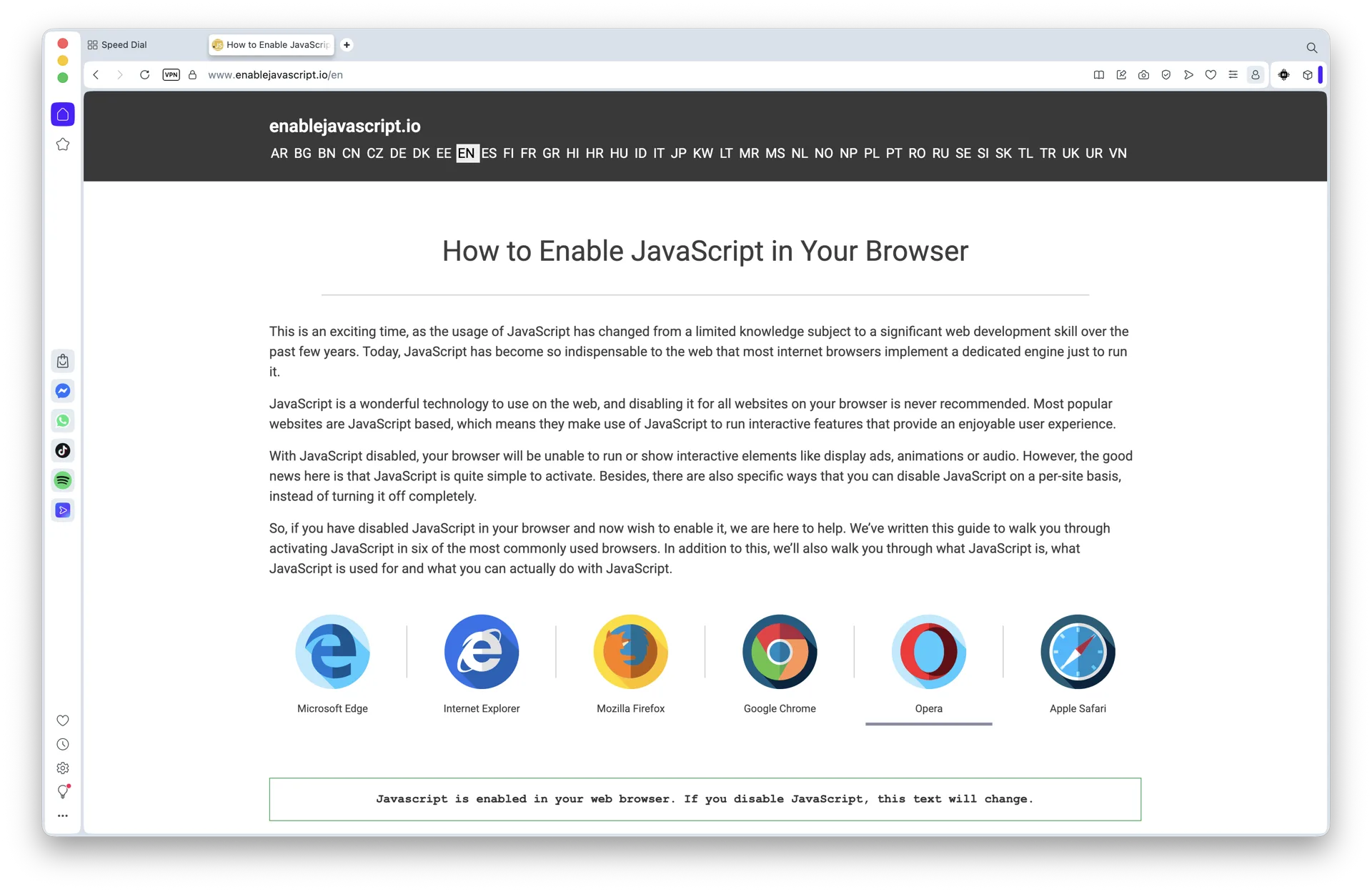
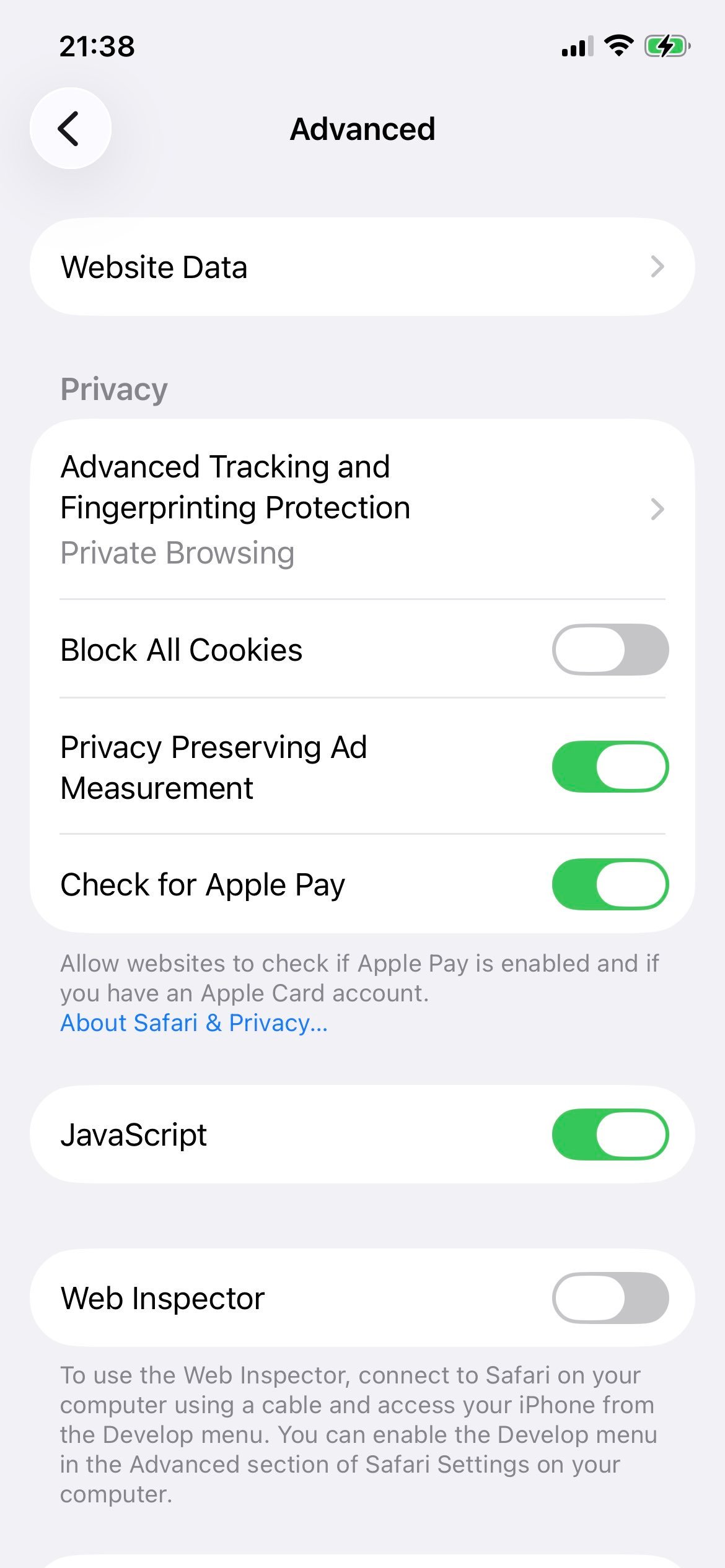
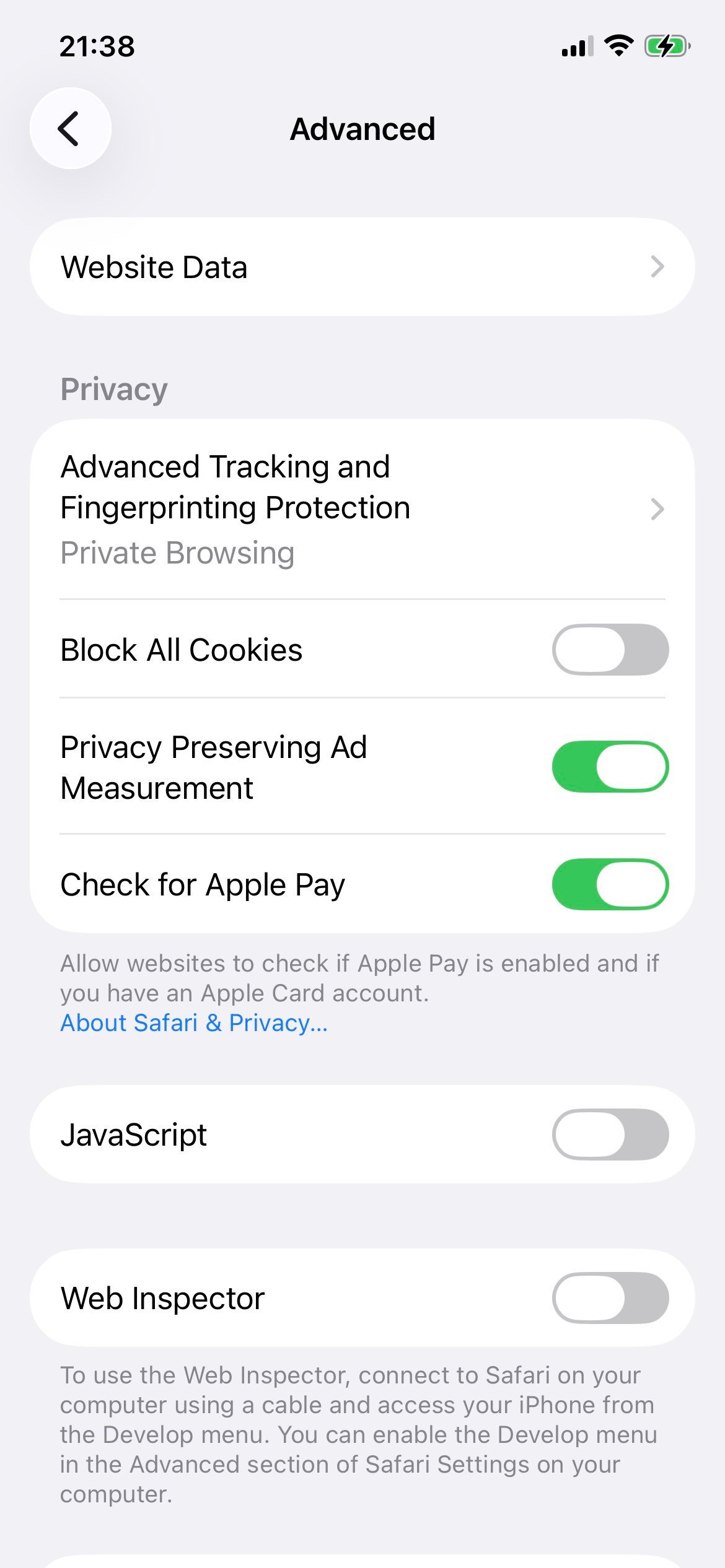
JavaScript is a client-side scripting language that web developers use to add dynamic interactions and functionality to websites. Modern web browsers - including Opera and Opera GX - ship with JavaScript enabled by default, so the rich, interactive web you experience every day works out of the box.
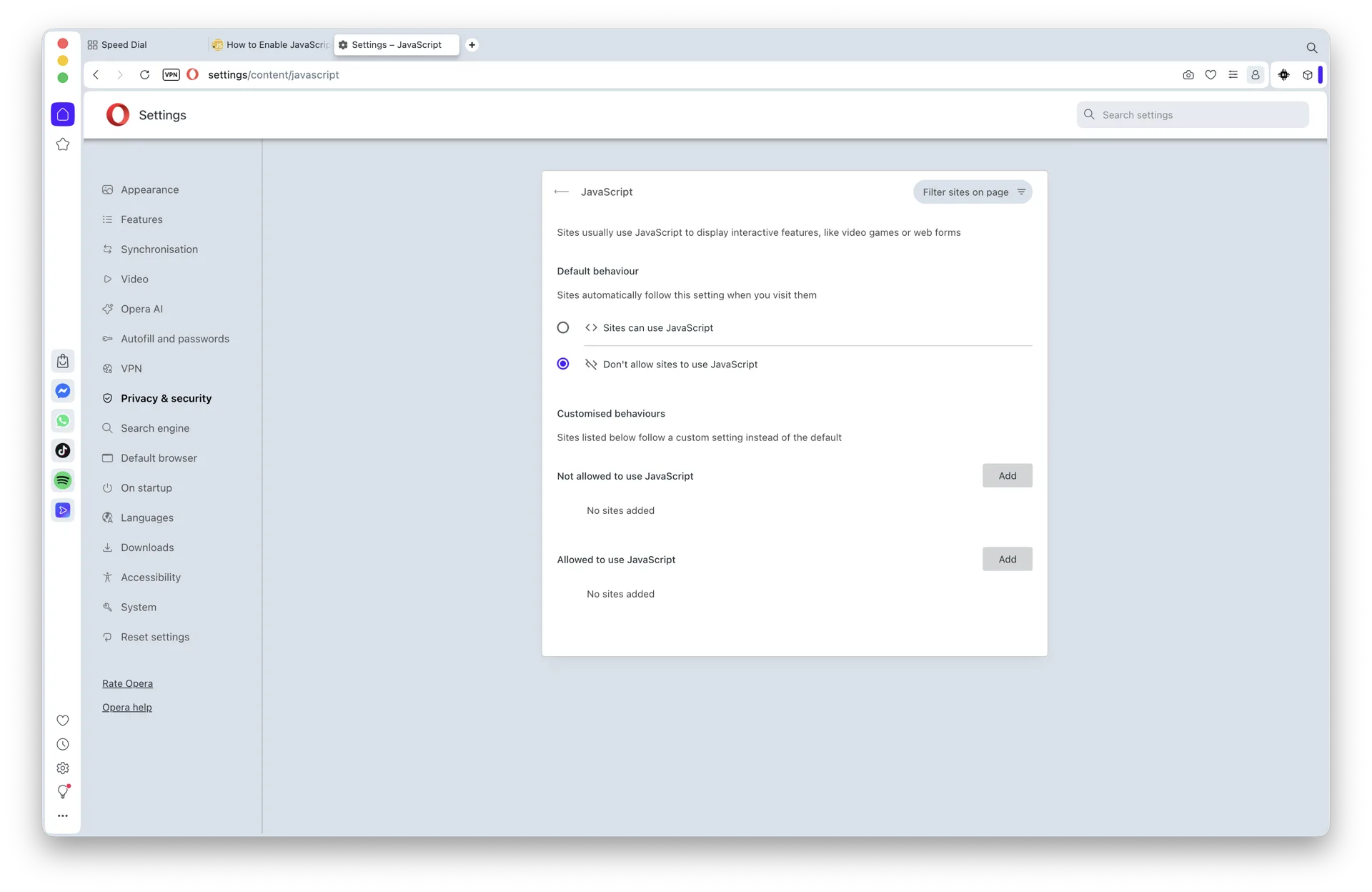
With JavaScript disabled, those interactions break. Sites like YouTube, Facebook, X (formerly Twitter), Gmail, online banking dashboards, and most modern web apps rely on JavaScript to load content, validate forms, and update in real time. Turn the toggle off and you'll see plain text, missing buttons, blank panels, or error messages instead of the experience you expect.
This guide covers every modern path to enable or disable JavaScript in Opera - on Windows 10 and 11, on macOS Sonoma, Sequoia and macOS 26, and on iPhone and iPad. All you need is a recent copy of Opera (Opera 105 or later, built on Chromium) and a couple of minutes.
Below you'll find platform-specific walkthroughs with current 2026 screenshots, plus the legacy Opera path preserved for users on older builds.
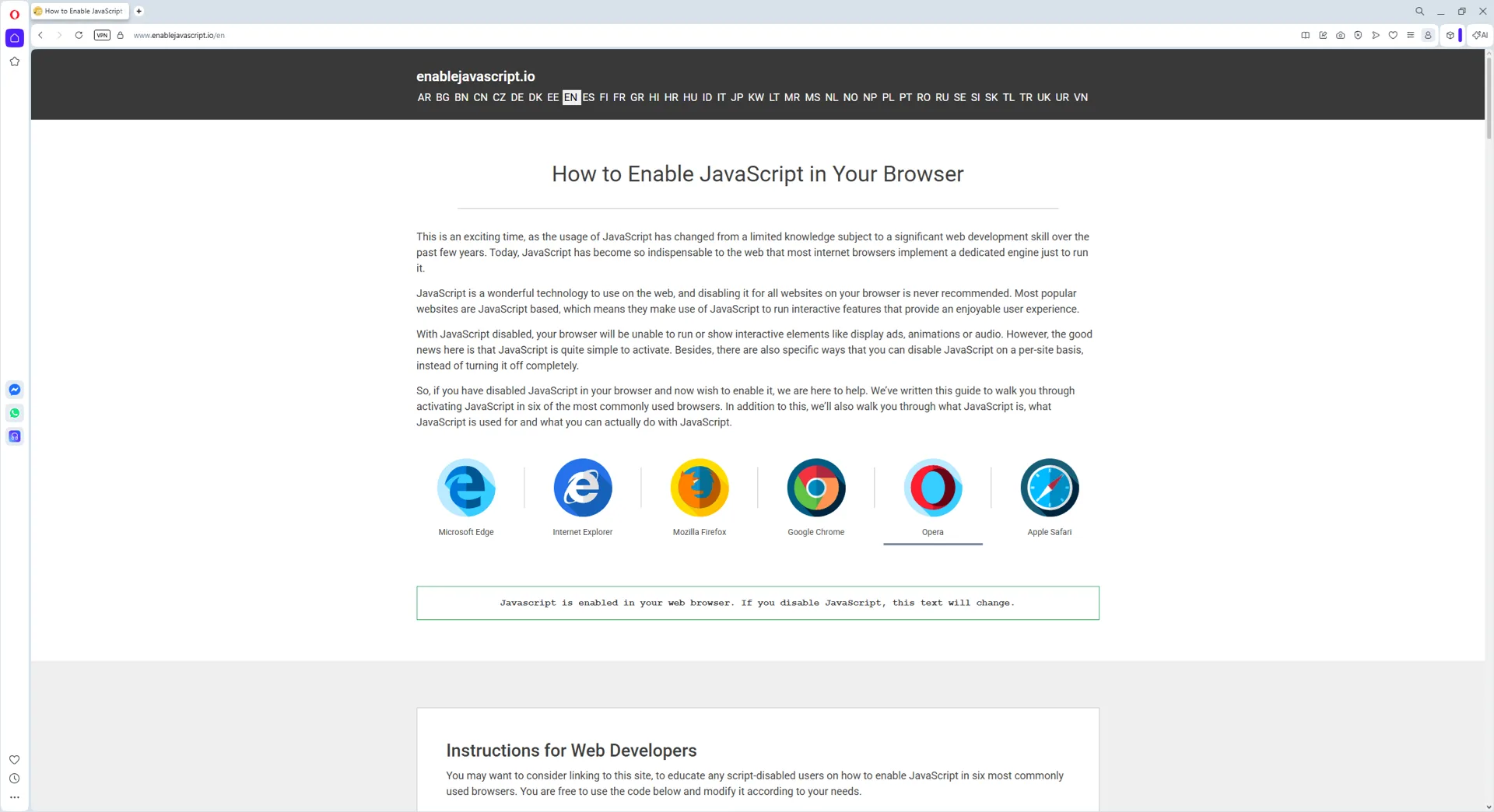
1. Start your Opera browser
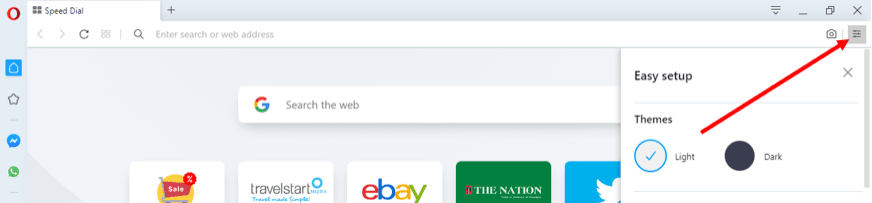
Open the “Easy Setup” menu. It’s usually located in the top-right corner of your Opera browser.
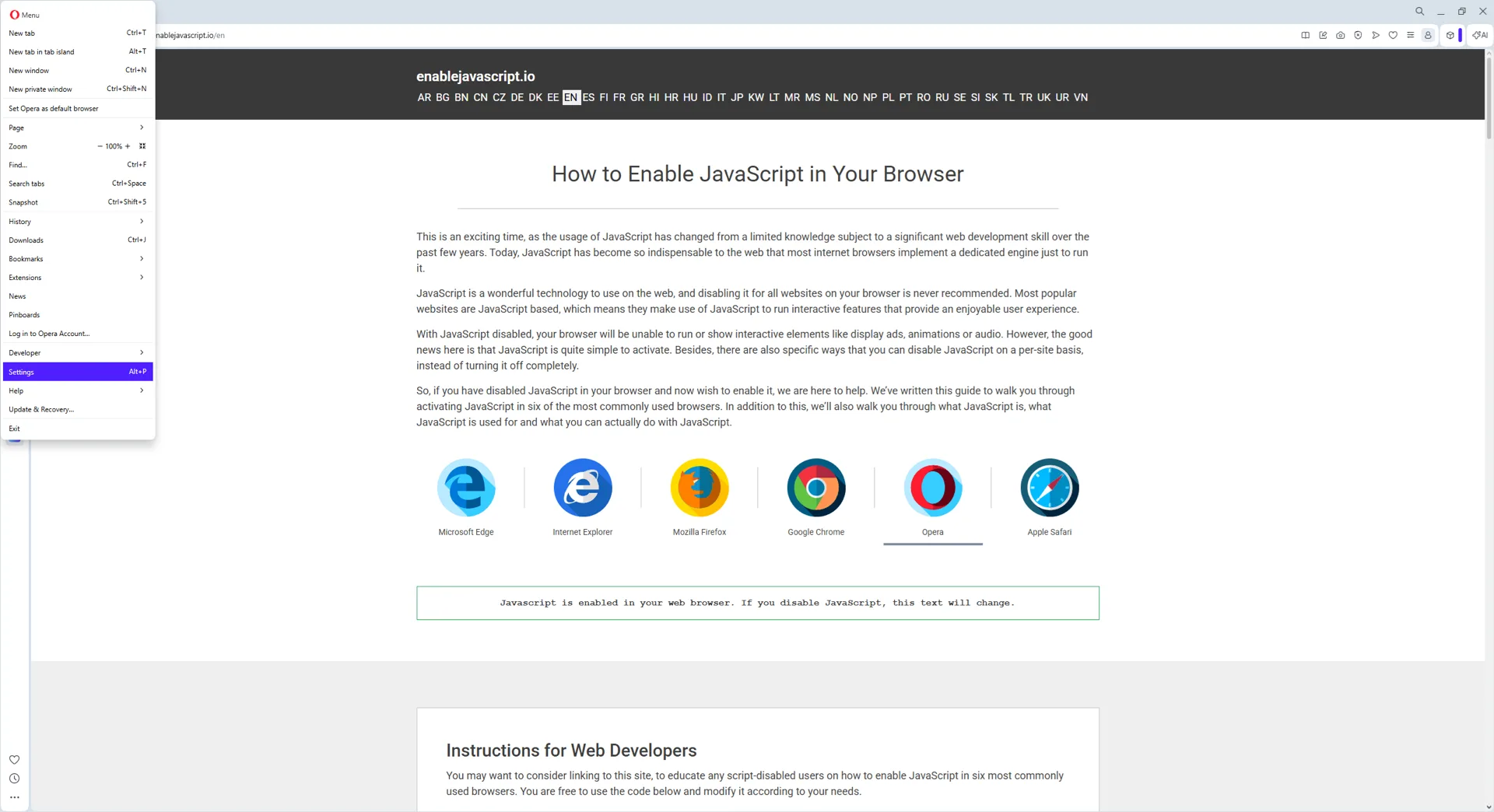
2. The “Easy Setup” menu
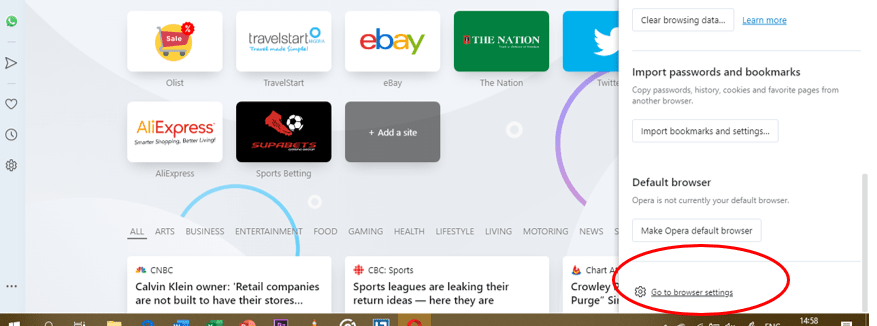
Under the Easy Setup menu, scroll down to the very bottom to locate the “Go to browser settings” link, and then click on it.
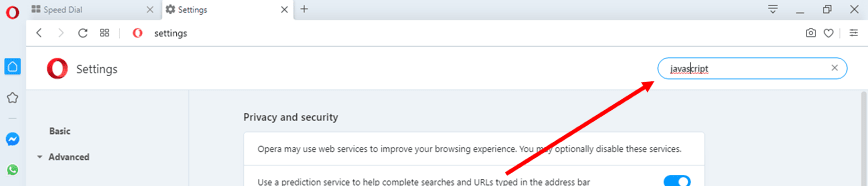
3. Search for “javascript”
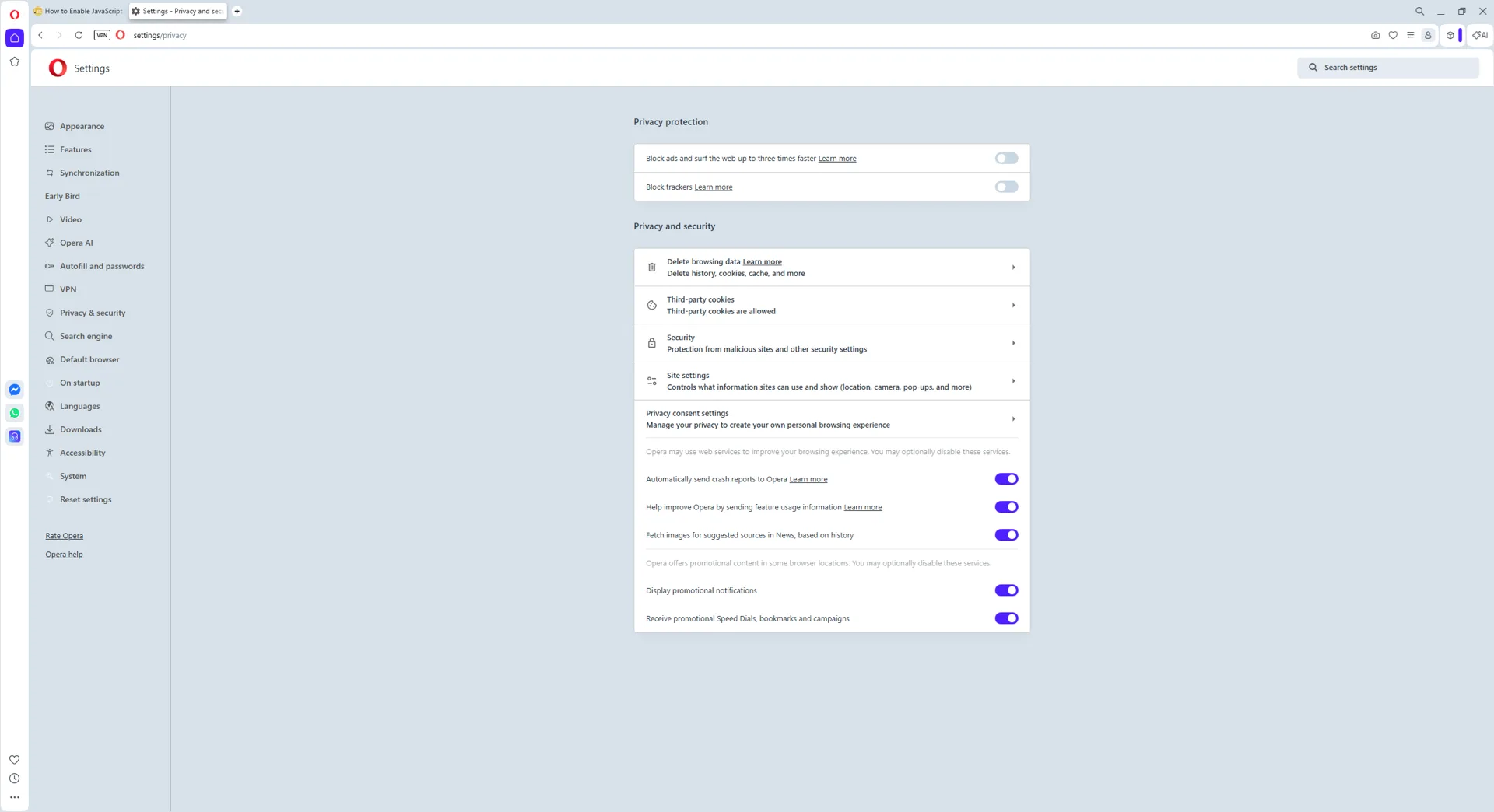
You will be directed to the Settings menu where you should see a search box. Input the name “javascript” into the Search Settings box.
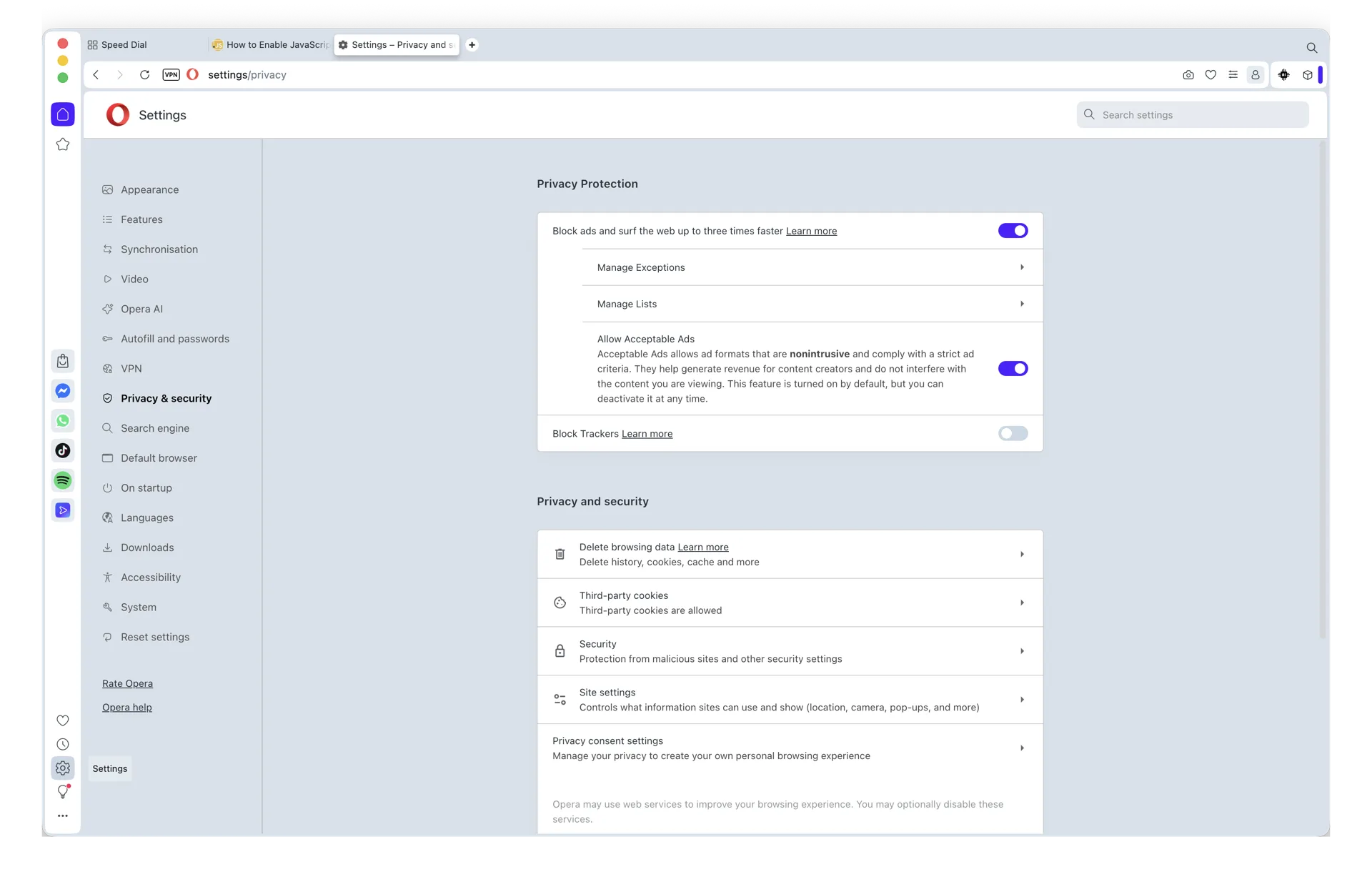
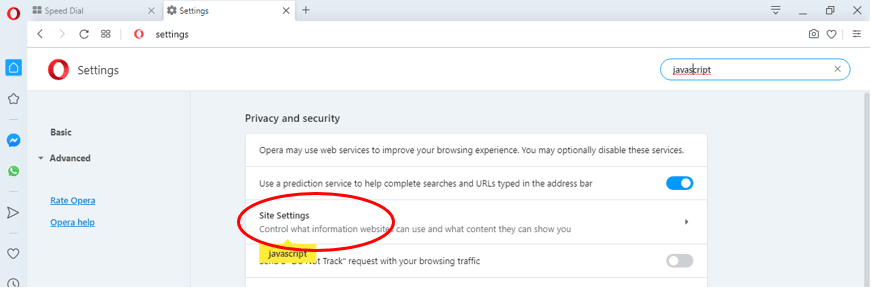
4. Select “Site Settings”
Having searched for “javascript”, your screen will display highlighted sections. These sections are relevant to JavaScript. Scroll down the search results to locate the “Site Settings” tab, and then click it.
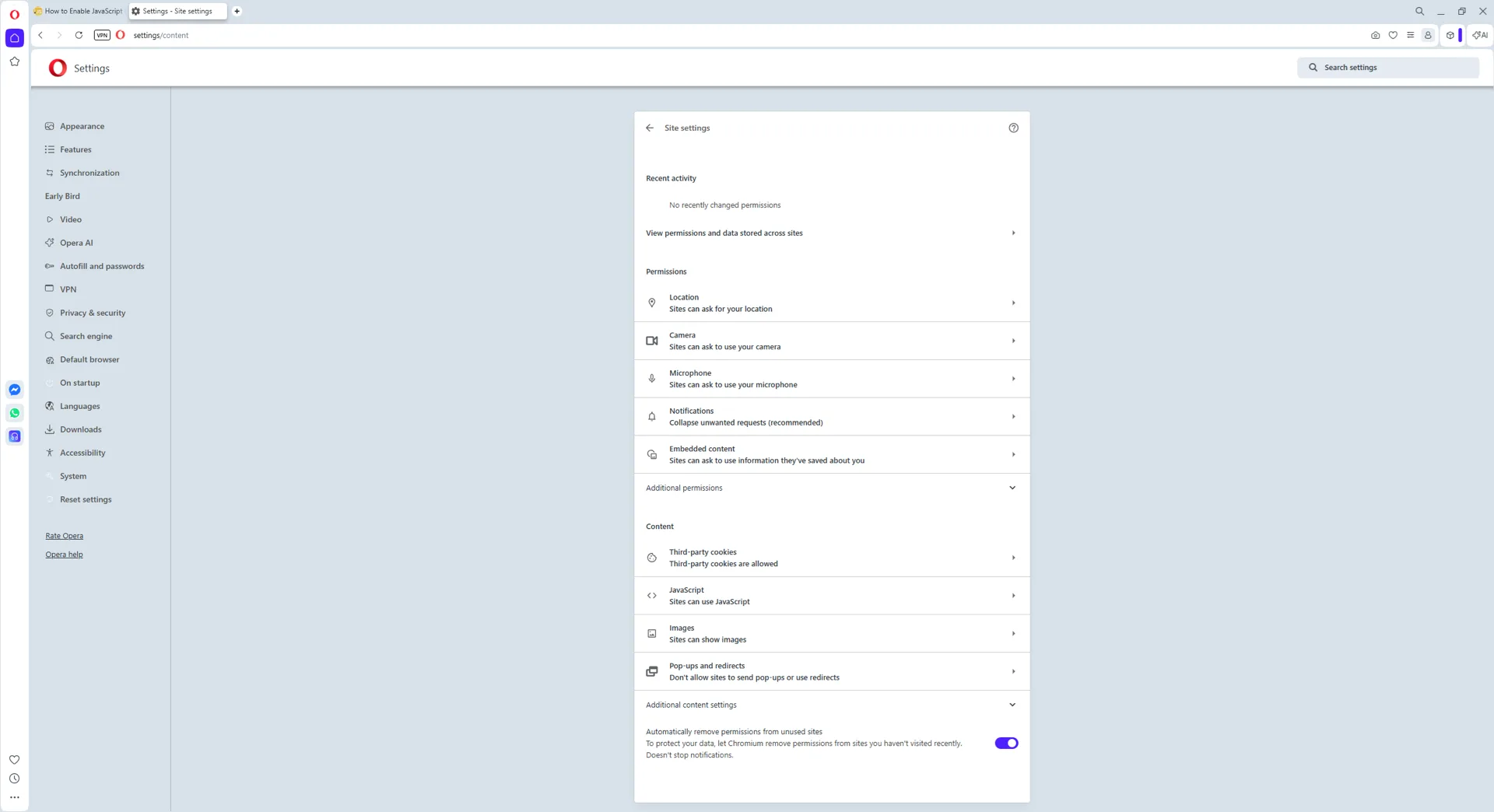
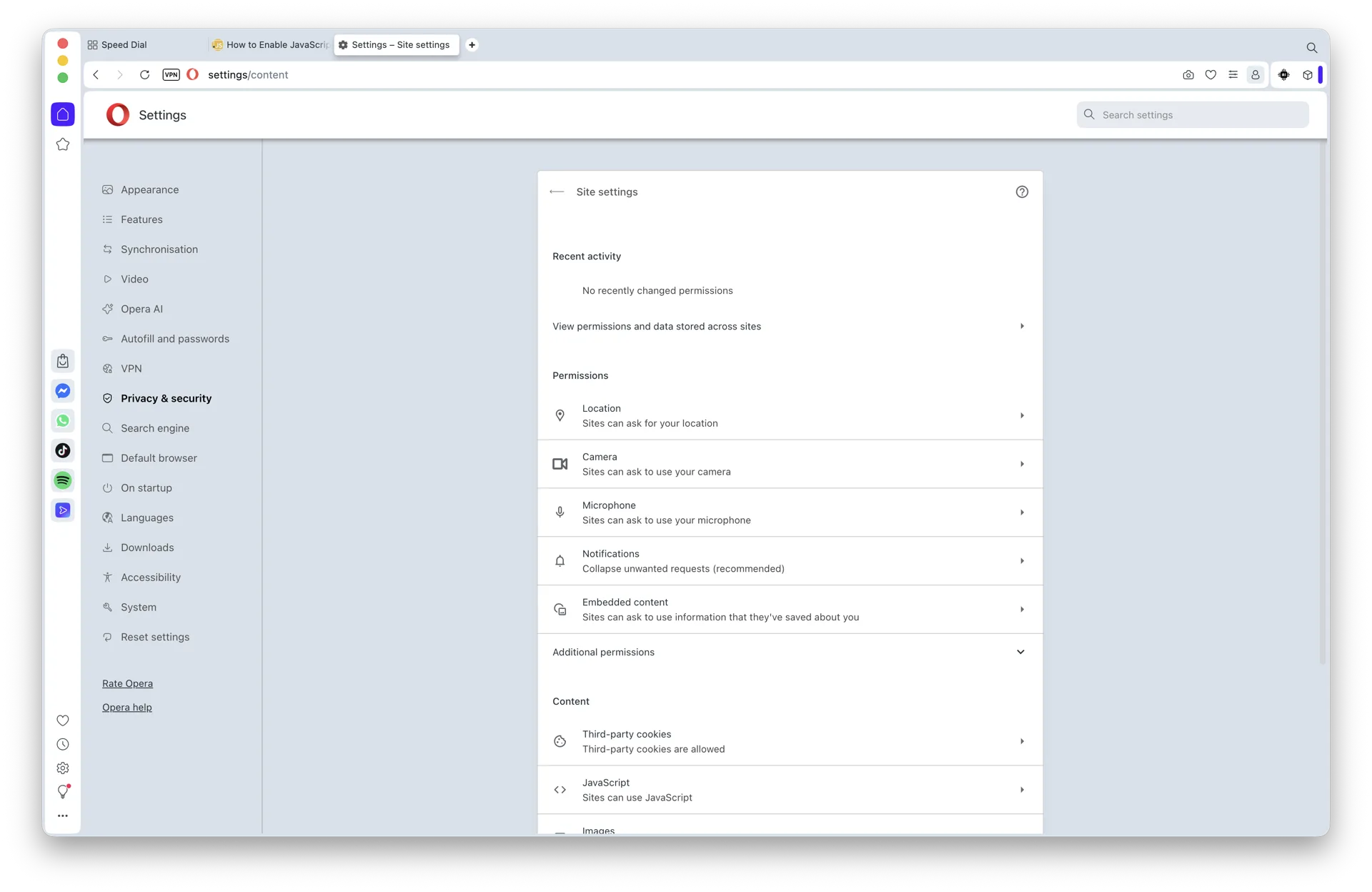
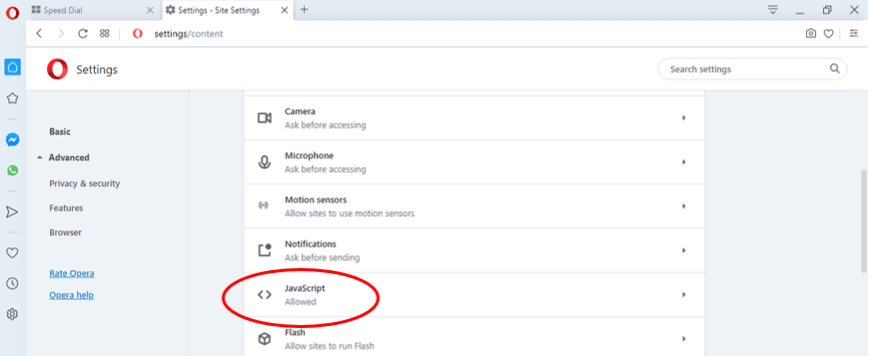
5. Select “JavaScript”
Under the Site Settings tab, find the section labeled “JavaScript” and select it.
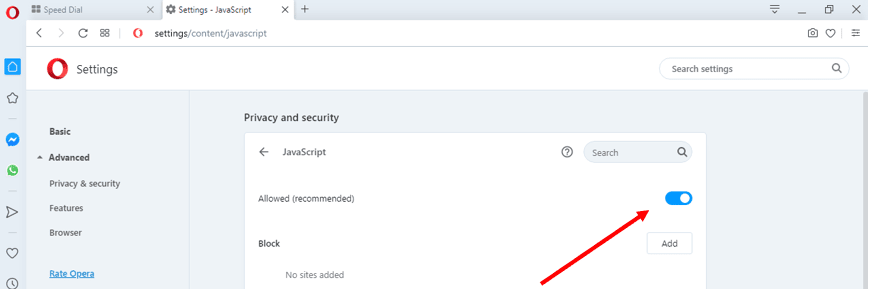
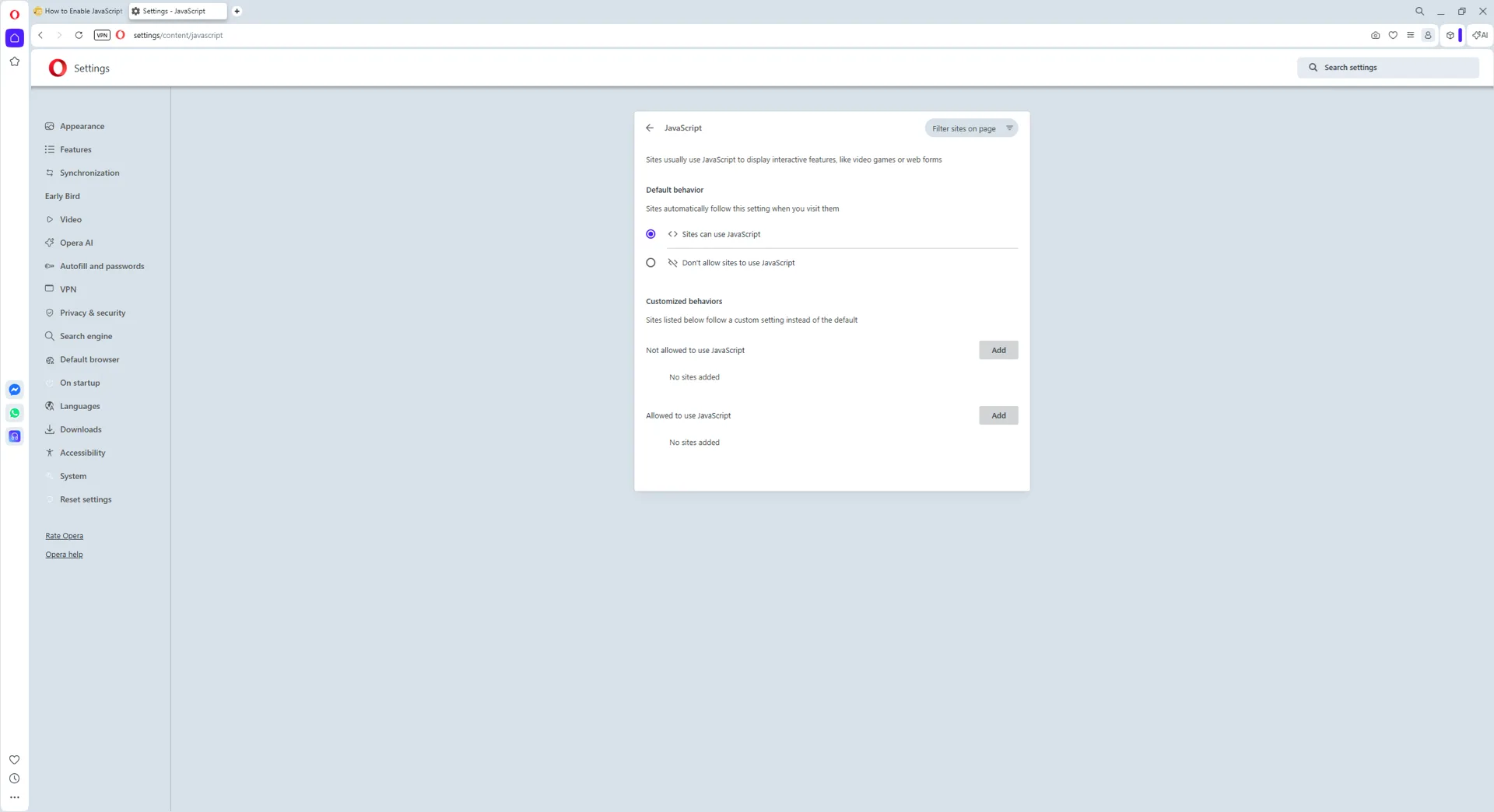
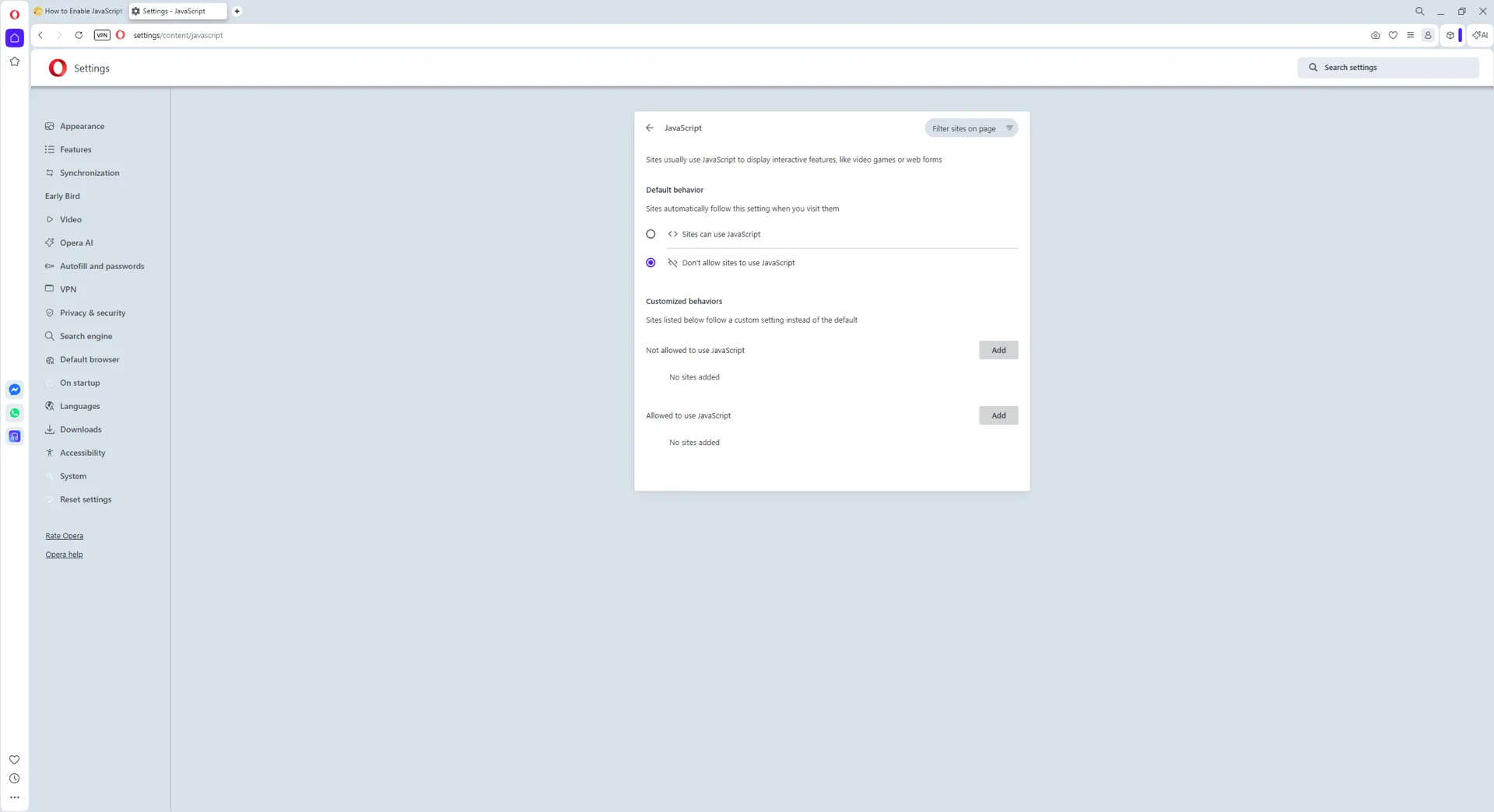
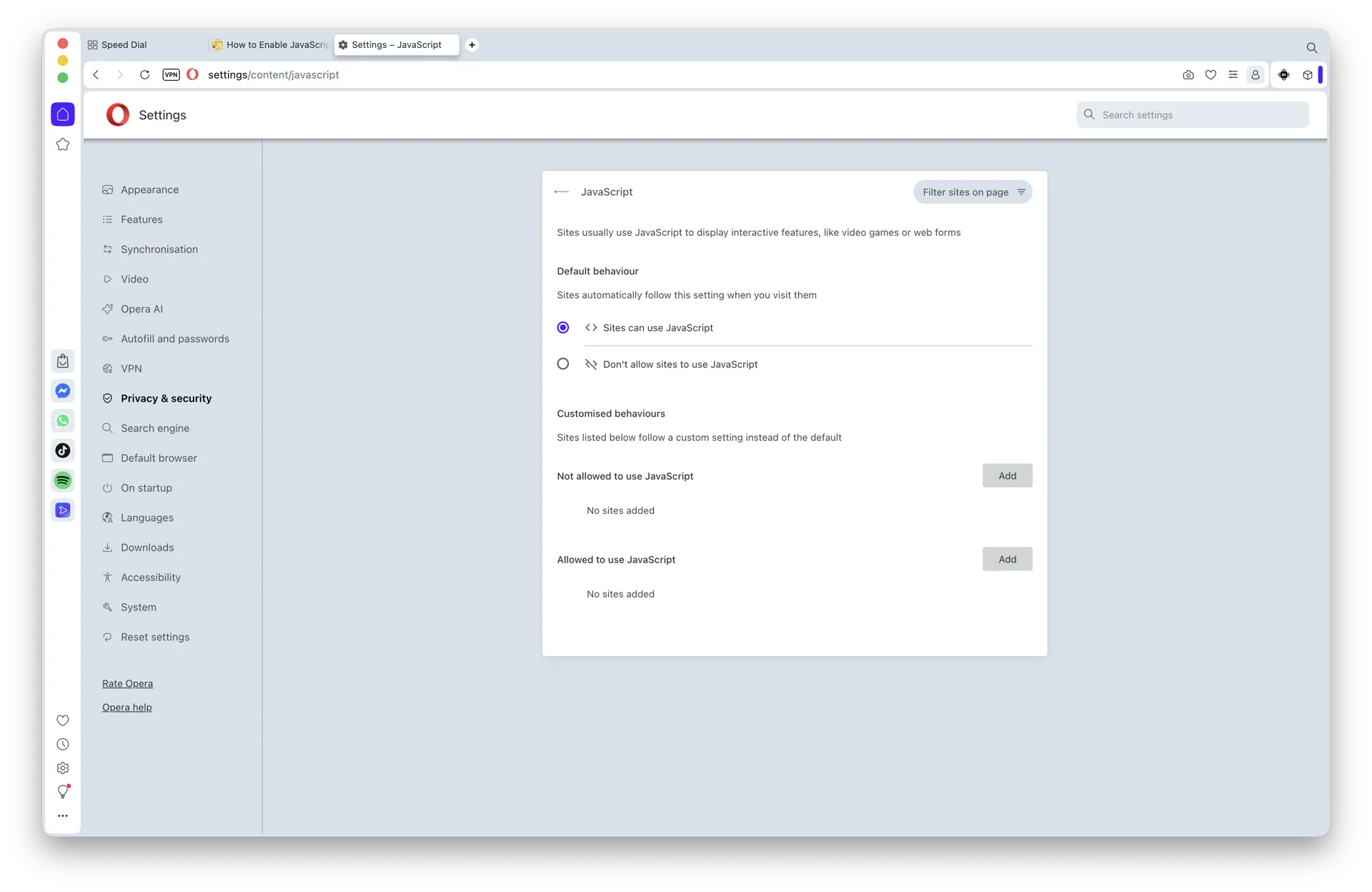
6. Activate JavaScript
Under the JavaScript section, toggle the “Allowed (recommended)” switch so that it turns blue.