How to Enable JavaScript on Apple Safari (iPad, iPhone iOS)

Safari's JavaScript settings live in two different places depending on the device. On Mac, JavaScript is in Safari's own Settings (under Security or Advanced, depending on macOS version). On iPhone and iPad, JavaScript is controlled by iOS itself - you toggle it in the system Settings app, not in Safari.

This guide covers macOS Sequoia (15+), iOS/iPadOS 18+, and how to verify JavaScript is running. All instructions reflect Apple's current UI as of 2026.

Instructions for Web Developers

You may want to consider linking to this site, to educate any script-disabled users on how to enable JavaScript in six most commonly used browsers. You are free to use the code below and modify it according to your needs.

<noscript>
For full functionality of this site it is necessary to enable JavaScript.
Here are the <a href="https://www.enablejavascript.io/">
instructions how to enable JavaScript in your web browser</a>.
</noscript>

On enablejavascript.io we optimize the script-disabled user experience as much as we can:

  • The instructions for your browser are put at the top of the page
  • All the images are inlined, full-size, for easy perusing

We want your visitors to have JavaScript enabled just as much as you do!

What Is JavaScript and Why Do I Need It?

JavaScript is a scripting language that web developers use to add dynamic interactions and functionality to websites - in essence, it lets web pages load and update content in the background without a full page reload. Apple's Safari browser ships with JavaScript enabled by default on every platform: iPhone, iPad, and Mac.

With JavaScript disabled, those interactions break. Sites like YouTube, Gmail, iCloud.com, X (formerly Twitter), Facebook, online banking, and most modern web apps rely on JavaScript to load content, validate forms, and update in real time. Turn the toggle off and you'll see plain text, missing buttons, blank panels, or error messages instead of the experience you expect.

This guide covers every modern path to enable or disable JavaScript in Safari - on iPhone and iPad running iOS 18 and later, and on Mac running macOS Sonoma, Sequoia, and macOS 26. All you need is a recent copy of Safari (Safari 18 or later) and a couple of minutes.

Below you'll find platform-specific walkthroughs with current 2026 screenshots. Because Apple requires every iOS browser to use the system WebKit engine, the iOS Safari toggle also controls JavaScript for Chrome, Edge, Firefox, Opera, Brave, and DuckDuckGo on the same device - making this page the canonical iOS reference.

How to Enable JavaScript in Safari on iPhone, iPad, and iOS

On iPhone and iPad, JavaScript is a system-level setting controlled by iOS - not by Safari itself. Apple requires every iOS browser (Chrome, Edge, Firefox, Opera, Brave, DuckDuckGo) to use the system WebKit engine, so this single Safari toggle controls JavaScript across all browsers on your device. Follow these six steps on iOS 18 and iPadOS 18 or later:

Step 1: Open the Settings app

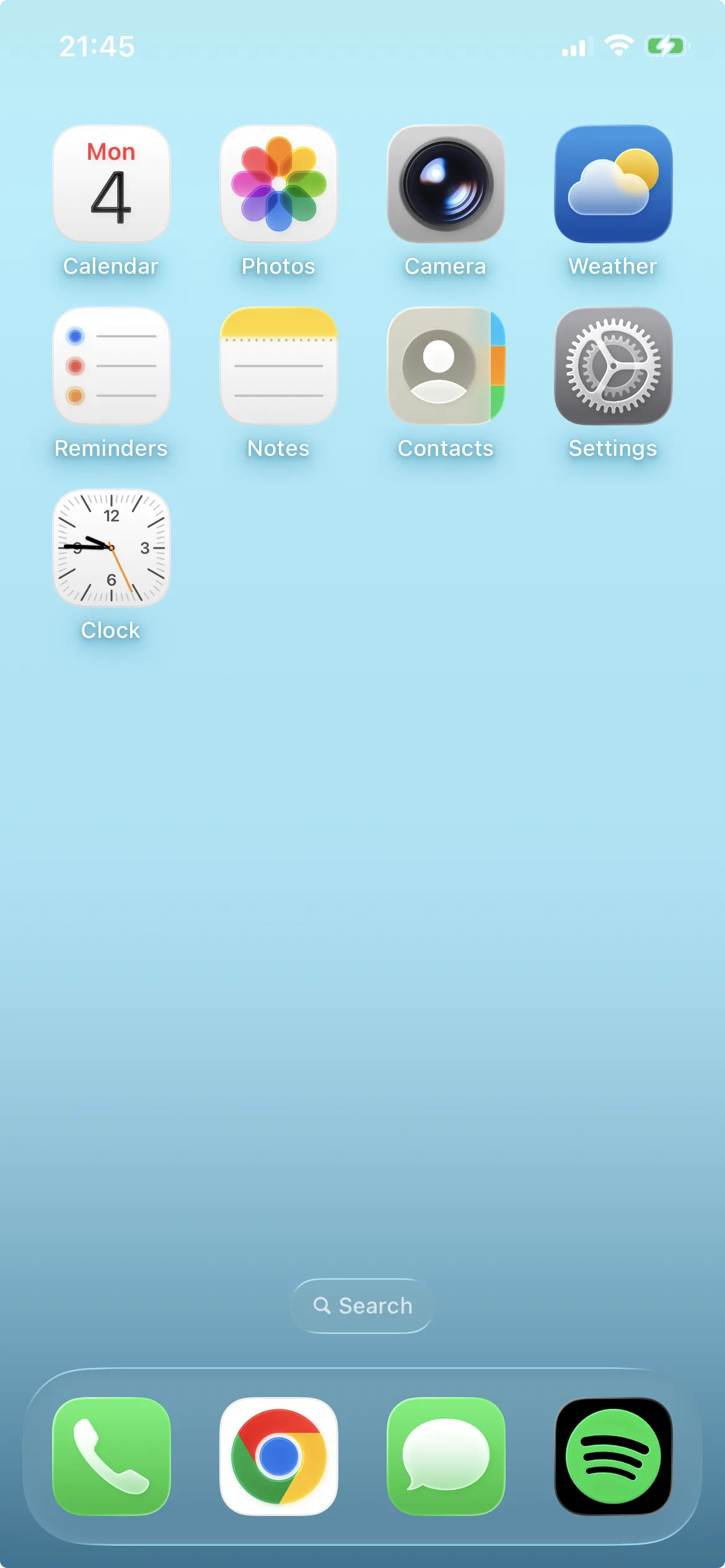
Tap the gray gear icon on your home screen or App Library to launch iOS Settings.

iOS Settings app icon on the iPhone home screen
Open the Settings app on your iPhone or iPad.

Step 2: Open Apps

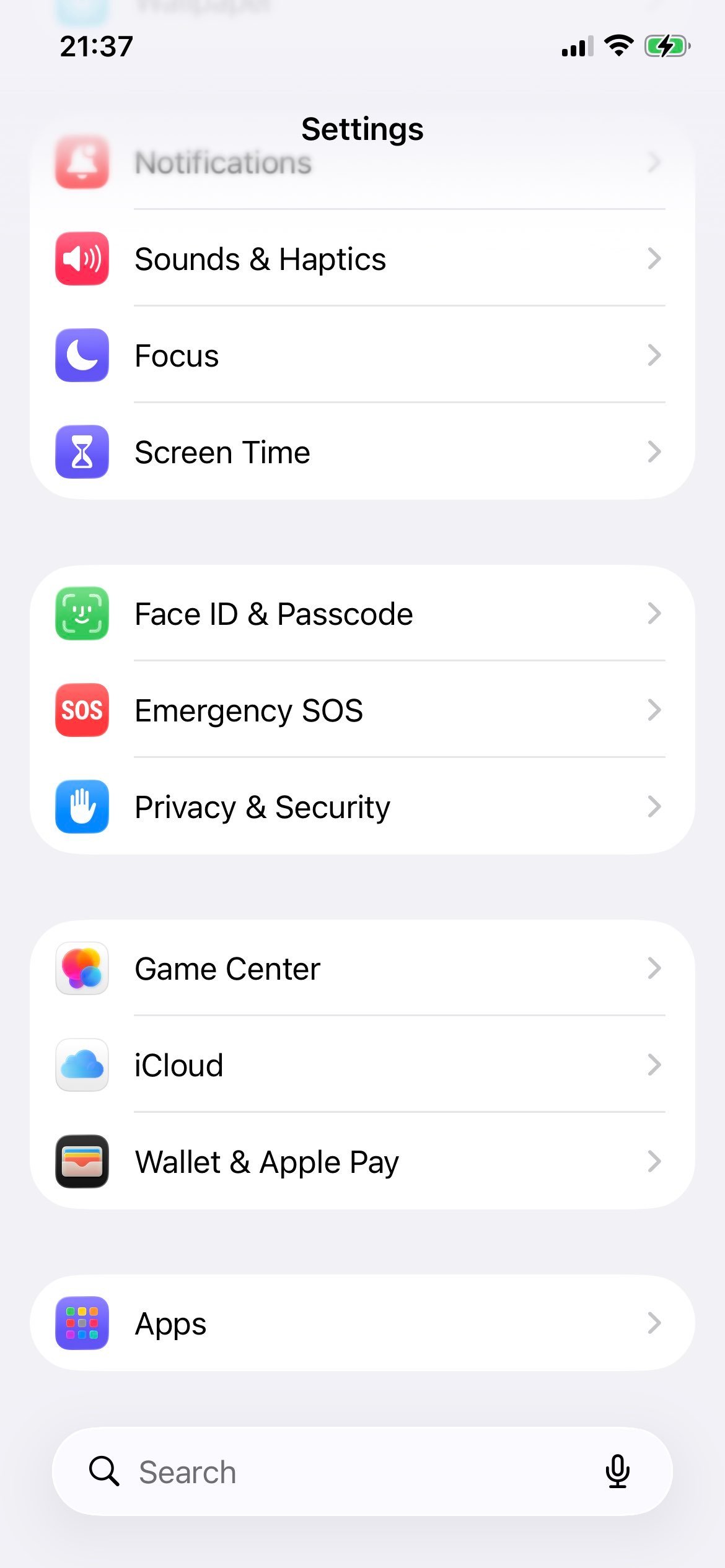
Scroll down and tap Apps. Apple reorganized iOS Settings in iOS 18, moving Safari beneath the Apps menu.

iOS Settings list with the Apps row highlighted
The Apps section consolidates per-app system settings on iOS 18 and later.

Step 3: Select Safari

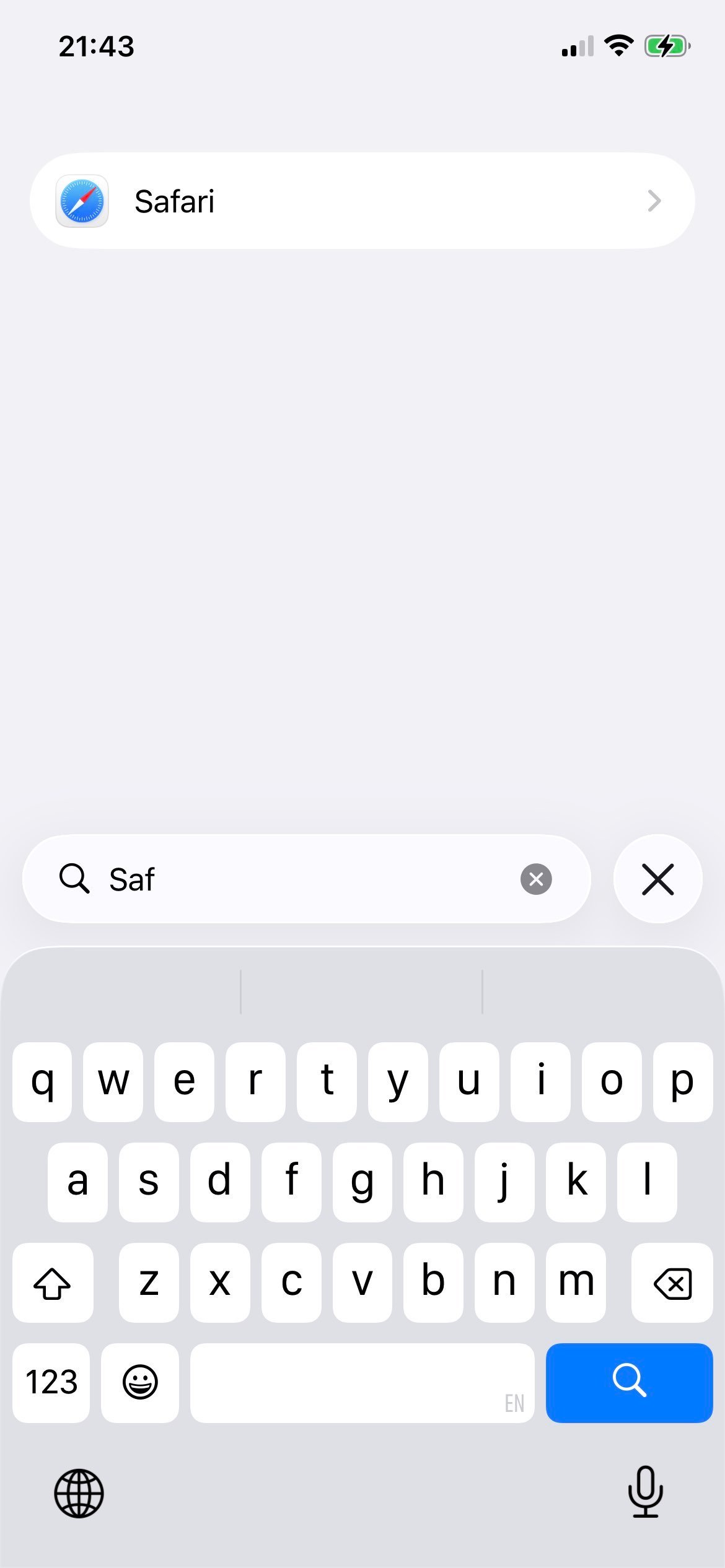
Inside Apps, scroll to and tap Safari.

Safari row selected inside iOS Apps settings
Safari is the gateway to JavaScript settings for every iOS browser.

Step 4: Tap Advanced

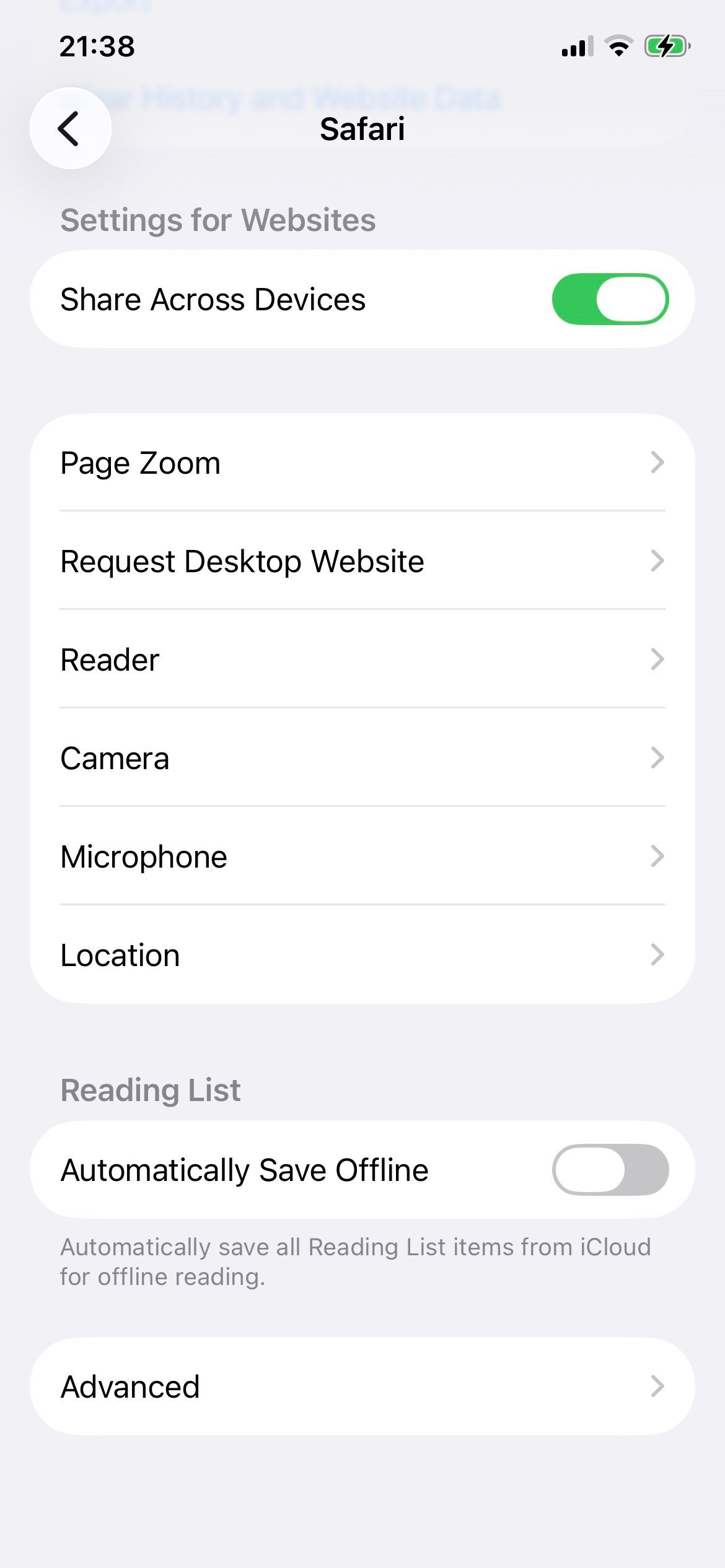
Scroll to the bottom of the Safari settings page and tap Advanced.

Advanced row at the bottom of Safari settings on iOS
The Advanced page contains the JavaScript switch.

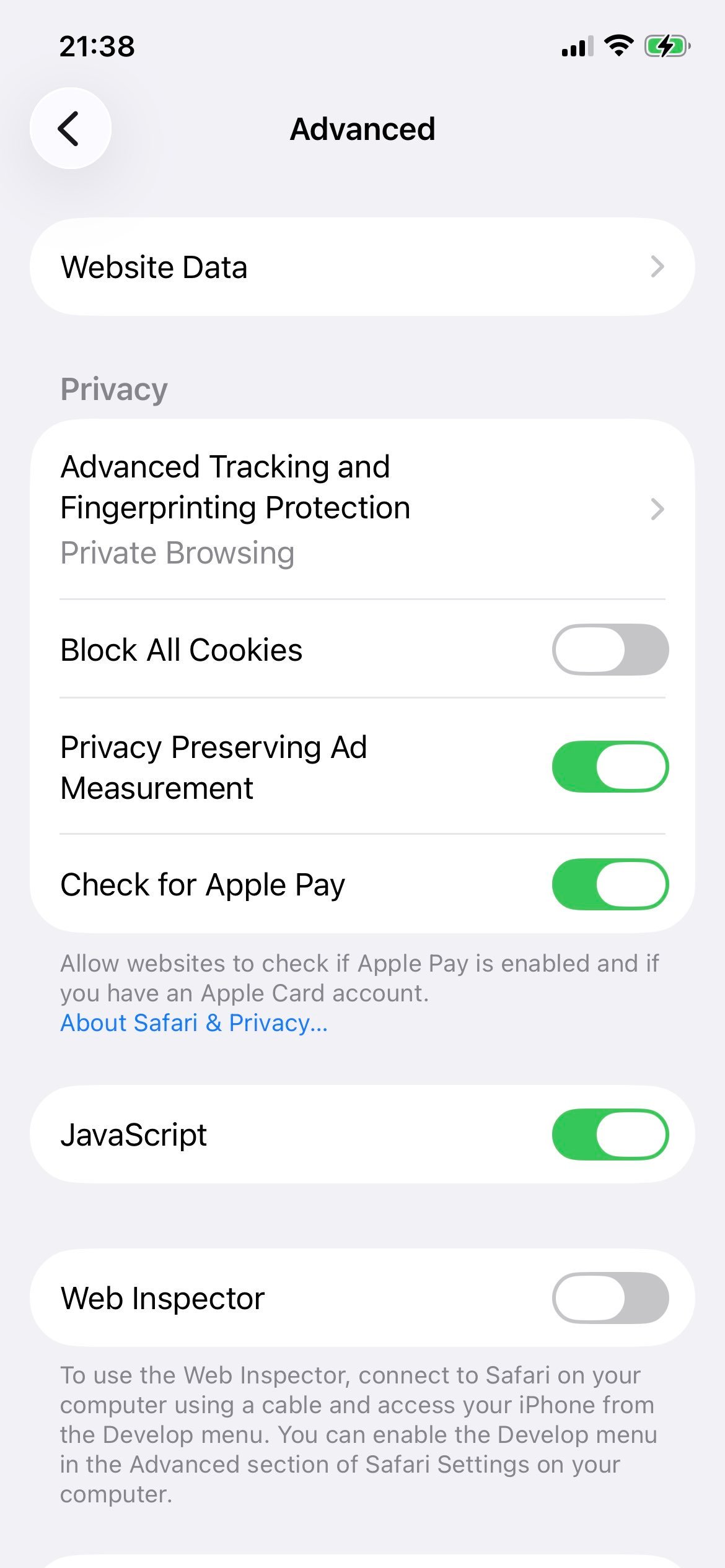
Step 5: Enable JavaScript

Toggle the JavaScript switch on (green). The change applies immediately to Safari and every other iOS browser.

JavaScript toggle switched on in Safari Advanced settings on iOS
JavaScript enabled for every browser on iOS.

Step 6: Verify - and how to turn it off

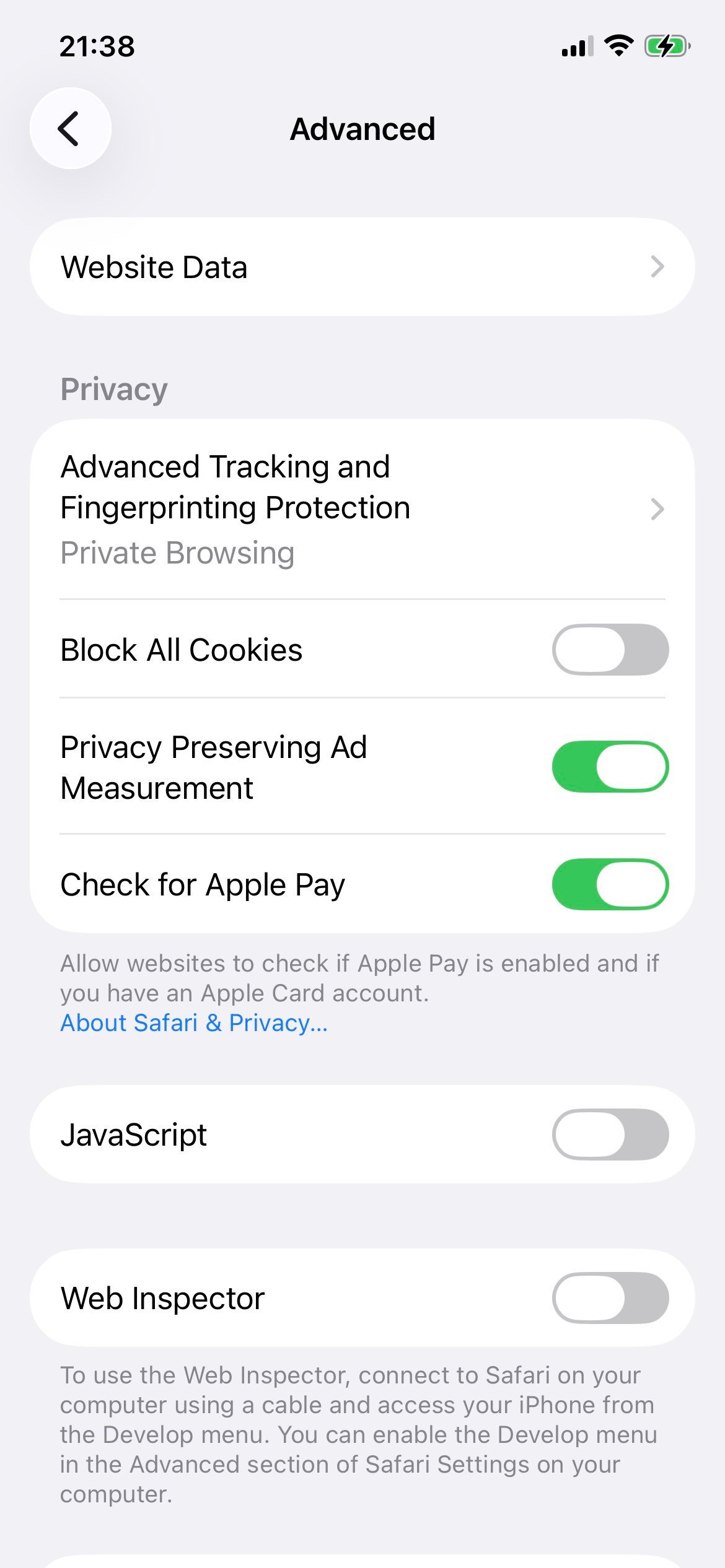
Reload any interactive site (Gmail, YouTube, iCloud.com) to confirm scripts now run. To disable JavaScript later, flip the same switch off (gray). For the full disable walkthrough, see how to disable JavaScript on Safari for iPhone and iPad.

JavaScript toggle switched off in Safari Advanced settings on iOS
The same toggle in the disabled state.

iOS 17 and earlier: the path was Settings → Safari → Advanced → JavaScript with no Apps sub-menu. The toggle still lives at the bottom of the Safari Advanced page; the only difference is one fewer tap to reach it.

How to Enable JavaScript in Safari on macOS Sonoma, Sequoia, and macOS 26

On Mac, Safari's JavaScript checkbox lives under Settings → Security. On macOS Sonoma, Sequoia, and macOS 26 the option is hidden by default and must be unlocked through the Advanced tab first. Follow these four steps:

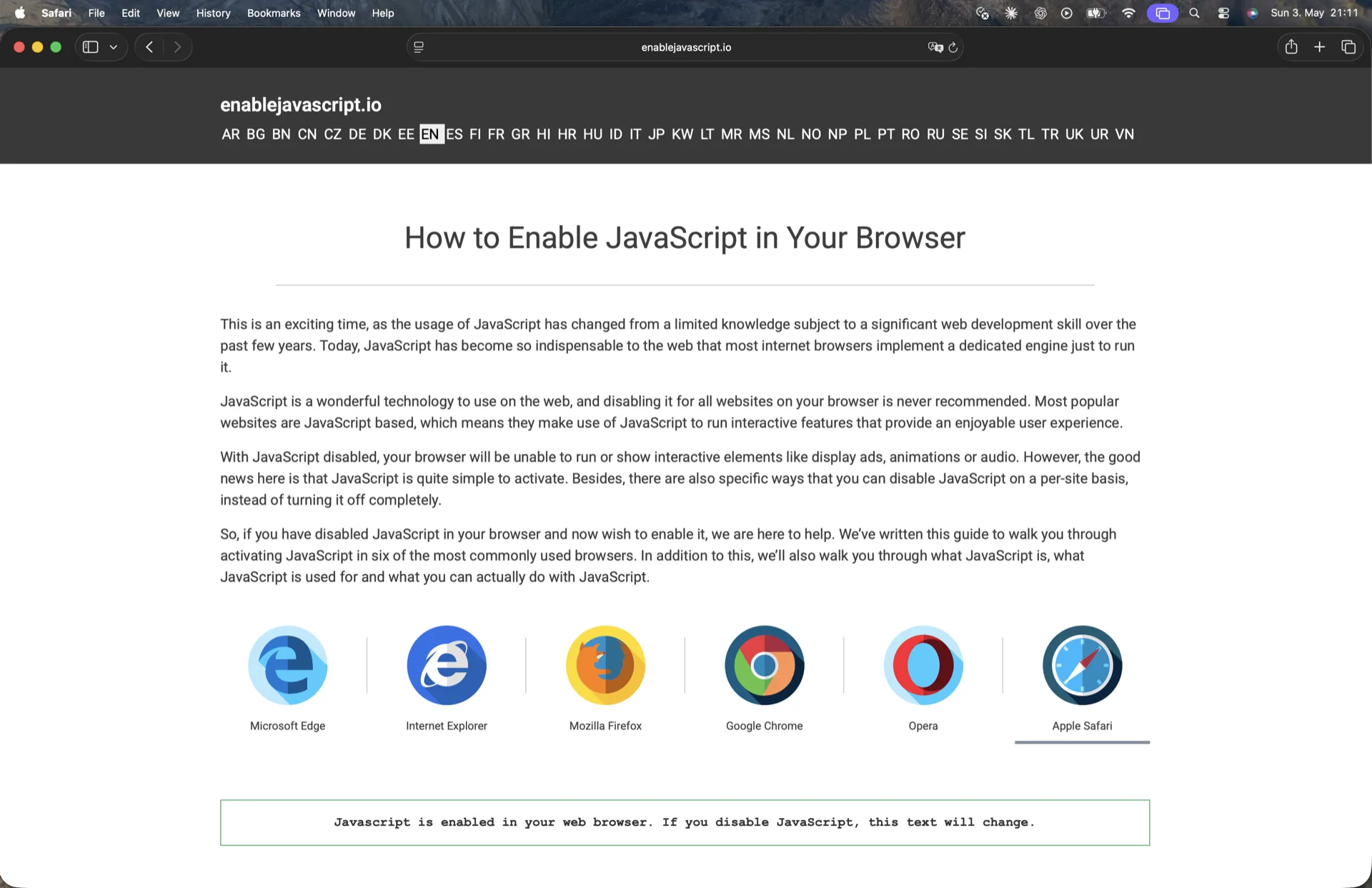
Step 1: Open Safari

Launch Safari from your Dock, Launchpad, or Applications folder.

Safari browser open on macOS 26
Safari running on macOS 26.

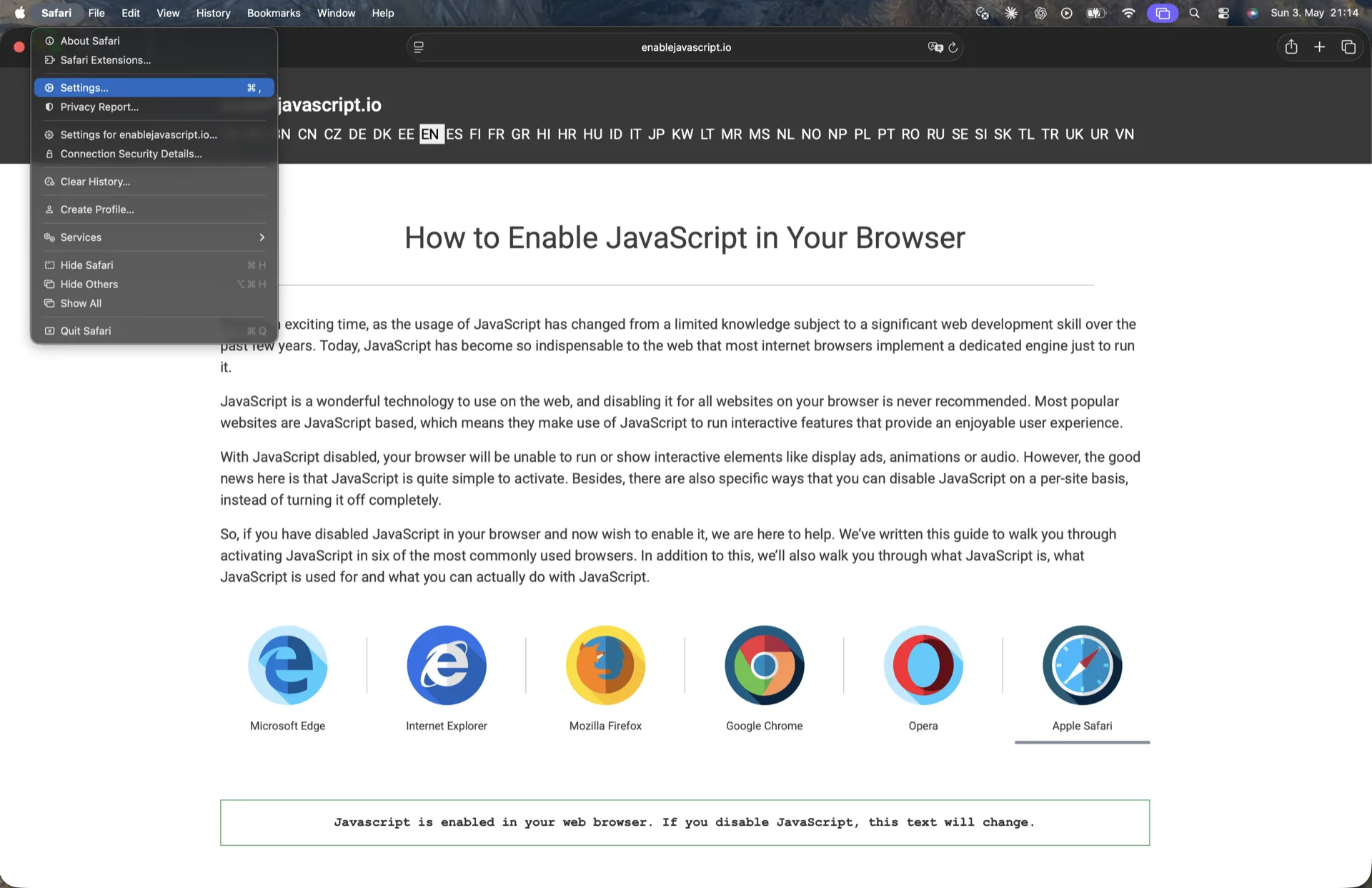
Step 2: Open Settings

From the macOS menu bar, click Safari → Settings... (or press Cmd+,).

Safari menu bar open on macOS 26 with Settings highlighted
The Safari menu opens the Settings window.

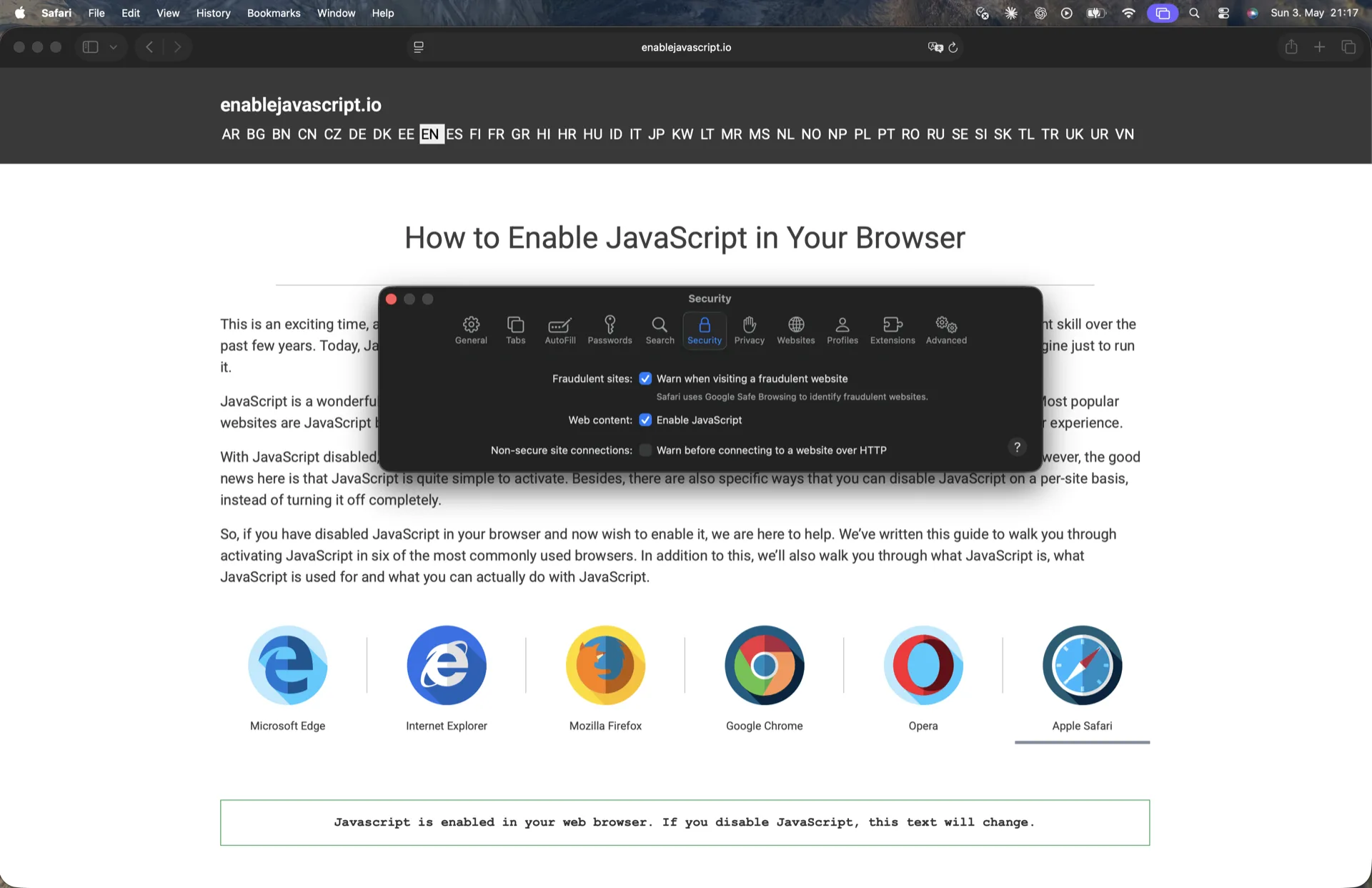
Step 3: Enable JavaScript under the Security tab

Click the Advanced tab and tick Show features for web developers if it is not already on - this reveals the JavaScript checkbox. Then click the Security tab and tick Enable JavaScript.

Safari Settings Security tab on macOS 26 with the Enable JavaScript checkbox ticked
Enable JavaScript ticked under the Security tab.

Step 4: Verify - and how to turn it off

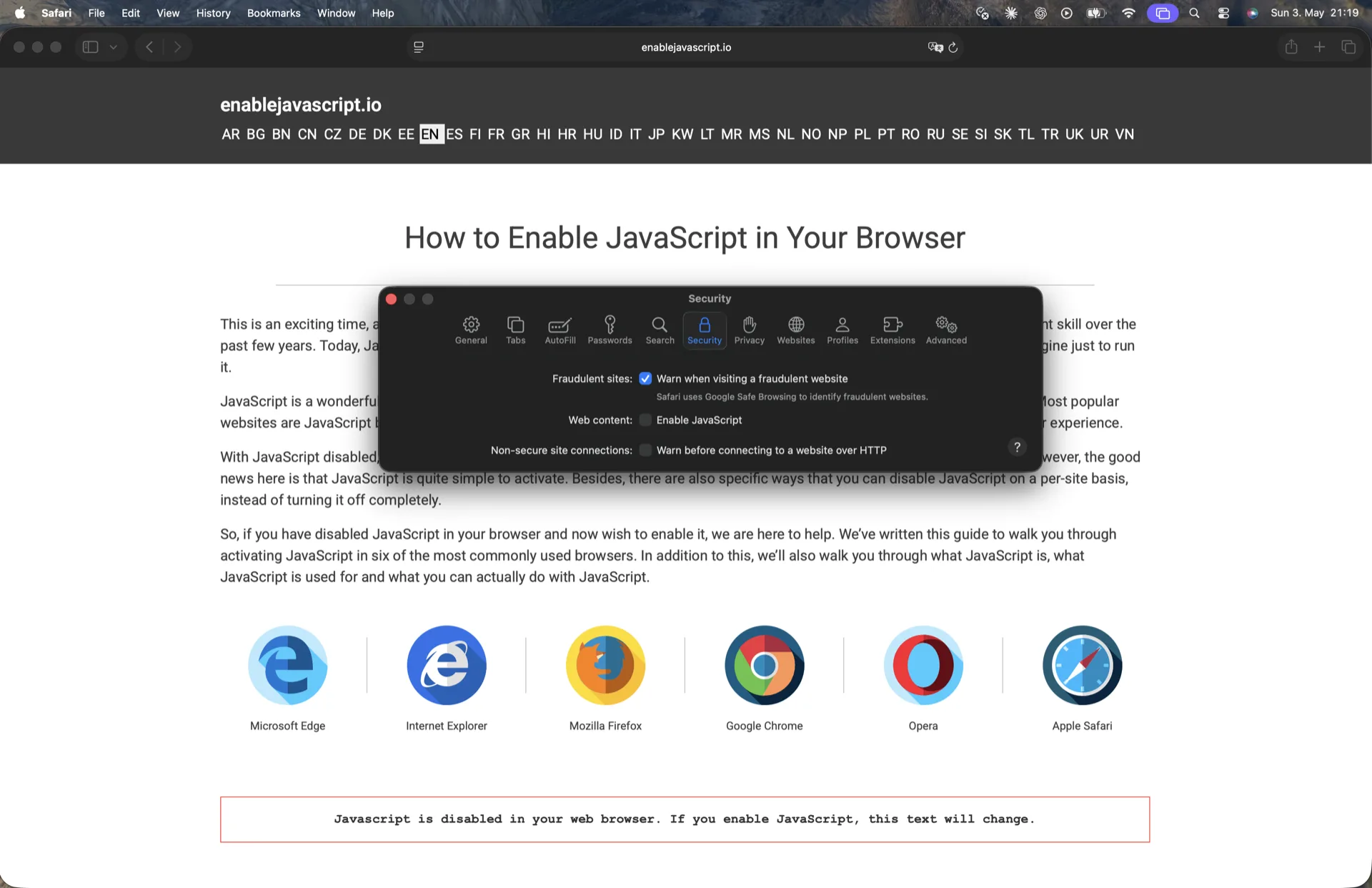
Close the Settings window and reload any interactive site (Gmail, YouTube, iCloud.com) to confirm scripts now run. To disable JavaScript later, return to the same screen and untick Enable JavaScript:

Safari Settings Security tab on macOS 26 with the Enable JavaScript checkbox unticked
The same toggle in the disabled state.

For the full disable walkthrough with extra context (per-tab disable via the Develop menu, etc.), see how to disable JavaScript in Safari on Mac.

macOS Ventura 13 and earlier: the JavaScript checkbox sits directly under Safari → Settings → Security without needing to enable developer features first. Apple moved the toggle behind the Show features for web developers gate starting with macOS Sonoma 14.

F.A.Q

Why do I need JavaScript enabled on Apple Safari?

Apple Safari comes built-in with a JavaScript engine that makes website elements interactive. And while it isn't actually necessary that you enable it to use your Safari browser, it's something that you'll perhaps want to do to enjoy a seamless browsing experience. Otherwise, many websites you visit will appear broken or won't even work.

How do I know if JavaScript is working on Apple Safari?

JavaScript is enabled by default in Apple Safari, but you can verify if yours is active through the Safari tab. To do this, simply click on "Safari" at the top left of your screen to expand the Menu. Next, click on Settings (or Preferences on older macOS) to reveal the Safari Settings section. Now that you're in the Settings section, find and click the "Security" tab to access the "Enable JavaScript" checkbox. If the checkbox has a tick symbol, it means JavaScript is active and working.

What happens if I disable JavaScript on Apple Safari?

Millions of websites use JavaScript to display interactive elements, such as animations, special effects and more. If you browse them with JavaScript disabled in your Apple Safari, then you probably won't have the full experience that you normally would. Some JavaScript-based websites may appear dull or static, while others may not even work at all.